

Creating filters for your email addresses
142 Views
 28.04.2025
  Web / MX Plan Email (legacy infrastructure)
Objective
With a filter you can configure conditions for your account's incoming emails and set actions based on them.
For example: you can automatically delete emails tagged as spam by our spam protection.
- Condition: email subject contains [SPAM]
- Action: delete email
This guide explains how to create and configure a filter on your email address.
Requirements
- an MX Plan email solution or a Web Hosting plan
OVHcloud Control Panel Access
- Direct link: MX Plan
- Navigation path:
Web Cloud>MX Plan> Select your MX Plan service
The following instructions are only eligible for the legacy MX Plan solution. For our current solution, you can manage filters directly via OWA (Outlook Web App). You can identify which version you are using with the table below.
| MX Plan legacy version | MX Plan new version |
|---|---|
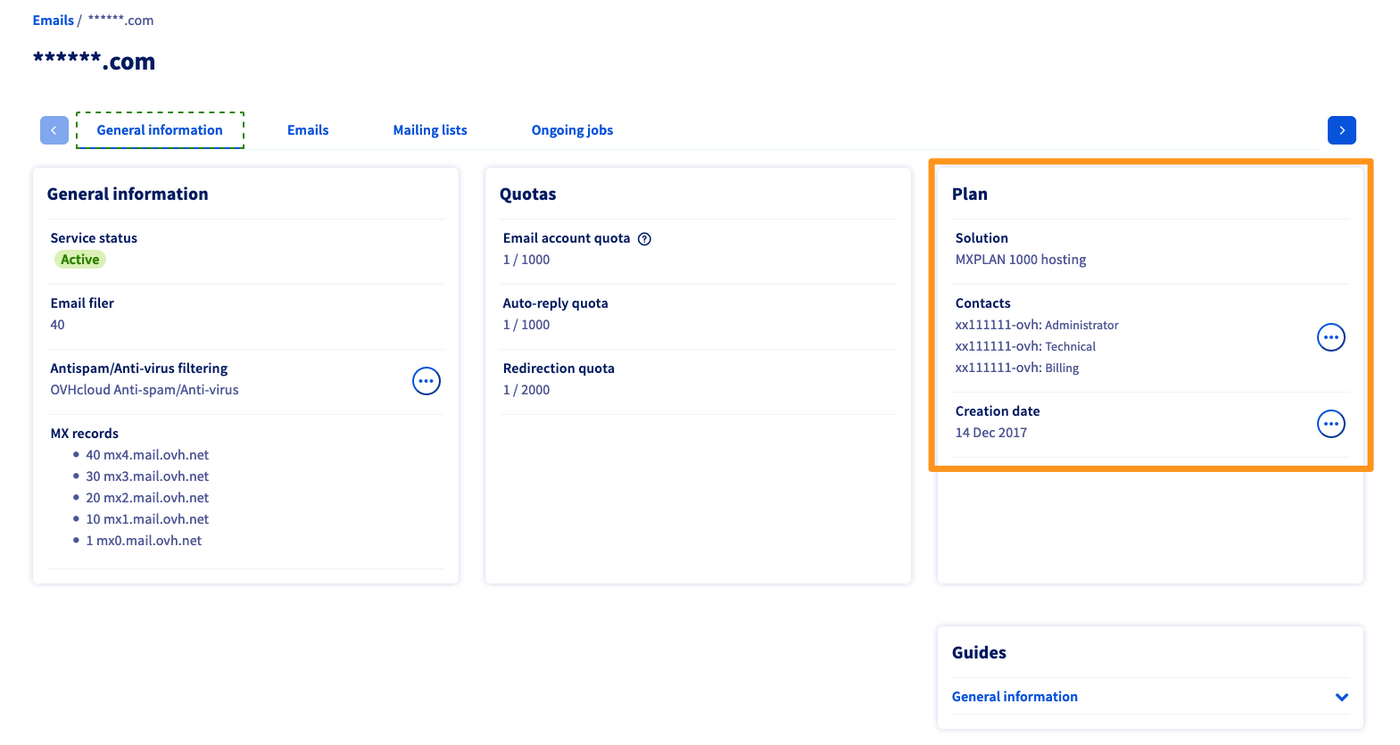 Find the solution in the section "Plan". | 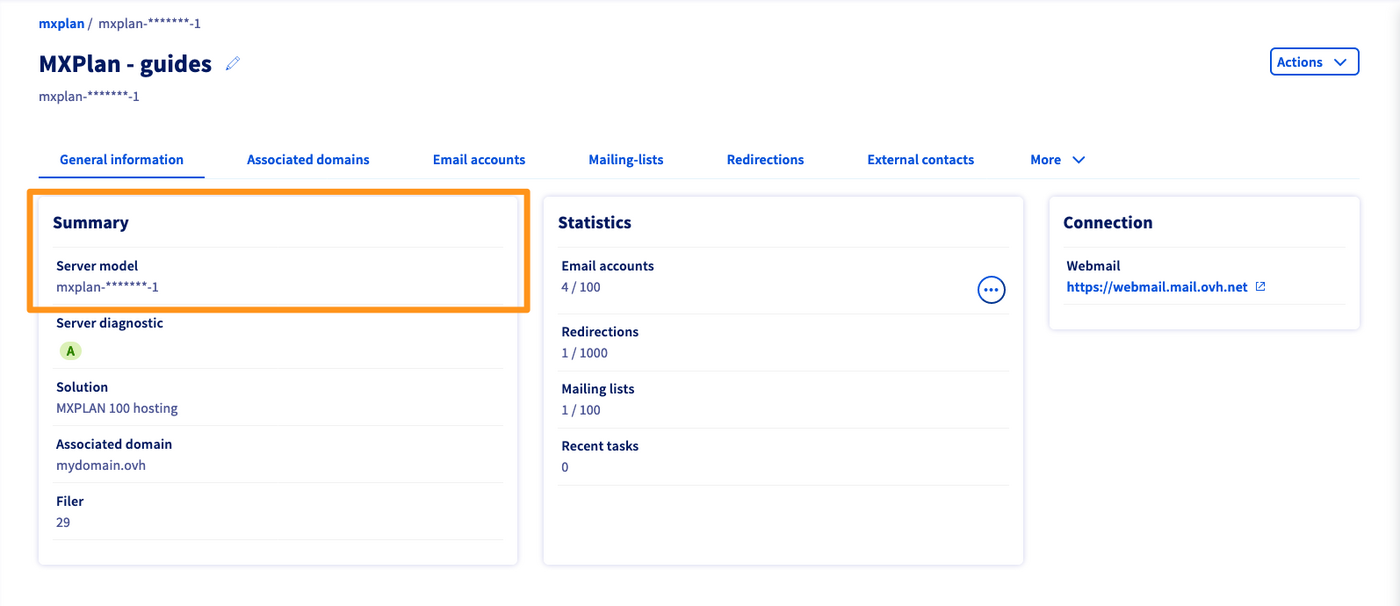 Locate the Server model in the section "Summary". |
| Continue reading this guide in the Instructions section below. | Continue with our guide regarding Inbox rules in OWA. |
Instructions
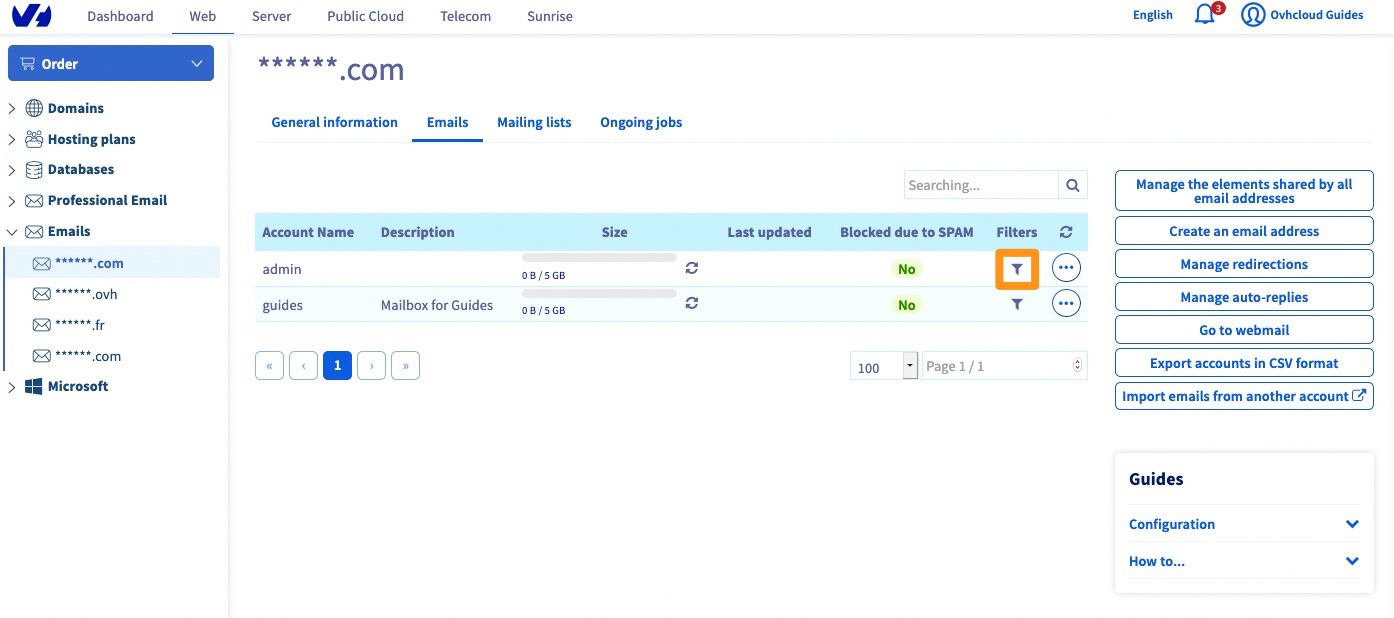
In the table listing your email addresses, click on the Filter icon in the row of the email address concerned.
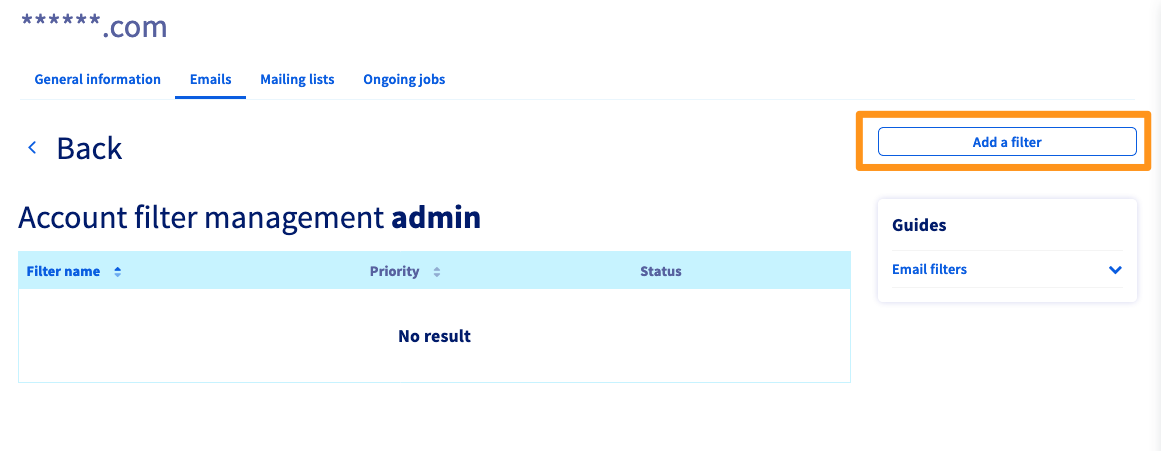
A new window will open which contains the list of filters currently configured for this email address. To add one, click on the button Add a Filter.
Understanding the email filter settings
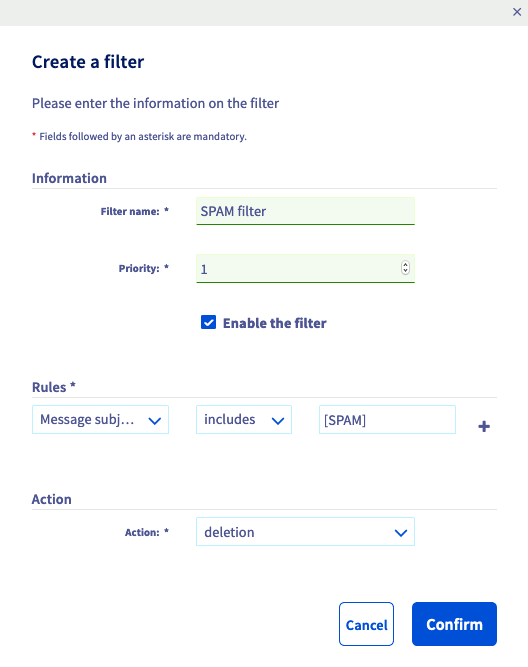
Information
- Filter name: This is used to differentiate your filters inside the Control Panel.
- Priority: This sets the order in which your filters will run for all emails received on this address. A Priority 1 filter will run before a Priority 5 filter.
- Enable filter: This determines whether the filter will be applied to the inbox (for example, you can temporarily disable a filter without deleting it by unchecking this option).
Rules:
In this section you can configure the filter conditions, also known as inbox rules.
First choice (Header):
- From: Corresponds to the sender, example:
If the sender .... - To: Corresponds to the recipient, example:
If the recipient .... - Message subject: Matches the subject of the message, example:
If the subject of the message .... - Other: Other parameter.
Second choice (Rule):
- spf: Parameter that depends on a domain's SPF, example:
... has no SPF record. - includes: Positive condition, example:
the subject contains .... - does not include: Negative condition, example:
... does not contain ....
SPF (Sender Policy Framework) allows the server that receives an email to ensure that it has been sent from a trusted server. It helps prevent identity fraud from email addresses that use your domain name (spoofing). For more information on the SPF record, please refer to our guide on How to improve email security with an SPF record.
Third choice (Value):
- A concrete value to define this rule, for example:
[SPAM].
Fourth choice (+):
- This allows you to add more rules for the action defined below.
Result of these rules
- Example:
If the message subject contains [SPAM]
Action
This is where you decide how the filter handles an email if the above conditions are met.
You can choose between these types of actions:
- accept: the email will stay in your inbox.
- redirect to a local address: redirects the email to one of your other email addresses on the same domain.
- deletion: deletes the email from your inbox without further notice.
- redirect to a remote address: redirects the email to whichever email address you enter.
Examples
Deleting spam emails
In our example, we will mention [SPAM] as it appears in the subject line of an email. It is added automatically when the receiving server’s anti-spam solution delivers emails that it considers unwanted directly to the inbox. This is the case with the legacy version of the MX Plan solution.
| Header | Rule | Value | Action | |
|---|---|---|---|---|
| Filter settings | Message subject | includes | [SPAM] | deletion |
| What the filter will do | If the subject of the message | includes | the word [SPAM] | then delete the message. |
Redirecting emails from a certain sender
| Header | Rule | Value | Action | |
|---|---|---|---|---|
| Filter settings | From | includes | contact@domaintest.ovh | redirect to a remote address: jean@otherdomain.ovh |
| What the filter will do | If the sender | is | contact@domaintest.ovh | then redirect the email to jean@otherdomain.ovh |
Redirecting emails sent to a mailing list
| Header | Rule | Value | Action | |
|---|---|---|---|---|
| Filter settings | To | includes | ML@mailing.com | redirect to a local address: recipient@mypersonaldomain.ovh |
| What the filter will do | If the message was sent to the mailing list | called | ML@mailing.com | then redirect the message to my other address: recipient@mypersonaldomain.ovh |
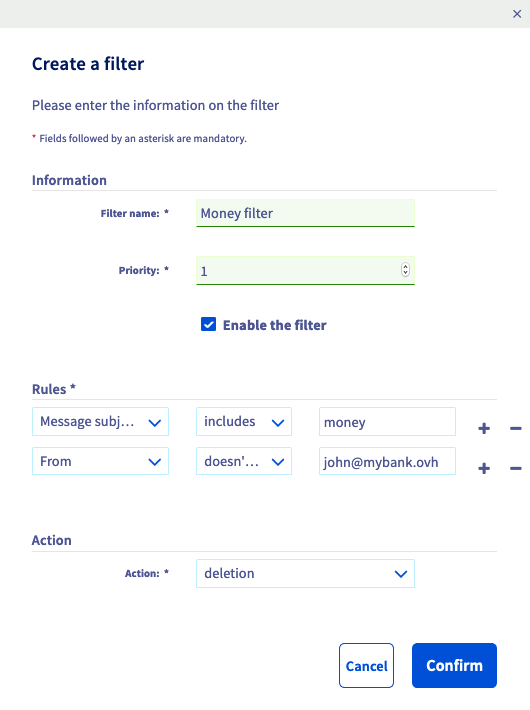
Deleting emails containing an unwanted phrase, excluding one sender
This filter example consists of two rules:
| Header | Rule | Value | Action | |
|---|---|---|---|---|
| Filter settings 1 | Message subject | includes | money | deletion |
| Filter settings 2 | From | does not include | john@mybank.ovh | deletion |
What the filter will do: If the subject of the message contains the word money and the sender of the message is not john@mybank.ovh, then the message will be deleted.
In the Control Panel, the filter configuration looks like this:
Go further
Join our community of users.


 MX Plan - How to create an automatic reply on an email address
 189
189