

Managing the security policy of an email service
229 Views
 28.04.2025
  Email and Collaborative Solutions
Objective
With OVHcloud email services, you can set up professional email addresses. To maintain this environment, you can manage the global security settings for your email accounts.
Find out how to manage the security policy of your E-mail service.
Requirements
- A preconfigured OVHcloud email solution MX Plan (available with a web hosting plan
- Access to the OVHcloud Control Panel
Instructions
The security policy management of your E-mail service has 2 aspects:
- enhancing E-mail account security when users try to log in
- adding complexity to the security of your E-mail service account passwords
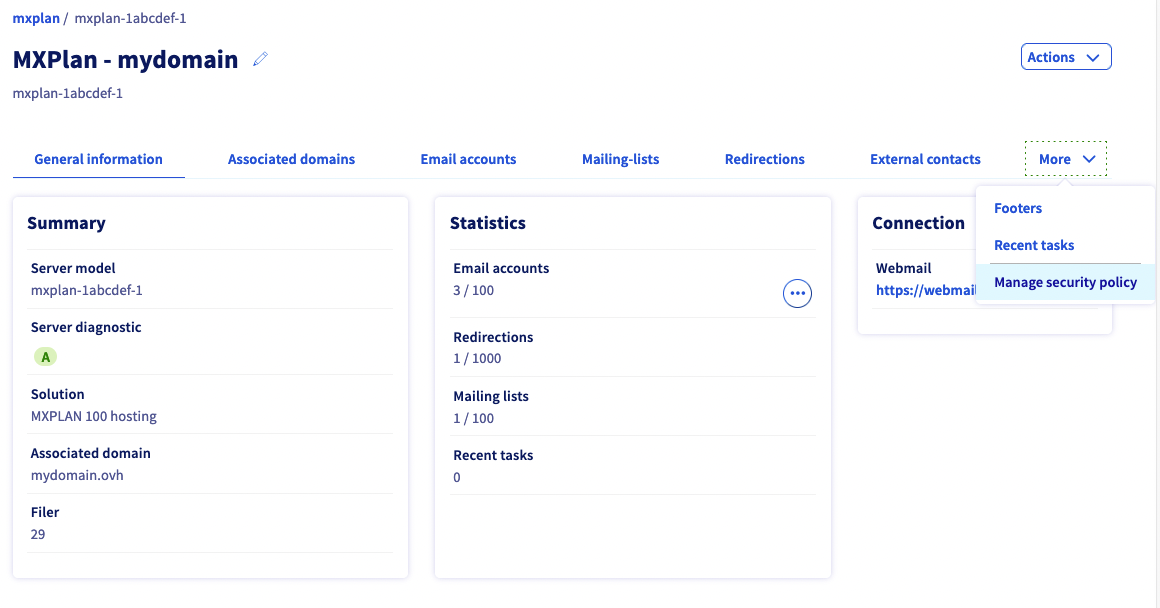
Click on MX Plan , then click on the solution you want to manage. Click on the More tab, then on Manage security policy.
On the page that appears, click on the Security tab.
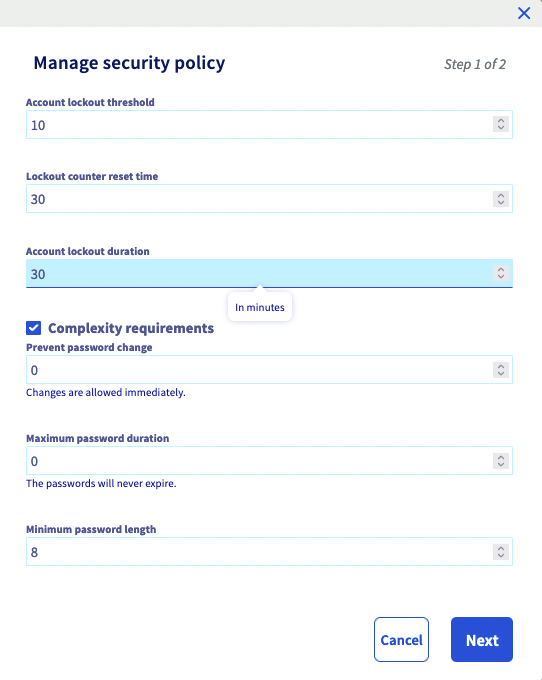
- Enhance connection security: Define whether accounts should lock after a number of unsuccessful log-in attempts.
- Add complexity to the security of passwords: Define a complexity requirement, as well as rules for changing passwords.
Enhance connection security
This allows you to define whether E-mail accounts should lock after a number of unsuccessful log-in attempts.
To do this, complete the information below:
- Lockout threshold: Set the number of unsuccessful log-in attempts before the account locks. Enter "0" to not apply a lockout threshold.
- Lockout counter reset time: This field will only appear if a lockout threshold has been set. Specify the time in minutes it takes for the failed connection attempt counter to reset.
- Account lockout duration: This field will only appear if a lockout threshold has been set. Specify the time period in minutes during which the E-mail account will remain locked if the lockout threshold has been reached.
Once this information has been entered, you can immediately validate these changes by clicking on Next, then Confirm. You can then continue to the next part.
Add complexity to the security of passwords
This allows you to define a complexity requirement, as well as rules for changing passwords.
To do this, complete the information below:
- Complexity requirements: Allows user to set rules regarding the complexity of passwords:
not contain all or part of the user’s account name
be at least 6 characters long
contain uppercase and lowercase letters, non-alphabetic characters (! or $ for example), and numbers - Prevent password change: Allows to enforce a minimum lifetime for your E-mail accounts’ passwords. This means that users will have to wait a certain number of days before they can change their passwords.
- Maximum password duration: Allows to enforce a maximum lifetime for your E-mail accounts’ passwords. This means that users will be forced to change their passwords once this time limit is reached.
- Keep password history: This field will only appear if a maximum lifetime has been set. Specify whether previous passwords can be reused again, and if so, for how long.
- Minimum password length: Allows to set a minimum size for password length when a user wants to change it.
Once this information has been entered, you can immediately validate these changes by clicking on Next, then Confirm. You can then continue to the next part.
Go further
Join our community of users.


 Using email aliases and redirections
 469
469