

Creating automatic replies in OWA
82 Views
 22.10.2024
  Email and Collaborative Solutions
Objective
This Exchange feature allows you to set up automatic responses to emails sent to your account for various use cases, for example out-of-office messages.
Find out how to enable automatic replies using the Outlook Web App (OWA).
Requirements
- an OVHcloud Exchange solution or OVHcloud Email Pro already set up
- access to your email account (email address and password)
Instructions
If your email address is linked to an MX Plan solution (included with web hosting plans and 100M free hosting plans), your Control Panel will contain a section called Manage auto-replies. You will then need to create an automatic response via the OVHcloud Control Panel. You can do this using the documentation "MX Plan - Create an automatic response via an email address".
Activating the feature
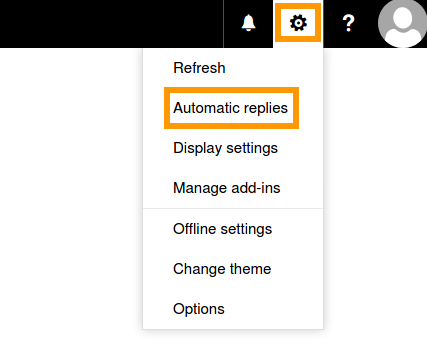
Log in to your Exchange account via the OVHcloud webmail. Click on the gear symbol on the top right to unfold the "Options" menu and select Automatic replies.
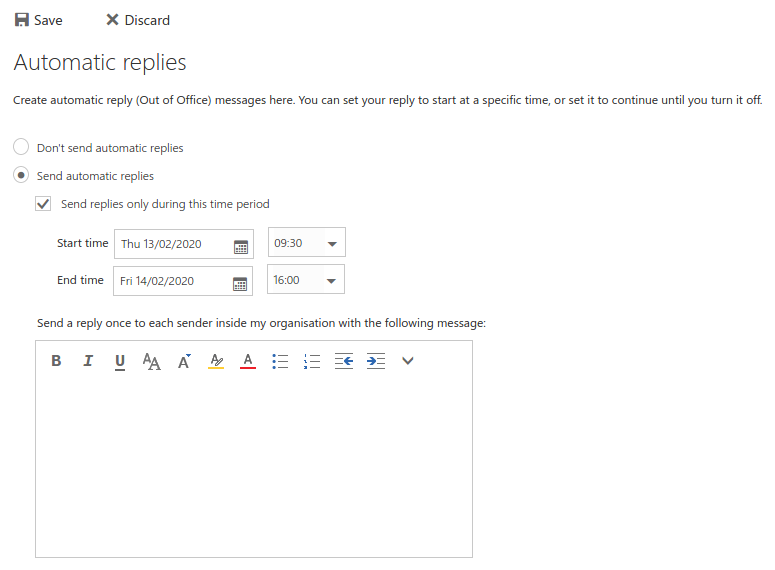
In this interface, simply activate the feature by selecting Send automatic replies. You can set an exact time period in the fields below or enable it indefinitely.
If you do not specify a start and end time, you will need to disable automatic reply manually.
Compose your message in the editor box and confirm with the Save button on the top left.
Response types
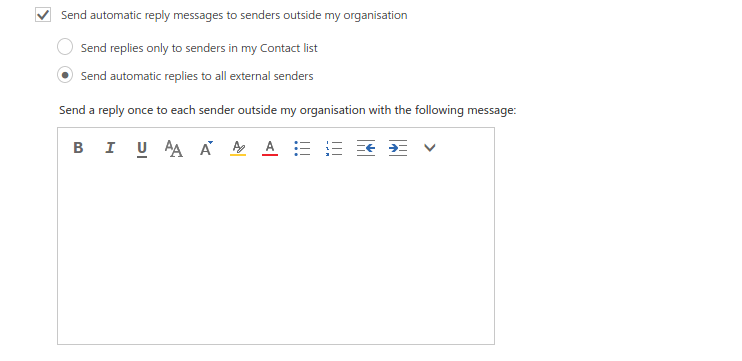
The instructions above apply to emails sent by users on your Exchange service. You can prepare a separate message for everyone else if you check the box called "Send automatic reply messages to senders outside my organisation". You will then have two more options for automatic replies:
-
"Send replies only to senders in my contact list": Only your contacts will receive a message.
-
"Send automatic replies to all external senders": Everyone sending emails to you during your absence will receive a message.
An alternative message for external senders can be entered into the second editor box. A typical use case would be to respond with the first message to your co-workers and with the second one to friends, clients or anyone else who may contact you.
Additional information
-
With automatic replies enabled, you will receive emails as usual in your inbox.
-
To avoid spamming and email loops, each sender will receive only one automatic reply.
Go further
Using the Outlook Web App with an Exchange account
Delegating permissions on an Exchange account
For specialised services (SEO, development, etc.), contact OVHcloud partners.
If you would like assistance using and configuring your OVHcloud solutions, please refer to our support offers.
Join our community of users.


 Using the Outlook Web App with an email account
 987
987