

How to Configure Your NIC for OVHcloud Link Aggregation in Windows Server 2019
327 Views
 25.03.2021
  Cloud / Dedicated Server (bare metal)
Objective
OVHcloud Link Aggregation (OLA) technology is designed by our teams to increase your server’s availability, and boost the efficiency of your network connections. In just a few clicks, you can aggregate your network cards and make your network links redundant. This means that if one link goes down, traffic is automatically redirected to another available link.
Requirements
OVHcloud Control Panel Access
- Direct link: Dedicated Servers
- Navigation path:
Bare Metal Cloud>Dedicated servers> Select your server
Instructions
Because you have a private-private configuration for your NICs in OLA, you will be unable to SSH into the server. Thus, you will need to leverage the IPMI tool to access the server.
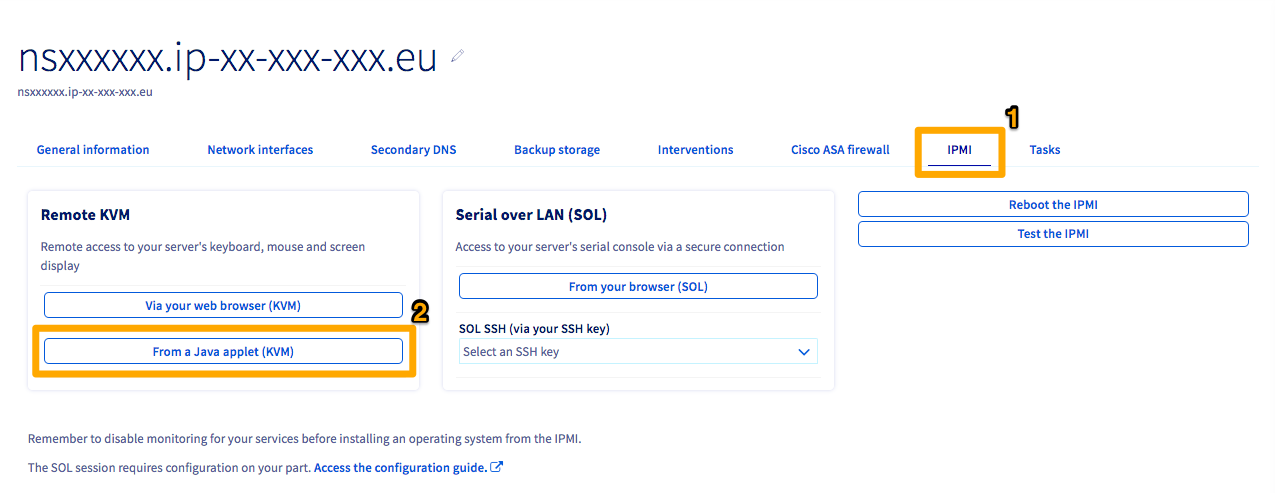
Click the IPMI tab (1) and then click the From a Java applet (KVM) button (2).
A JNLP program will download. Open the program once it is finished to enter the IPMI. Log in using valid credentials for the server.
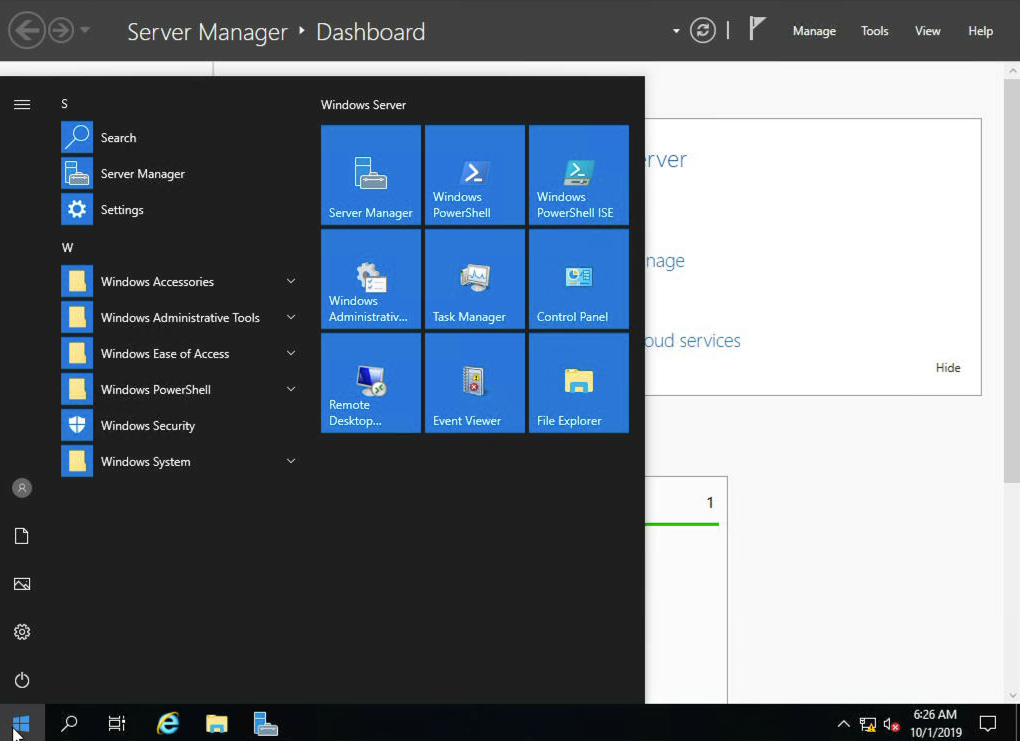
Once you are in the server, open Server Manager. If it is not already open by default, you will see it pinned to the Start menu.
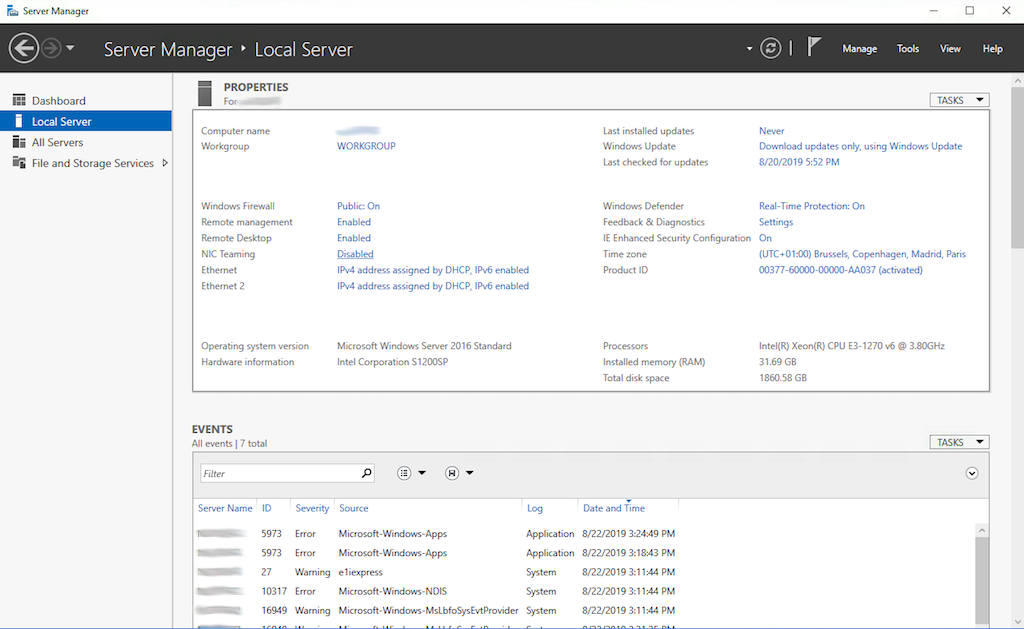
Once you have opened Server Manager, click the Local Server tab on the left-hand sidebar. Next, click the Disabled button next to "NIC Teaming."
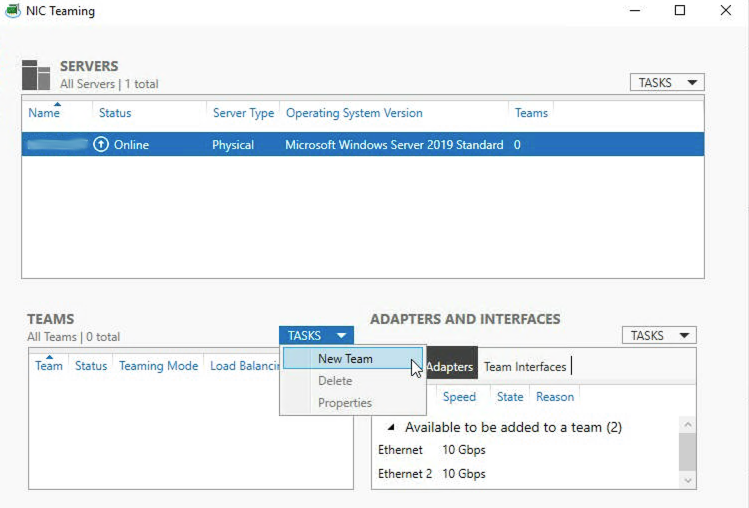
In the NIC Teaming pop-up, click the New Team button from the TASKS dropdown menu under the "TEAMS" section.
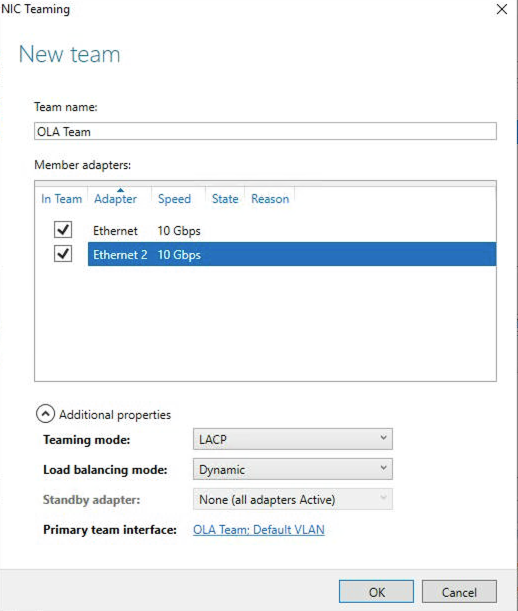
Give your team a name and check the NICs you wish to use with OLA. Click the dropdown arrow next to "Additional properties" and change the "Teaming mode" to LACP. Click OK once you have confirmed that the information is correct.
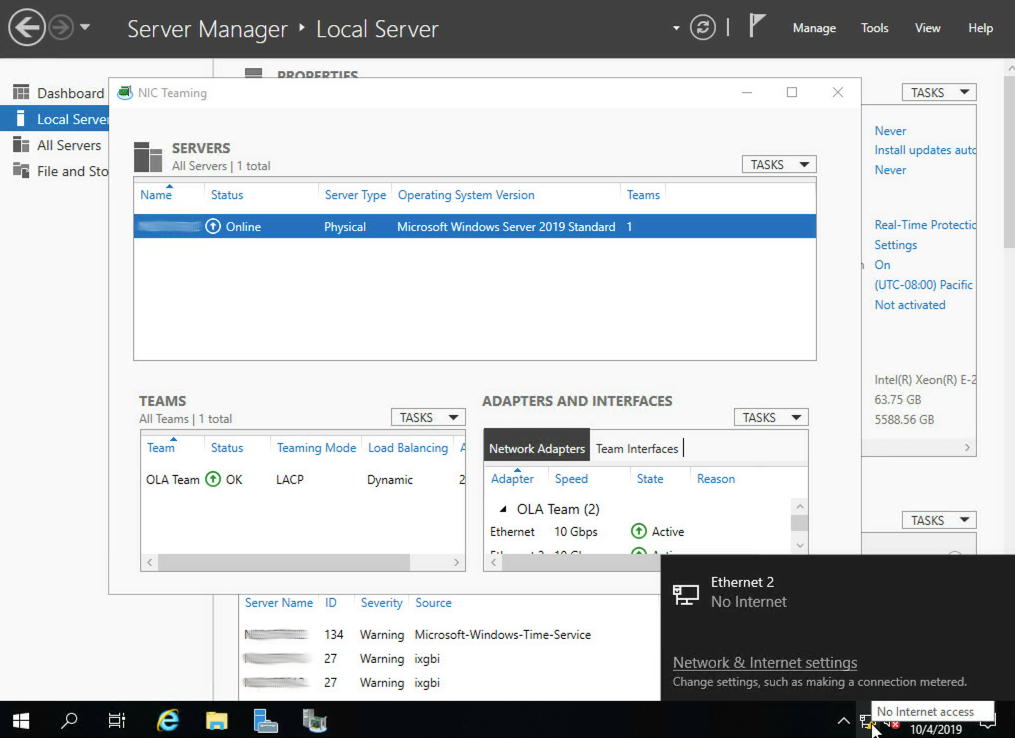
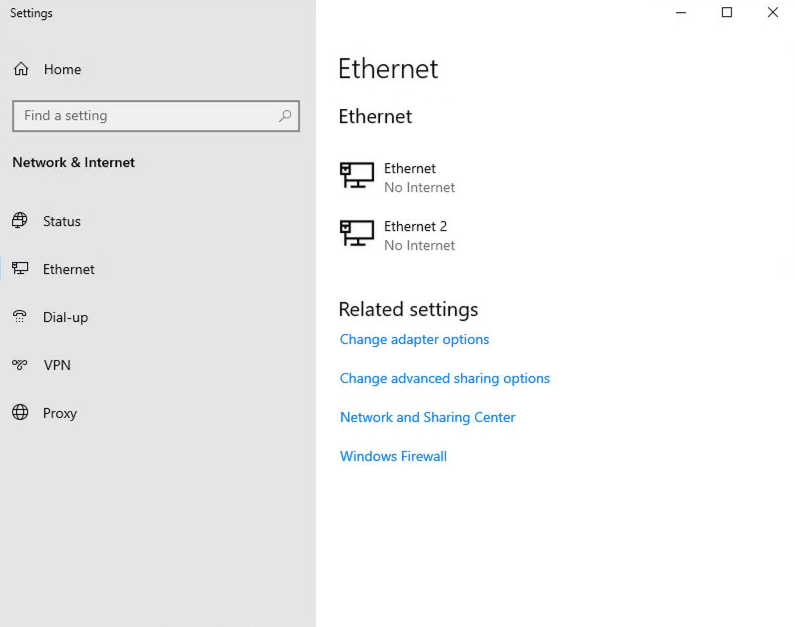
It could take up to a couple of minutes for the NIC team to come online. Once it is finished, click the network connection icon in the bottom-right corner. Next, click the Network & Internet settings button. Then click the Ethernet button on the left-hand sidebar of the ensuing popup.
Click the Change adapter options button.
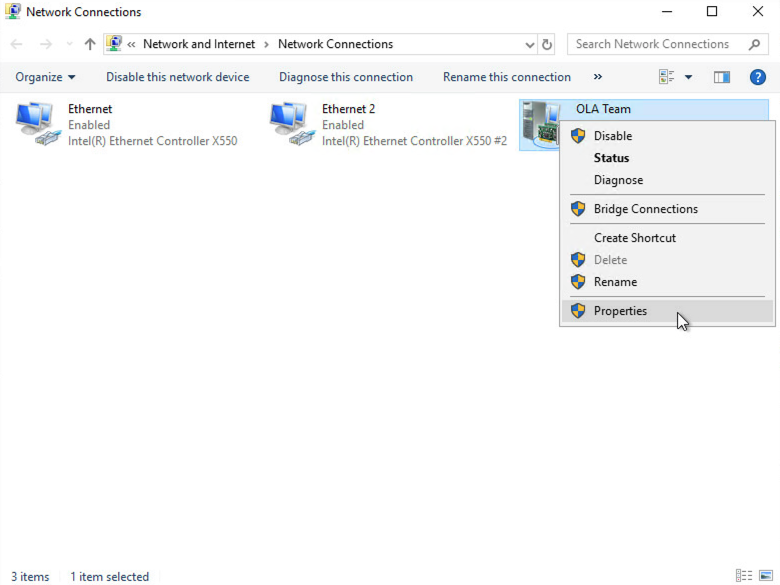
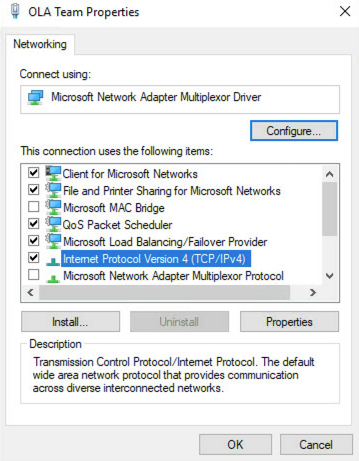
Next, right-click on your NIC team and select Properties from the drop-down menu.
On the ensuing pop-up window, double-click the Internet Protocol Version 4 (TCP/IPv4) button.
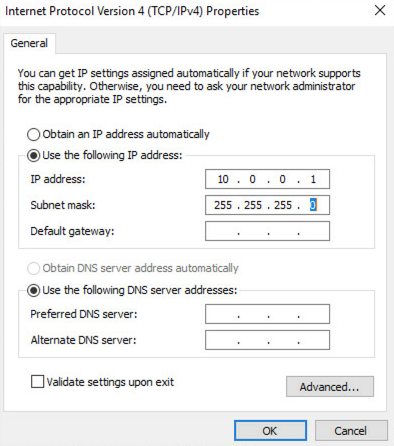
Click the button next to "Use the following IP address" and add your chosen private IP and subnet. Click the OK button once you have confirmed that your settings are correct.
To test that your NIC team is working, ping another server on the same vRack. If it works, you are all set. If it does not, double-check your configurations or try rebooting the server.
Go further
Configuring OVHcloud Link Aggregation in the OVHcloud Control Panel.
How to Configure Your NIC for OVHcloud Link Aggregation in Debian 9.
How to Configure Your NIC for OVHcloud Link Aggregation in SLES 15.
Join our community of users.


 Configuring Additional IPs in bridge mode on your virtual machines
 2022
2022