

Hardware upgrade on a High Grade or Scale dedicated server
397 Views
 18.12.2023
  Cloud / Dedicated Server (bare metal)
Objective
Our High Grade and Scale servers offer a scalable option that allows you increase your disk space and RAM.
The purpose of this guide is to walk you through the process of requesting a hardware upgrade on OVHcloud High Grade and SCALE dedicated servers.
The steps in this guide only apply to our new ranges (High Grade and Scale). For older ranges, the request must be made via a support ticket.
Requirements
- A High Grade or SCALE server
OVHcloud Control Panel Access
- Direct link: Dedicated Servers
- Navigation path:
Bare Metal Cloud>Dedicated servers> Select your server
Instructions
Upgrade your RAM
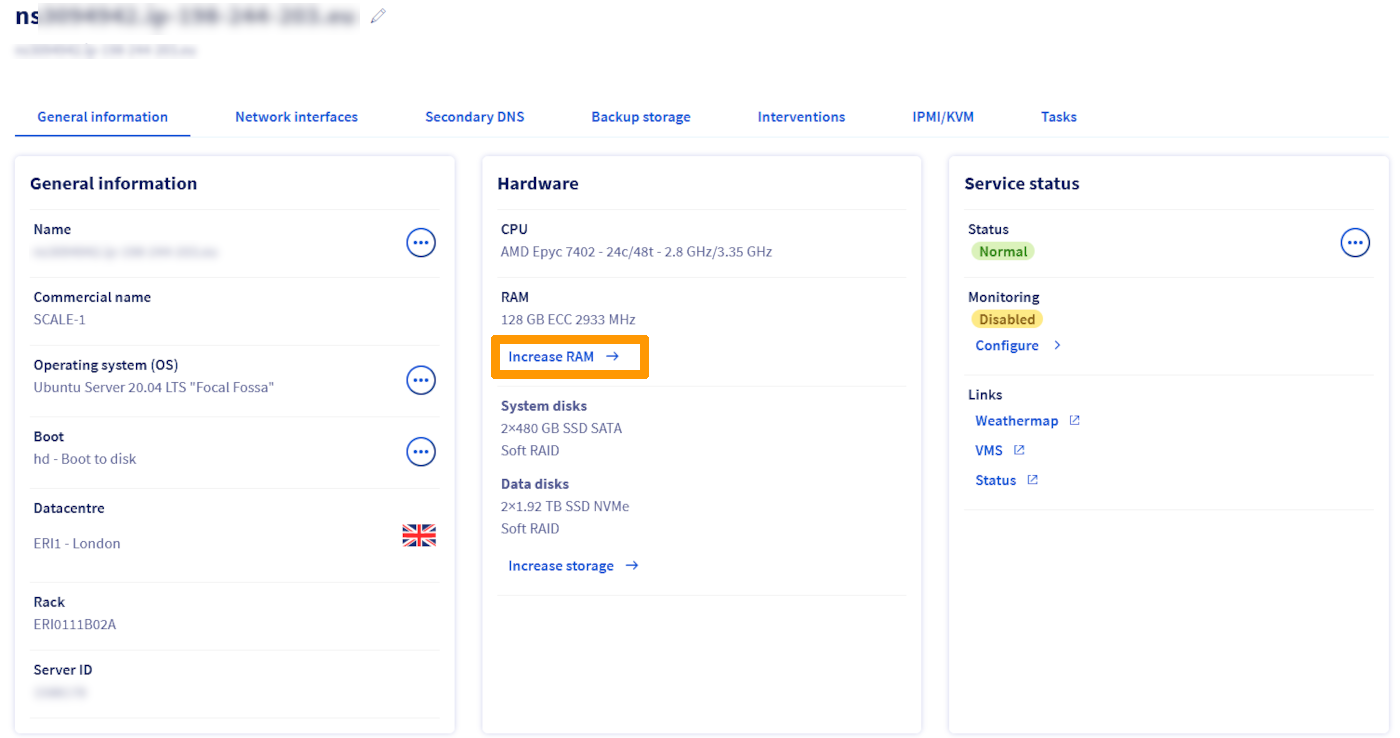
In the Hardware section, click on Increase RAM.
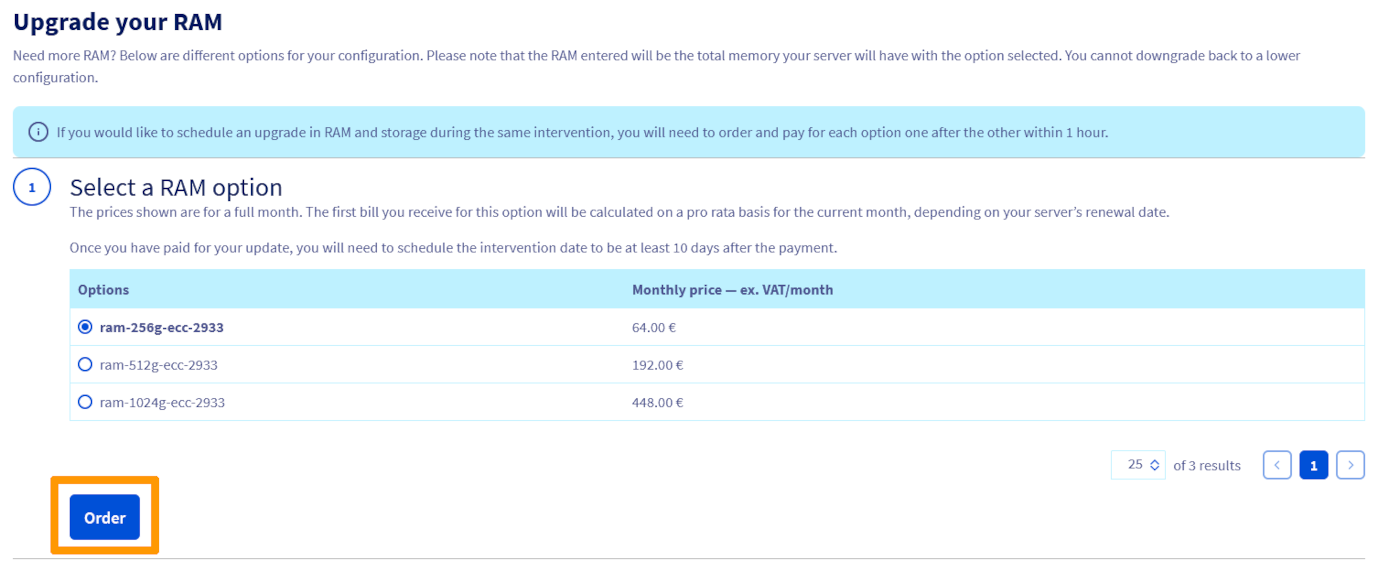
In the next tab, select the desired RAM option and click on Order.
Once the order is paid, a confirmation email will be sent to your account with a link to schedule the intervention for the RAM upgrade.
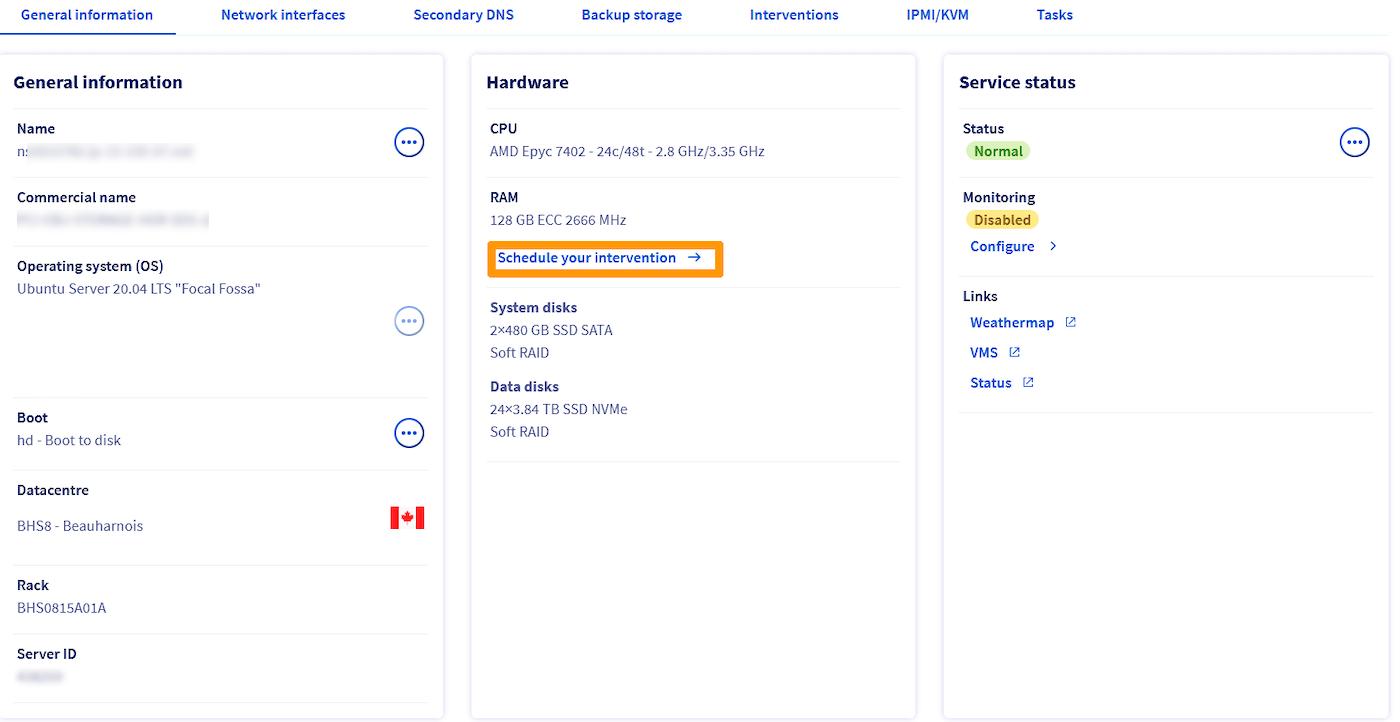
When you click on the link provided in the email, you will be redirected to the dedicated server's dashboard. This time, click on Schedule your intervention.
Check the box underneath Have you backed up your data? and select the available date and time. Please note that our data center technicians require a preparation period, so the first date of availability is set after a minimum period of 10 days.
Next, click on Confirm.

Once done, you will receive an email with the date and time of the intervention.
Upgrade Storage
In the Hardware section, click on Increase storage.
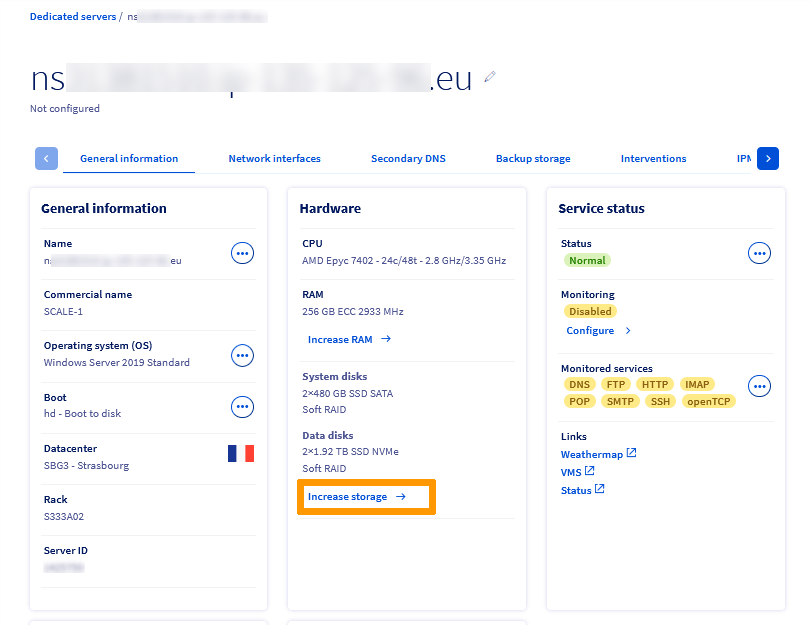
In the next tab, select the desired storage option and click on Order.
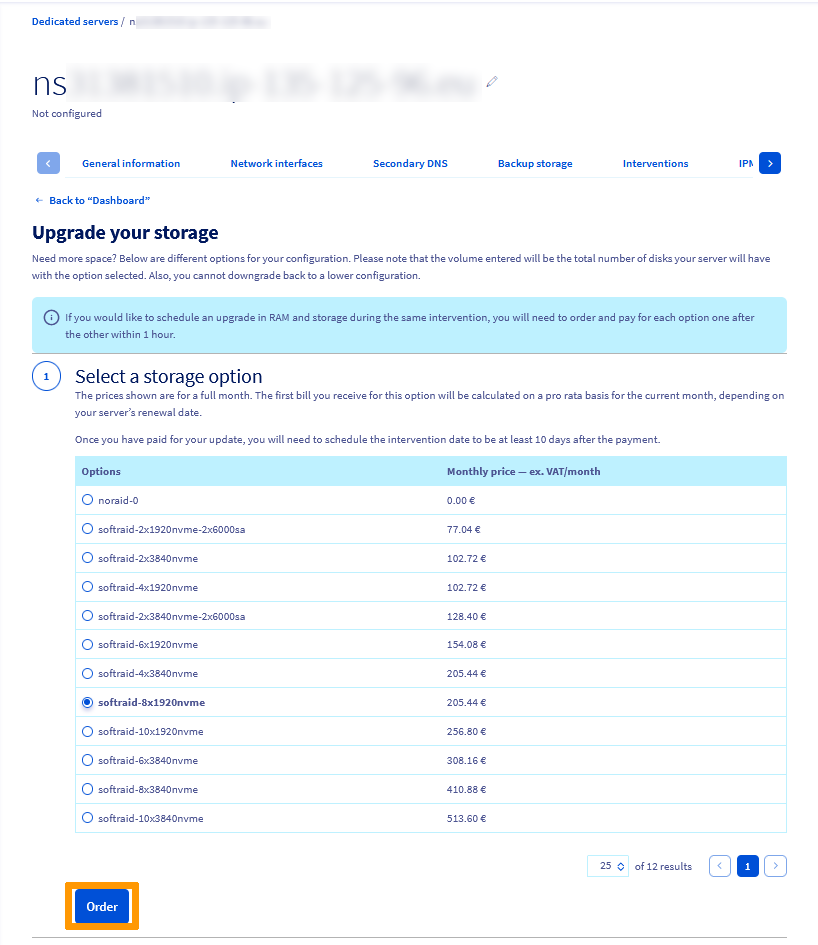
Once the order is paid, a confirmation email will be sent to your account with a link to schedule the intervention for the hardware upgrade.
When you click on the link provided in the email, you will be redirected to the dedicated server's dashboard. This time, click on Schedule your intervention.
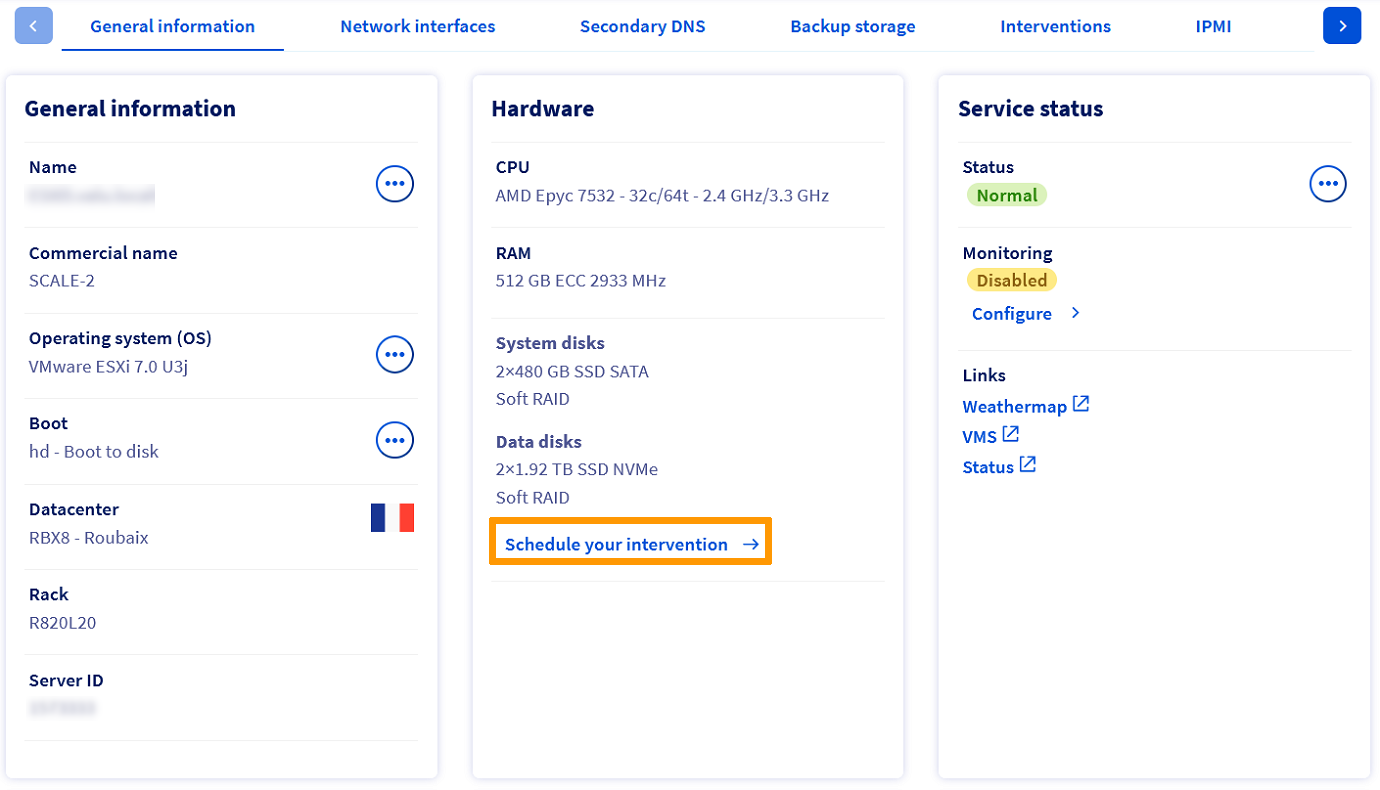
Check the box underneath Have you backed up your data? and select the available date and time. Please note that our data center technicians require a preparation period, so the first date of availability is set after a minimum period of 10 days.
Next, click on Confirm.

Once done, you will receive an email with the date and time of the intervention.
If you would like to schedule an upgrade in RAM and storage during the same intervention, you will need to order and pay for each option one after the other within 1 hour.
Go further
Join our community of users.


 How to change a Windows Server product key
 3353
3353