

Configure the Edge Network Firewall for Dedicated Servers
5282 Views
 10.03.2026
  Cloud / Dedicated Server (bare metal)
Objective
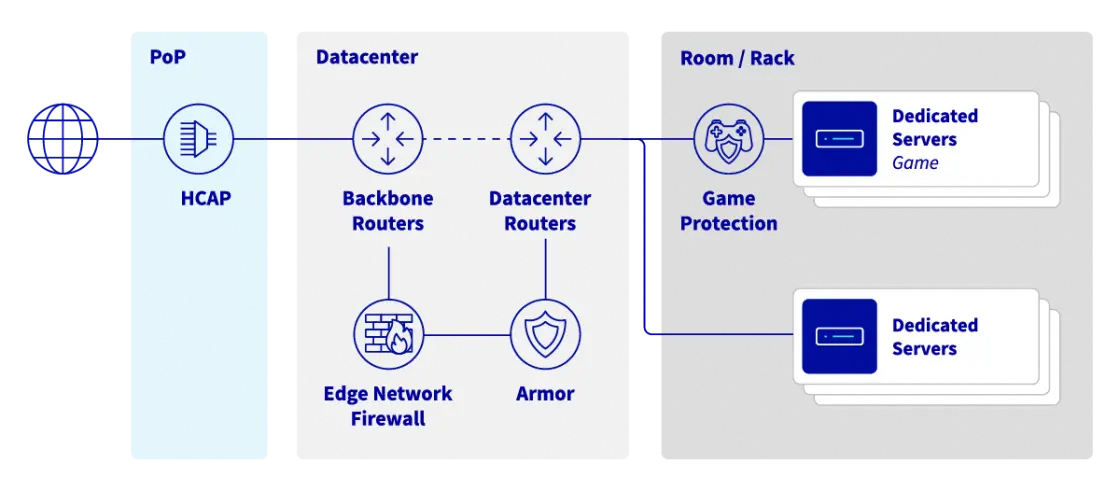
To protect customer services exposed on public IP addresses, OVHcloud offers a stateless firewall that is configured and integrated into the Anti-DDoS infrastructure: the Edge Network Firewall. It limits exposure to DDoS attacks by dropping specified network flows from outside the OVHcloud network.
This guide will show you how to configure the Edge Network Firewall for your services.
You can find more information on our Anti-DDoS solution on our website.
| Anti-DDoS infrastructure & Game protection services diagram at OVHcloud |
|---|
 |
Requirements
- An OVHcloud service exposed on a dedicated public IP address (Dedicated server, VPS, Public Cloud instance, Hosted Private Cloud, Additional IP, etc.)
OVHcloud Control Panel Access
- Direct link: Public IP
- Navigation path:
Network>Public IP Addresses
This feature might be unavailable or limited on servers of the Eco product line.
Please visit our comparison page for more information.
The Edge Network Firewall does not support QUIC protocol.
Instructions
The Edge Network Firewall reduces exposure to network DDoS attacks by allowing users to copy some of the server's firewall rules to the edge of the OVHcloud network. This blocks incoming attacks as close to their source as possible, reducing the risk of saturating server resources or rack connections in the event of major attacks.
Configure the Edge Network Firewall
The Edge Network Firewall can be enabled or disabled by the user at all times, besides one exception: it is automatically enabled when a DDoS attack is detected and cannot be disabled until the attack has ended. As a result, all the rules configured in the firewall are applied for the duration of the attack. This logic allows our customers to offload the firewall rules of the server to the edge of the OVHcloud network for the duration of the attack.
Access the Edge Network Firewall configuration page
To date, this feature is only available for IPv4 addresses.
The Edge Network Firewall protects a specific IP associated with a server (or service). Therefore, if you have a server with multiple IP addresses, you must configure each IP separately.
You can use the drop-down menu underneath "My public IP addresses and associated services" to filter your services according to category, or directly type the desired IP address in the search bar.
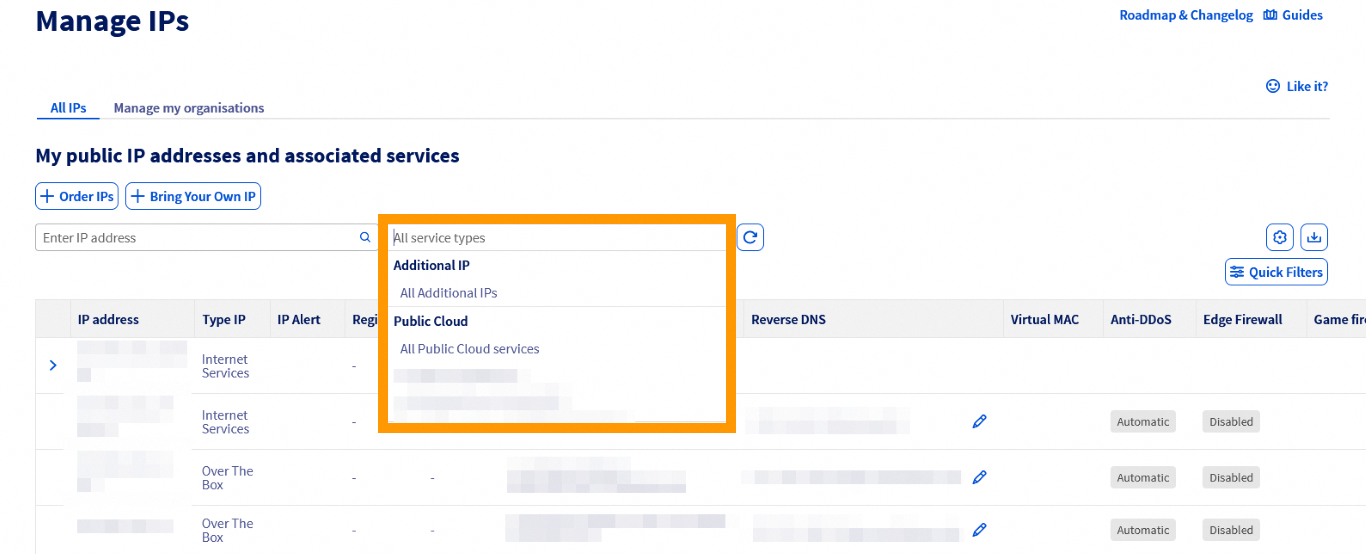
Next, click the ⁝ button to the right of the relevant IPv4 and select Configure Edge Network Firewall (or click on the status badge in the Edge Firewall column).
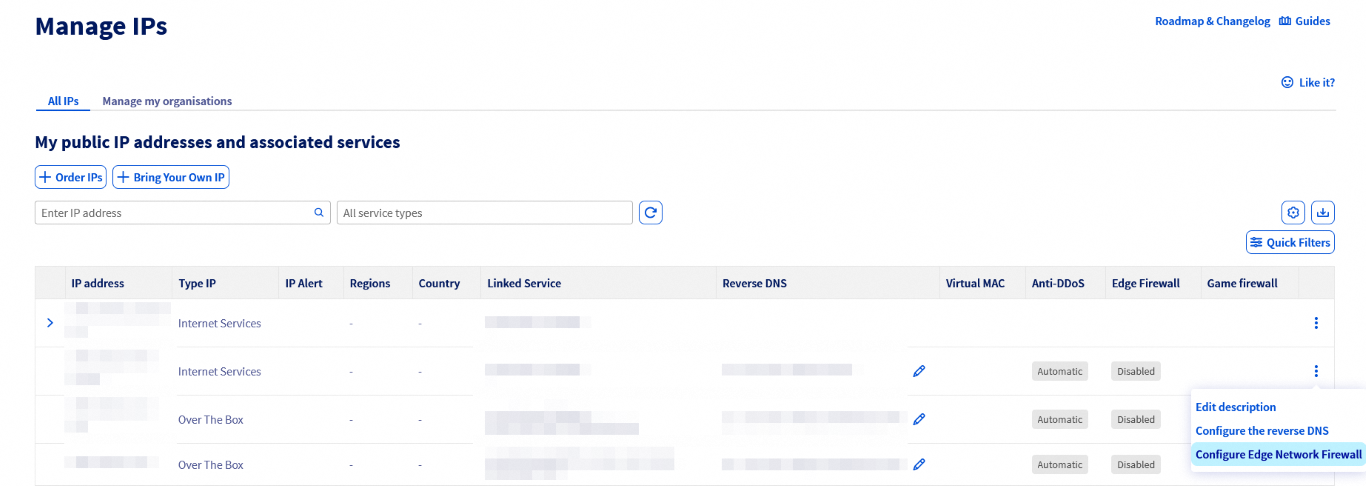
You will then be taken to the firewall configuration page.
- UDP fragmentation is blocked (DROP) by default. If you are using a VPN, remember to configure your Maximum Transmission Unit (MTU) correctly. For example, with OpenVPN, you can check
MTU test. - The Edge Network Firewall (ENF) integrated in the scrubbing centres (VAC) only handles network traffic coming from outside the OVHcloud network.
Please note that you should configure your own local firewalls even if the Edge Network Firewall has been configured, as its main role is to handle traffic from outside of the OVHcloud network.
If you have configured some rules, we recommend that you check them regularly or when changing how your services are working. As previously mentioned, the Edge Network Firewall will be automatically enabled in case of a DDoS attack even when disabled in your IP settings.
Configure firewall rules
You can set up to 20 rules per IP.
Since March 2026, the Edge Network Firewall supports rules that apply to port ranges, in addition to the usual single-port rules.
By using port ranges, you can protect applications that require multiple sequential ports with a single entry. This ensures your configuration stays within the 20-rule limit by eliminating the need for separate rules targeting each individual port.
Please note that the OVHcloud Edge Network Firewall cannot be used to open ports on a server. To open ports on a server, you must go through the firewall of the operating system installed on the server.
For more information, please refer to the following guides: Configuring the firewall on Windows and Configuring the firewall on Linux with iptables.
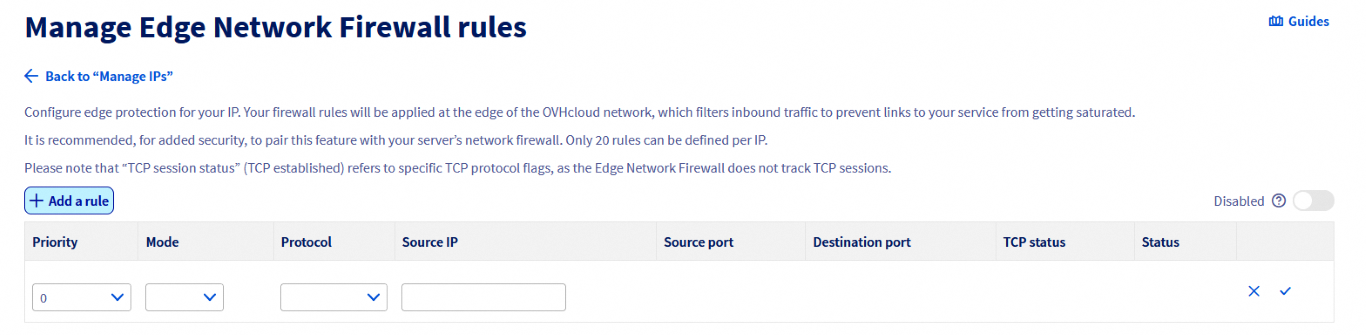
To add a rule, click on the + Add a rule button, on the top left:
 |
|---|
Click on + Add a rule. |
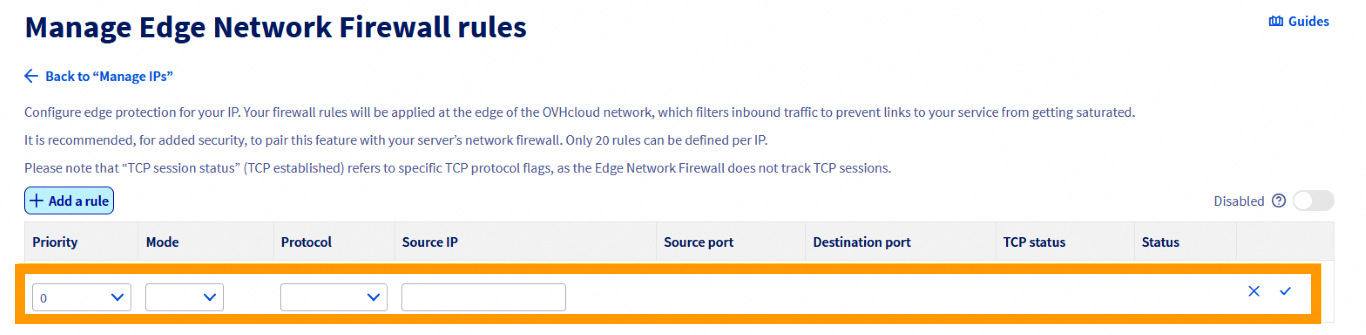
For each rule (excluding TCP), you must choose:
 |
|---|
| - A priority (from 0 to 19, 0 being the first rule to be applied, followed by the others) - An action ( Accept or Deny) - The protocol - Source IP (optional) |
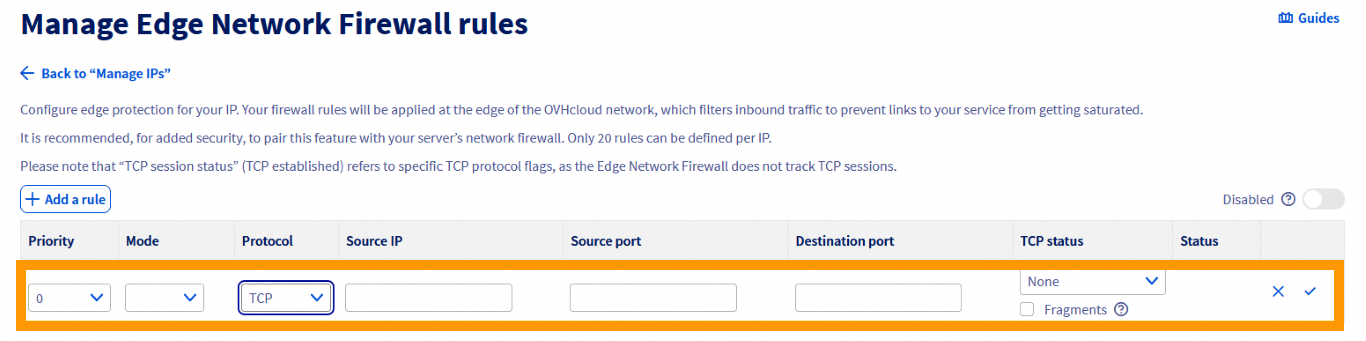
For each TCP rule, you must choose:
 |
|---|
| - A priority (from 0 to 19, 0 being the first rule to be applied, followed by the others) - An action ( Accept or Deny) - The protocol - Source IP (optional) - The source port or port range (optional) - The destination port or port range (optional) - The TCP state (optional) - Fragments (optional) |
When configuring a TCP or UDP rule with a port or port range, ensure the source and destination port fields contain either a single number between 1 and 65535 (inclusive), or a port range (two numbers separated by a hyphen, e.g. 8887-8888).
We advise authorising TCP protocol with an established option (for packets that are part of a previously opened/started session), ICMP packets (for ping and traceroute) and optionally UDP DNS responses from external servers (if you use external DNS servers).
Configuration example:
- Priority 0: Authorise TCP established
- Priority 1: Authorise UDP source port 53
- Priority 2: Authorise ICMP
- Priority 19: Refuse IPv4
Firewall setups with only Accept mode rules are not effective at all. There must be an instruction as to which traffic should be dropped by the firewall. You will see a warning unless such a Deny rule is created.
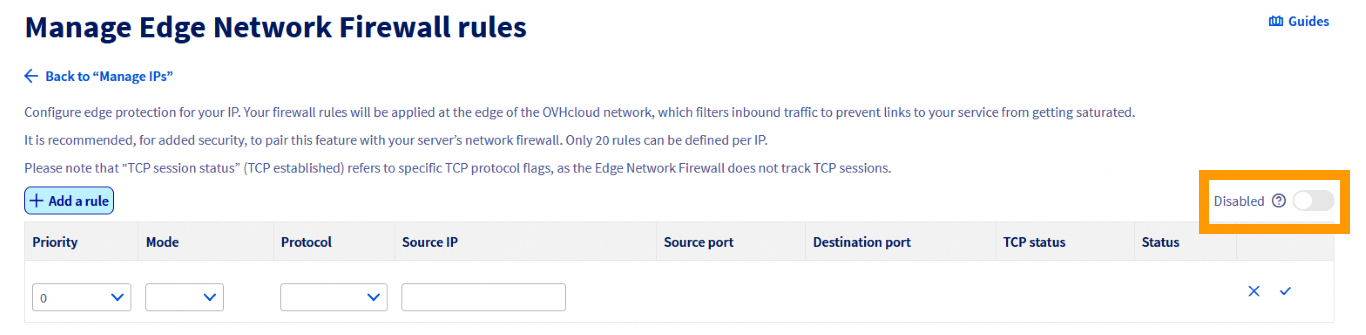
Enable/disable firewall:
 |
|---|
Switch on to enable |
After confirmation, the firewall will be enabled or disabled.
Note that rules are disabled until the moment an attack is detected - then they are activated. This logic can be used for rules that are only active when a known repeated attack is incoming.
Common mistakes and best practices
Setting both source and destination ports in the same rule
When creating firewall rules, defining both source and destination ports is usually misconfiguration, as source ports are typically assigned randomly by the client’s operating system (ephemeral ports).
If you lock a rule to a specific source port, it will likely drop legitimate traffic as soon as the client's port changes for the next session. To ensure connectivity, you should only specify the destination port (your service port).
Best Practice: Leave the source port empty, unless you are filtering traffic from a specialized system with a static outbound configuration.
Large port ranges
Creating rules allowing traffic over very large port ranges may be a security risk, as it significantly expands the attack surface on your server. This can result in several issues:
- You may inadvertently expose background services that were not meant to be public-facing, thus potentially leaking information about your system, and allowing malicious actors to probe your servers for vulnerabilities.
- Audit and troubleshooting become significantly more difficult, as it is harder to check which applications are actually communicating, masking potential misconfigurations or breaches.
- Large open UDP ranges are frequently targeted by amplification and reflection attacks, as there is a higher chance of finding public-facing services. Attackers can spoof a targeted IP to send small requests to services in that open range, which then respond with much larger packets. This way, they are effectively using your server to send DDoS attacks, while potentially overwhelming your own bandwidth.
Best Practice: Only use limited ranges for sequential ports required by a single application (e.g. 5000-5100).
Configuration example
To make sure that only the standard ports for SSH (22), HTTP (80), HTTPS (443) and UDP (53) are left open when authorising the ICMP, follow the rules below:
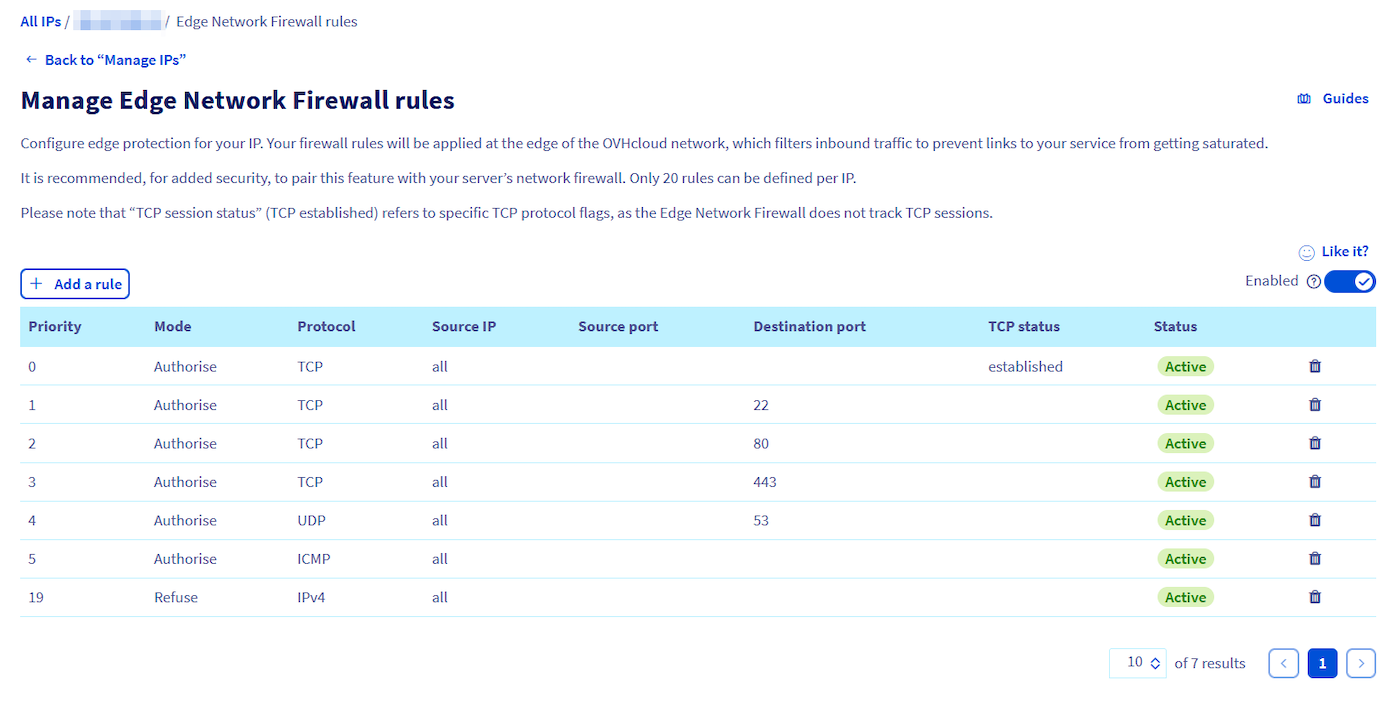
The rules are sorted from 0 (the first rule read) to 19 (the last). The rule chain stops as soon as a rule is applied to the packet.
For example, a packet for TCP port 80 will be intercepted by rule 2 and the rules that follow will not be applied. A packet for TCP port 25 will only be captured by the last rule (19), which will block it because the firewall does not allow communication on port 25 in the previous rules.
The above configuration is only an example and should only be used as a reference if the rules do not apply to the services hosted on your server. It is essential that you configure the rules in your firewall to match the services hosted on your server. Incorrect configuration of your firewall rules can result in legitimate traffic being blocked and server services being inaccessible.
Attack mitigation - scrubbing centre activity
Our Anti-DDoS infrastructure (VAC) operates automatically. The mitigation process is done via the automated scrubbing centre. This is where our advanced technology takes a deep look at the packets and attempts to remove DDoS traffic while allowing legitimate traffic to pass through.
All OVHcloud IPs are under automatic mitigation. In case any malicious traffic is detected, the scrubbing centre activates. This state is indicated by the "Forced" status for a given IP address. At this time the Edge Network Firewall is also active. The situation comes back to normal when the attack is mitigated and no more suspicious activity is observed.
Tips
You can create attack-only firewall rules that only apply after an attack has been detected. To do this, Edge Network Firewall rules must be created but disabled.
If our Anti-DDoS infrastructure mitigates an attack, your Edge Network Firewall rules will eventually be applied, even if you have disabled the firewall. If you have disabled your firewall, remember to delete your rules as well.
Please note that our Anti-DDoS infrastructure cannot be disabled on a service. All OVHcloud products are delivered within the scope of protection and this cannot be changed.
Network Security Dashboard
For detailed insight into detected attacks and the results of scrubbing centre activities, we encourage you to explore our Network Security Dashboard.
Conclusion
After reading this tutorial, you should be able to configure the Edge Network Firewall to improve the security of your OVHcloud services.
Go further
Configuring Anti-DDoS for Solana on Dedicated Servers
Join our community of users.


 Configure iptables on a Linux Dedicated Server
 2871
2871