

Finding the serial number of a hard disk
660 Views
 21.08.2018
  Cloud / Dedicated Server (bare metal)
Objective
To minimise the chance of human error during hard disk replacements, we ask our customers to provide the serial number of the disk they want to replace.
This guide will show you how to retrieve the serial number of your disk. In most cases, you can find it while testing your hard drives individually with smartmontools.
Requirements
- a dedicated server
- administrative (sudo) access to the server via SSH
- the sas2ircu utility installed on your Windows server (available via the broadcom search engine)
Instructions
In the case of an NVMe disk, it will be necessary to place the server in rescue mode, and use the nvme-cli tool installed by default.
Retrieve a disk's serial number (Software RAID)
To retrieve your hard drive's serial number with a software RAID configuration, you can simply use smartctl:
The device is detected by the OS (ex: /dev/sda, /dev/sdb, etc.).
Retrieve a disk's serial number (NVMe disks)
For NVMe disks, it will be necessary to use the command nvme list:
You can then see the serial numbers of your NVMe disks (nvme0 and nvme1).
Retrieve a disk's serial number (Windows)
The Windows-based guide is generally similar to the Linux-based guide. We will use the sas2ircu utility, with the same commands we used for Linux.
You will need to run the command terminal with administrator rights to avoid errors.
To retrieve the serial number of a Software RAID configuration, you must use the following command:
The device will be detected by the OS, and displayed as follows: /dev/sda, /dev/sdb, etc.
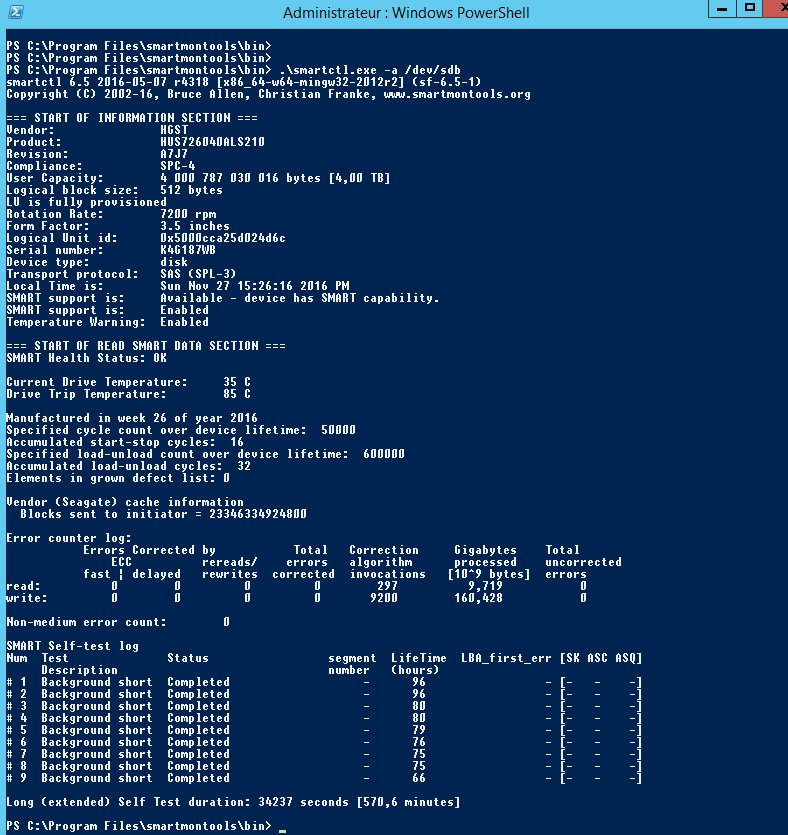
Retrieve a disk's serial number (Hardware RAID)
For an in-depth look of these commands and how to test your hard disks, refer to this guide (LSI raid controller).
MegaRaid Controller
Step 1: Recover RAID sets
You can find the serial number using the smartctl command. However, prior to executing this command, you will need to find how many RAID sets (or Virtual Drives) your server contains.
You can retrieve this information by using the following command:
In this example, there are two RAIDs configured on the server (Adapter 0 and Adapter 1). These should be mapped to /dev/sda and /dev/sdb.
Step 2: Recover disks informations
Next, you will need to gather the physical disk informations using the following command:
Step 3: Recover the serial number
The Device ID and Adapter ID will be used to tell smartctl which disk to look for in which RAID array.
The command should look like this:
The RAID Device ID will be displayed as follows: /dev/sda = 1st RAID, /dev/sdb = 2nd RAID, etc.
In some situations, you may receive this output:
/dev/sda [megaraid_disk_00] [SAT]: Device open changed type from 'megaraid' to 'sat'
You must then replace megaraid with sat+megaraid:
smartctl -d sat+megaraid,N -a /dev/sdX | grep Serial
Retrieve a disk's serial number (LSI RAID Controller)
LSI RAID controller uses a module called sg-map which maps devices in /dev/sgX (X being the number defining the device).
You can refer to this guide (LSI raid controller) to find which hard drive relates to a designated sg device.
Once you have found the sg device related to the hard disk you want to query, use the following command:
The sg device number will be displayed as follows: /dev/sg0, /dev/sg1 etc.
Go further
Join our community of users.


 How to activate and use rescue mode
 2468
2468