

Backup Agent - Troubleshooting
20 Views
 09.02.2026
  Backup Agent
Objective
Here is a list of potential issues you may encounter with the Backup Agent product and how to solve them.
Requirements
- At least one Bare Metal server with the Backup Agent installed on it. Read our guide "How to configure your first backup" for more information.
OVHcloud Control Panel Access
- Direct link: Backup Agent
- Navigation path:
Bare Metal Cloud>Backup Agent
List of possible issues
My Backup Agent is unable to connect to your server.
Make sure your firewall allows you to communicate with our server vspc-cgw1.prod01.eu-west-rbx.backup.ovhcloud.com (137.74.125.230) in Europe with TCP port and UDP 6180.
Ensure that no other services are using ports that could conflict with your server.
You can find your agent logs in the folder: C:\ProgramData\Veeam\ or /var/logs.
Your server cannot install the Backup Agent on my server.
The Backup Agent supports Windows distributions and Linux native kernels. If you have made changes to your kernel, you must ensure that you have the correct packages to install the agent. You can find the list of required parameters here: https://helpcenter.veeam.com/docs/agentforlinux/userguide/system_requirements.html?ver=13.
My agent cannot back up. I have the error: "Failed to perform backup. Neither blksnap nor veeamsnap module was found."
The agent supports Windows distributions and Linux native kernels. If you have made changes to your kernel, you must ensure that you have the correct packages to install the agent. You can find the list of required parameters here: https://helpcenter.veeam.com/docs/agentforlinux/userguide/system_requirements.html?ver=13
You will need the Linux kernel headers first, and you can then try to install or reconfigure your veeamsnap or veeamblksnap or blksnap package, depending on your Operating System.
My agent cannot back up. I get the error: POSIX: Failed to create or open file [/.veeamsnapstorage/veeamsnapstore
To back up, Veeam takes snapshots in addition to preserving the data that will be written to the backup. This snapshot is called "veeamsnapstorage".
To resolve the issue, you can increase the size of the snapshot via the /etc/veeam/veeam.ini file:
Replace the value with the desired number of sectors by first converting the desired size from gigabytes to bytes, then dividing this number of bytes by 512.
For example, for a size of 3 GB (3,221,225,472 bytes), the value to specify is 6,291,456 (3,221,225,472 / 512).
Finally, restart the veeamservice service.
I cannot start a manual backup.
Contact OVHcloud support to investigate. Make sure to provide logs and screenshots.
My backup is in error, how can I see the problem?
If your backup is in error, you can diagnose the problem directly from the agent. Click the tab corresponding to your Operating System:
To see the details of a backup error on Windows:
- Open the "Veeam Agent" application on your Bare Metal server.
- In the main interface, you will see the status of your backups.
- Click on the backup in error to see the error details.
- Check the History or Last Session section to see detailed error messages.
The interface will display precise information about the cause of the error, which will allow you to quickly identify the issue.
To see the details of a backup error on Linux, you can use the user interface:
1. Connect to your Bare Metal server via SSH. 2. Launch the Veeam interface by typing the following command:
3. In the interface, navigate to the backups section to see the status of your jobs. 4. Select the backup in error to view the error details.
You can also check the logs directly via the command line:
This command will display the list of backup sessions with their status and details of any error.
My storage usage did not refresh after an agent was removed.
We keep your data for 14 days following an agent deletion, storage usage will be updated following the 14 days and data deletion.
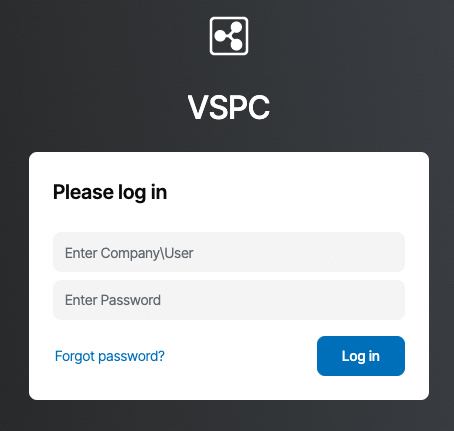
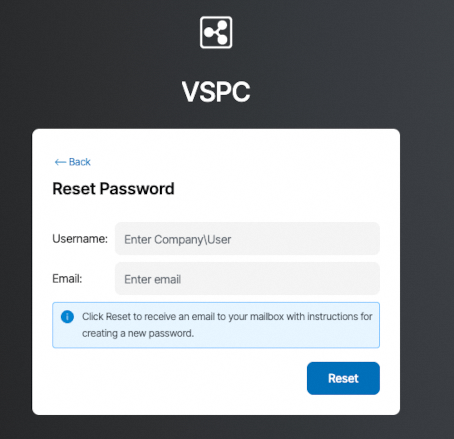
I want to change the password for accessing the Veeam Service Provider Console (VSPC).
Passwords can be changed via the "Forgot password?" link available on the VSPC console.
I have reinstalled my server. How do I reinstall the Backup Agent?
You must download the agent from the Backup Agent section of your OVHcloud Control Panel and install it on your new Operating System.
Finding and exporting logs
To troubleshoot issues with Backup Agent, it is often necessary to view and export the product logs. Click the tab corresponding to your Operating System:
Locating logs
Veeam Agent for Windows logs are stored in the following directory:
C:\ProgramData\Veeam\Endpoint\LogsExporting logs
To export logs on Windows, you can use the Veeam Agent graphical interface:
- Open the "Veeam Agent" application on your server.
- Go to the
Help>Export Logsmenu. - Select the destination directory for the log archive.
- Click
Exportto generate the archive.
The archive will be created in .zip format and will contain all the logs and configuration files necessary for diagnosis.
For more information, see the Veeam KB2404 article.
Locating logs
Veeam Agent for Linux logs are stored in the following directory:
You can also check the Veeam service logs:
Exporting logs
To export logs on Linux, you have two options:
1. Via command line
Use the following command to export logs. The archive will be saved in the current working directory:
2. Via the control panel
If you have access to a graphical interface, you can export logs via the Veeam Agent control panel by specifying the destination directory.
The archive will be created in .tar.gz format and will contain all the logs and configuration files necessary for diagnosis.
For more information, see the Veeam documentation.
Go further
Join our community of users.


 Backup Agent - Restore a Bare Metal server with Veeam Backup Agent
 98
98