

How to install WordPress with WP-CLI on a VPS or a dedicated server
105 Ansichten
 13.03.2024
  Cloud / Dedicated Server (Bare Metal)
Objective
Installing WordPress on a VPS or dedicated server has several advantages, such as full customization of the environment, performance optimization, and enhanced security. Whether you are an experienced developer or a beginner looking to launch your first website, this guide will show you step by step how to install WordPress on an OVHcloud VPS with WP-CLI. WP-CLI is a command-line interface for manually installing WordPress on your OVHcloud VPS.
Find out how to install WordPress with WP-CLI on a VPS or an OVHcloud dedicated server.
This tutorial will show you how to use one or more OVHcloud solutions with external tools, and the changes you need to make in specific contexts. You may need to adapt the instructions according to your situation.
We recommend that you contact a specialist service provider or reach out to our community if you face difficulties or doubts concerning the administration, usage or implementation of services on a server.
Requirements
- A VPS solution or a dedicated server in your OVHcloud Control Panel
- Administrative (sudo) access to your server via SSH
- A web development environment configured on your VPS or your dedicated server
- A domain name (registered with OVHcloud or another registrar)
Instructions
As detailed in the Requirements, we assume that you already have a web development environment configured on your VPS or dedicated server. For this guide, the following components are already installed on the VPS:
- PHP (version 8.2.7)
- Nginx web server
- MariaDB DBMS
Log in to your VPS via SSH with your username and password.
Install WP-CLI
Download WP-CLI using curl or wget:
Make the downloaded file executable:
Move the executable file to use it as a 'wp' command:
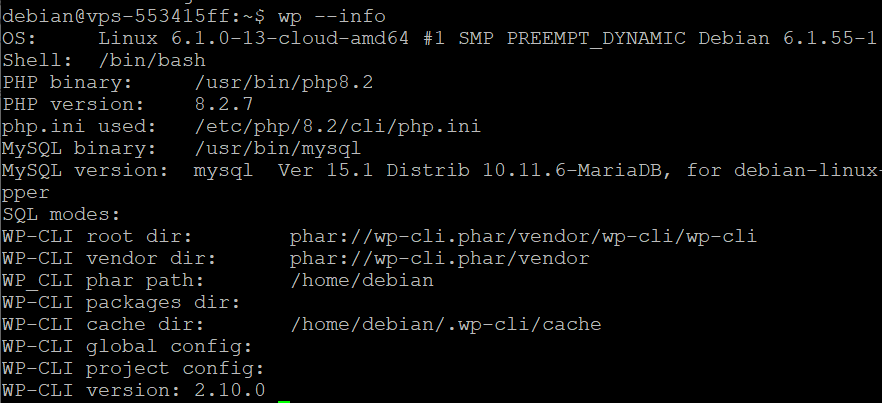
Test the installation of WP-CLI by running the command:
If WP-CLI has installed successfully, a message like this will appear:
Install WordPress with WP-CLI
Create the WordPress database
Log in to MariaDB:
Create the database for your WordPress website:
Create a new MariaDB user and assign database privileges:
Install WordPress
Navigate to the directory where you want to install WordPress, for example:
Download WordPress with WP-CLI:
The following error may occur:
This means that your user (the one on your OVHcloud VPS) does not have permission to write to the directory /var/www/html. A simple and secure way to fix this problem is to change the owner of the directory /var/www/html to match your user.
To grant permissions, enter the following command:
Replace your_user and your_group with your current user name and user group. On many Linux systems, the default user group for a user is the same as the user name. You can find your username with the command whoami and your group with groups.
Try downloading WordPress again:
If the WordPress download was successful, you should see the following message:

Create the configuration file “wp-config.php”:
Replace wordpress_db, wordpress_user, and strong_password with the values you previously set.
If everything went smoothly, the following message should appear:

Launch the WordPress installation:
If the WordPress installation is successful, you should see the following message:

Configure Nginx
Create a configuration file for your website
Browse to the directory of available Nginx sites:
Create a new configuration file for your WordPress website. This must be your domain name:
In the file you have just created, add the following configuration (this configuration is a basic example for a WordPress website):
If you are using a PHP version other than 8.2.X, replace the line:
with the line:
To have Nginx load your website’s configuration, create a symbolic link to your configuration file in the directory /etc/nginx/sites-available/:
Test the Nginx configuration
Before restarting Nginx to apply the changes, it is important to test your configuration to ensure that there are no errors:
If no errors were detected, the following message is displayed:

Restart Nginx
Once the configuration has been tested and validated, restart Nginx to apply the changes:
Access your website
Link the domain name to the IP address of the VPS or dedicated server
To access your website from a browser, first link the domain name of your WordPress website to the IP address of your VPS or dedicated server.
Log in to your OVHcloud Control Panel, then go to the Web Cloud section.
In the left-hand menu, click Domain names, then select the domain name you have chosen for your WordPress website.
Click on the DNS Zone tab, then, in the table that appears, identify the row with the value A as its type. Click the ... button and select Modify record.

In the window that pops up, enter the IP address of your VPS or dedicated server in the Target field, then click Next. Check that the information you have entered is correct, then click Confirm.

Conclusion
You have just installed WordPress on your OVHcloud VPS or dedicated server with WP-CLI. You can now access your WordPress website from a browser.
Go further
How to install a web development environment on a VPS or a dedicated server
How to install WordPress with Docker on VPS or a dedicated server
For specialised services (SEO, development, etc.), contact OVHcloud partners.
Join our community of users.


 Einen Minecraft-Server auf einem VPS oder Dedicated Server einrichten
 3671
3671