

Eine VM klonen (EN)
295 Ansichten
 12.01.2022
  Cloud / VMware
Objective
VMware offers the ability to clone a VM to create another one or a template.
This guide explains how to execute those tasks.
Requirements
- Being an administrative contact of your Hosted Private Cloud infrastructure to receive login credentials
- A user account with access to vSphere (created in the OVHcloud Control Panel)
Instructions
Clone a VM
Cloning allows for quick and efficient deployment of similar VMs.
You can clone a VM into another one or clone it into a template.
Cloning to a VM is a quick way to copy a full VM and its settings.
Cloning to a template is a preferred way to create a master copy that will be used to deploy many VMs.
Clone to VM
In the vSphere interface menu, go to the Hosts and Clusters dashboard.
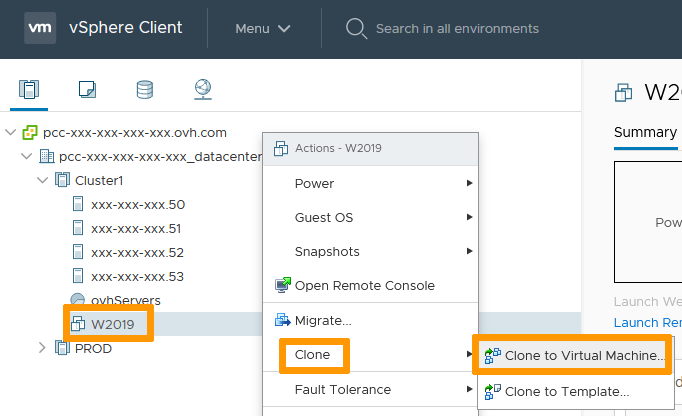
Navigate to your VM, right click on it and in the Clone menu, select Clone to Virtual Machine.
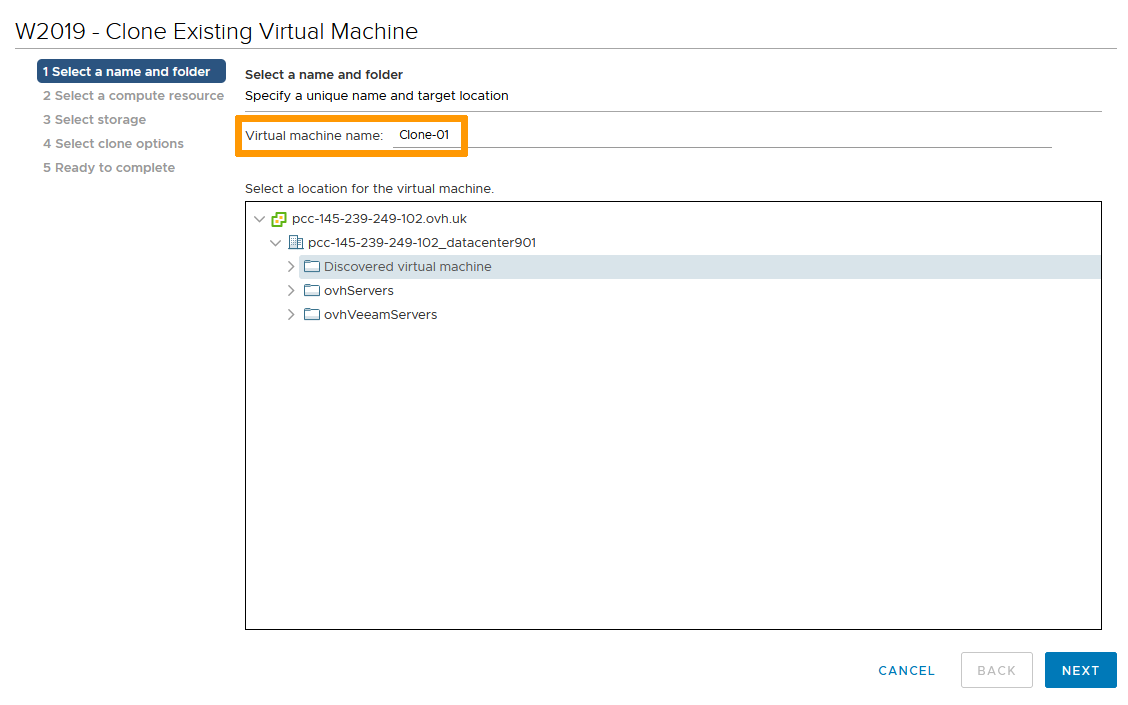
Name the clone VM and select its datacenter location.
Click Next.
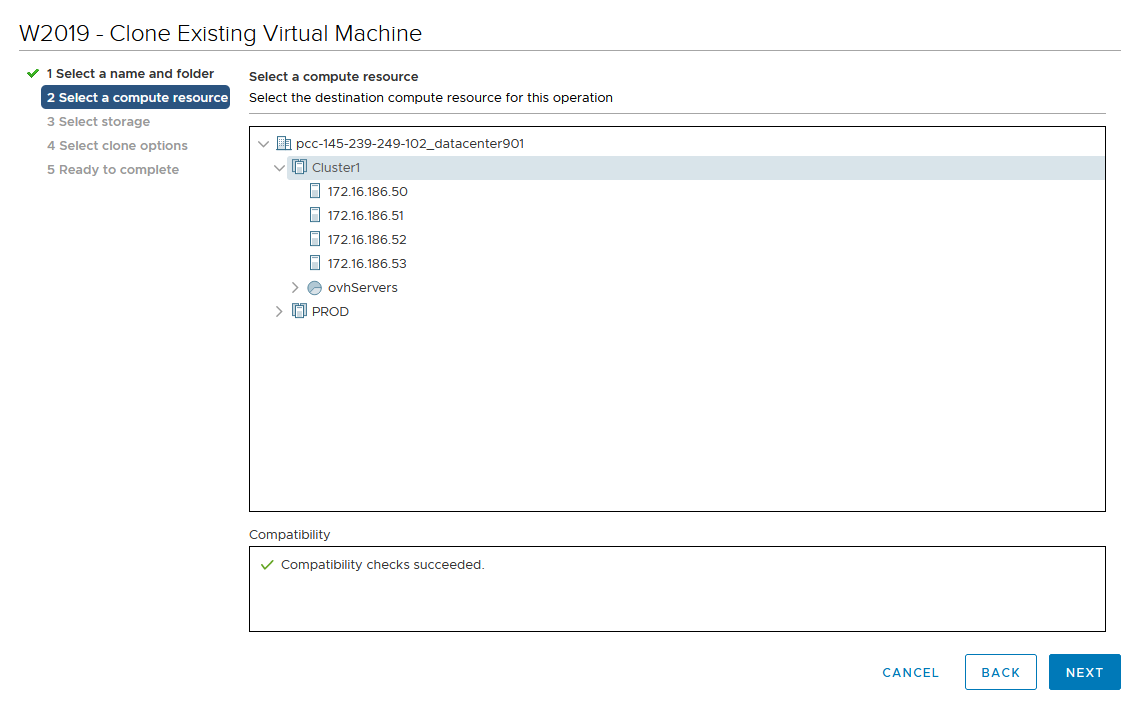
Select the clone VM compute location.
Click Next.
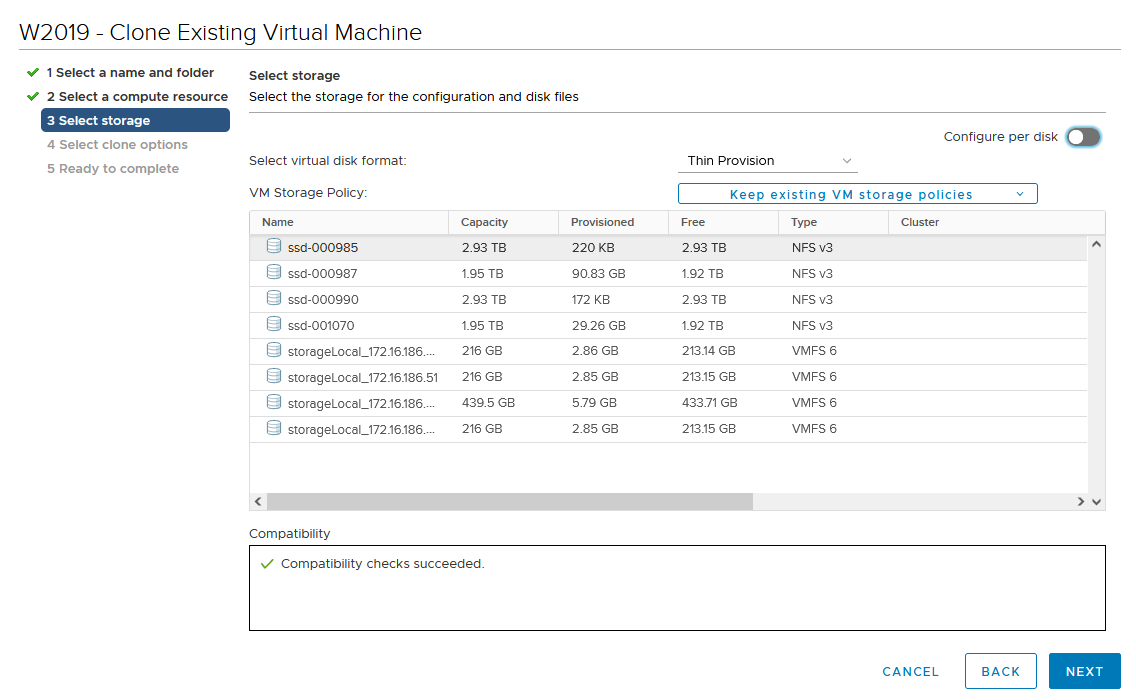
Select the clone VM storage location.
Click Next.
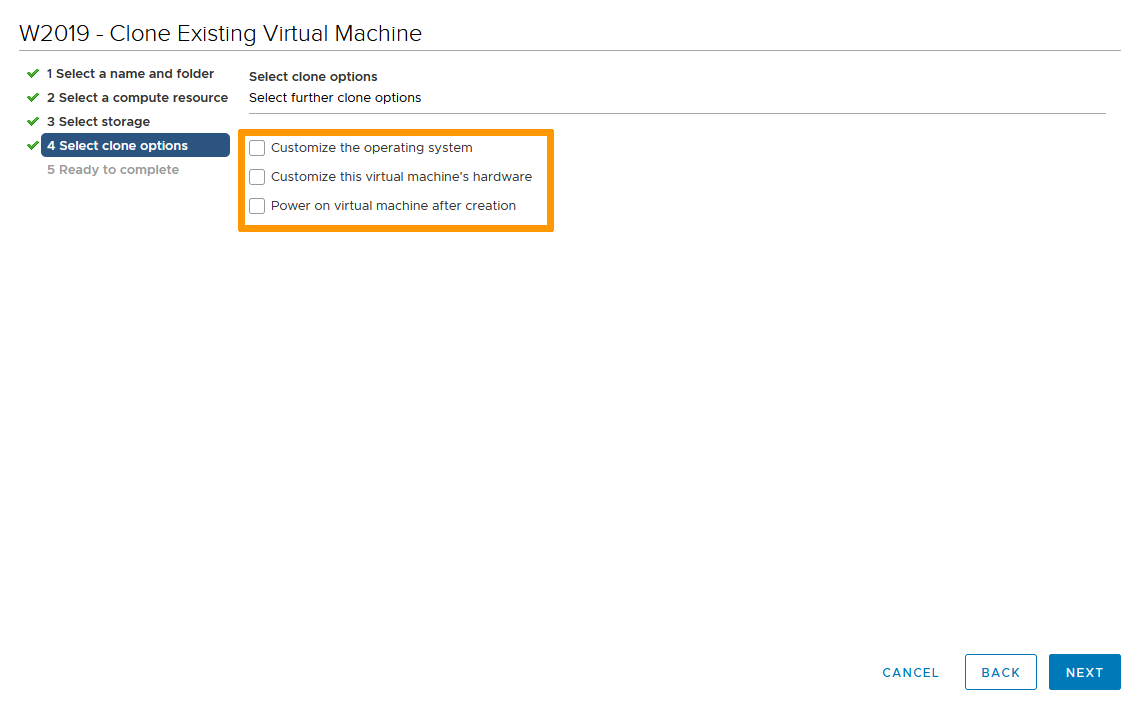
Select the options for your clone VM.
- Customize the operating system will trigger sysprep on first use of the VM
- Customize this virtual machine's hardware allows for modification of VM capabilities (HDD size, network elements...)
- Power on virtual machine after creation is not recommended as you may have to apply changes before startup to prevent issues (network conflicts most notably if you use fixed IPs)
Click Next.
Review and click Finish.
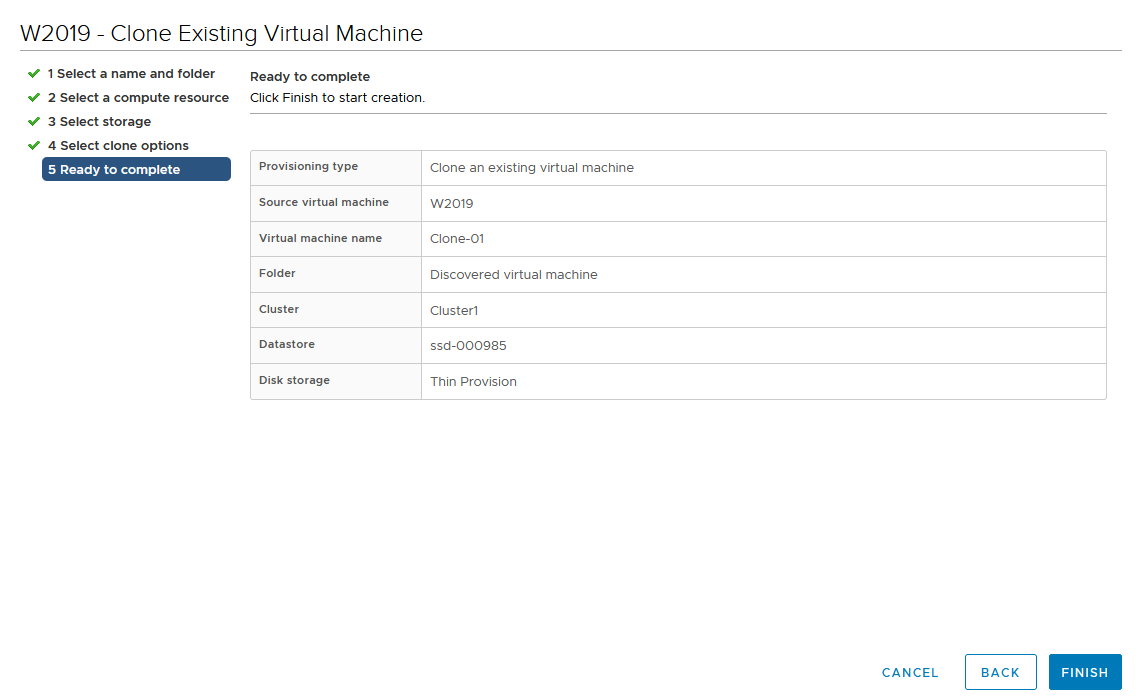
The cloning process will go through and the new VM is ready for you.
If you cloned without any customization, make sure it is safe to boot the new VM. If it is cloned from a fixed IP VM, you should disable the Network Card to avoid IP conflicts for example.
Clone to Template
In the vSphere interface menu, go to the Hosts and Clusters dashboard.
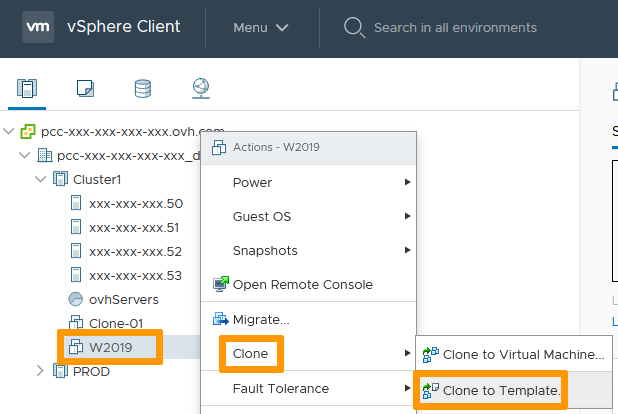
Navigate to your VM, right click it and, in the Clone menu, select Clone to Template.
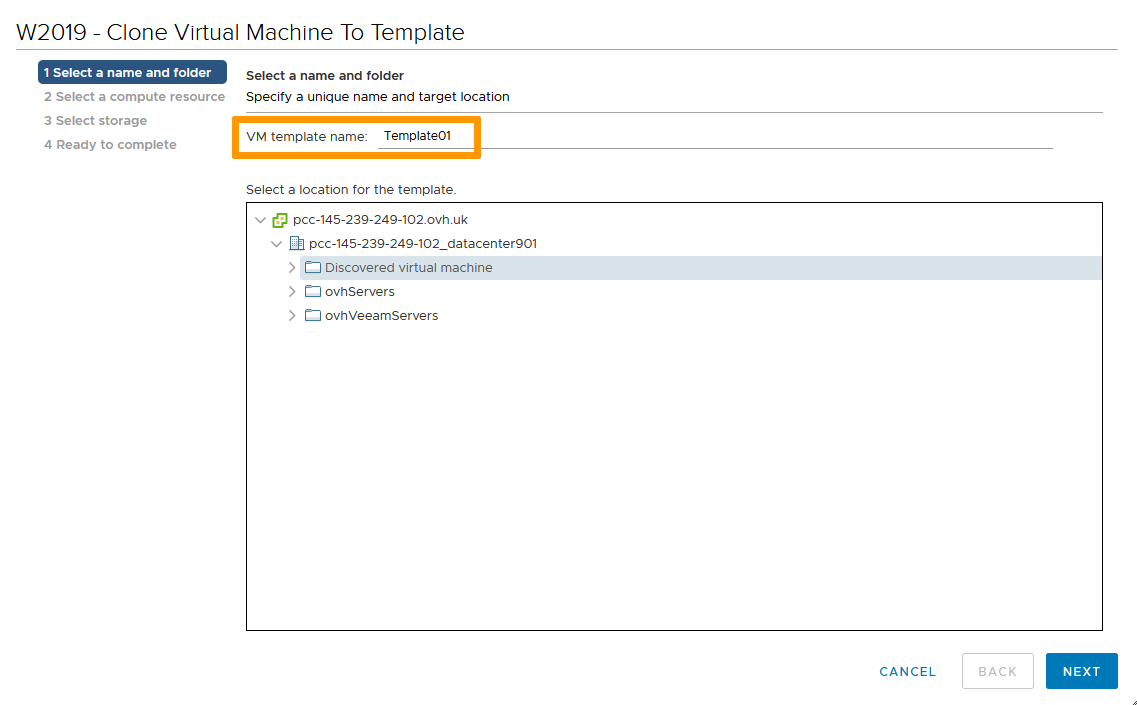
Name the template VM and select its datacenter location.
Click Next.
Select the template VM compute location.
Click Next.
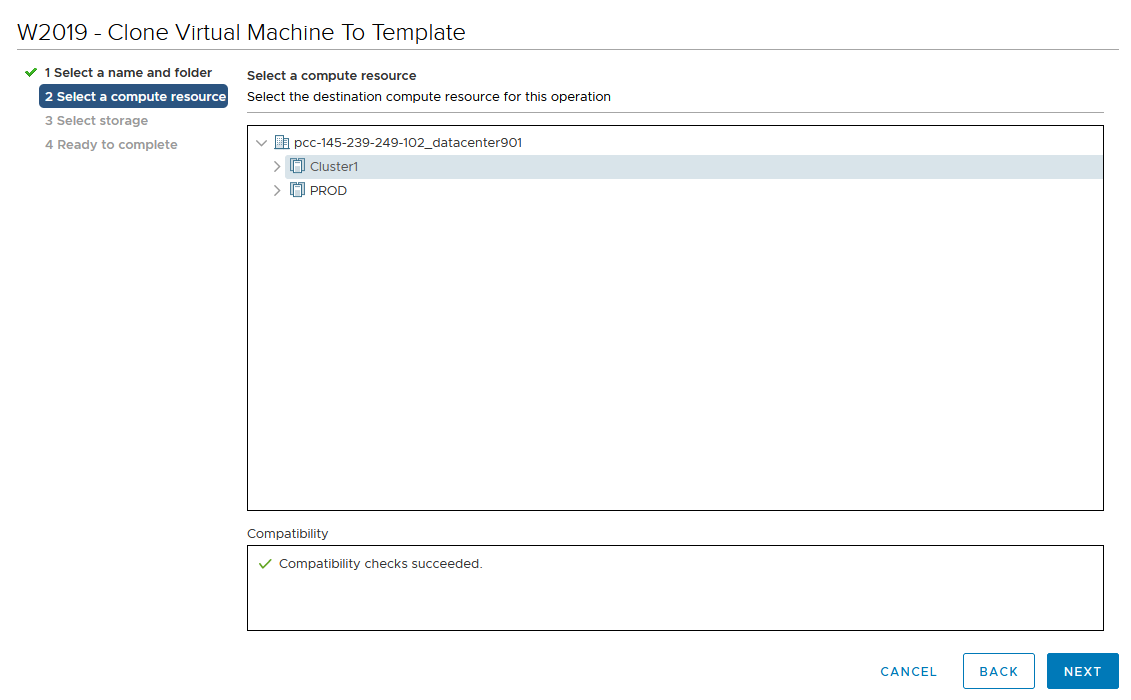
Select the template VM storage location.
Click Next.
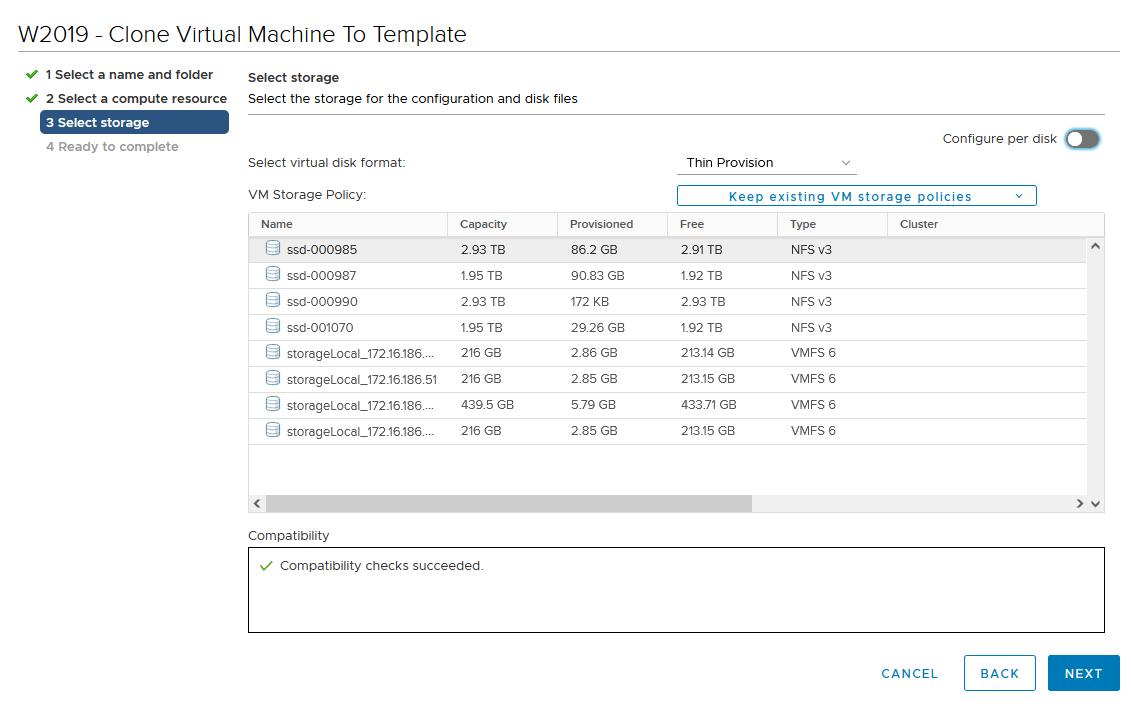
Review and click Finish.
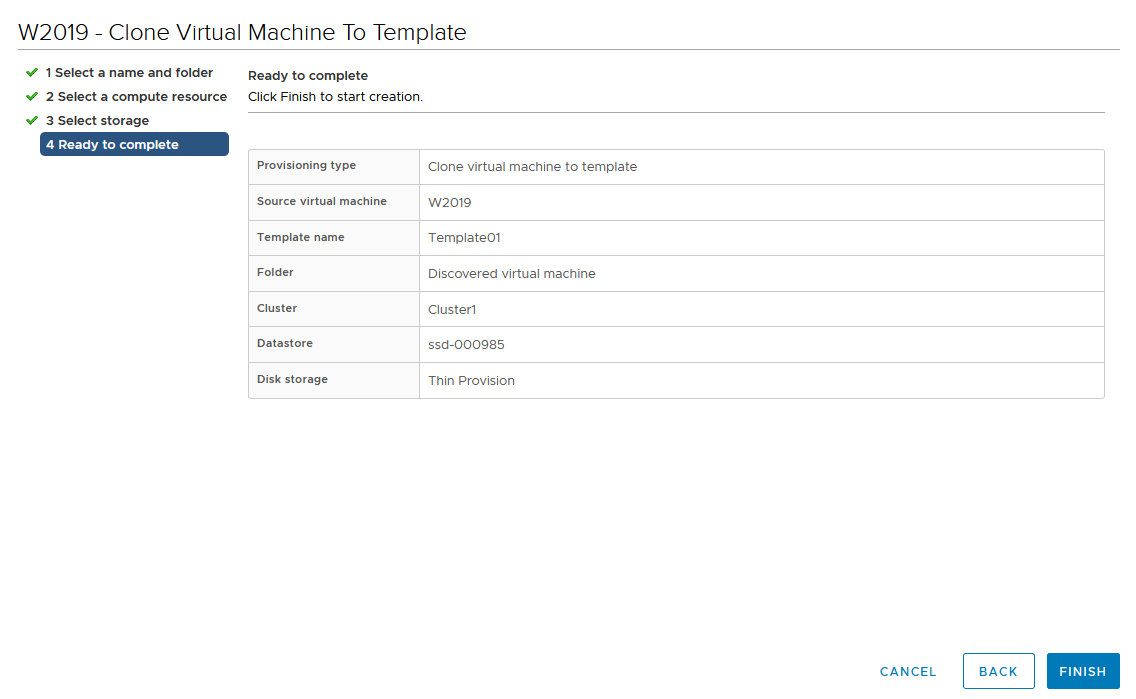
The cloning to template process will go through.
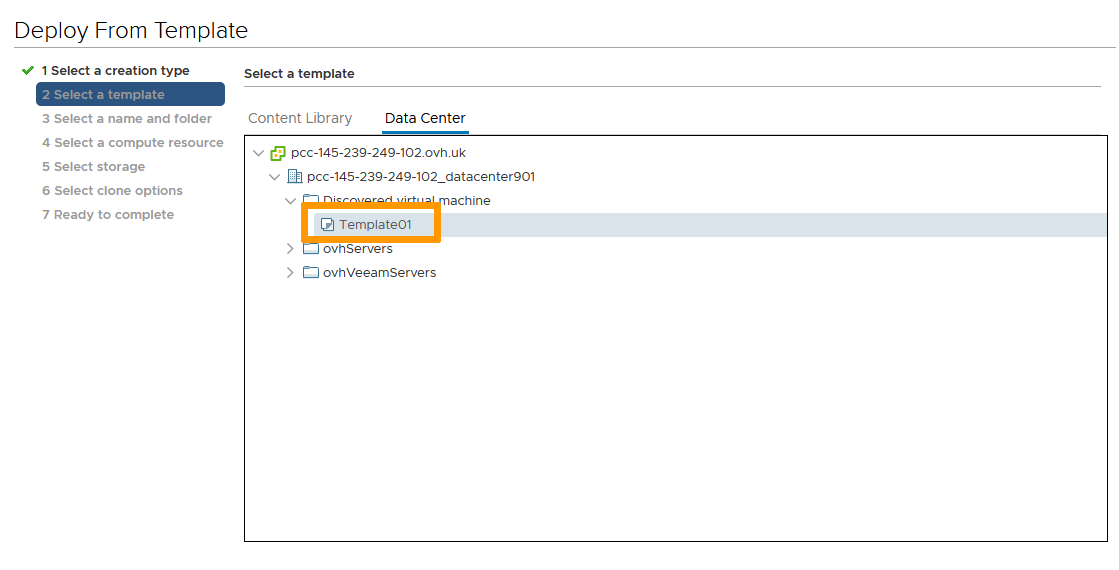
No VM is directly visible but when deploying new VM, the clone will show in the "Deploy from Template" option.
Go further
Join our community of users on https://community.ovh.com/en/.


 VMware vCenter Converter
 556
556