

Scanning Docker images for vulnerabilities with OVHcloud Managed Private Registry
247 Ansichten
 15.04.2022
  Cloud / Managed Private Registry
OVHcloud Managed Private Registry service is a composite cloud-native registry which supports both container image management and Helm chart management.
This guide will explain how to activate the vulnerabilities scanner and manually scan an image in an OVHcloud Managed Private Registry service.
Before you begin
This tutorial presupposes that you already have a working OVHcloud Managed Private Registry and you have followed the guides on creating a private registry, connecting to the UI, managing users and projects and creating and using private images.
You should have at least one image in your Private Registry:
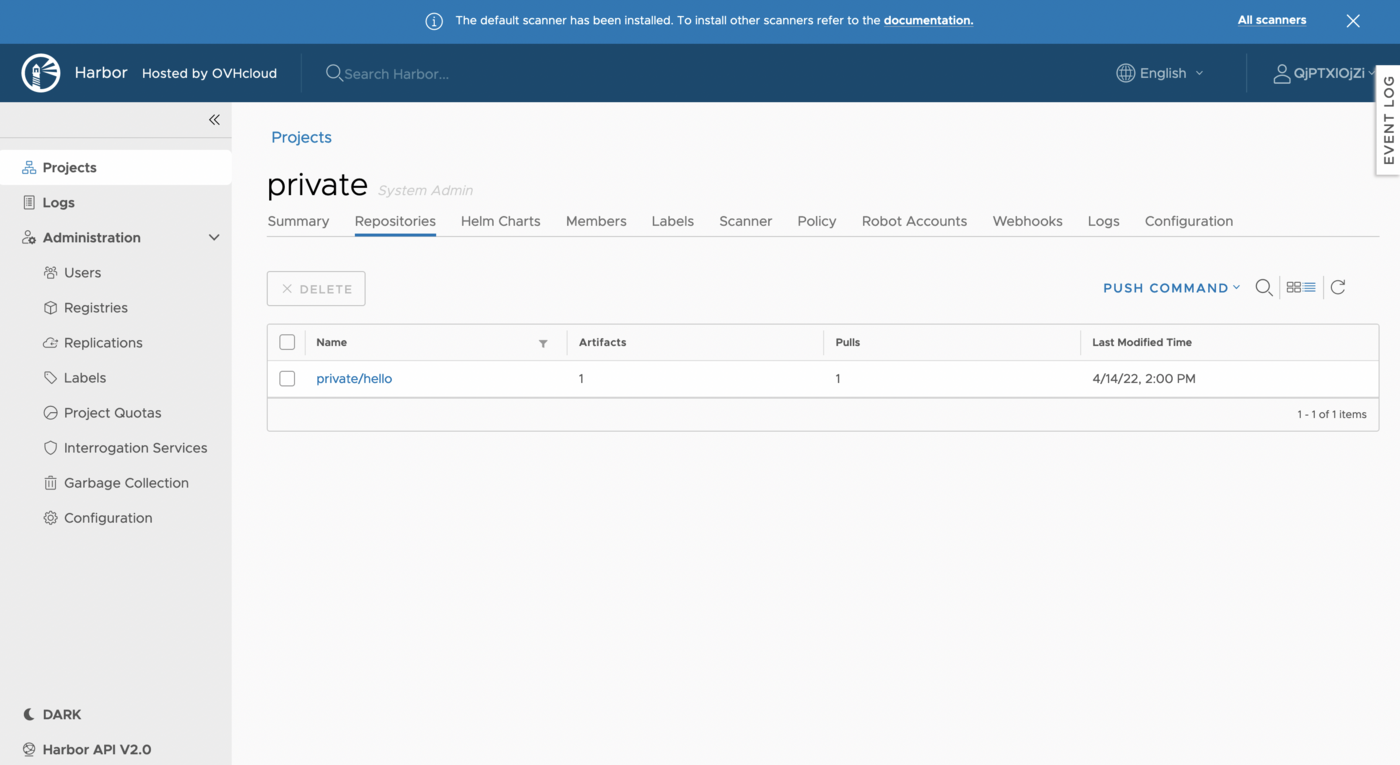
Instructions
You can scan your images on your private registry by using the Harbor UI.
Check that you have enabled a vulnerability scanner
By default, when you create a Private Registry in order to enable a vulnerabilities scanner you need to choose a M or L plan.
With the M and L plan, OVHcloud installs and maintains a vulnerability scanner for you: Trivy for Harbor version 2.x or Clair for Harbor version 1.x.
To verify if you have a vulnerability scanner in your private registry, go to Interrogation Services in the navigation bar.
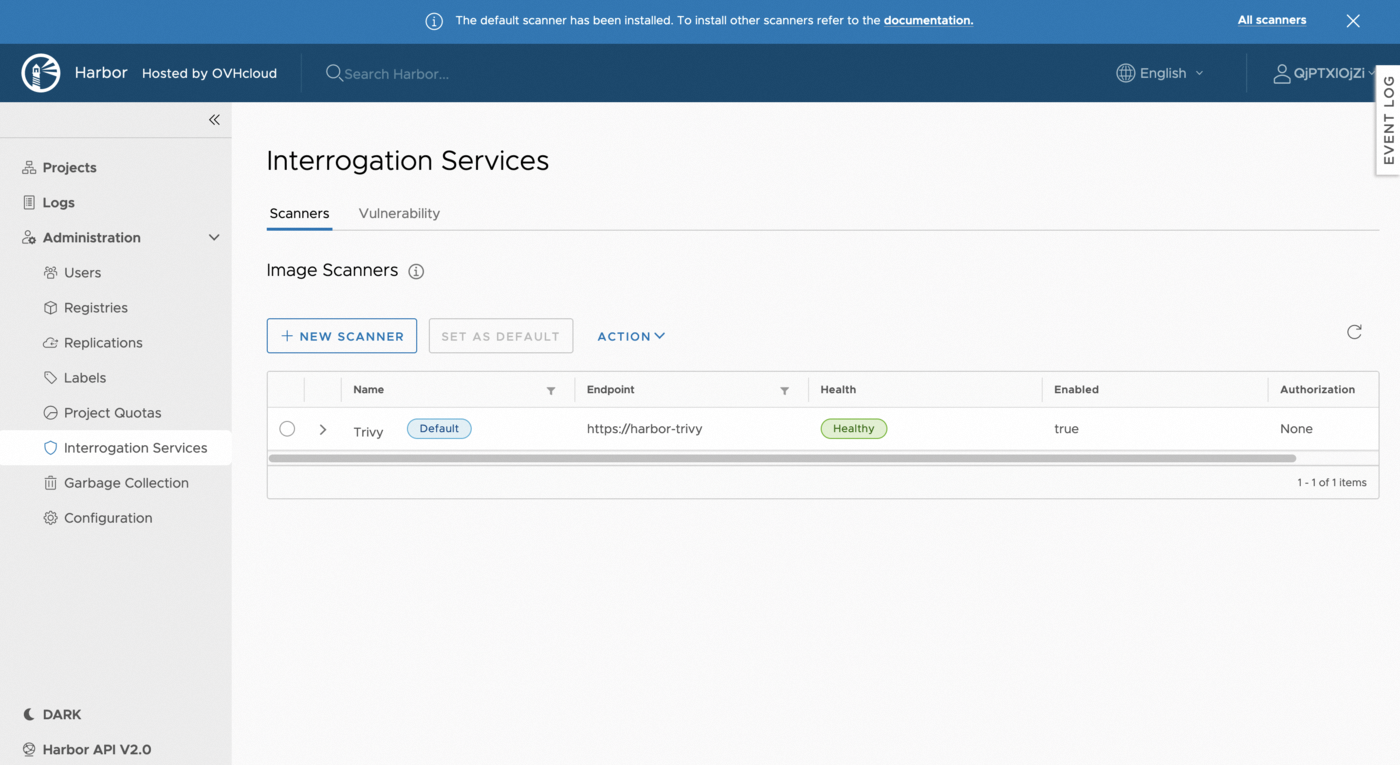
As you can see, Trivy is installed and ready to use.
If you want to manually add a vulnerability scanner, you can also do it with New Scanner. However, it will not be updated and maintaned by OVHcloud.
Scan a Docker image manually
You can manually scan a Docker image.
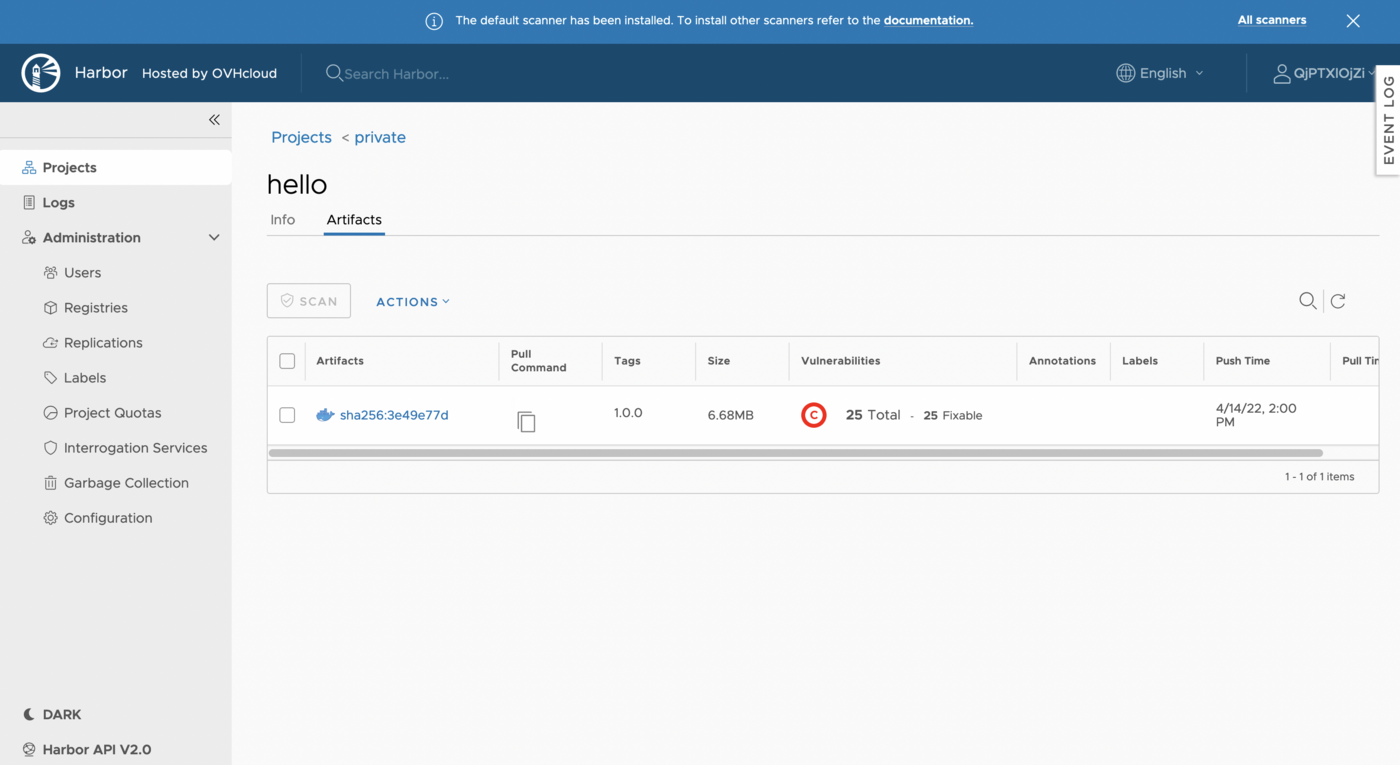
To do that, access your project, select an image and click on Scan.
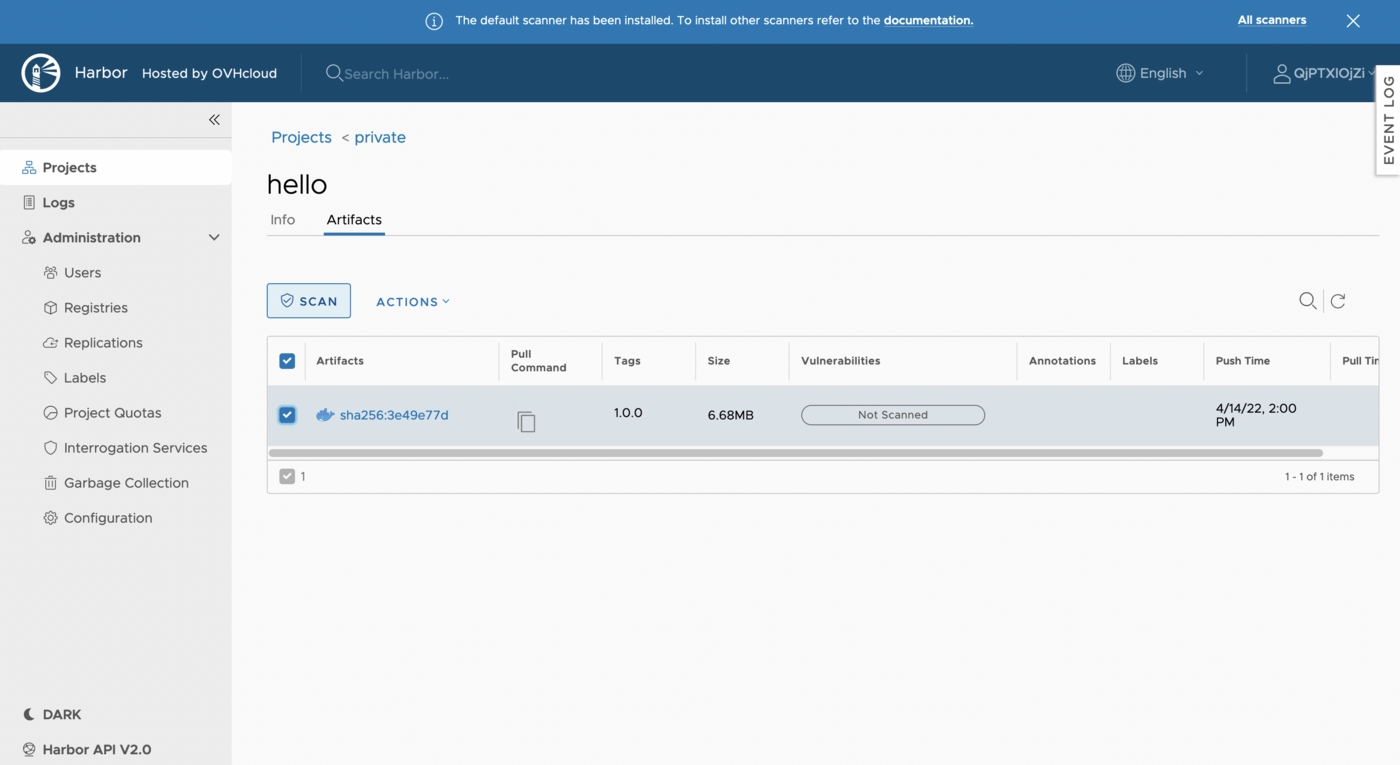
The scanner starts scanning the image.
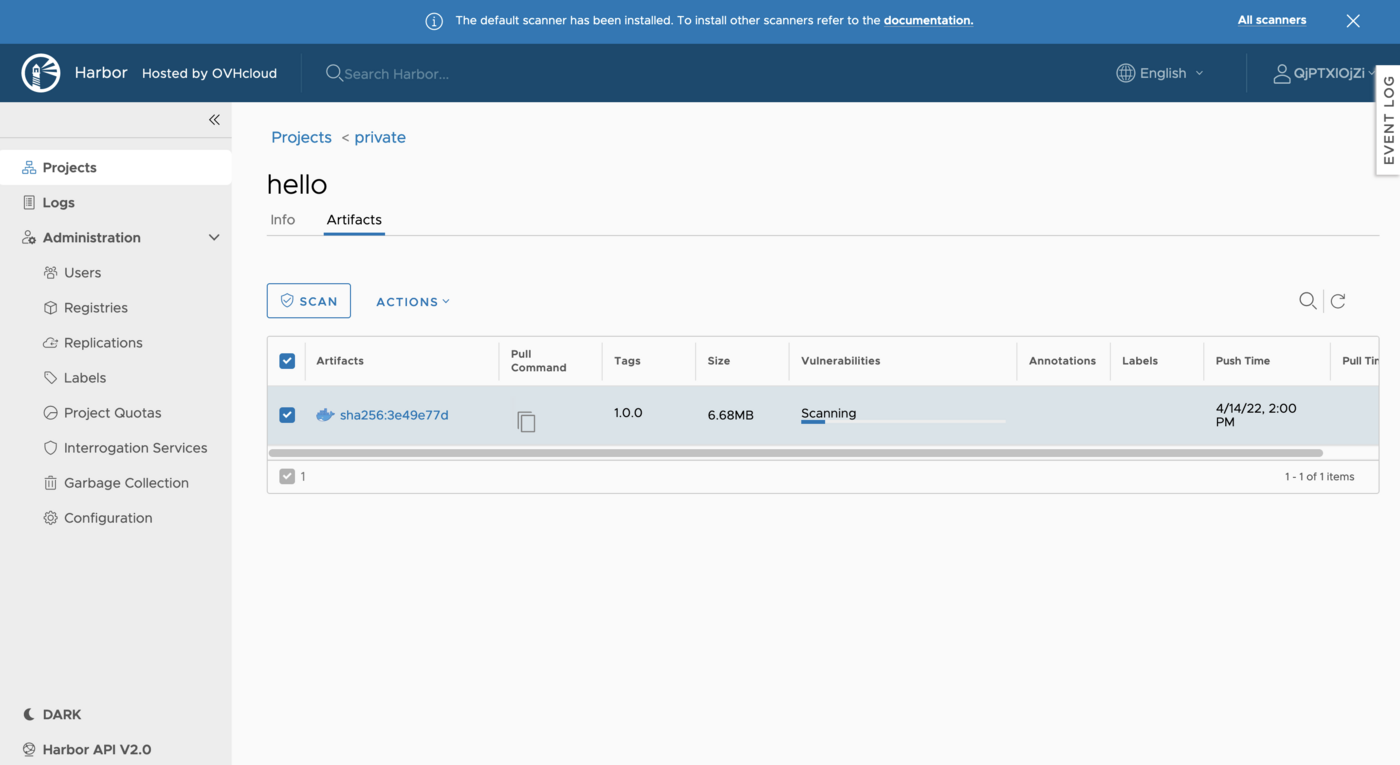
The number of vulnerabilities is displayed.
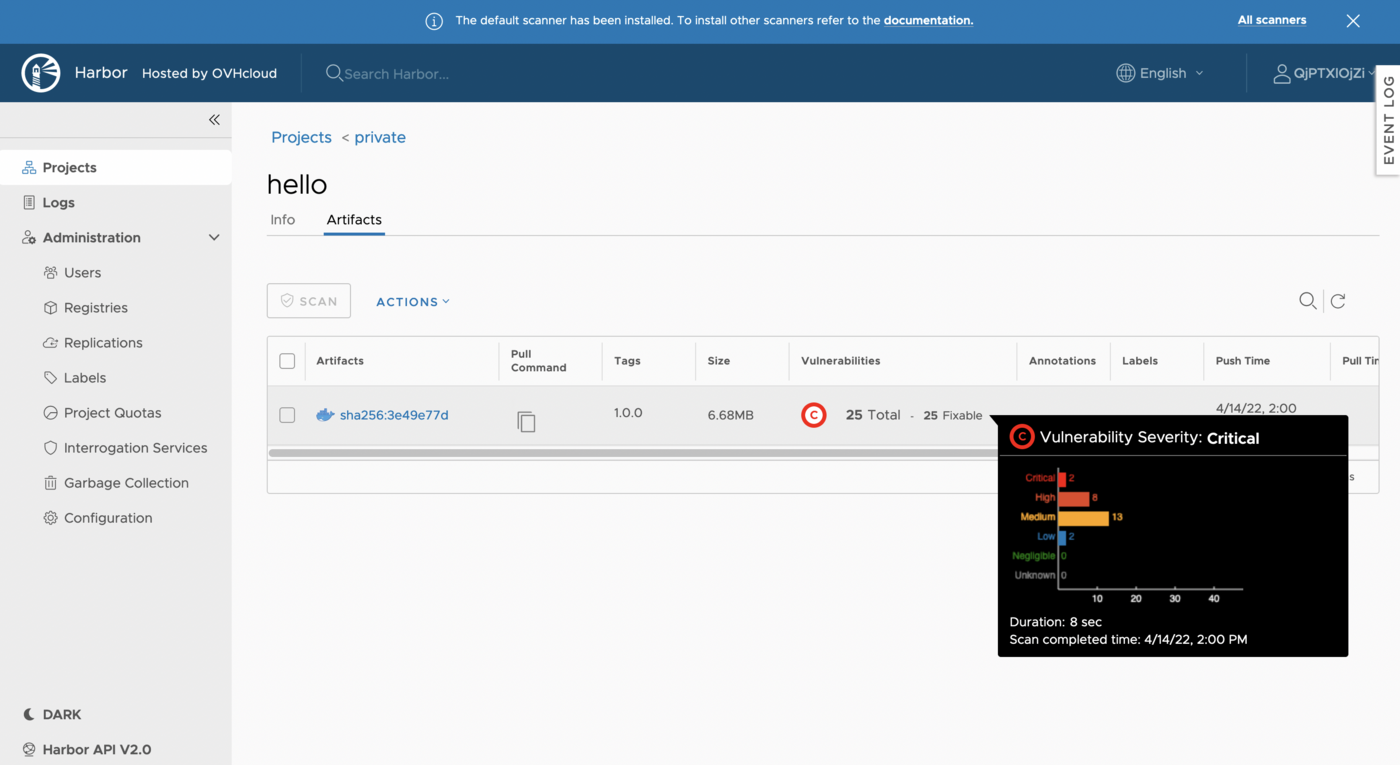
When you hover the vulnerabilities column, a chart with the vulnerabilities severity is displayed.
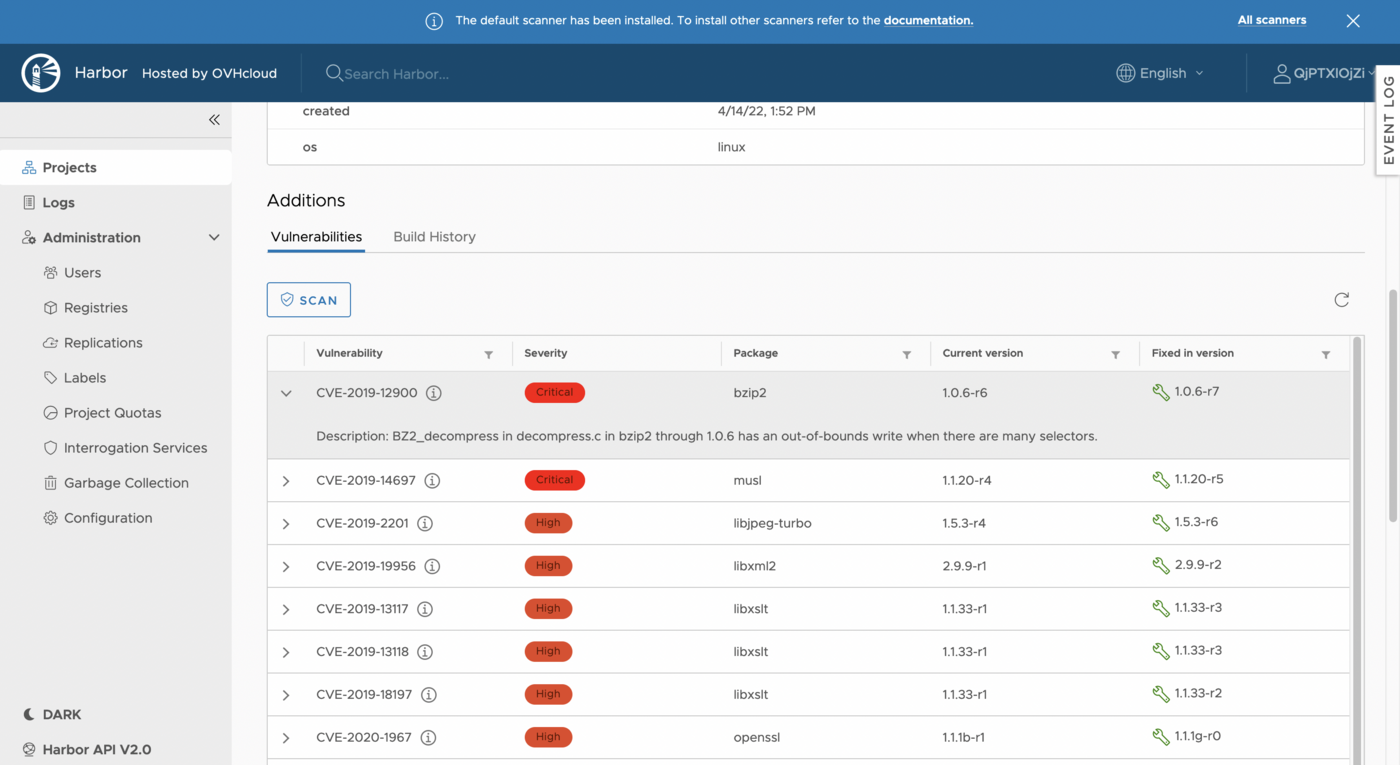
Click on the image ID to display all vulnerabilities, ranked by severity.
Scan all the images
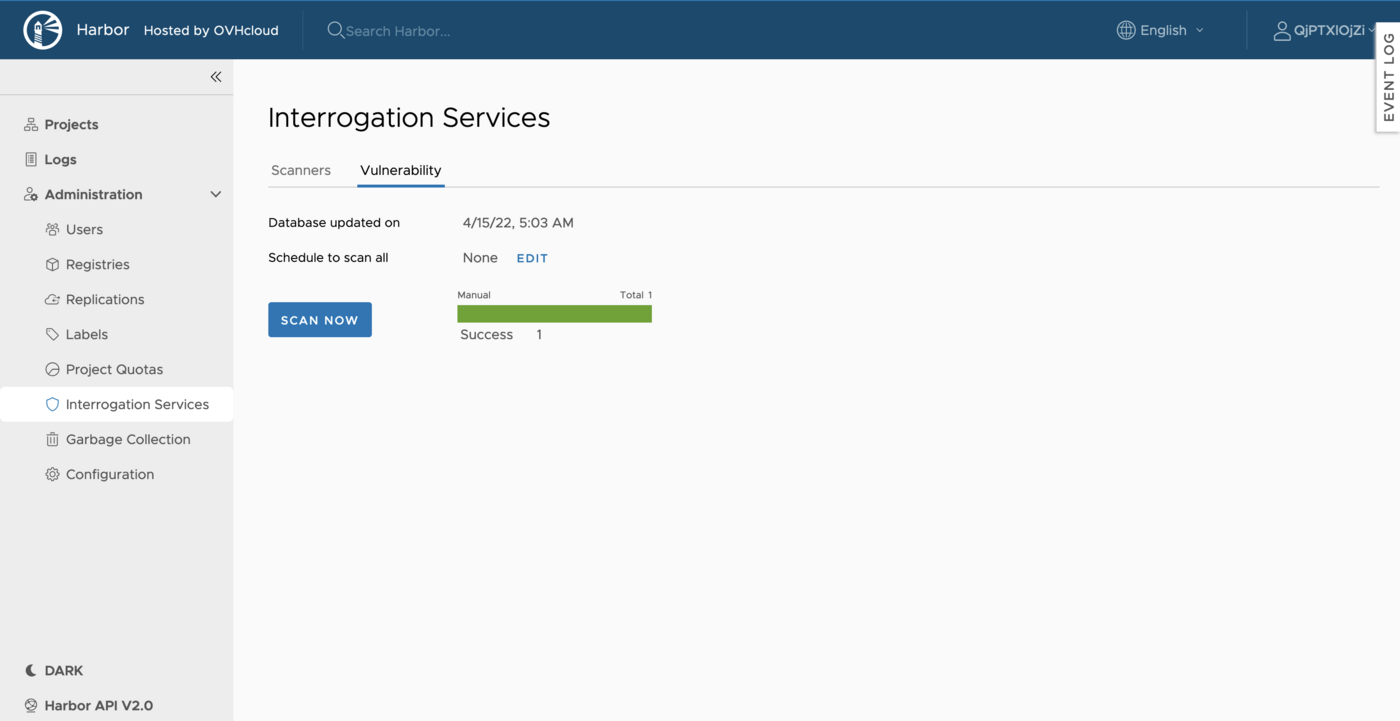
You can also scan all your images manually in your private registry.
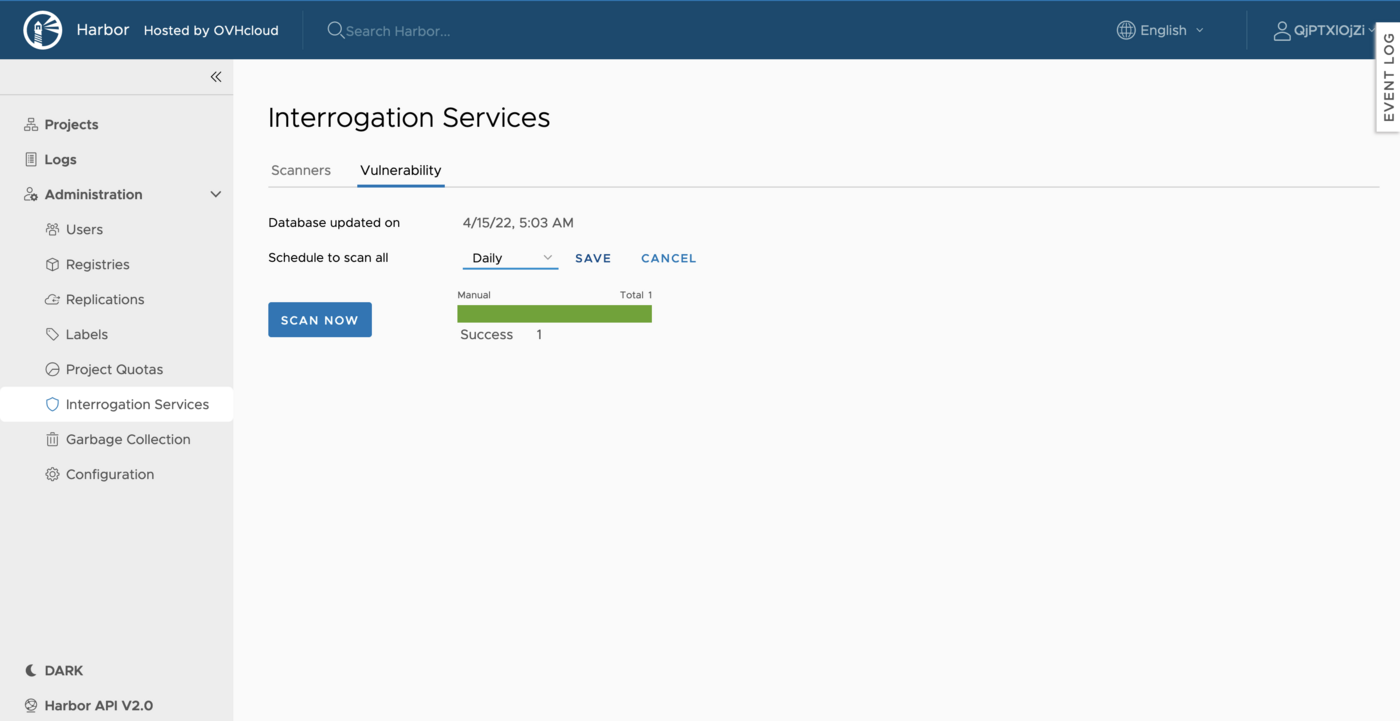
To do that, go to the Vulnerability tab and open Interrogation Services. Next, click on Scan Now.
Scan all images regularly
You can schedule a scan:
- hourly
- daily
- weekly
- when you want (enter as a cron format)
For that, select the scheduling and click on the Save button.
Go further
To have an overview of OVHcloud Managed Private Registry service, you can consult the OVHcloud Managed Private Registry site.
Join our community of users on https://community.ovh.com/en/.


 Configure the authentication via an OIDC provider on an OVHcloud Managed Private Registry
 251
251