

Restore a backup of Public Cloud Databases
297 Ansichten
 31.07.2024
  Cloud / MANAGED_SERVICES
Objective
OVHcloud Databases as-a-service (DBaaS) allows you to focus on building and deploying cloud applications while OVHcloud takes care of the database infrastructure and maintenance.
This guide explains how to restore a backup of a database solution in the OVHcloud Control Panel.
We continuously improve our offers. You can follow and submit ideas to add to our roadmap at https://github.com/orgs/ovh/projects/16/views/5.
Requirements
- A Public Cloud database service up and running
OVHcloud Control Panel Access
- Direct link: Public Cloud Projects
- Navigation path:
Public Cloud> Select your project
Instructions
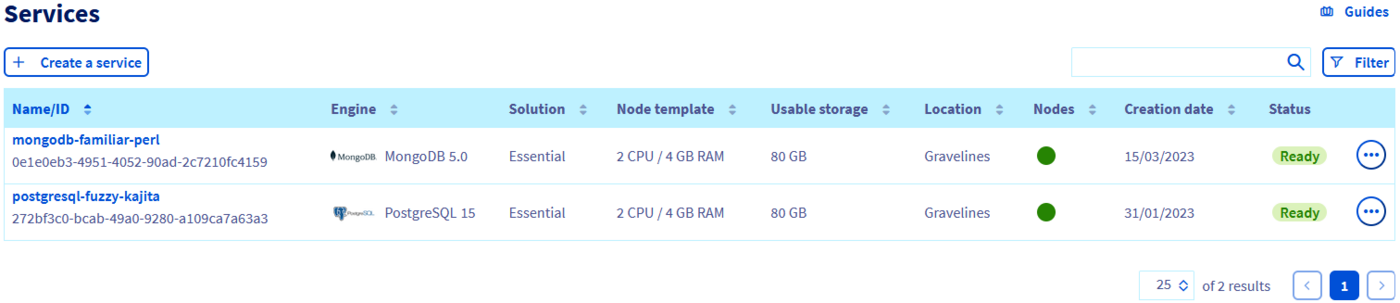
Step 1: Select the database service you want to restore data from
First, you need to go to the overview page of the service you want to restore the backup from.
Step 2: Go to the backup tab
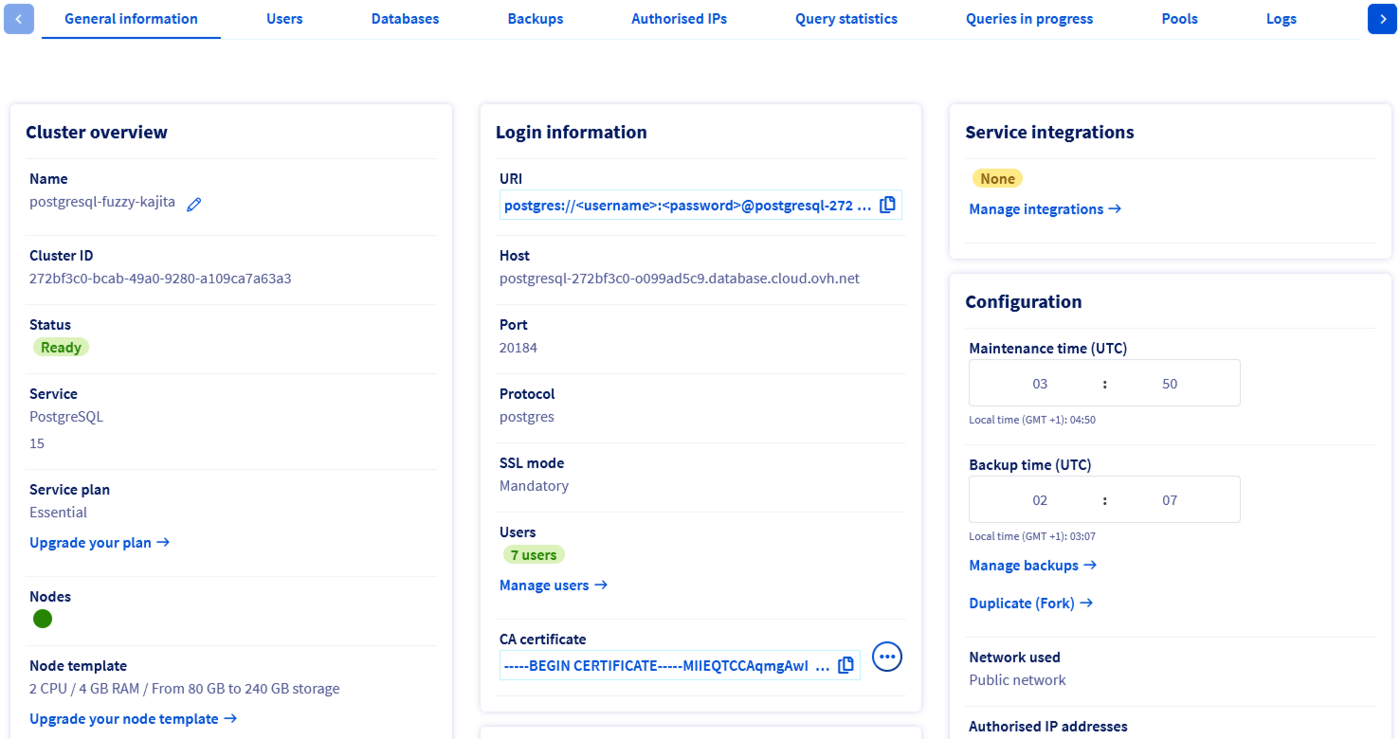
In the tab list, click on Backups.
Step 3: Select the backup to restore from
Select the backup from which you want to restore. To help you choose, observe the dates at which the backups have been performed in the "Creation date" column.
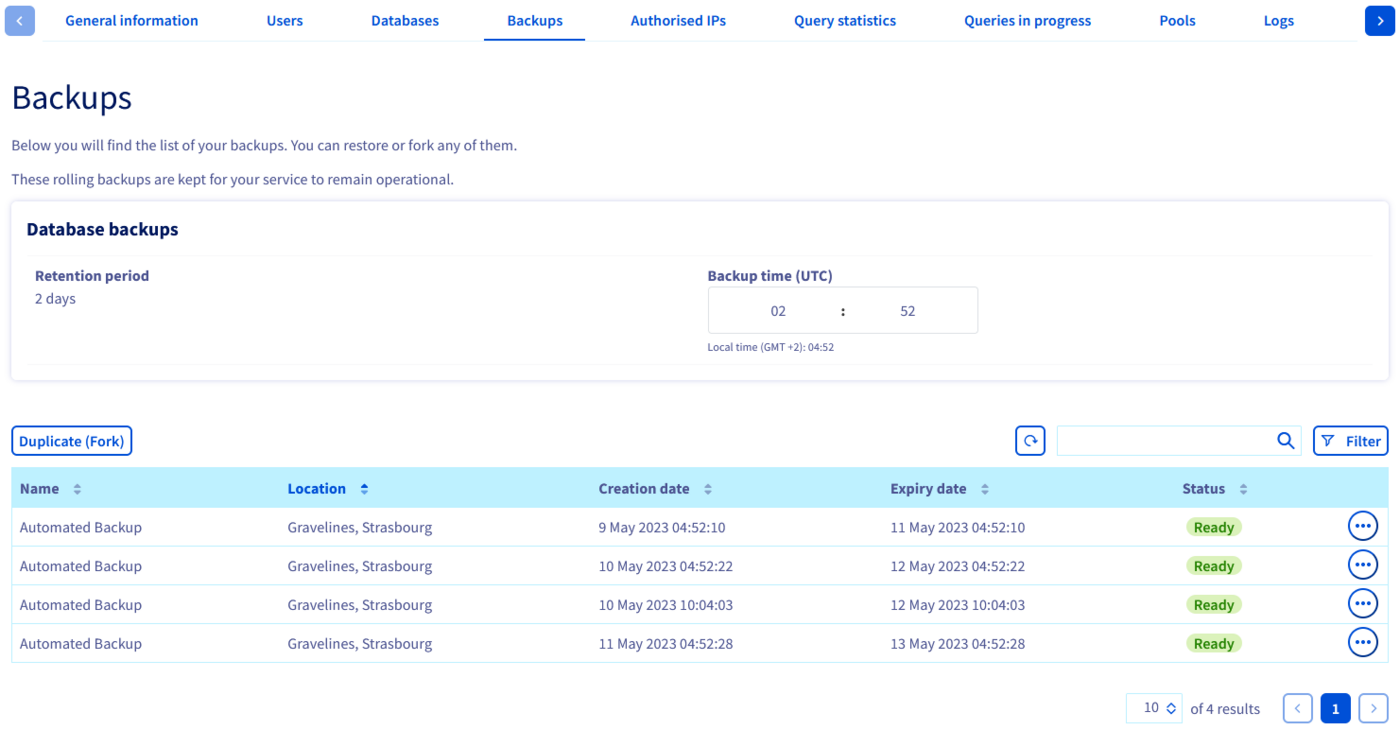
Click on the ... button corresponding to the chosen backup. Then click on Duplicate (Fork) to go to the configuration page of the new service.
The MongoDB service has the option to restore a backup in place, meaning restoring the backup on the same service. This option will rollback ALL data to the state it was in when the backup was done. This can induce data loss.
Step 4: Configure the target service
As seen before, when restoring a backup, you create a new separate database service on which the backup data will be imported. You are able to configure this new service as you wish.
Immutable options
For obvious reasons, you cannot change the engine, this option is not offered. The same goes for the engine version, you will be able to update it once the new service is running.
You will find a reminder of all these options in the order summary.

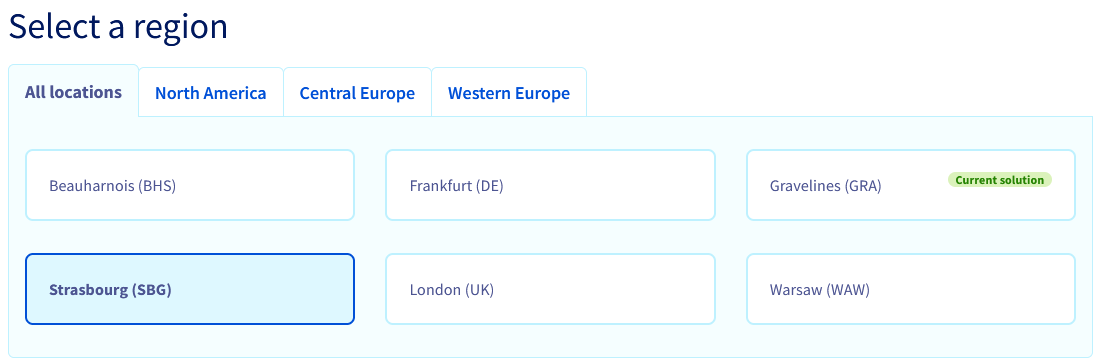
Region
You can choose a different region for your new service.
Restore point
You have to choose a restore point from which the service will be duplicated.
Backup
The most common option is to restore from a backup.

Specific date and latest
If your service supports point in time recovery (see Automated Backup guide for more details), you will also be offered the option to restore from a specific date and time.
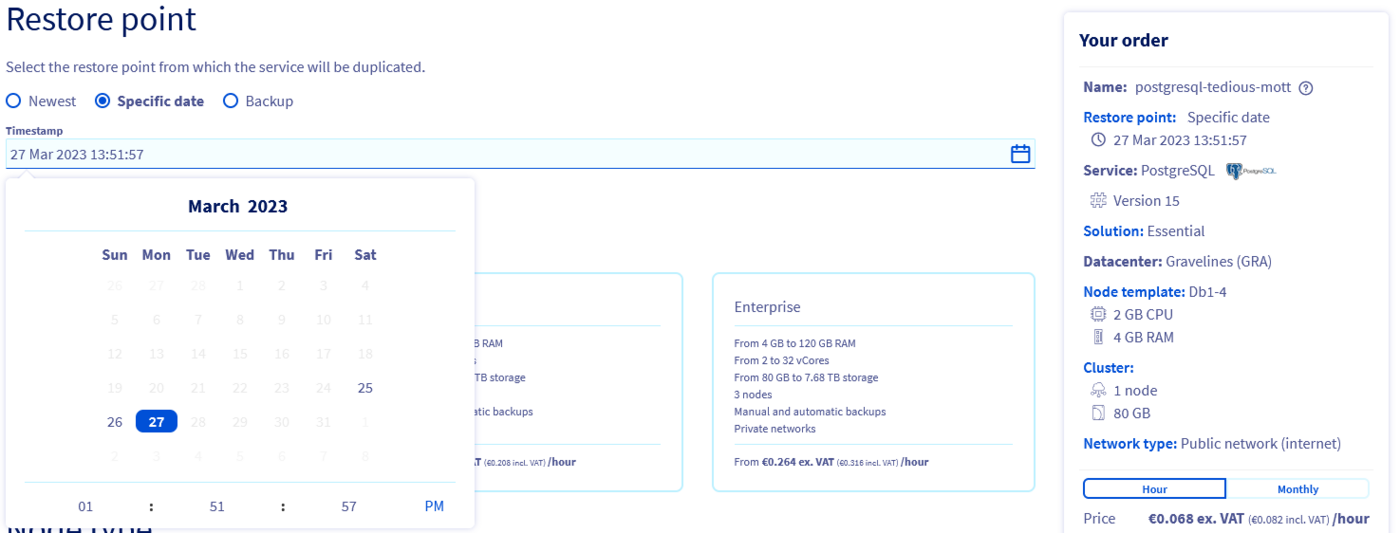
You will also be offered the ease to choose the most recent date directly.

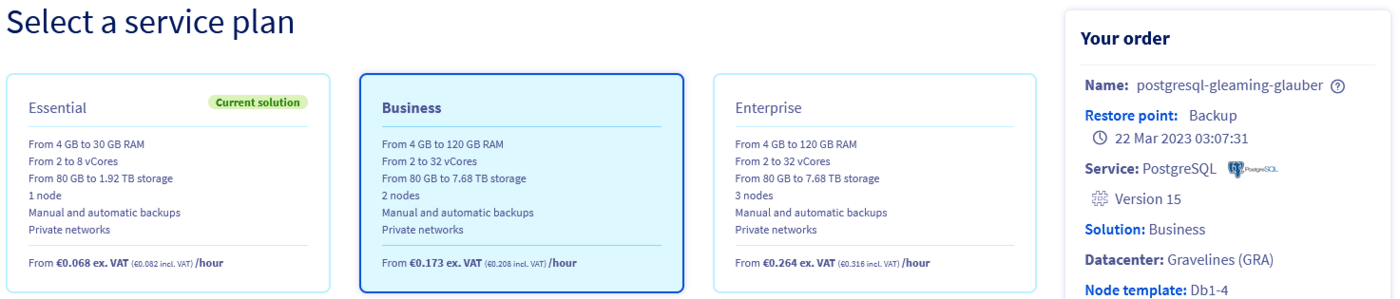
Plan
When restoring a backup, you can select another service plan.
Nodes
You can choose to upgrade the node to a bigger flavor.
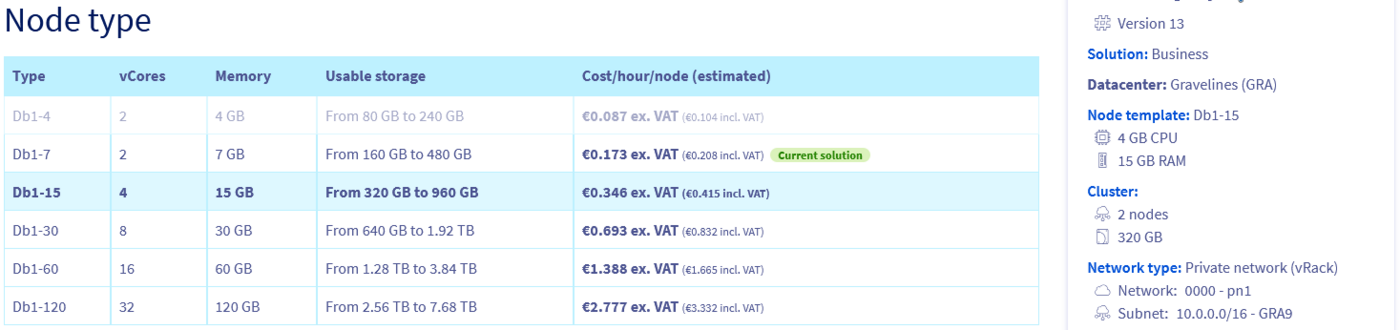
The flavor downgrade will soon be offered. The limitation being that the targeted flavor must have enough storage to restore the backup.
Sizing
Additional storage can be ordered while forking the service.
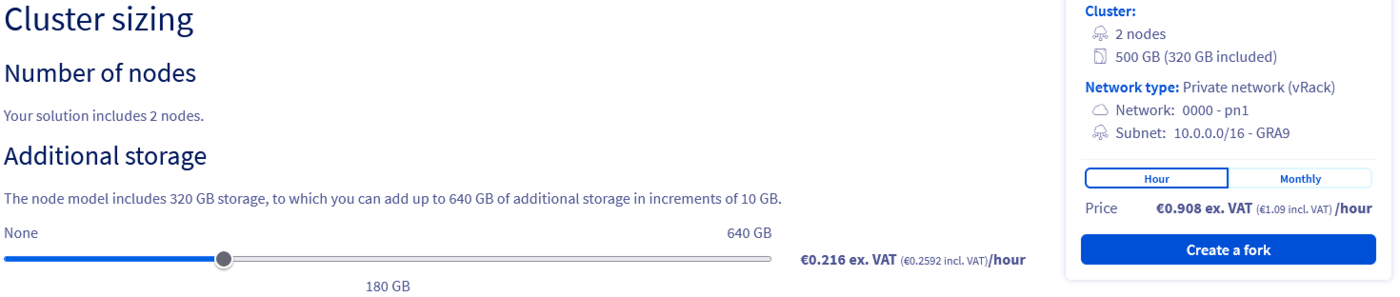
The storage reduction will soon be offered. The limitation being that the targeted total storage must be large enough to restore the backup.
Options
You can update the network options.
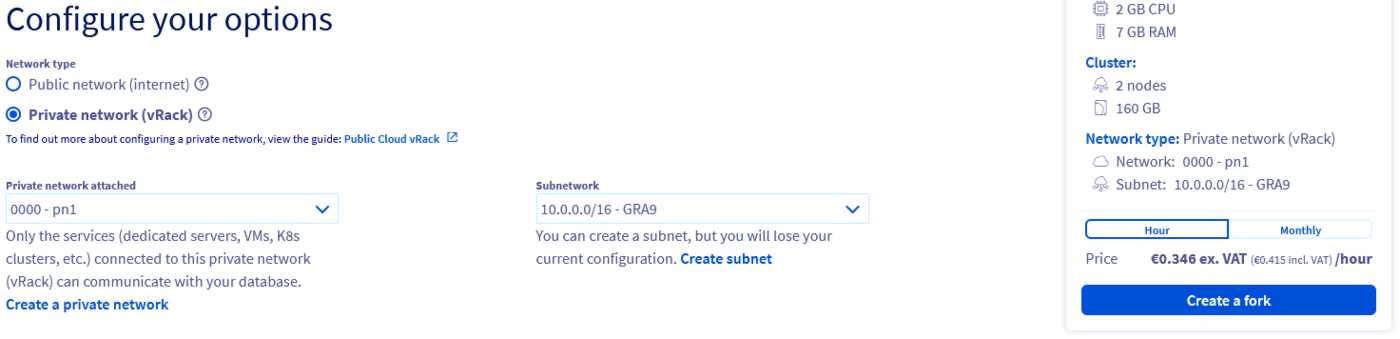
Now click on Create a fork and the new service will be created. Please note that depending on the backup size, it can take some time before the service is available.
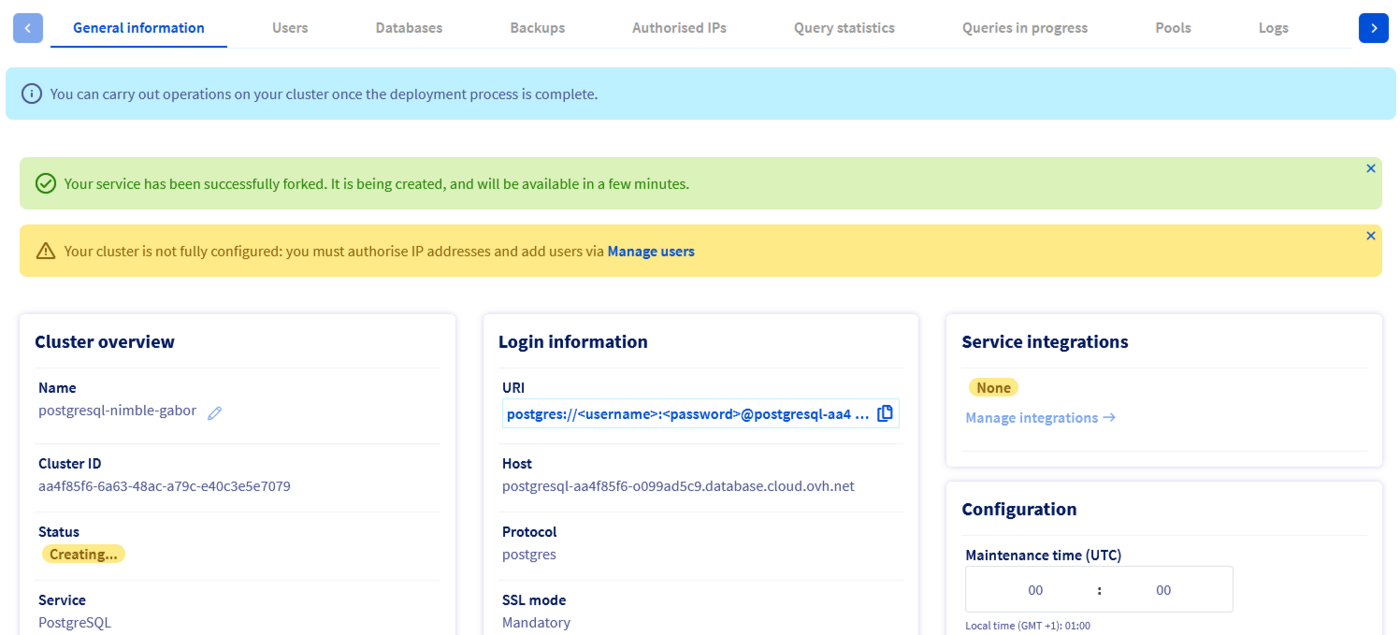
Step 5: Wait for service creation
Now all you have to do is wait for your service to be ready. This new service is now completely independent from the one you forked the backup from. You can safely delete the old service without impacting the new one.
The newly created service does not duplicate IP restrictions nor users which were created on the old service. You will have to recreate those before using your new service.
Go further
Join our community of users.


 Configure the private network for Public Cloud Databases
 460
460