

Migrate an on-premises database to Public Cloud Databases for PostgreSQL
405 Ansichten
 16.03.2022
  PostgreSQL
Objective
This guide details a procedure to migrate a PostgreSQL instance running on-premises to OVHcloud Public Cloud Databases for PostgreSQL.
Requirements
- A Public Cloud project in your OVHcloud account
- A PostgreSQL database running on-premises (the "source" instance)
- A PostgreSQL database running on OVHcloud Public Cloud Databases (the "target" instance)
- A PostgreSQL client that can connect to both database instances, source and target.
- Access to the OVHcloud Control Panel
These guides can help you to meet these requirements:
Considerations
- This document outlines an offline migration path for your database, which means you will have to suspend all the writes from your application for the duration of the migration. Ensure you plan sufficient downtime to carry out all the migration tasks.
- Ensure the source and destination PostgreSQL versions match.
- Ensure you have good enough bandwidth between the client machine and both source and destination databases.
- Ensure you choose a Database plan with appropriate compute, storage and memory resources.
Procedure
Step 1: Stop writing to the source database
Ensure client applications stop all write activity on the source database side. Depending on your system, this might entail letting your customers know in advance about unavailability, stopping other upstream applications, or some other administrative, operations or development tasks.
Step 2: Export the schema
Use the pg_dump command to export the database schema to the client machine, as an SQL plaintext file:
Step 3: Export the data
Use the pg_dump command to export the database data to the client machine, in a .tar archive file:
Exporting the full dataset may take time depending on the size of the database and available bandwidth.
Step 4: Edit the schema
Since you won't have access to super user privilege (usually named postgres) on the destination database, you need to replace references to that role in the schema dump file with another role, either avnadmin, the initial admin user of your managed database, or another user you'd have created beforehand.
Open the schema dump file with a text editor and search for lines such as:
Edit it so that it reads:
Then, search the schema dump file for anything that is not compatible with the OVHcloud Public Cloud Databases offer. Review PostgreSQL - Capabilities and Limitations to learn about what the destination database supports.
Pay particular attention to anything related to extensions, users, roles and schemas. For example, if you installed any third party extensions, you'll need to remove them as extensions are to be handled differently going forward (check the list of supported extensions here: PostgreSQL - Available extensions).
Step 5: Import the schema
Use the following psql command to restore the schema on the destination:
This step should complete quickly.
Step 6: Verify the schema import
Connect to your database service to check if the schema restore completed successfully:
Check the table(s):
Verify the schema:
Step 7: Import the data
Use th pg_restore command to restore the data:
As for the data export step and depending on the dataset size and the available bandwidth, the operation might take some time.
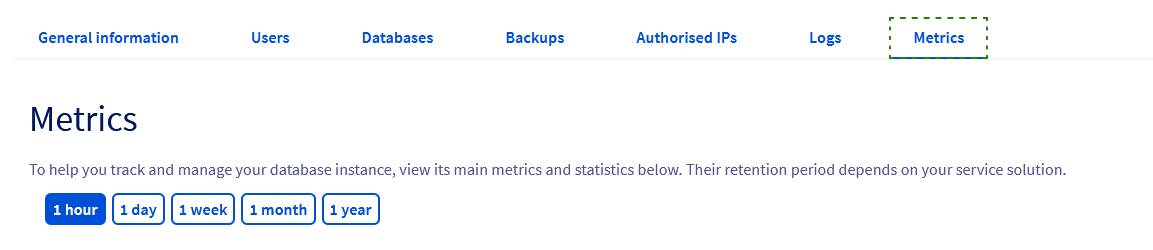
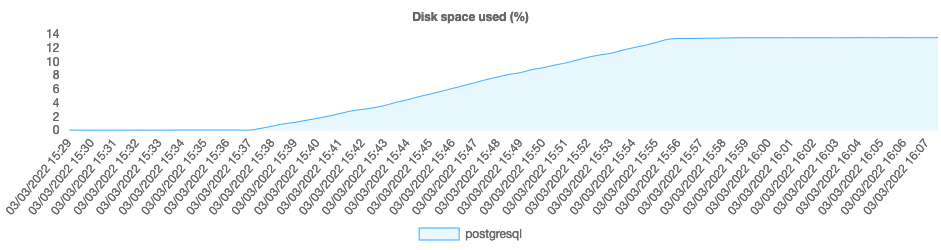
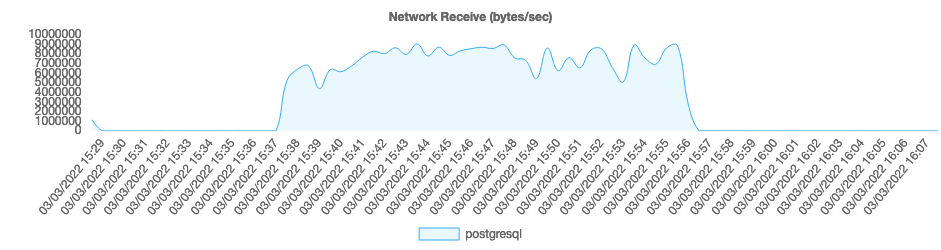
You can monitor the disk & network activity from the Metrics section of the DB service page in your OVHcloud Control Panel:
See, for example, the disk usage:
or the incoming network:
Step 8: Verify the data import
You can check if the data was migrated successfully by querying the destination database, e.g.:
Step 9: Resume operations using the destination database
Once you verified that the database migration was successful, update client applications to have them connect to the destination database. You can now resume normal operations.
Go further
Visit our dedicated Discord channel: https://discord.gg/ovhcloud. Ask questions, provide feedback and interact directly with the team that builds our databases services.
If you need training or technical assistance to implement our solutions, contact your sales representative or click on this link to get a quote and ask our Professional Services experts for a custom analysis of your project.
Join our community of users on https://community.ovh.com/en/.


 Build a Strapi app connected to Public Cloud Databases for PostgreSQL
 293
293