

Using OVHcloud Object Storage as Pulumi Backend to store your Pulumi state
182 Ansichten
 06.05.2024
  Compute
Objective
It is possible to store Pulumi state on a remote data store/backend like an AWS S3 bucket, a Google Cloud Storage (GCS), etc., but did you know that you can also store your Pulumi states on an OVHcloud Object Storage container (bucket)?
In this tutorial you will:
- create an OVHcloud Object Storage container
- log in to Pulumi and initialise your Pulumi backend
Requirements
- A Public Cloud Instance in your OVHcloud account
- Pulumi CLI installed
Zugriff auf das OVHcloud Kundencenter
- Direkter Link: Public Cloud Projekte
- Navigationspfad:
Public Cloud> Wählen Sie Ihr Projekt aus
Before you begin
- You should have installed Pulumi CLI, on your machine. You can install it by following the detailed installation instructions.
Pulumi

Pulumi is an Infrastructure as Code (IasC) tool that allows you to build your infrastructures with a programming language, in Golang for example. Users define the desired state in Pulumi programs and Pulumi creates the desired resources.
Pulumi offers an intuitive command line interface (CLI), to provision, update or delete your infrastructure. If you are familiar with Docker Compose CLI and Terraform CLI, you will adopt Pulumi CLI too.
At OVHcloud we created a Pulumi provider that you can use to interact with and manage OVHcloud resources.
Pulumi states and backend
Pulumi stores metadata about your infrastructure so that it can manage your cloud resources, for example your OVHcloud resources. This metadata is called state and is typically JSON files. Each stack has its own state, and state is how Pulumi knows when and how to create, read, delete, or update cloud resources.
A Pulumi state is updated when you run the pulumi login, pulumi up or pulumi destroy commands.
By default, status files are stored in the Pulumi cloud, and you can also store them locally. You can store the state remotely in a self-managed backend.
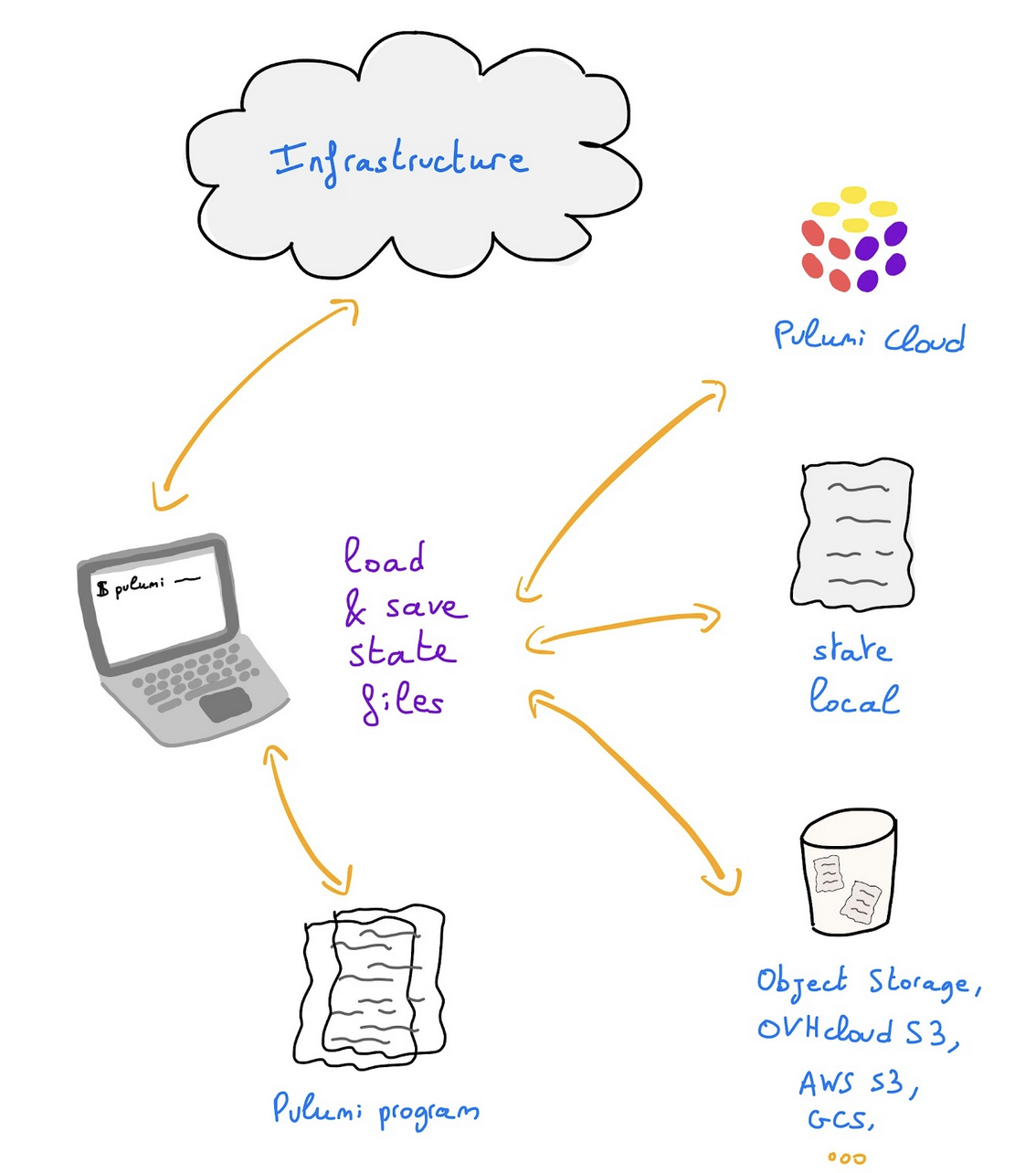
For example, you can store your Pulumi state on an OVHcloud High Performance Object Storage container.
There are several ways of doing this: using the pulumi login command or configuring a backend in your Pulumi.yaml file.
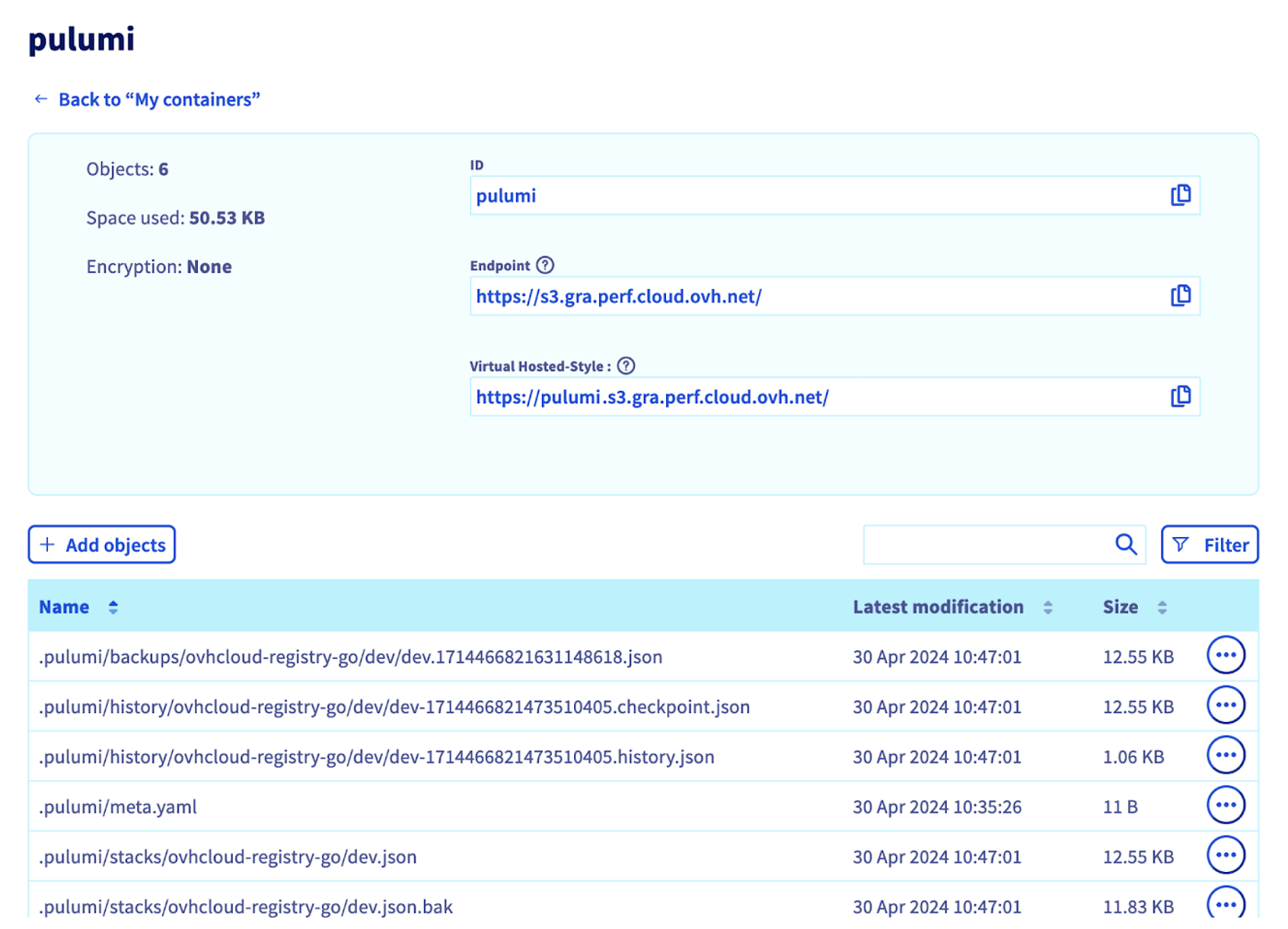
A state is composed of several files inside a .pulumi folder:
meta.yaml: This is the metadata file. It does not hold information about the stacks but rather information about the backend itself.stacks/: Active state files for each stack (e.g.dev.json).locks/: Optional lock files for each stack if the stack is currently being operated on by a Pulumi operation (e.g.dev/$lock.json).history/: History for each stack (e.g.dev/dev-$timestamp.history.jsonvwhere $timestamp records the time the history file was created).
Instructions
Creating an Object Storage container/bucket
First, you need to have an Object Storage container. If you don't already have one, please consult the guide Creating an Object Storage container.
For this guide, our Object Storage container has the following characteristics:
- a
Object Storage - High Performance class - located in the
GRAregion - with a newly created user
- named
pulumi
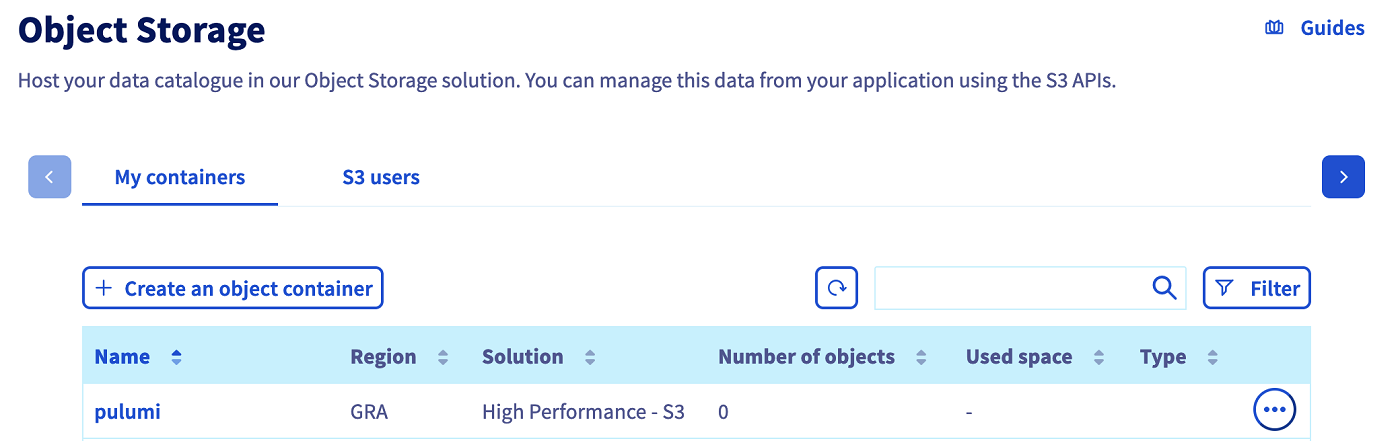
Save the Object Storage credentials, you will use the Object Storage access key and the Object Storage secret key in the coming export commands.
Click on pulumi to access the bucket and to display its information, including the useful Endpoint.
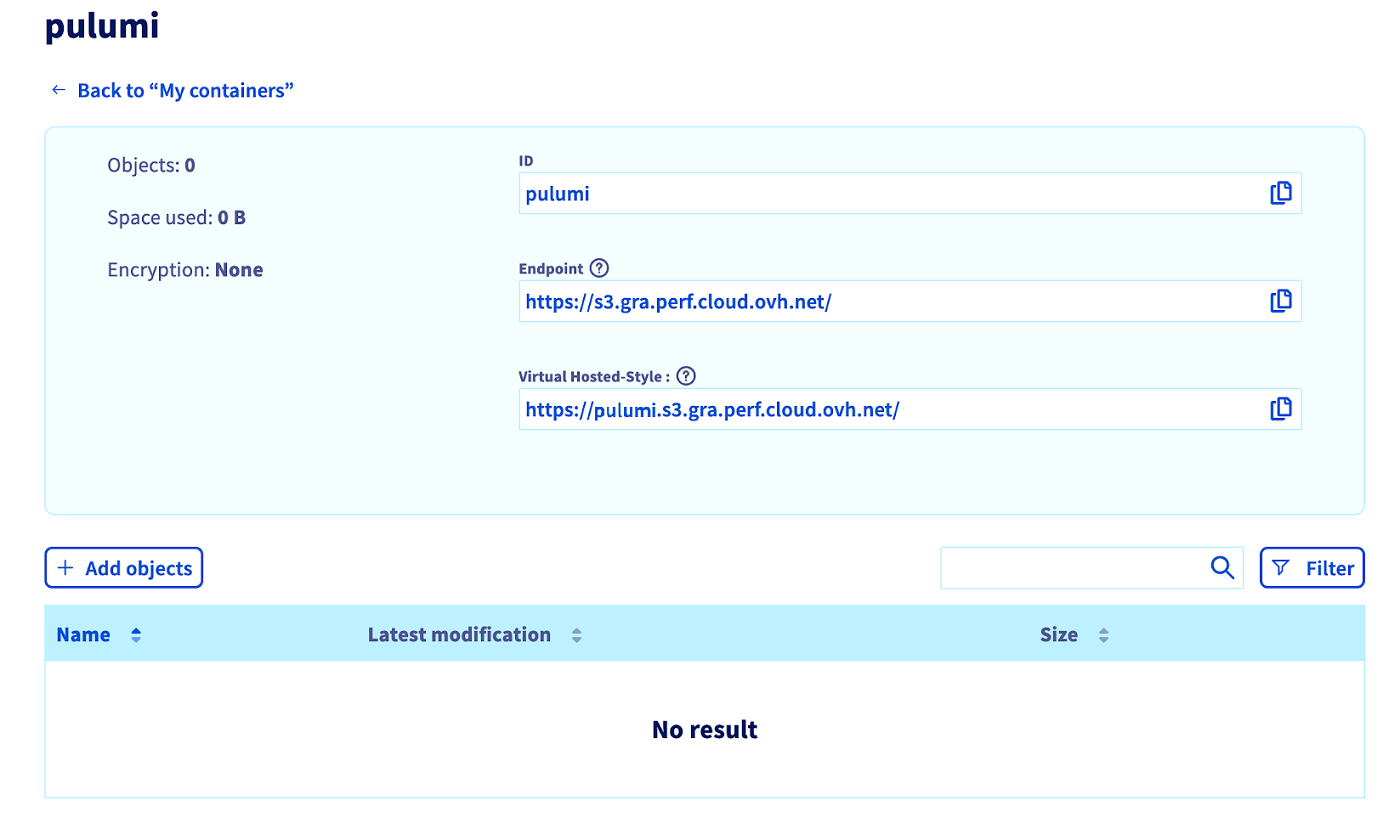
Export your Object Storage credentials in environment variables:
Set-up Pulumi backend and login
There are several ways to define the backend for storing a Pulumi report in a remote backend. Follow the one you prefer.
Execute the pulumi login command and pass in parameter directly the S3 backend URL:
Or if you don't want to type the URL every time, you can define a backend property in the Pulumi.yaml config file as below:
Then you can simply run the pulumi login command to log in and store/retrieve the state:
As you can see, in both solutions, we defined all the needed parameters to access to the existing OVHcloud S3 bucket:
- endpoint=s3.gra.perf.cloud.ovh.net
- region=gra (or the region of your OVHcloud Object Storage bucket)
Now you can code your Pulumi program and after running the pulumi up command, your Pulumi state file will be stored in an OVHcloud Object Storage container.
Go further
Join our community of users.


 Installation von WordPress auf einer Instanz
 907
907