

Veeam Backup für Nutanix konfigurieren (EN)
330 Ansichten
 06.06.2025
  Cloud / Nutanix on OVHcloud
Objective
Veeam Backup is a backup software available for Nutanix.
Find out how to install, configure and use Veeam on a Nutanix cluster
OVHcloud provides services for which you are responsible, with regard to their configuration and management. It is therefore your responsibility to ensure that they work properly.
This guide is designed to assist you as much as possible with common tasks. Nevertheless, we recommend contacting a specialist provider if you experience any difficulties or doubts when it comes to managing, using or setting up a service on a server.
Requirements
- A Nutanix cluster in your OVHcloud account.
- You must be connected to the cluster via Prism Central.
- Veeam Backup & Replication installed on a virtual machine in your Nutanix cluster via this procedure: Setting up Veeam Backup & Replication.
- Knowing the public IP address used by Veeam Backup to access the internet.
- You must have 4 GB of RAM, 60 GB of storage and 4 vCPUs to add an additional virtual machine when configuring extensions for Veeam Backup & Replication.
- You must have remote storage outside of the cluster, such as OVHcloud Object Storage via S31.
Instructions
We will customise Veeam Backup & Replication for use on a Nutanix cluster, with a remote repository for this cluster at OVHcloud, using the OVHcloud Object Storage via S3 solution.
Add a user in Prism Element for Veeam Backup
First, you need to create a specific user in Prism Element to use Veeam Backup.
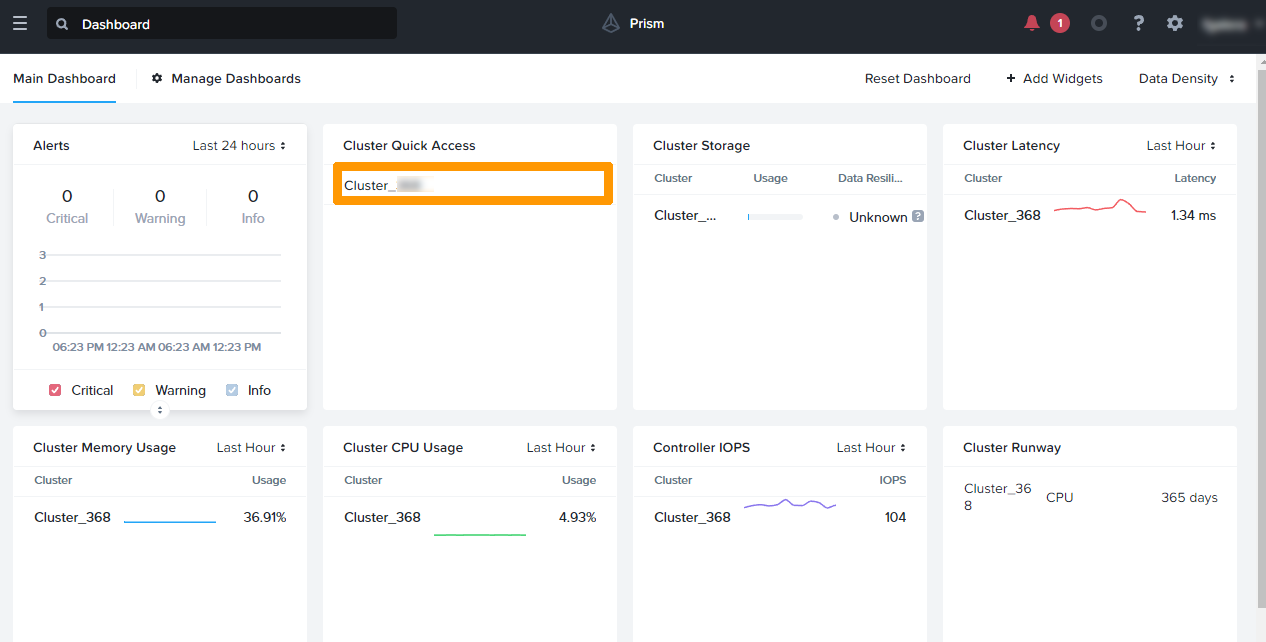
Through Prism Central, connect to Prism Element by clicking on the cluster under Cluster Quick Access.
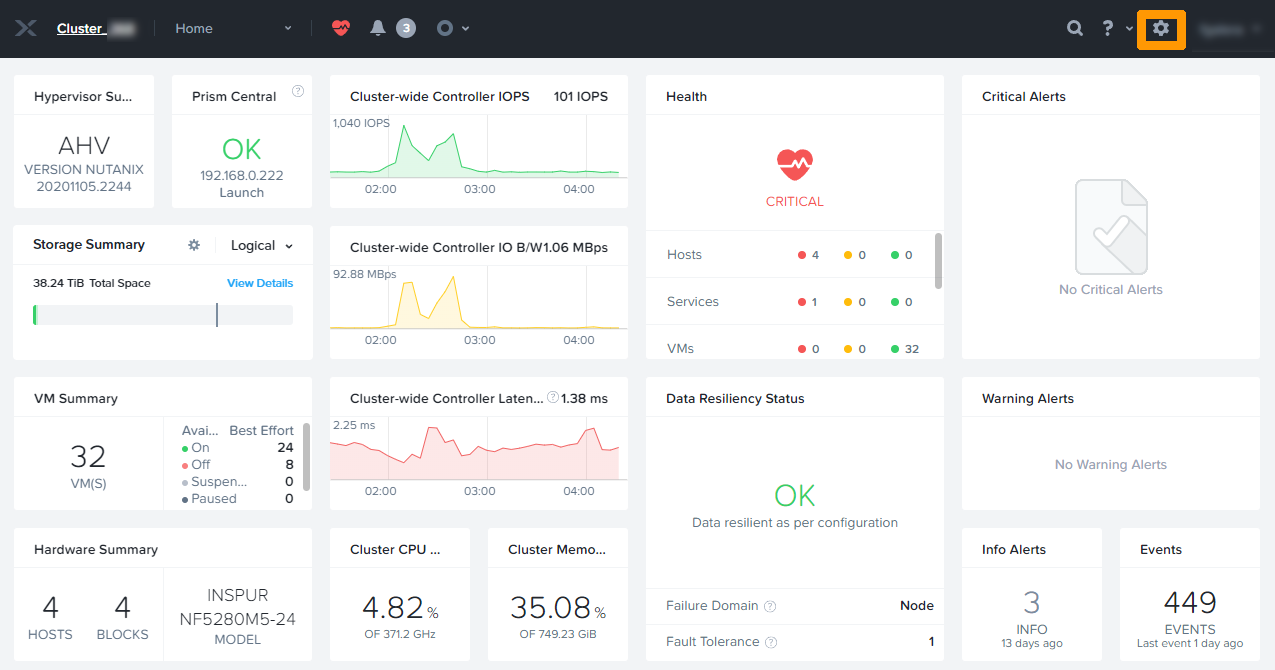
Once in the Prism Element, go to the settings by clicking on the gear icon in the top right.
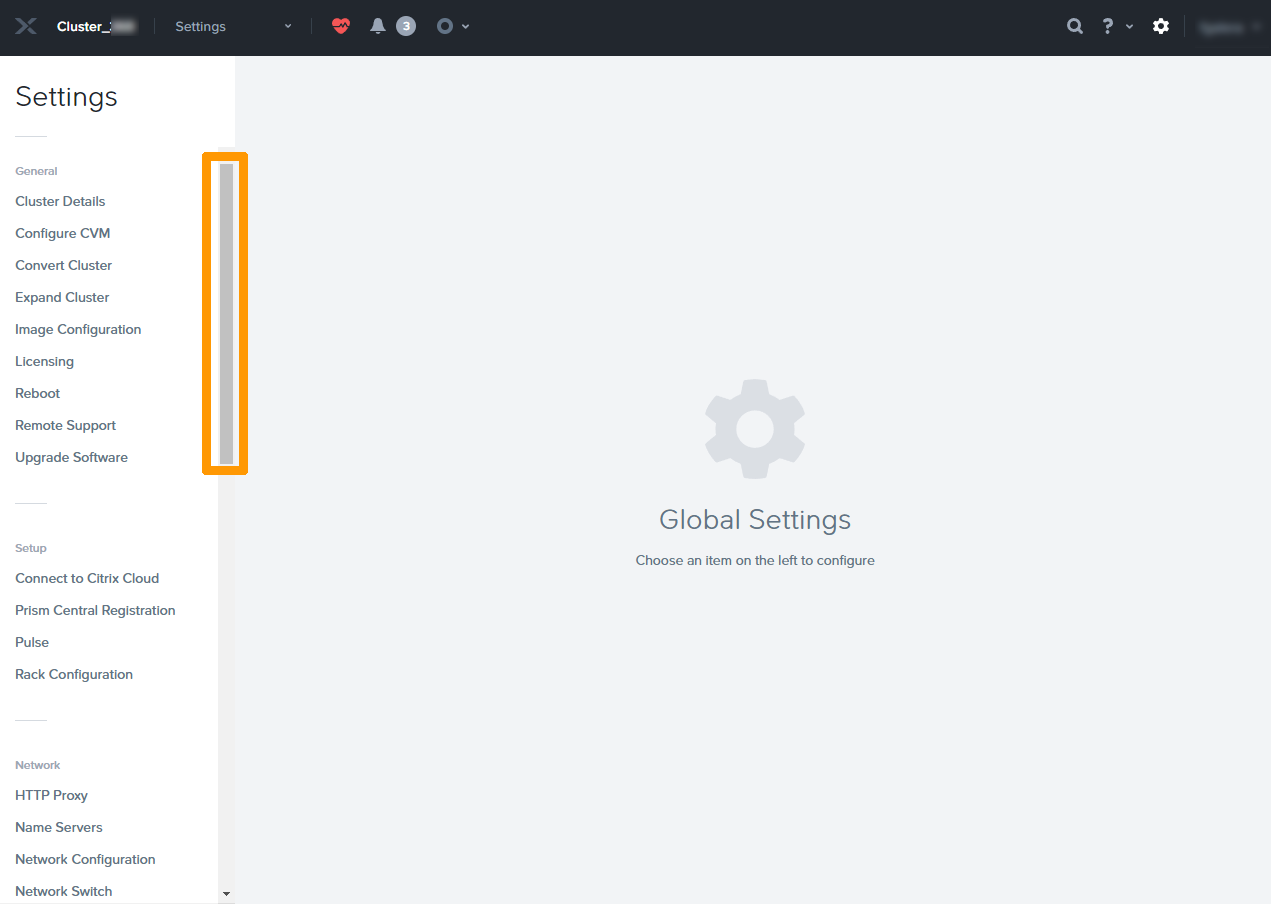
Scroll down the menu on the left using the scroll bar.
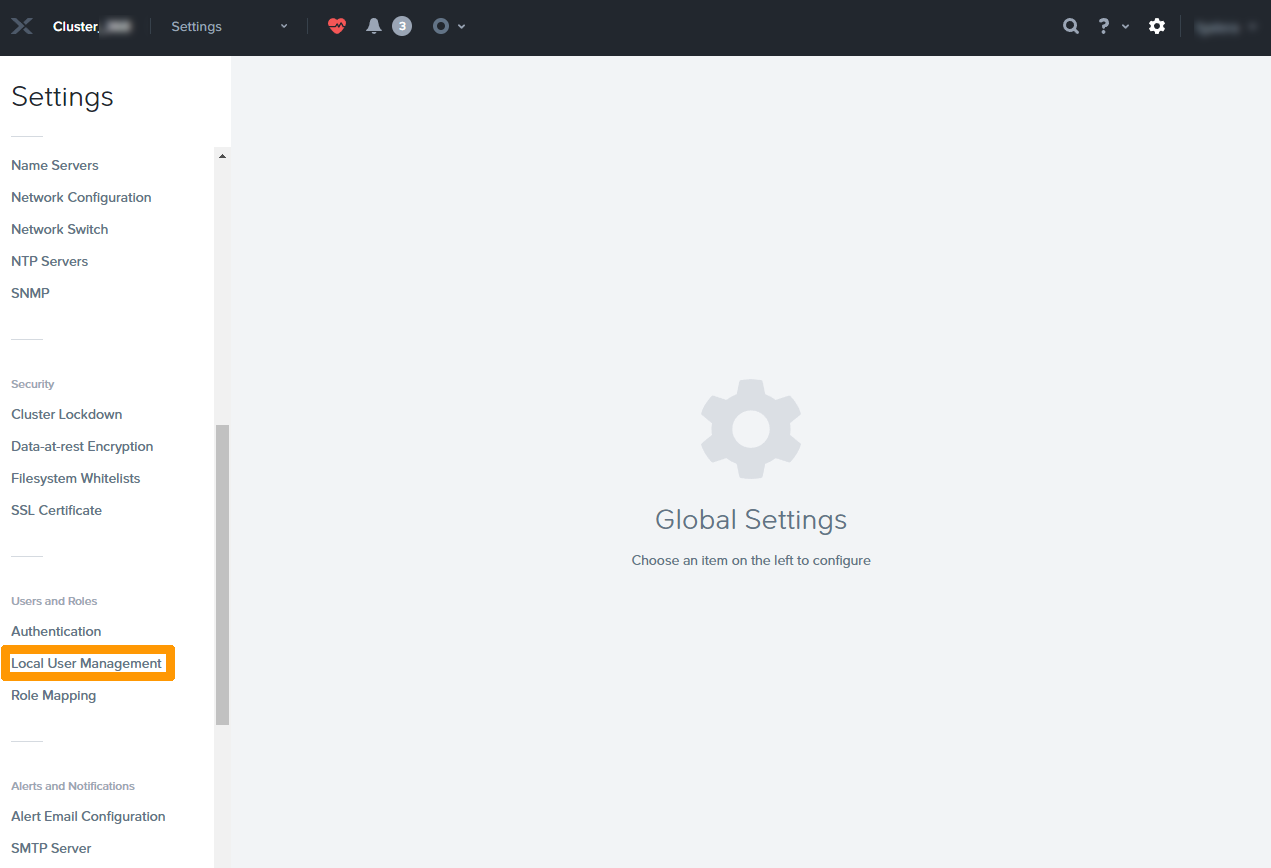
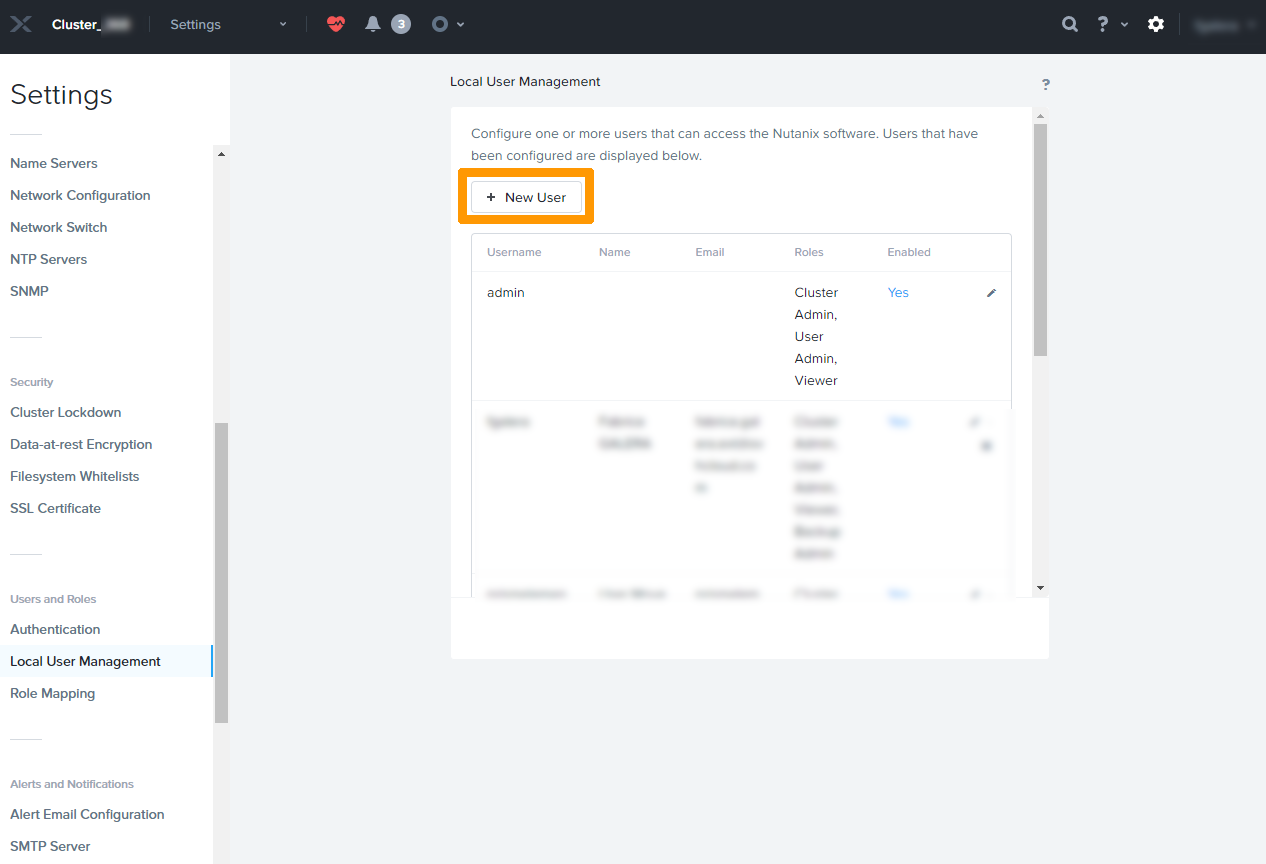
Click Local User Management.
Click the New User button.
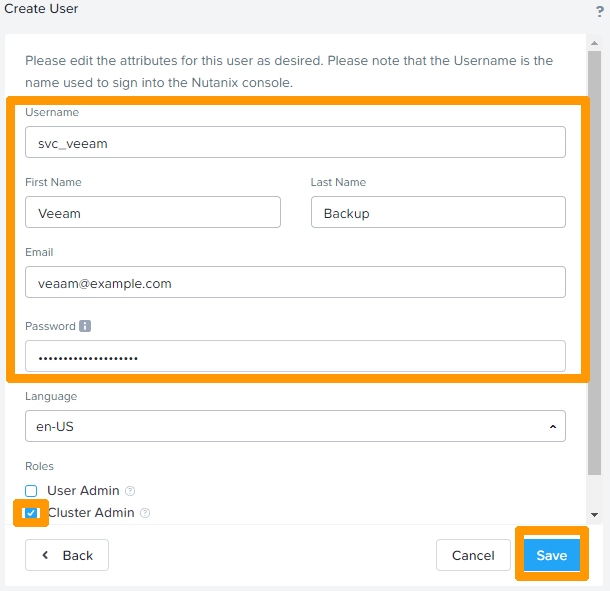
Enter the information:
- Username:
svc_veeam - First Name:
Veeam - Last Name:
Backup - Email:
veeam@example.com - Password:
password
This data is provided as an example. The email address is mandatory but is not used.
Select the Cluster Admin checkbox and click Save
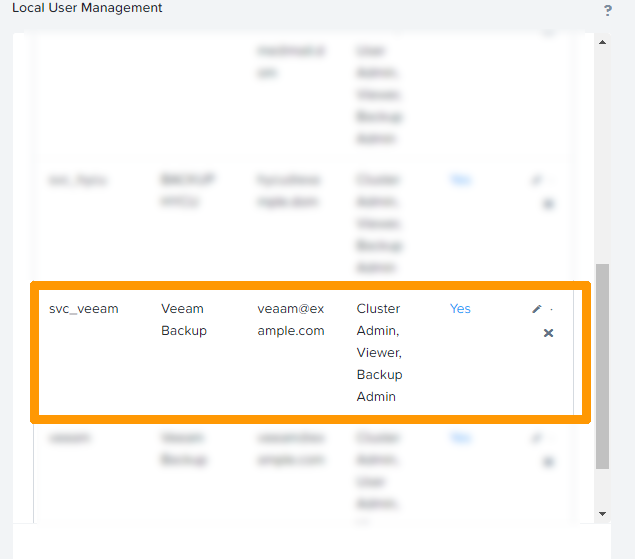
This user account is created and added to the Prism Element user list.
Download and install the extension for a Nutanix cluster under AHV
Log in to the virtual machine where Veeam Backup is located.
From a web browser, download the latest version of the AHV extension for Veeam. You must have a user account on the Veeam website, you can create it freely and free of charge.
Start the installation of the extension.
Before starting the installation, make sure that the Veeam Backup & replication console is closed.
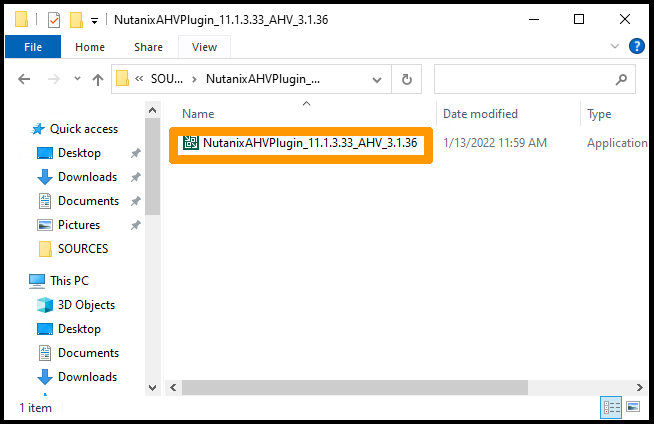
Open the "NutanixAHPlugin" installer.
Accept the General Terms and Conditions of Use and click Next.
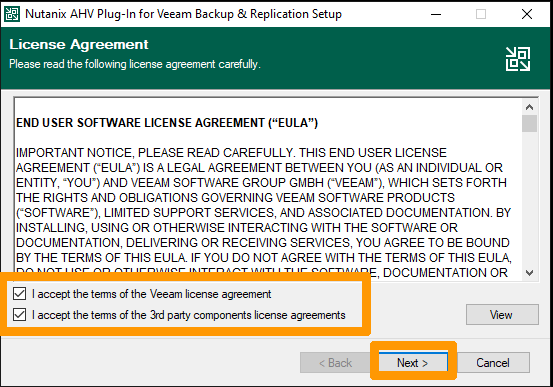
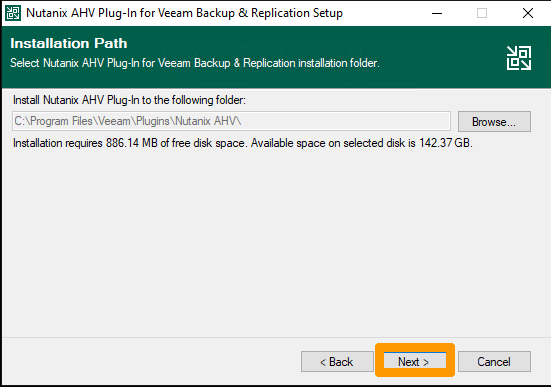
Click Next.
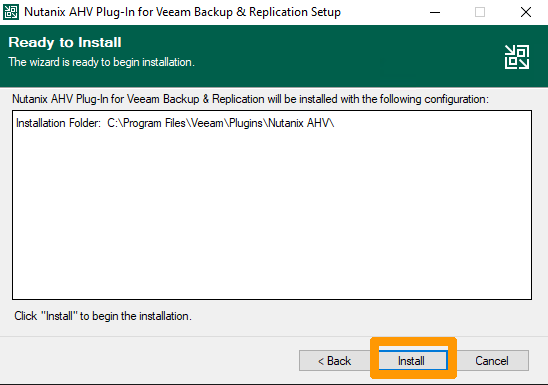
Click Install.
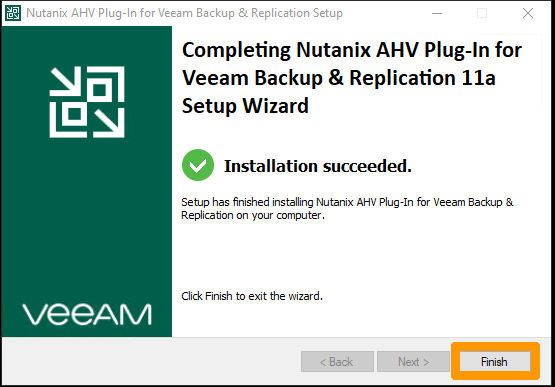
Once the installation is complete, click Finish.
Integrate Nutanix cluster in Veeam Backup configuration
When Configuring Veeam Backup for Nutanix, a new virtual machine is added to the cluster, which serves as the interface between the Veeam Backup software and the cluster.
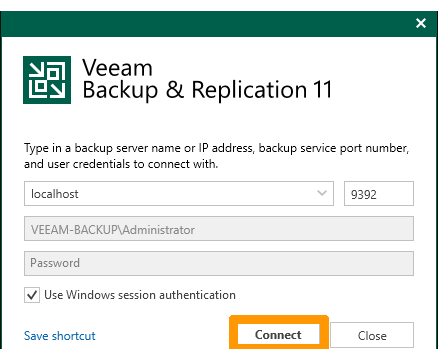
Launch the Veeam Backup console and click Connect.
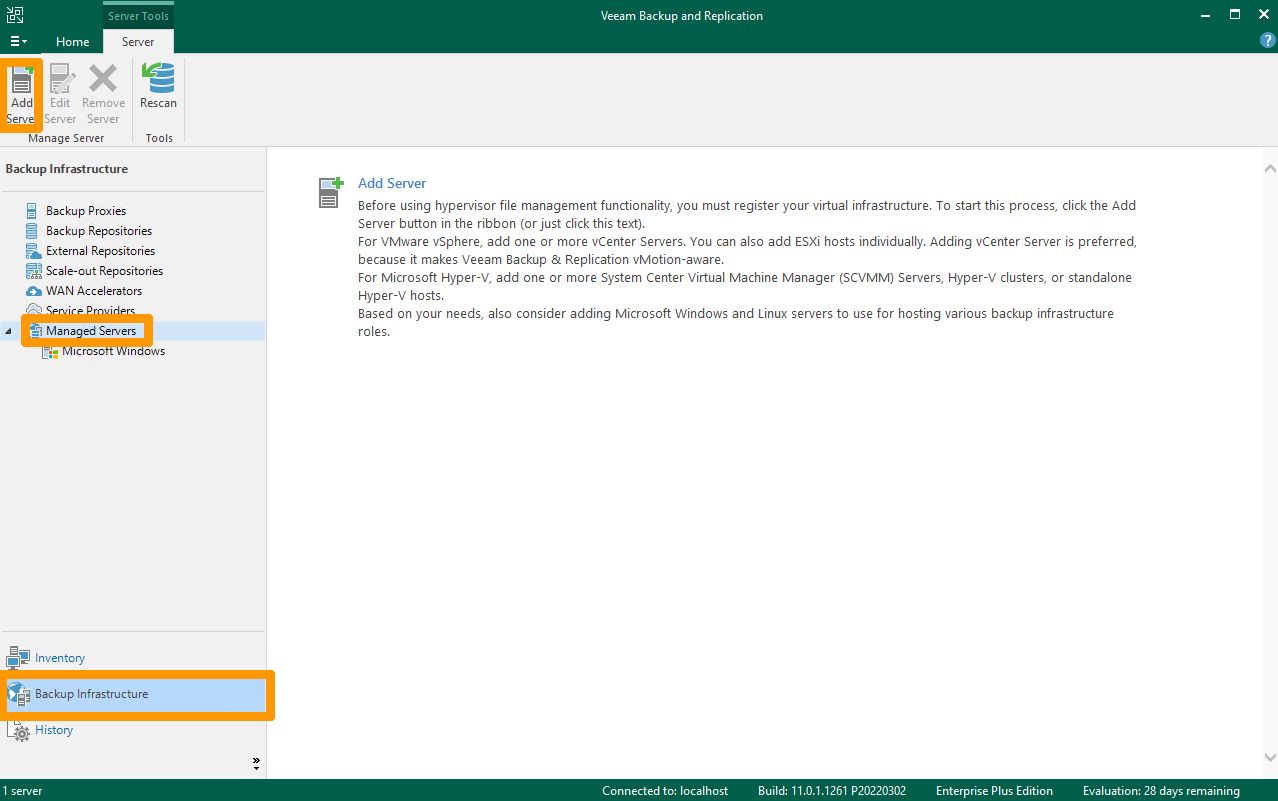
Go to Backup Infrastructure in the menu at the bottom right, choose Managed Servers and click Add Server.
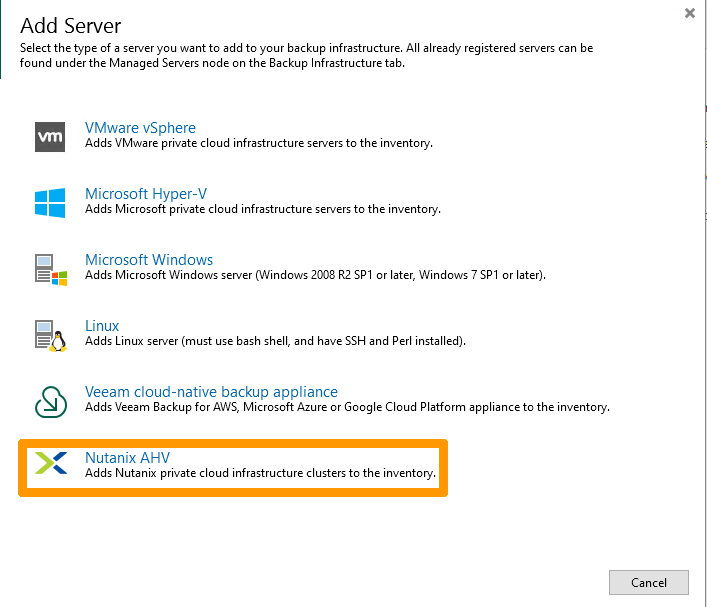
Click Nutanix AHV.
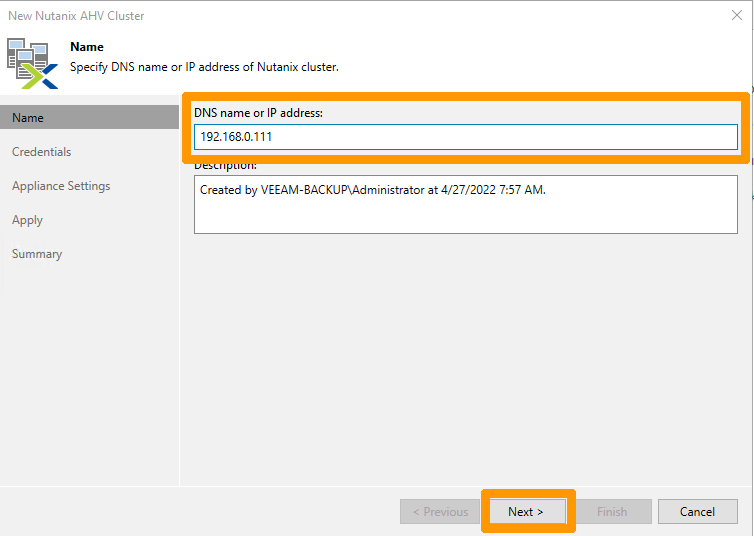
Enter the private IP address of Prism Element in DNS name or IP address and click Next.
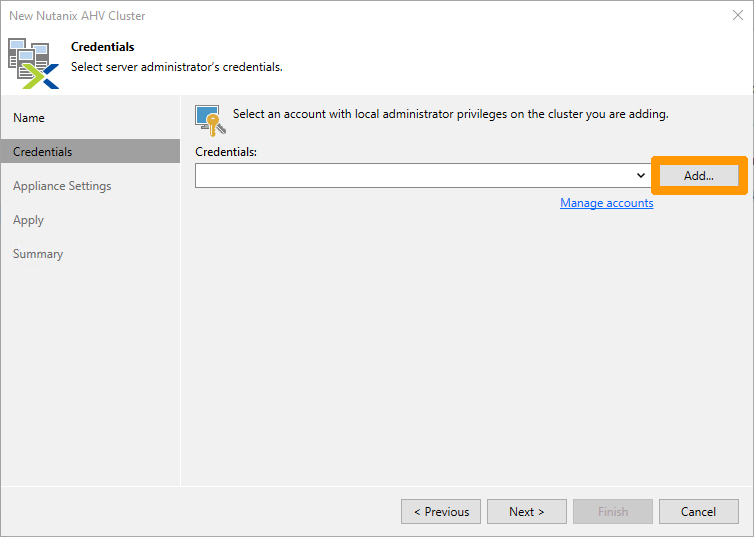
Click Add to add the Prism Element user account
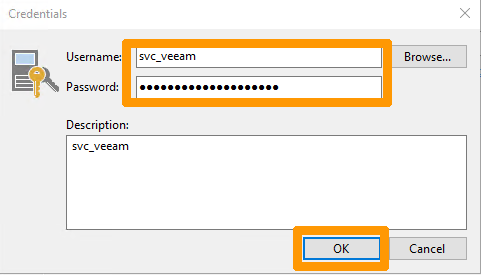
Enter the information for the account created earlier in Prism Element:
- Username:
svc_veeam - Password:
Password
Click OK.
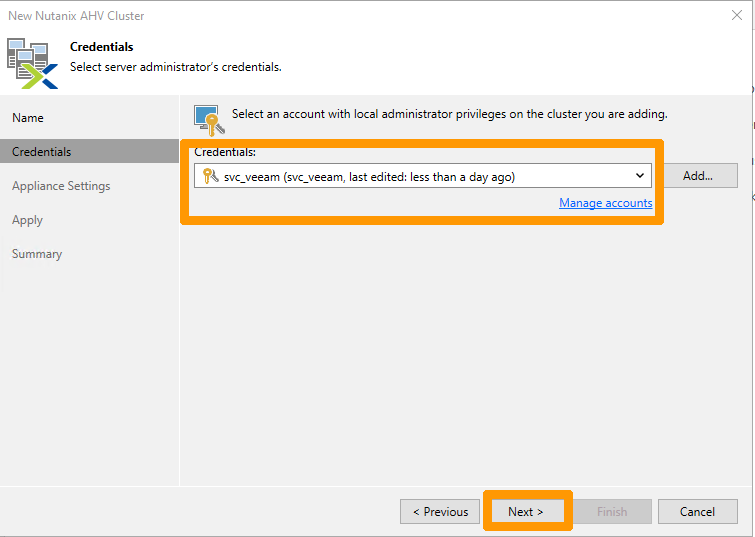
Check that the account you have created has been selected in the "Credentials" field, then click Next.
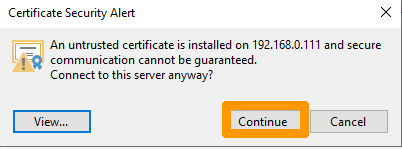
Click Continue to validate the certificate warning message.
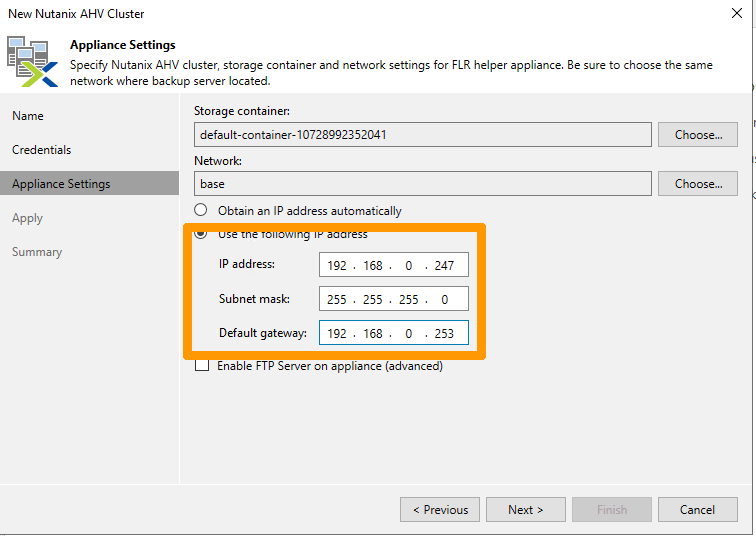
Check Use the following IP address and choose an unused private IP address (this address is used when backing up and restoring files), then click Next.
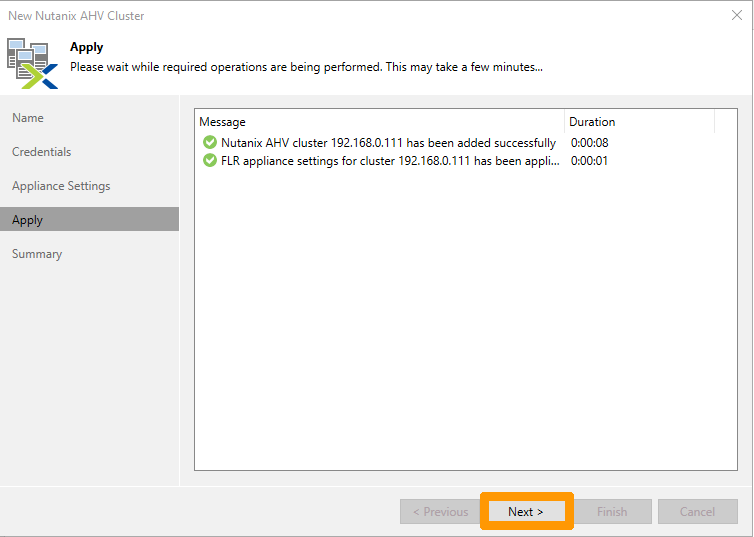
Click Next.
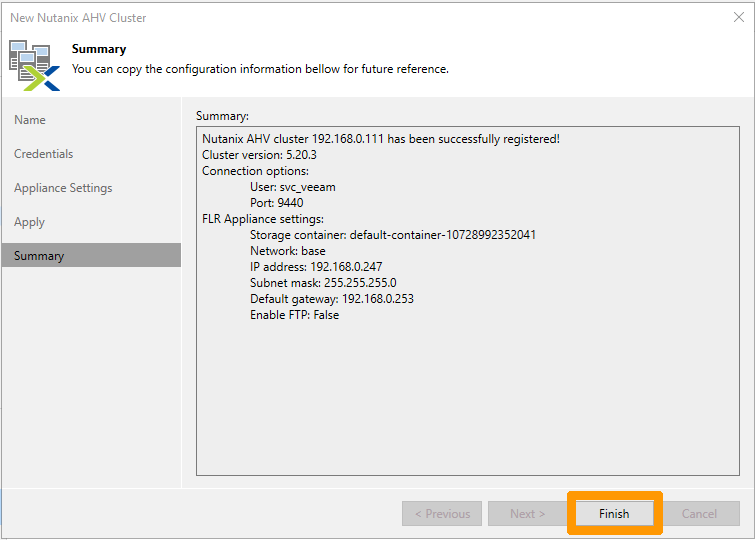
Click Finish.
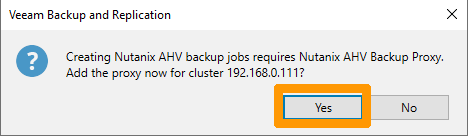
Click Yes.
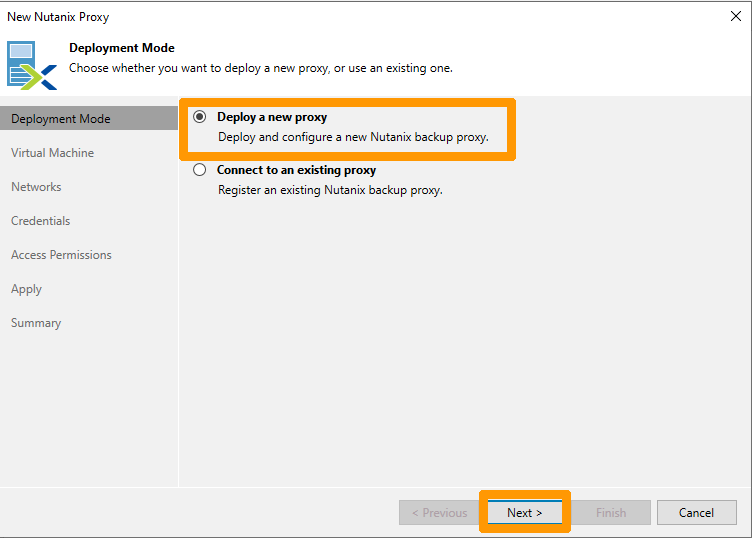
Select Deploy a new proxy and click Next.
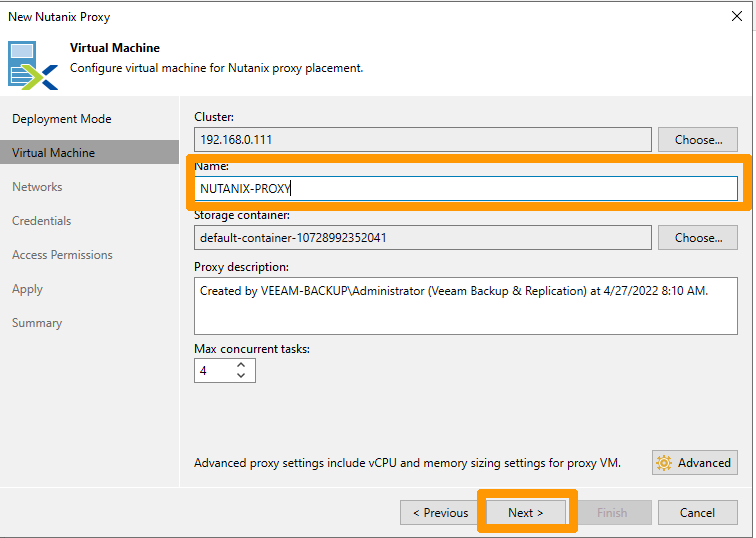
Name the VM in the “Name” field, then click Next.
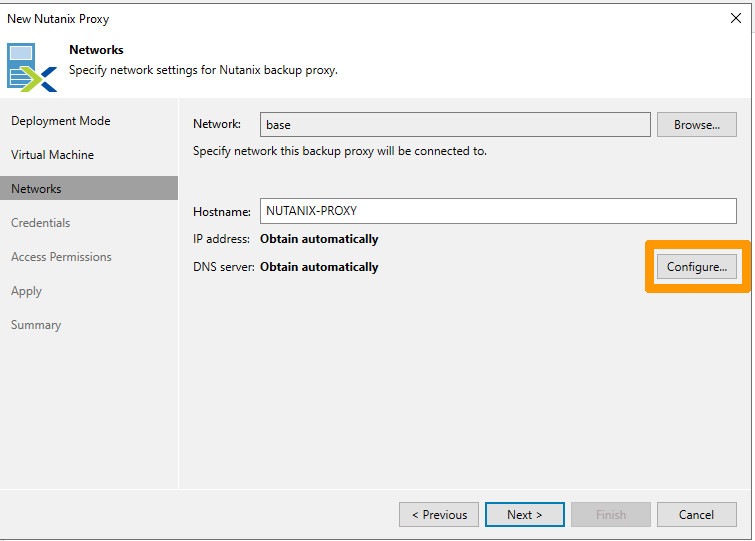
Click Configure.
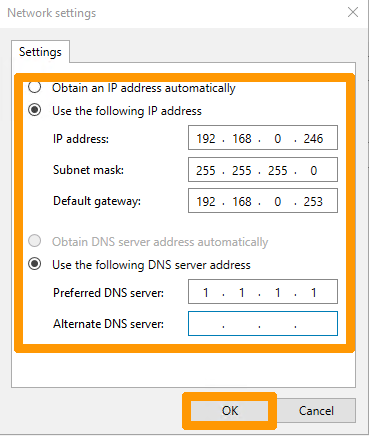
Choose an unused IP address on the LAN for the virtual machine and click OK.
Click Next.
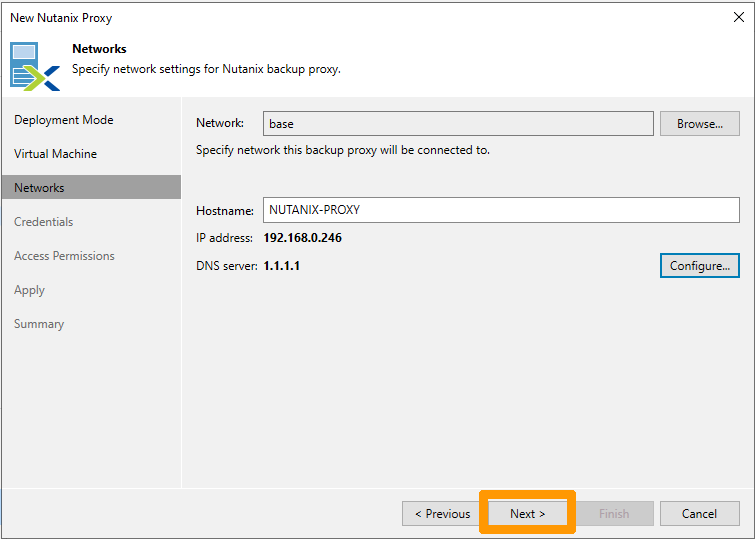
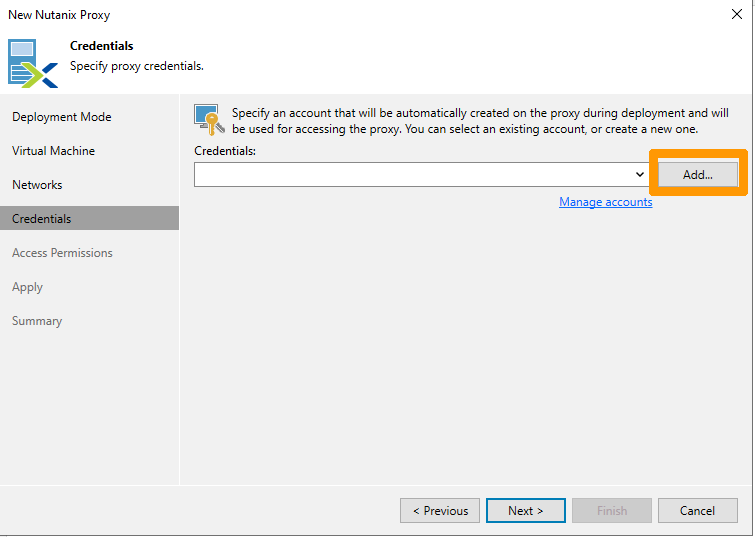
Click on Add to add and create the NUTANIX-PROXY VM login account. This VM is added when a Nutanix cluster is added to the Veeam Backup and replication console.
Take note of the user account and password created. These credentials allow you to connect to the new virtual machine via the web browser, without going through the Veeam backup software. The URL will be similar to https://privateipaddress:8100.
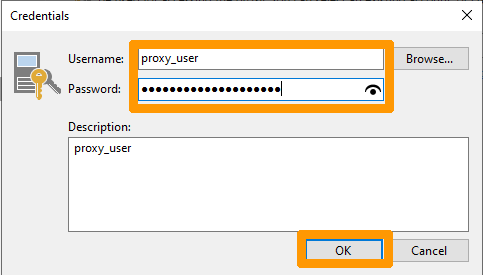
Enter the information for the account you created earlier in Prism Element:
- Username:
proxy_user - Password:
password
Click OK.
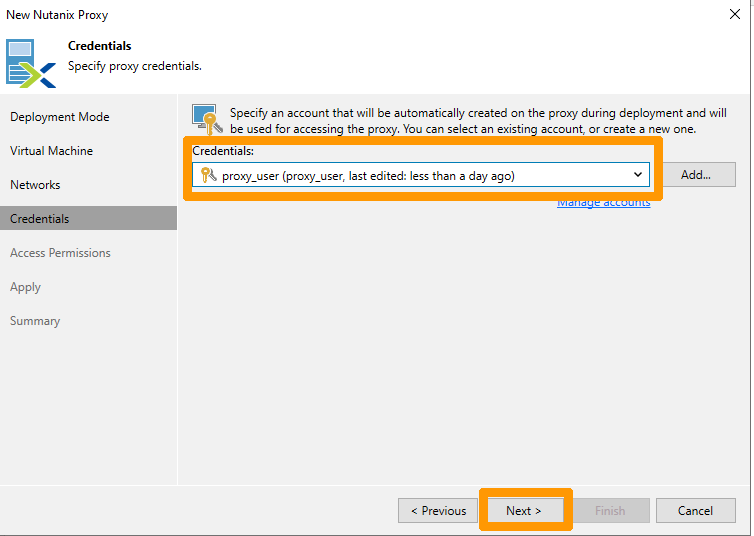
Check the user account in the "Credentials" field and click Next.
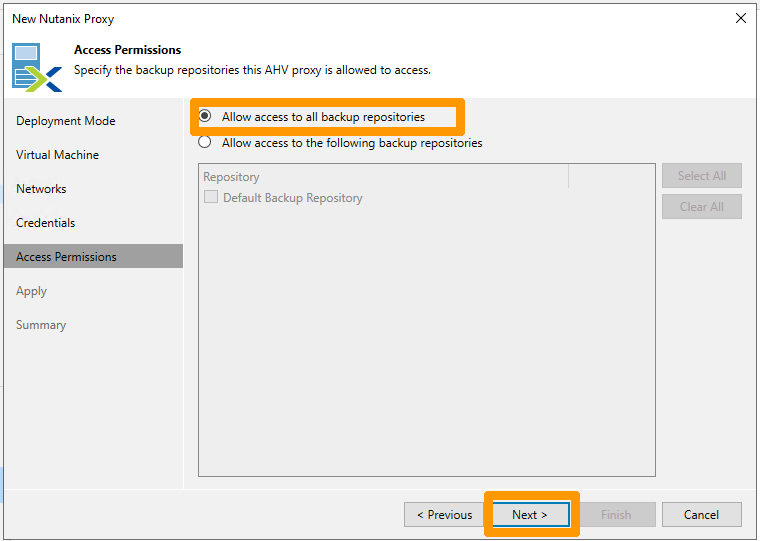
Check the box Allow access to all backup repositories and click Next.
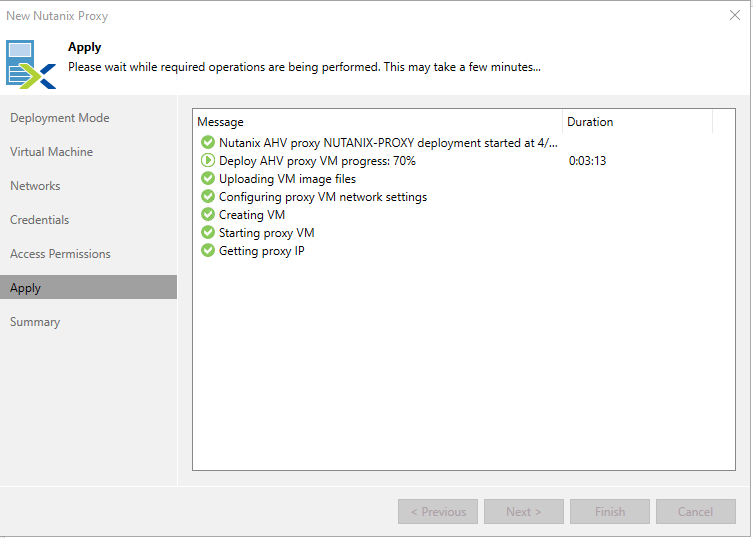
Wait a few minutes.
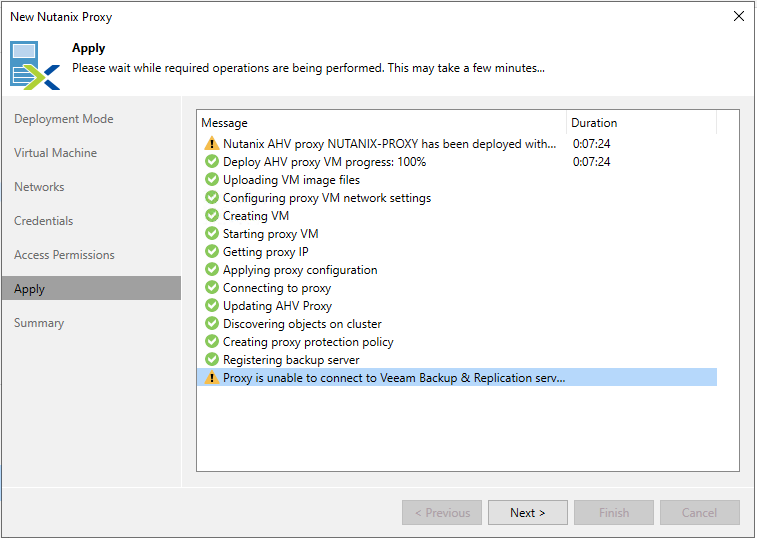
The installation ends with a warning message. Please ignore this, as it is the public DNS server that cannot resolve the Veeam server name.
Click Next.
Modifying the interface virtual machine host file
This operation is required if you do not use an internal DNS server to resolve VM names. Notably the VM that is used for the Veeam Backup software.
Via Prism Central, connect to the NUTANIX-PROXY virtual machine.
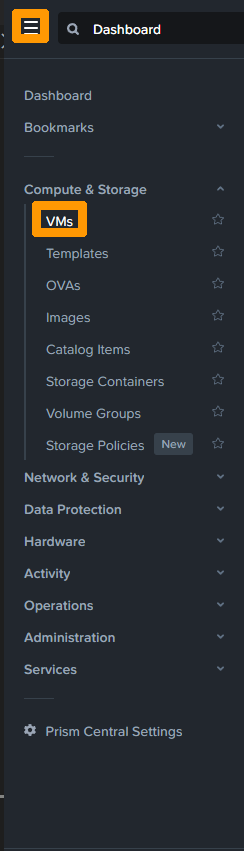
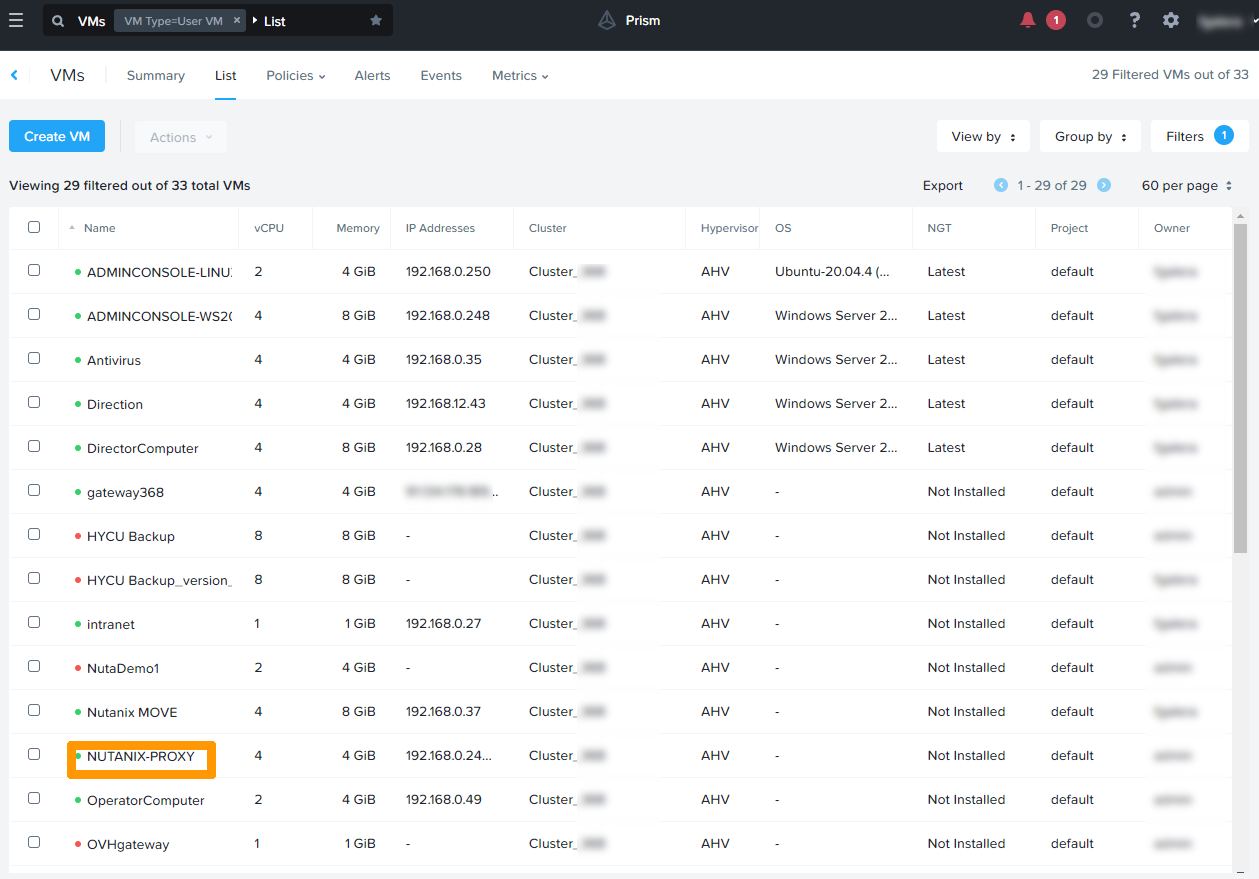
Open the main menu at the top left and choose VMs.
Click on the NUTANIX-PROXY virtual machine.
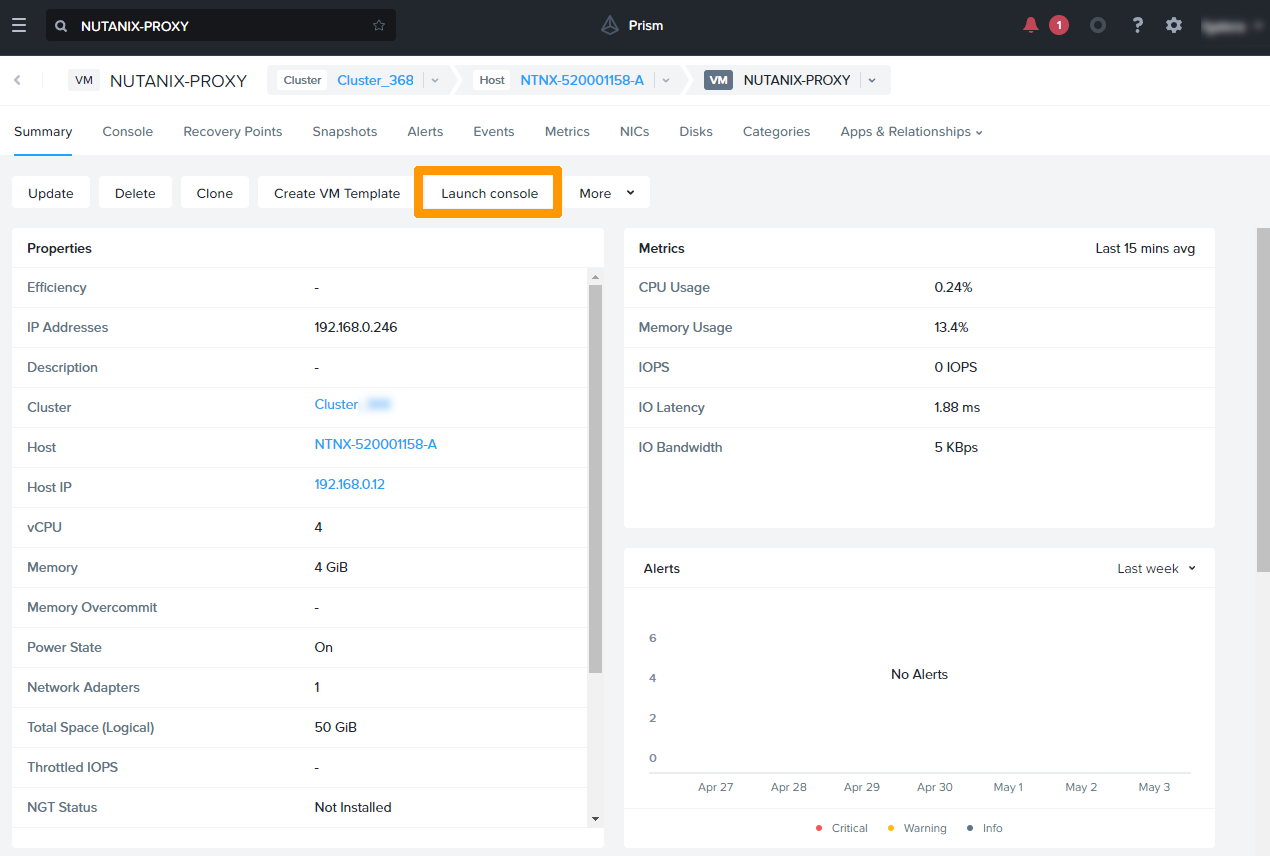
Click Launch console.
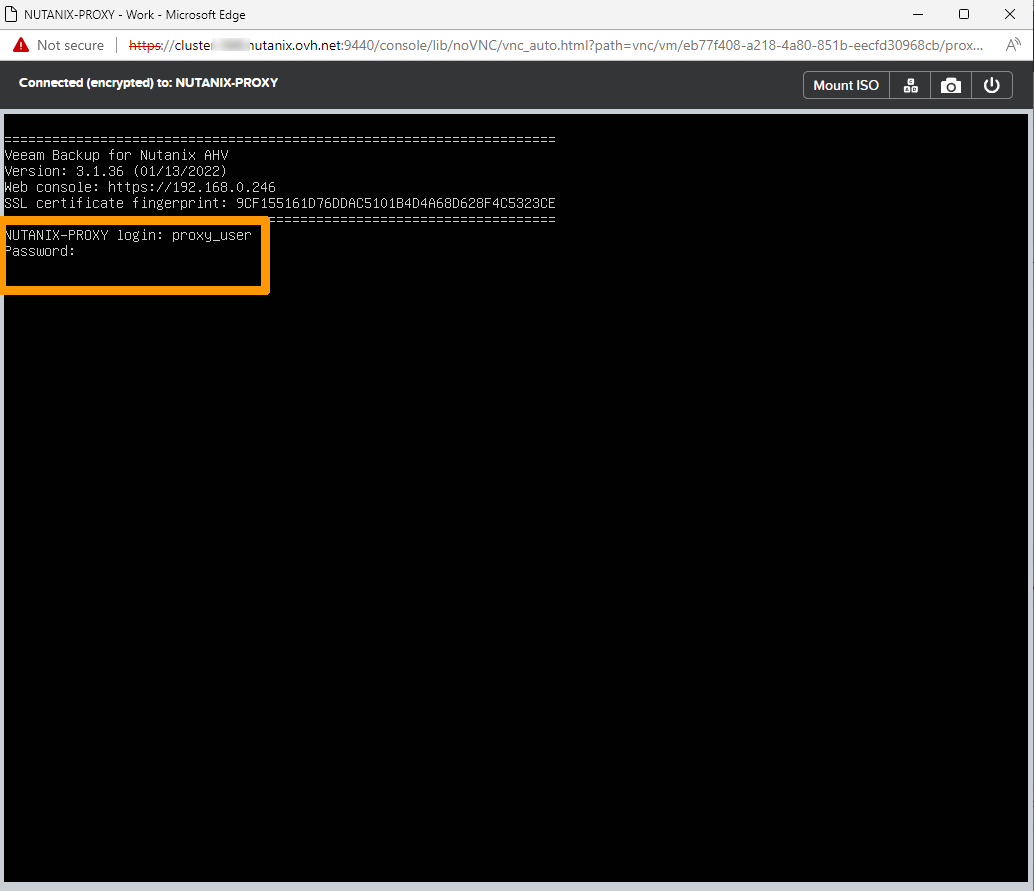
Log in with the user account you created earlier and the password associated with that account.
From the console, edit the /etc/hosts file:
Add this information, which corresponds to the IP address and name of the virtual machine where Veeam Backup is installed:
Save the file and run this command:
Add S3 Object Storage repository in Veeam Backup
You can store your backups in OVHcloud Object Storage via S3 directly from Veeam Backup & Replication.
To configure the repository in Veeam, please follow this step-by-step guide: Using S3 Object Storage with Veeam Backup
Setting up an automated backup
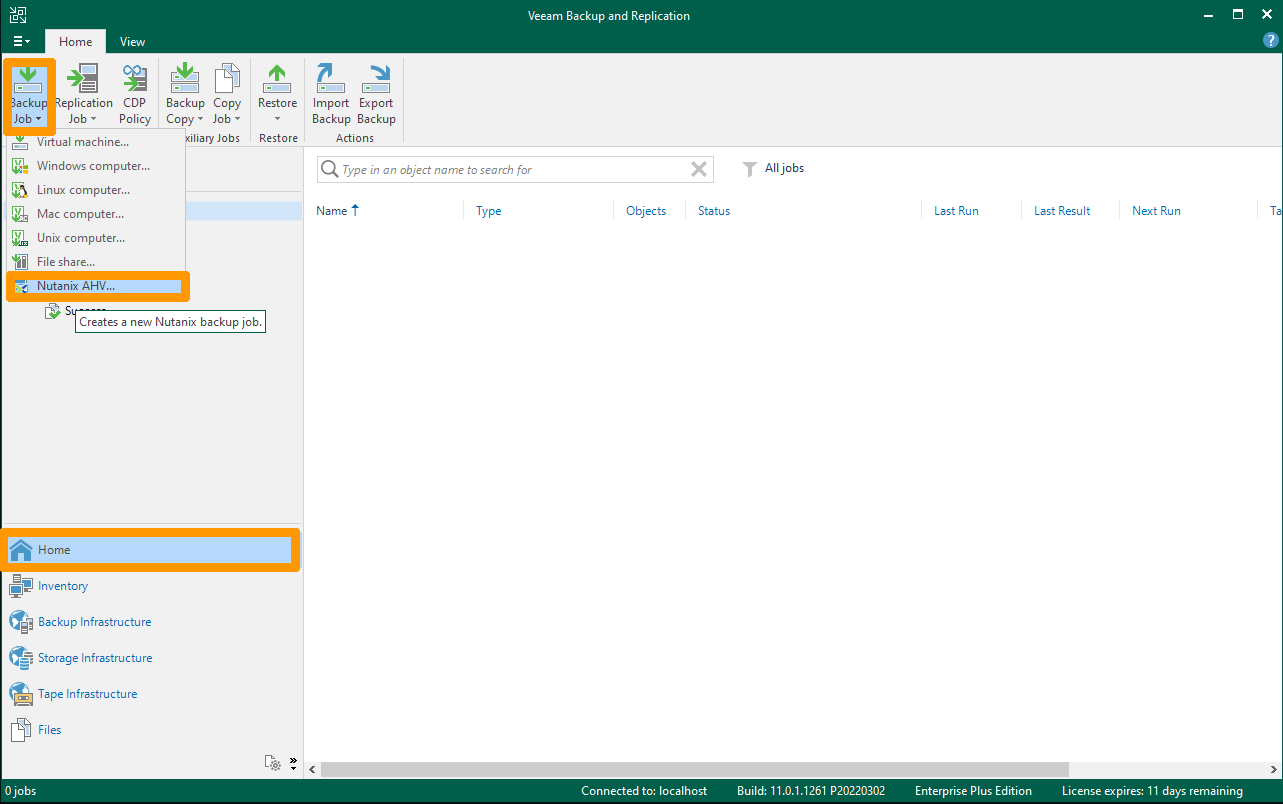
In Veeam backup, open the Home menu (bottom left), then the Backup Job menu and choose Nutanix AHV.
The AHV Proxy web interface opens.
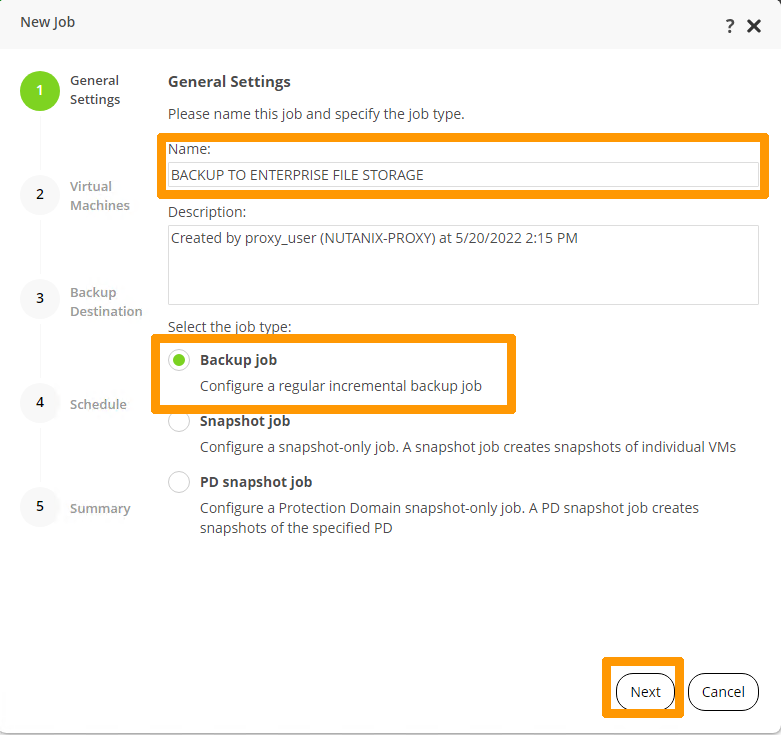
Name the task you want to create, tick the Backup job option, and click Next.
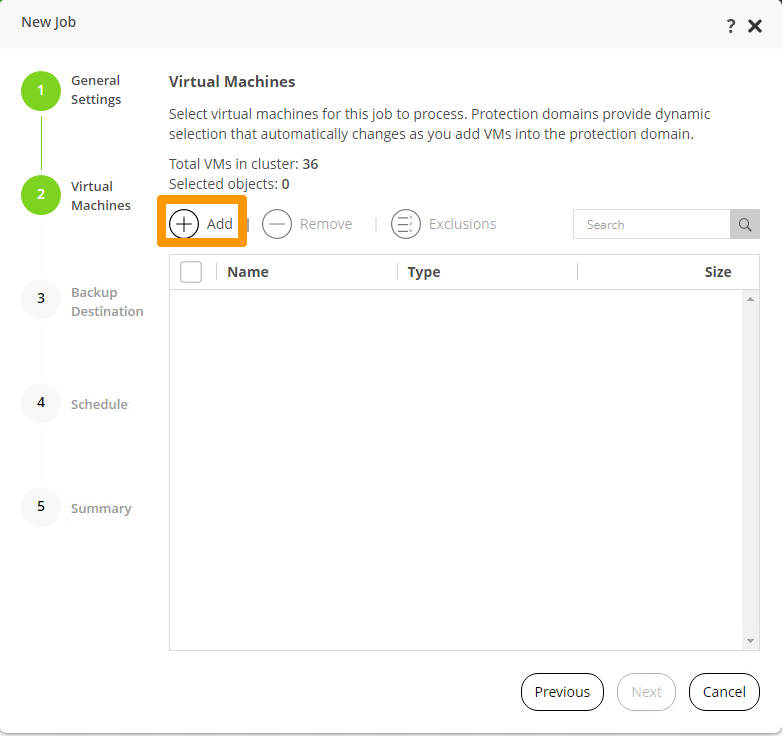
Click Add.
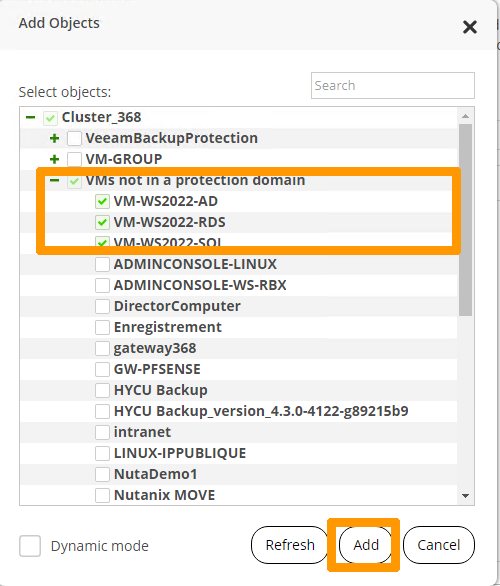
Select the virtual machines you want to back up and click Add.
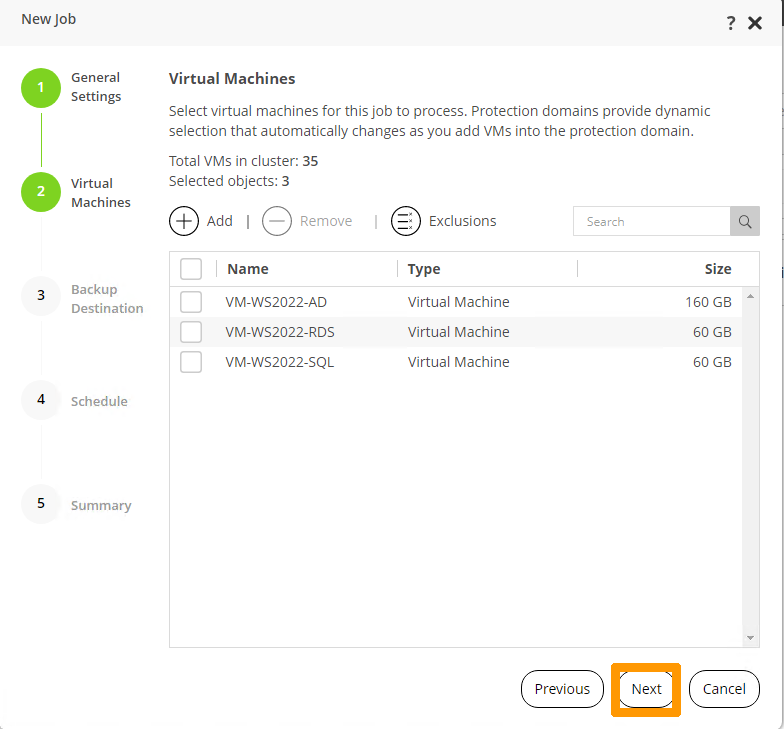
Click Next.
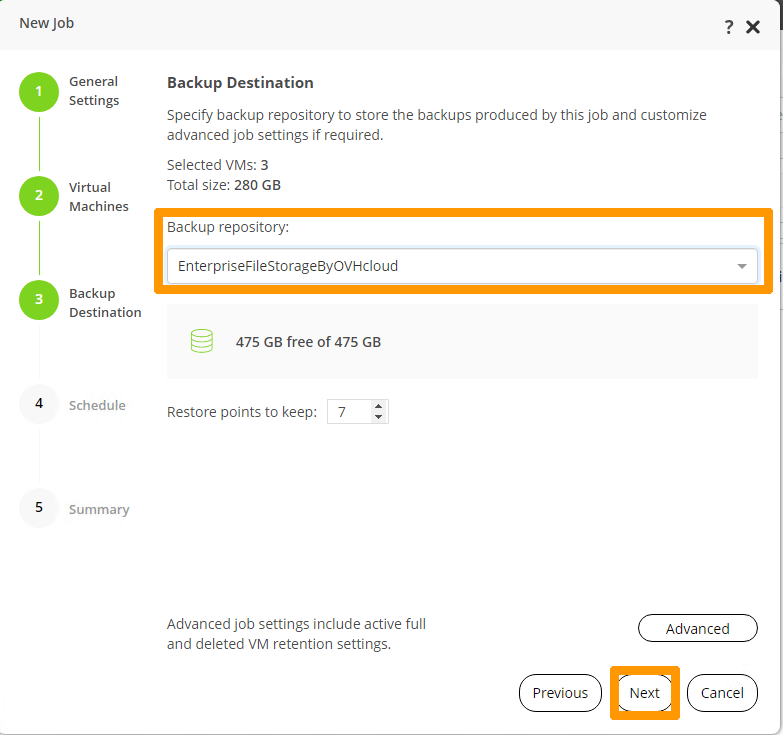
Select the repository in Backup repository and click Next.
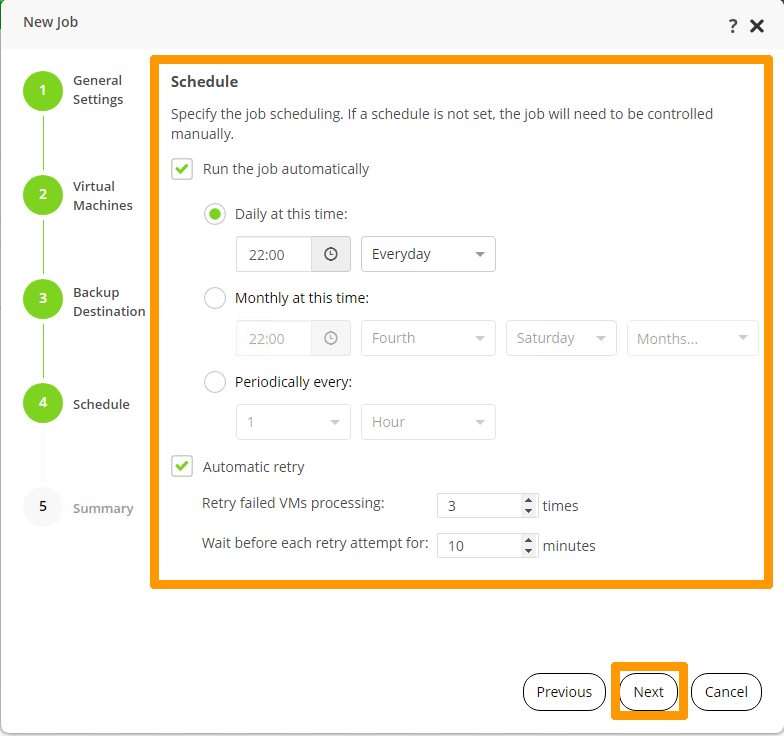
Select the Run the job automatically check box, set the frequency, and click Next.
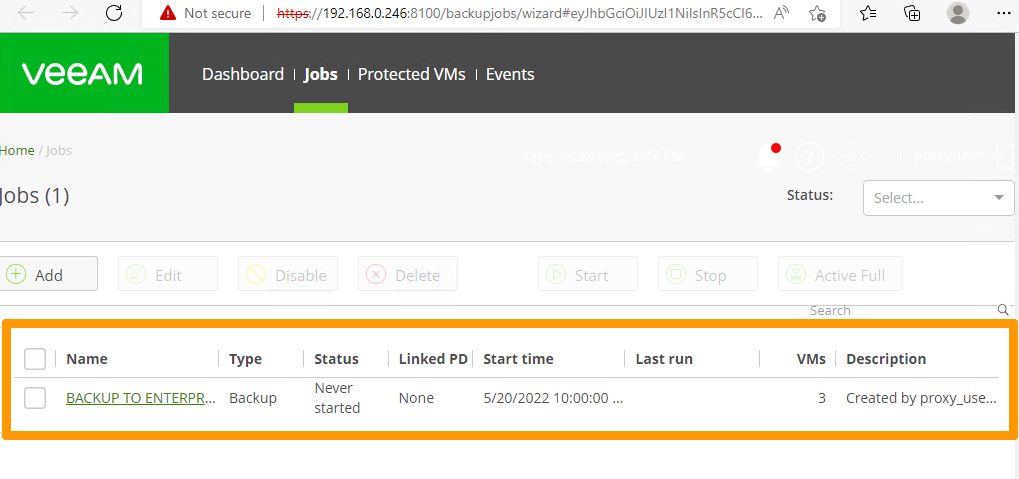
Click Finish to save the backup job.
The backup is visible through the AHV Proxy web interface.
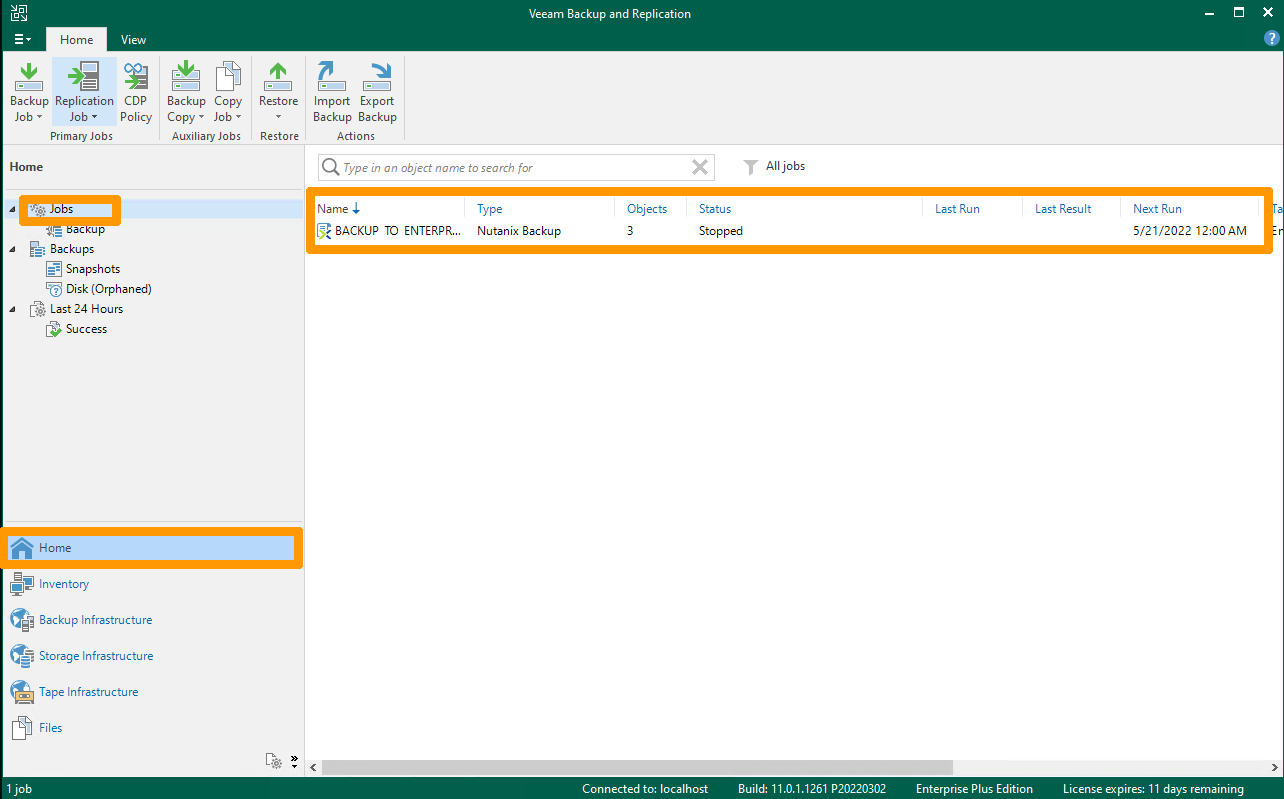
Return to the Veeam Backup console via the Home menu (at the bottom left). Click Jobs to view the backup job you created.
Restoring a Virtual Machine
To test that backups are working properly, we will run a recovery task.
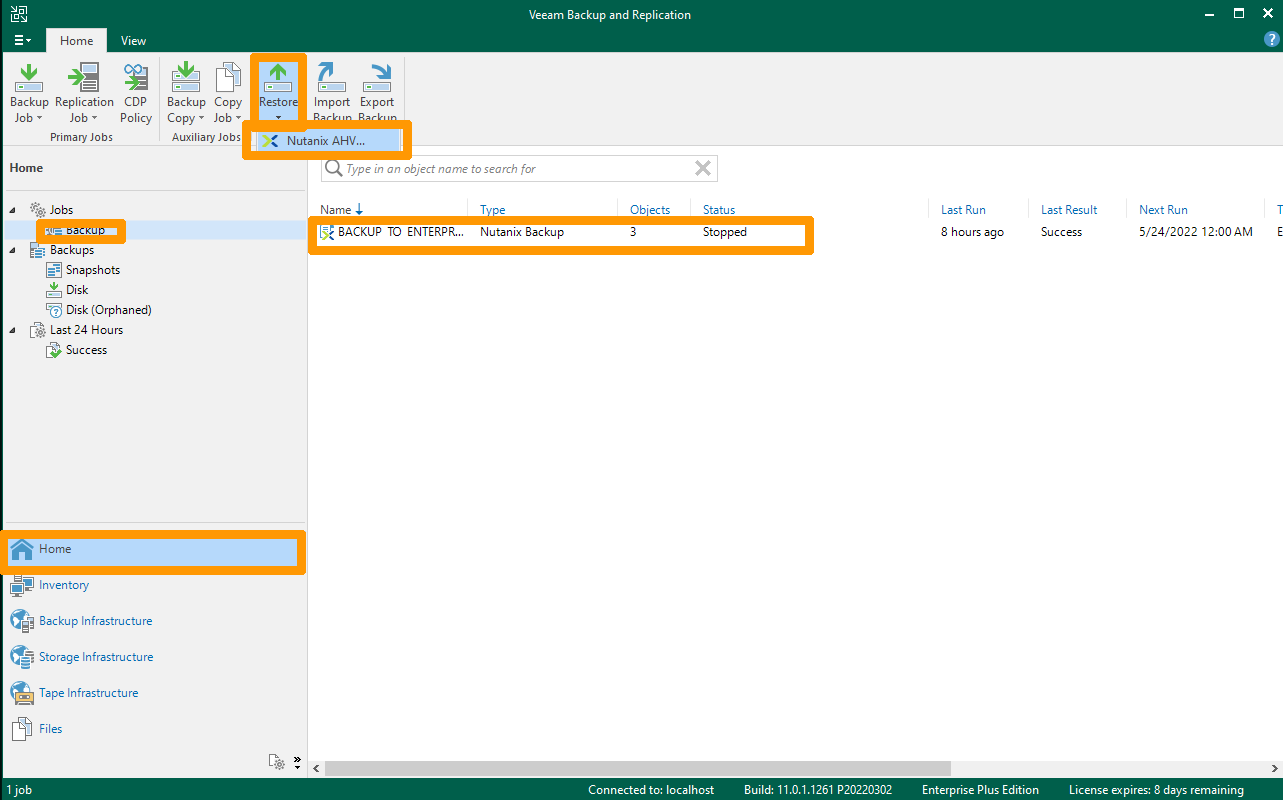
Click on Home in the bottom left. In the Restore option, select Nutanix AHV.
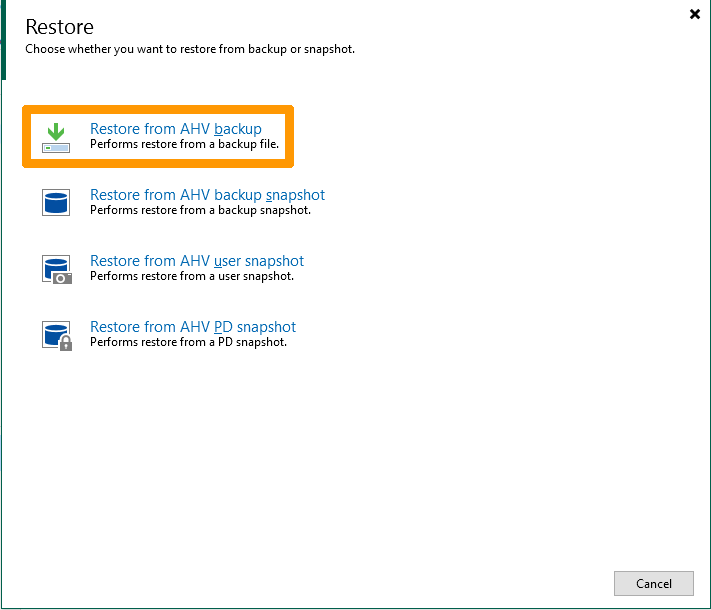
Click Restore from AHV backup.
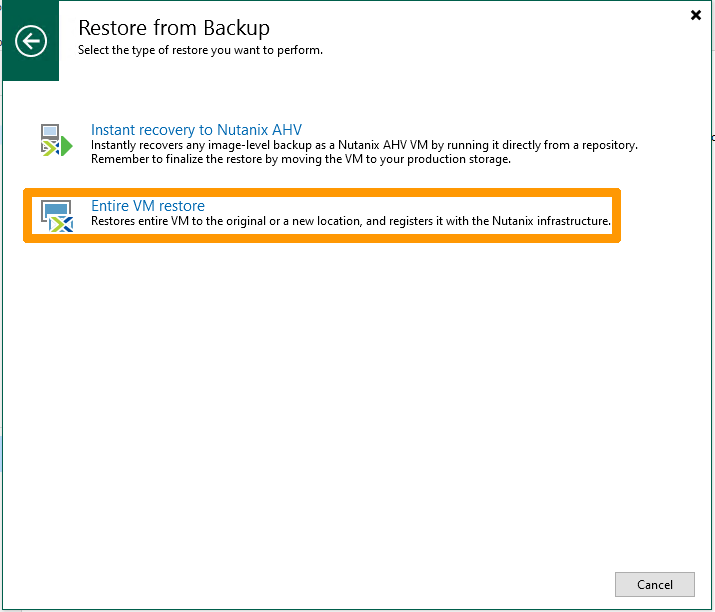
Click Entire VM restore.
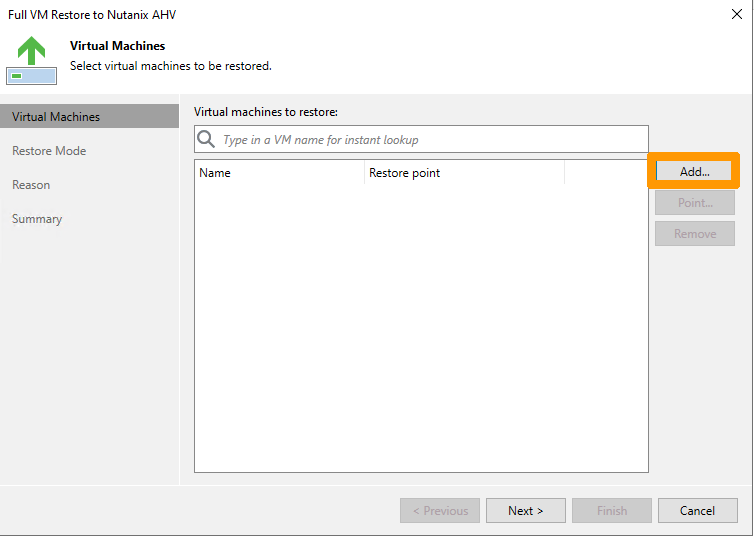
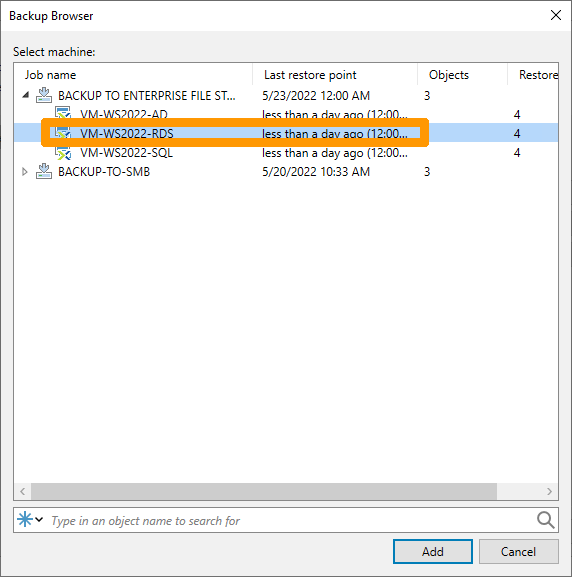
Click Add.
Select a virtual machine and click Add.
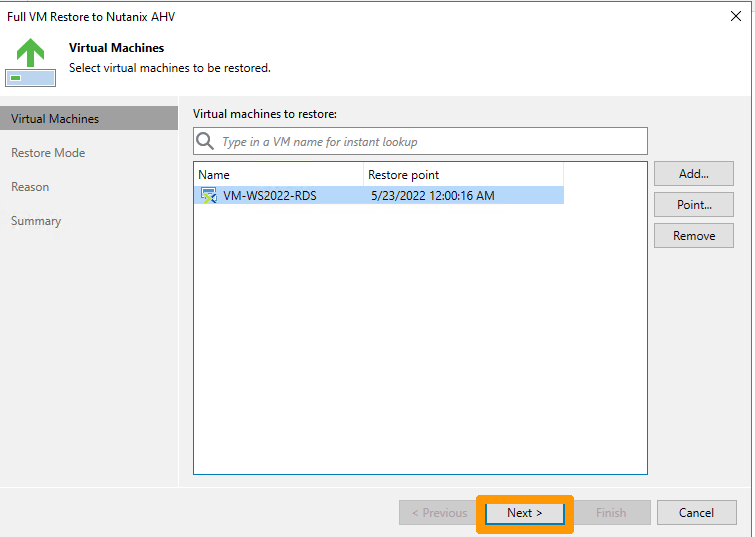
Click Next.
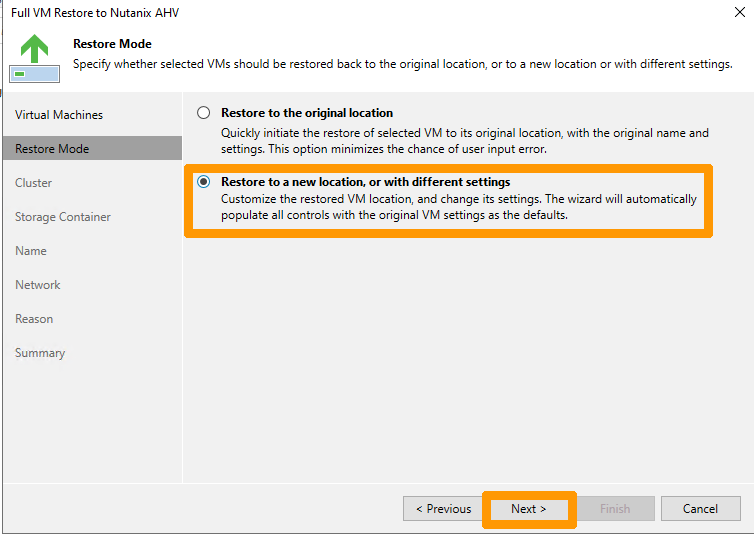
Choose Restore to a new location, or with different settings and click Next.
Click Next.
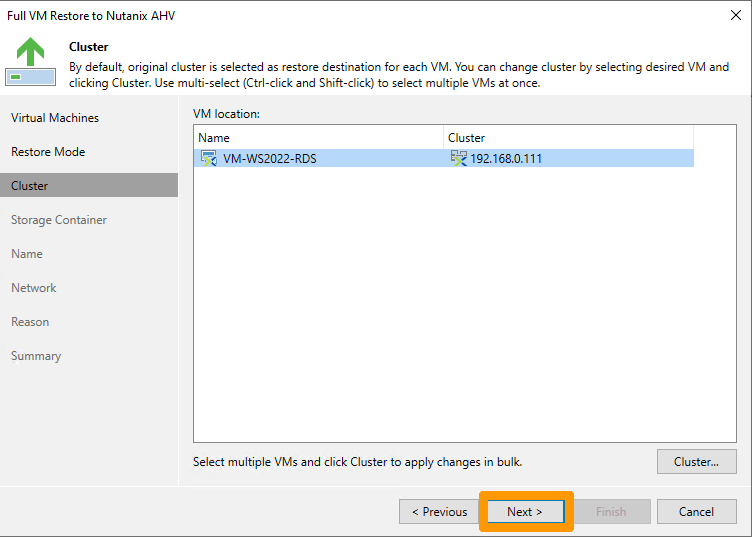
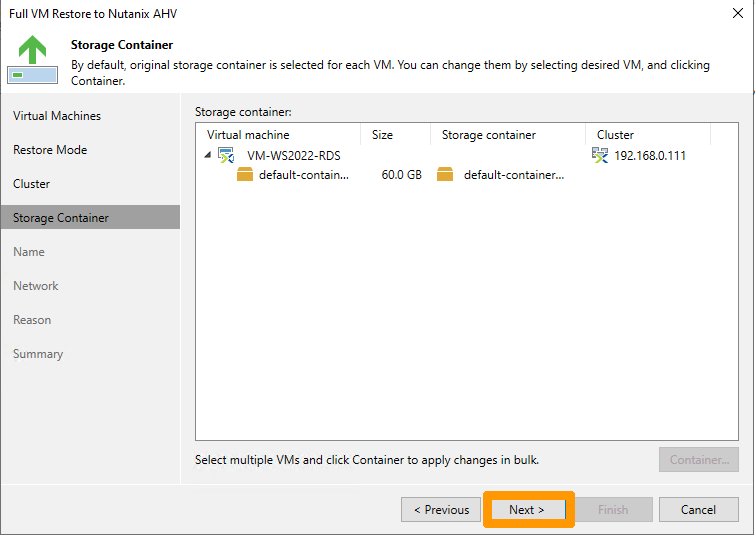
Click Next.
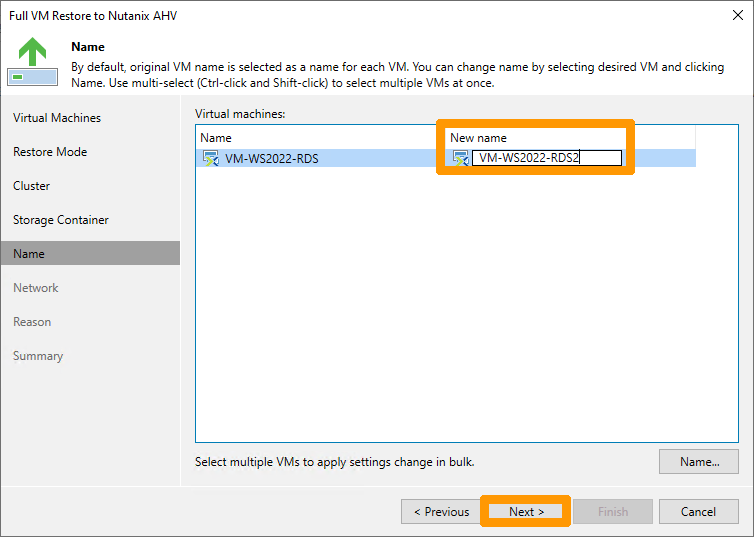
Rename the VM in New name and click Next.
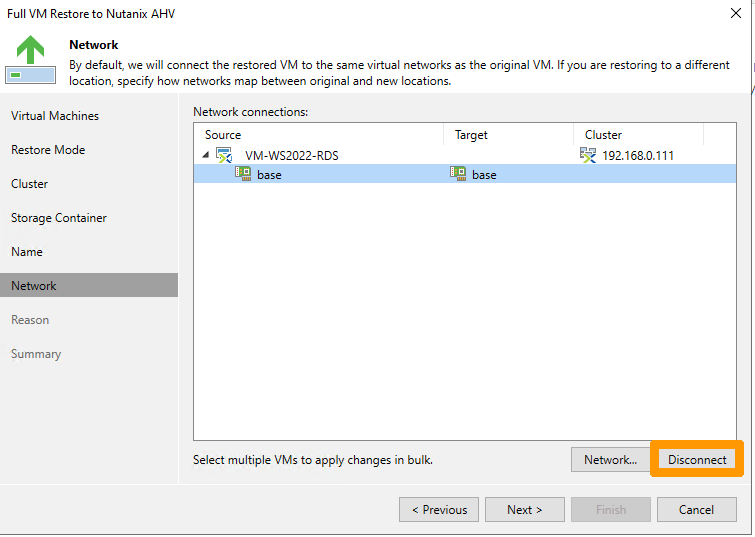
Click Disconnect to isolate the restored VM from the network.
Click Next.
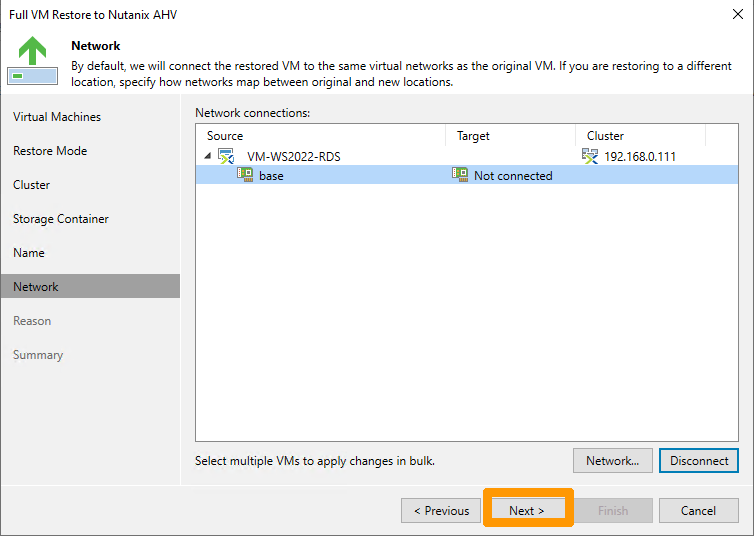
Click Next.
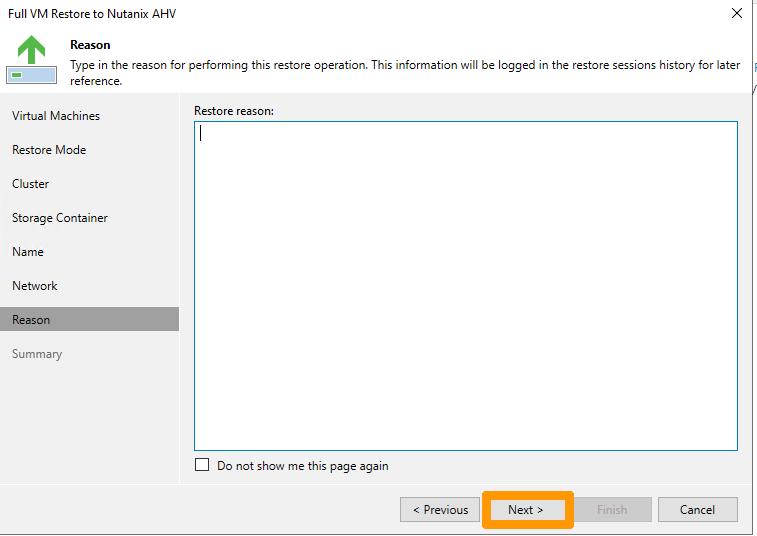
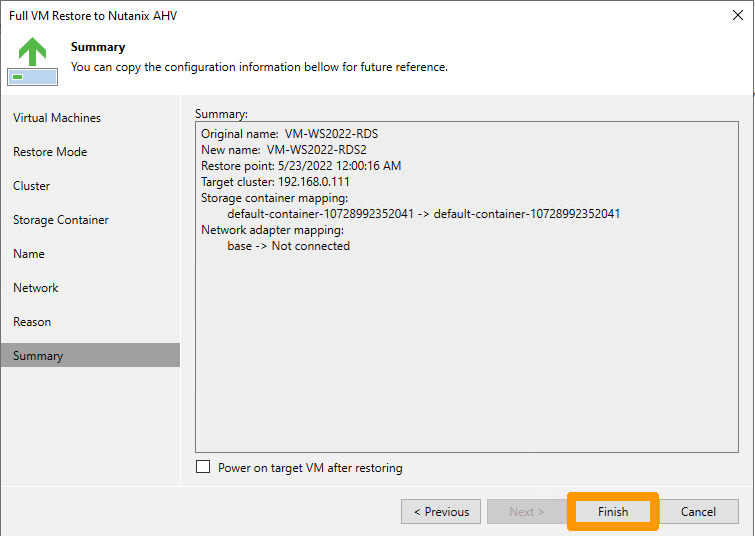
Click Finish.
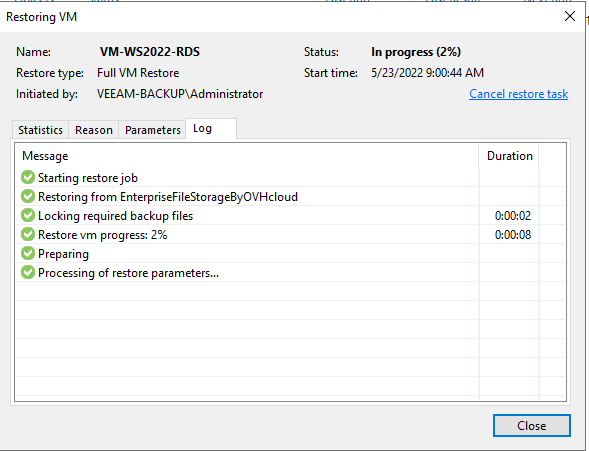
A preview of the status of the restoration is launched, it takes some time depending on the size of the virtual machine.
Go further
VEEAM documentation on installing VEEAM Backup for Nutanix AHV
If you need training or technical assistance to implement our solutions, contact your sales representative or click on this link to get a quote and ask our Professional Services experts for assisting you on your specific use case of your project.
Join our community of users.
1: S3 is a trademark of Amazon Technologies, Inc. OVHcloud’s service is not sponsored by, endorsed by, or otherwise affiliated with Amazon Technologies, Inc.


 HYCU Backup konfigurieren (EN)
 316
316