

How to use the Bring Your Own IP feature
1066 Ansichten
 17.04.2026
  Bring Your Own IP
Objective
The Bring Your Own IP (BYOIP) feature allows you to use IP addresses ranges that you already own, as Additional IPs directly on the OVHcloud network and products.
These IP addresses will be imported in the form of a /24 IP block size and will behave like a regular OVHcloud Additional IP block product.
Requirements
- Your IP range must be in a supported RIR
- Your IP range must have a supported size
- Your IP range is not in use on the Internet
- Your IP/AS have a clean reputation
- You need to choose a region
- You must prove ownership of the IP range
- You must prove ownership of the AS number
- You have to allow OVHcloud to announce the IP range
Your IP range must be in a supported RIR
A Regional Internet registry (RIR) is an organization that manages IP addresses in a given region.
You need to own (see below) a public IPv4 block with one of the following RIRs:
- ARIN
- RIPE
- APNIC (Please note that support for National Internet Registries - NIRs - is experimental at the moment)
Please note that the WHOIS record for the provided public IPv4 block must precisely match the desired range. Selecting a parent or child IPv4 block will leave you unable to use that range.
It is now possible to use ARIN, RIPE or APNIC IP blocks on any OVHcloud region. This enhanced flexibility enables more efficient management and optimized allocation of IP addresses to meet your company's specific needs.
Unlike the previous policy, where an ARIN block could only be used with OVHcloud services located in Canada or the USA, and a RIPE block could only be used with OVHcloud services located in Europe, this restriction has been lifted.
To be considered as a valid owned block, imported blocks must be one of the following types:
| ARIN (object Network type) | RIPE (object status) | APNIC (object status) |
|---|---|---|
| • Direct Allocation • Direct Assignment • Reallocated • Reassigned | • ALLOCATED PA • LIR-PARTITIONED PA • SUB-ALLOCATED PA • ASSIGNED PA • ASSIGNED PI • LEGACY | • Allocated-Portable • Allocated-Non-Portable • Assigned-Portable • Assigned-Non-Portable |
| For more information: • Using WhoIs - Network • Reporting Reassignments | For more information: Description of the INETNUM Object | For more information: • INETNUM Quick Guide • Recording network assignments |
Your IP range must have a supported size
We accept IP blocks from size /24 up to size /19. Below, is the number of /24 you will receive from the imported range:
| CIDR | Number of /24 blocks |
|---|---|
| /24 | 1 |
| /23 | 2 |
| /22 | 4 |
| /21 | 8 |
| /20 | 16 |
| /19 | 32 |
Your IP range is not in use on the Internet
The range should not be announced or in use on the Internet (no announcement in terms of Border Gateway Protocol (BGP) on at least one public network). You are free not to meet this prerequisite, in which case OVHcloud will not be able to ensure the proper functioning and support of this service.
Your IP/AS have a clean reputation
We may refuse using IPs/AS with a bad reputation, and we reserve the right to stop announcing the IPs/AS if their reputation has a negative impact on OVHcloud's reputation.
You need to choose a region
A region can be viewed as a list of datacenters where an IP can be used.
You will need to choose one region where your IP will be used. Once the delivery is done, you will be able to move any /24 size block obtained from the imported range to any OVHcloud services in the same region as the one chosen at order time.
To choose a region, please refer to the list of available regions accessible on this page.
You must prove ownership of the IP range
To prove that you are the owner of the range, you will be requested to enter a special token which we will provide, into the public whois object corresponding to your range. This will be done via the web portal of the RIR managing your IPs. This token will be provided at order.
- For RIPE, edit the "descr" field of the "inetnum" object of the IP.
- For ARIN, edit the "Public Comments" field of the "Network" object.
- For APNIC, edit the "remarks" field of "inetnum" object.
The token needs to appear in the description field (see above) of the whois object, in a dedicated line. Other lines may be present, as long as the token is present in its own dedicated line in the description. The token must be added before placing the order, and must not be removed until the end of the delivery process.
You must prove ownership of the AS number (required only if you provide an AS number)
To prove that you are the owner of the AS number, you will be required to reuse the same token previously used to prove ownership of the IP range, and insert it into the public whois object corresponding to the AS number. This will be done via the web portal of the RIR managing your AS number. This token will be provided at order (it may also be found directly in the OVHcloud Control Panel, in the IP section).
- For RIPE, edit the "descr" field of the "aut-num" object of the AS number.
- For ARIN, edit the "Public Comments" field of the "ASN" object.
- For APNIC, edit the "remarks" field of "aut-num" object.
The token needs to appear in the description field (see above) of the whois object, in a dedicated line. Other lines may be present, as long as the token is present in its own dedicated line in the description. The token must be added before placing the order, and must not be removed until the end of the delivery process.
You have to allow OVHcloud to announce the IP range
On the RIR where the IP range is registered, you will need to create a route object for it (matching exactly the IP range), with the OVHcloud AS number ("AS16276") or your own AS number in the origin field of the route object.
For more information on route objects, please refer to your RIR’s documentation page:
- RIPE - Managing Route Objects
- ARIN - Submitting Routing Information
- APNIC - Creating Route Objects
If your imported IP block is already advertised on the Internet from sites other than OVHcloud (multihoming case), you risk packet loss or other routing issues. We will therefore not be able to guarantee connectivity to OVHcloud services with your imported IP block.
OVHcloud Control Panel Access
- Direct link: Public IP
- Navigation path:
Network>Public IP Addresses
Instructions
How to order a BYOIP service

Click the + Bring Your Own IP button at the top of the page. You will be taken to the BYOIP configuration page.
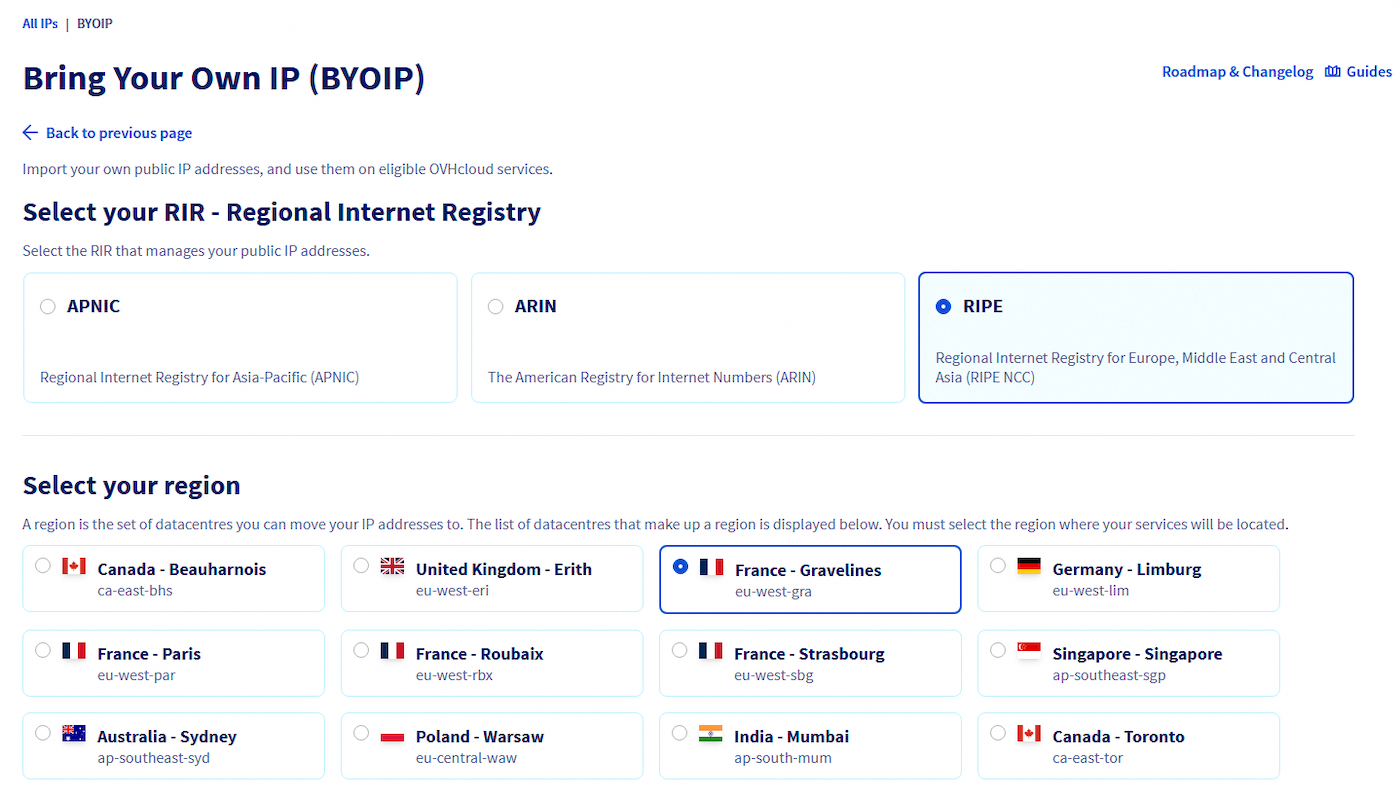
Select the RIR that manages the public IP block you want to import, then select the region where you want your IP addresses to be located. Then enter the IP range you wish to import.
You can then choose whether to use the OVHcloud AS (recommended) or your own AS to advertise your IP block.
If you choose to use your own AS, you must select the RIR that manages your ASN, then enter your AS number. If you choose the OVHcloud AS, no additional information is required.
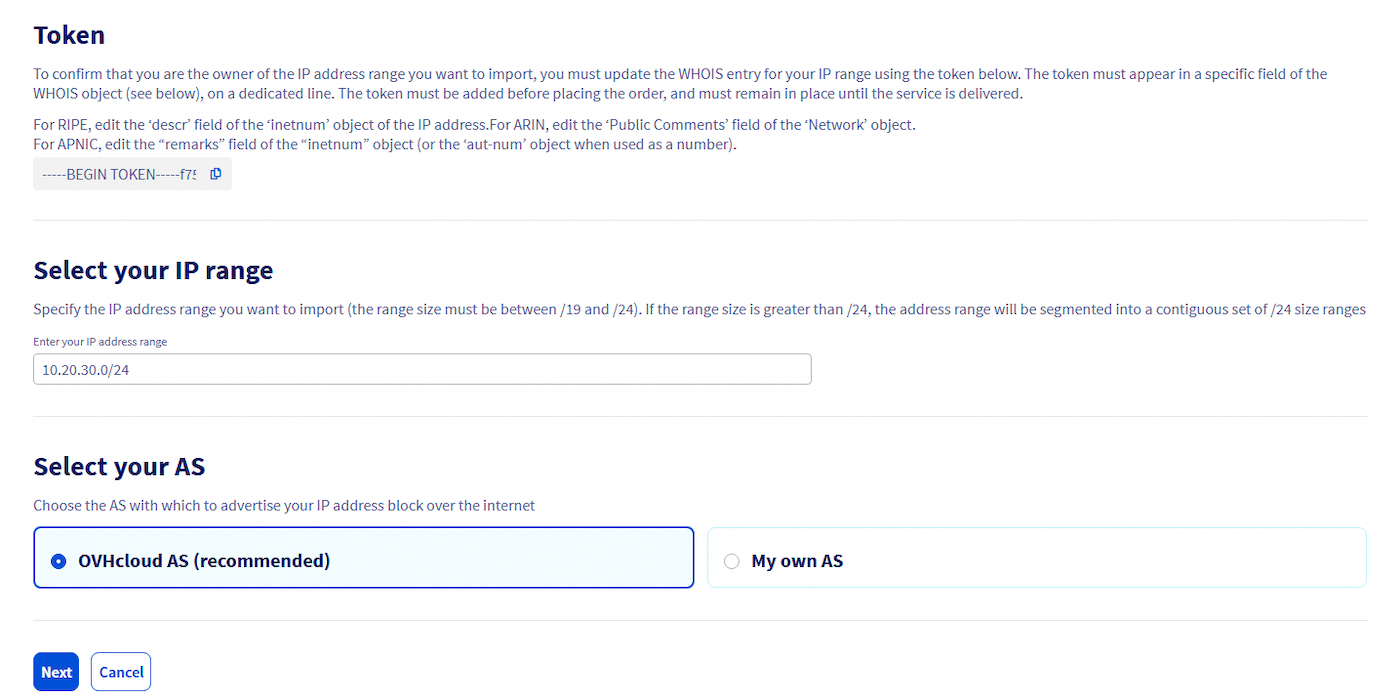
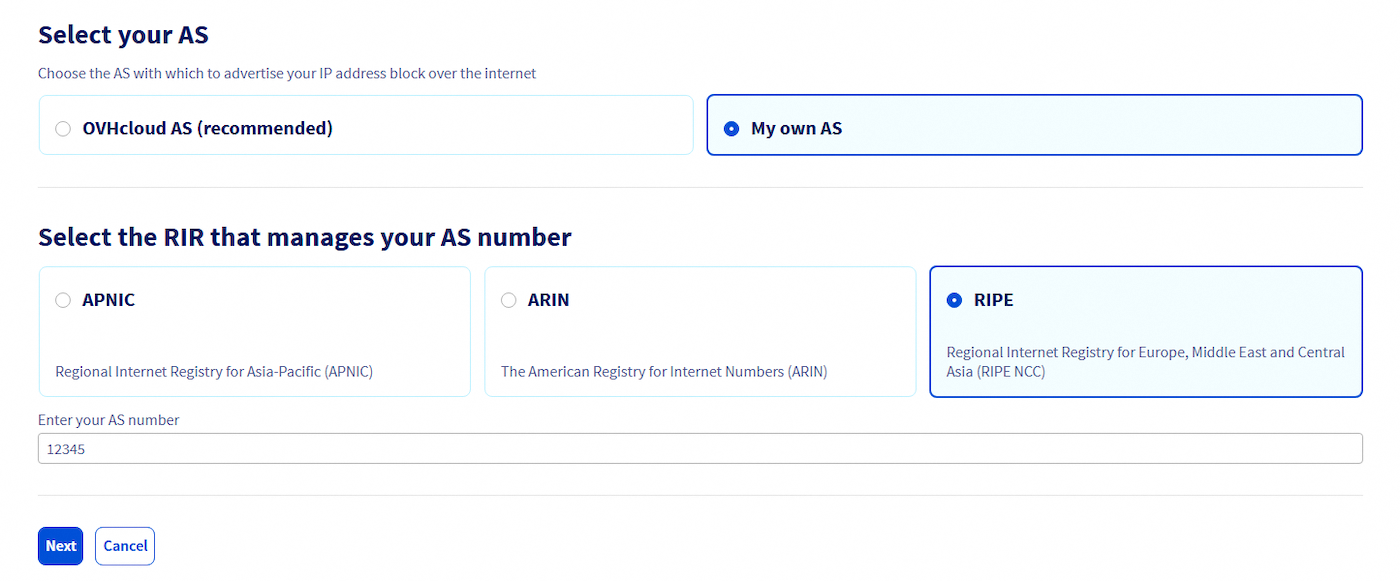
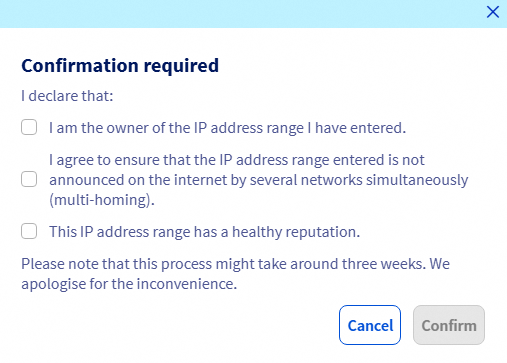
Finally, click the Next button at the bottom of the page. A confirmation window will open. Please ensure that all of the requirements are met, then click the Confirm button to submit your order.
All your imported IP blocks will have the BYOIP tag.

Filtering public IP addresses by tag is not currently available. We recommend filtering them by clicking the All service types bar above the table, then selecting All additional IPs. You will then be able to differentiate your classic Additional IPs from the imported ones by using the aforementioned BYOIP tag.
How to use the product
The imported IPs will behave like the current Additional IP product. An imported IP range will be split into /24 blocks that will be movable to any service in the same region.
To activate the announcement of your imported IP range on the Internet, simply assign one of your blocks to an eligible product via the control panel or the OVHcloud API.
Some operations available on the Additional IP product will not be available on the BYOIP product.
For example, you will not be able to customize your blocks' WHOIS via the OVHcloud Control Panel/API, because OVHcloud does not own them.
For the same reason, you will not be able to edit your IP's reverses out of the box via the OVHcloud Control Panel/API.
During the delivery, we will create ARPA zones on our DNS servers and any reverse DNS modification via the OVHcloud Control Panel/API will be applied on them. However, these modifications will be visible to the public when our DNS servers receive delegations of the ARPA zones by the RIR. (This is optional, if you want to continue managing your reverse DNS on your own, you can).
Range slicing
Any imported IP block can be further split into smaller blocks and/or individual addresses.
To be able to slice/merge an existing IP block, it must be unused (i.e. in the parking area) and there must not be any pending task associated with it (e.g. no pending move operation).
To segment your BYOIP block, follow these steps:
- Navigate to the
Public IP Addressespage and locate your BYOIP block. - Click the
⋮button on the right side of the table. - Select
Segment. - Choose your desired CIDR subnet mask to define the size of the child blocks.
- Review the preview of the generated blocks, then click
Confirmto finalize the segmentation.
Use the following parameters:
- ip: the IP block you want to slice, in CIDR notation.
- slicingSize: the resulting size of the sliced blocks, expressed as a network prefix size, in bits. For example if you want to slice a /24 block into 2 smaller blocks of size /25, you should enter the value "25".
This API call is asynchronous, the newly created blocks are made available shortly after the call. They will be usable as any other Additional IP block or individual address.
You can preview the resulting blocks that would be created for each block size, by using the following API call:
Use the following parameters:
- ip: the IP block you want to slice, in CIDR notation.
To combine several child blocks into a parent block, follow these steps:
- Navigate to the
Public IP Addressespage and locate one of the BYOIP block segment you want to combine. - Click the
⋮button on the right side of the table. - Select
Combine. - Choose the desired parent block.
- Review the preview of the generated blocks, then click
Confirmto finalize the aggregation.
Use the following parameters:
- ip: the IP block you want to merge, in CIDR notation.
- aggregationIp: the resulting block, in CIDR notation.
The resulting block will be an aggregate of all its children blocks.
This API call is asynchronous, the re-aggregated blocks are made available shortly after the call.
You can preview all the possible configurations of aggregated blocks for a given IP block, by using the following API call:
Use the following parameters:
- ip: the IP block you want to merge into a parent block, in CIDR notation.
This call returns a list of possible aggregated blocks and, for each one of them, gives the list of children blocks to be merged back.
Limitations:
- Configuration elements associated to individual IP addresses (/32) such as firewall rules or reverse DNS entries will be kept after slicing/merging operations.
- Slice/Aggregate API tasks cannot be followed up by the asynchronous task number returned by API, as associated IP objects will be destroyed in the slice/aggregate process.
- The listing of IP addresses and blocks returned by API is ordered by network prefix size. We are working to provide a solution to list IPs by numerical order.
- Once sliced, smaller blocks are not movable outside the region chosen during the order of the product.
- Moving a /24 block across French regions is not supported if it has been reaggregated from a previous slicing.
How to cancel a BYOIP service
From the OVHcloud Control Panel, click your account name in the top right-hand corner, then select My offers and services in the dropdown menu.
In the search bar at the top right of the table that appears, next to the filter button, type "byoip", then press the Enter key to filter for your BYOIP services.
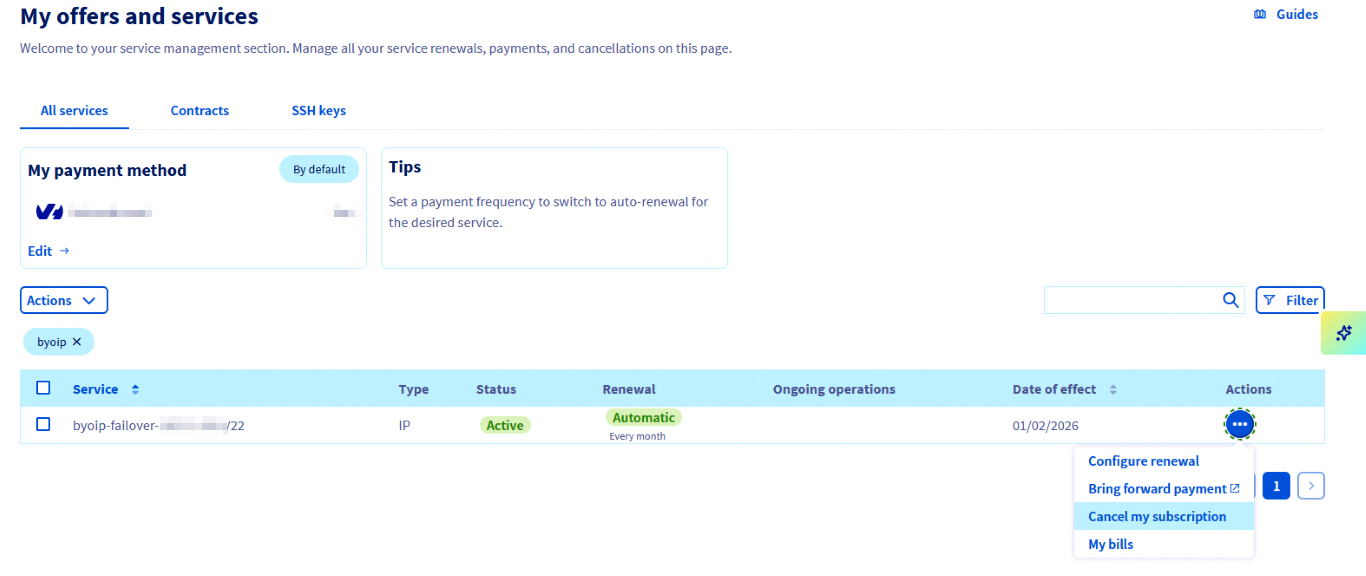
Find the service you want to cancel, then click the corresponding ... button to the right and select Cancel my subscription.
A confirmation window will pop up:
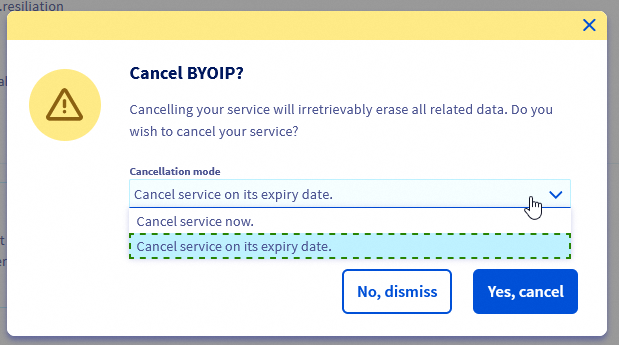
Choose whether to cancel the service immediately or on the expiry date, then click Yes, cancel.
FAQ
Is it possible to import an IP range lower than a /24?
No, the minimum accepted size is a /24.
Is it possible to import an IP range bigger than a /19?
Not at product launch, but feel free to contact us to discuss this.
Is splitting the imported /24 into smaller block size (/25, /26, /27, /28, /29, /30) or into /32 supported?
Yes, please see the Range slicing section for more details.
Can I import an IP and an AS number that are not in the same RIR?
Yes.
Can I import an IP range or AS number managed by AFRINIC/LACNIC?
Not for the moment.
Is it possible to use an IP range on more than one region?
No, an IP range must be used in only one region.
Is changing the region of an imported IP range possible?
It is not possible to change the region of an imported IP range. To achieve this you would have to release the product and purchase it again. However, if you have chosen the Gravelines, Roubaix or Strasbourg region at the time of the order and if you ordered the service after January 1st, 2023, you will be able to move your /24 IP blocks across those 3 regions (and only those 3 regions).
Please note that, as mentioned in the range slicing limitations, this is only available if the block you want to move was not reaggregated following a previous slicing.
How will I know which OVHcloud DNS servers will handle the ARPA zone for my imported IP?
Their names will be communicated in the delivery email.
Is it possible to import an IPv6?
Not for the moment.
Can I order the service while I still have my IP range announced from another site?
Yes, but once the BYOIP service has been delivered, you must immediately cancel the announcement from the other site, as you risk connectivity issues with any services hosted at OVHcloud. In this case, OVHcloud cannot be held responsible.
Go further
Join our community of users.

