

Tracking connections on the OVHcloud Load Balancer
67 Ansichten
 27.11.2025
  Cloud / OVHcloud Load Balancer
Objective
The OVHcloud Load Balancer service offers several methods for tracking connections (also known as session persistence or stickiness) to your services.
Each session on the OVHcloud Load Balancer service is maintained by a persistent connection system. This system is configured at the application layer of the OVHcloud Load Balancer service to ensure persistent connections to the server.
This guide provides different methods to configure connection tracking for the OVHcloud Load Balancer.
Requirements
- An OVHcloud Load Balancer
- Access to the OVHcloud API
OVHcloud Control Panel Access
- Direct link: Load Balancer
- Navigation path:
Network>Load Balancer> Select your service
Instructions
The different types of connection tracking
There are two primary connection tracking methods that can be configured for your services:
| Tracking method | Details |
|---|---|
| Cookie | Configures a session cookie, which is used to distribute traffic from a single HTTP session to the same server in the farm. |
| SourceIp | A hash algorithm is applied to the source IP address of the request received by the OVHcloud Load Balancer. This ensures the same client IP is consistently routed to the same server. |
The following elements will affect traffic redirection:
- if the configured server weight changes
- if a server in the farm is re-enabled
- if a server in the farm is no longer responding
Once you have applied your configuration, existing connections will be rebalanced, and their associated HTTP sessions will be lost.
Modify a server farm’s connection tracking method via the OVHcloud Control Panel
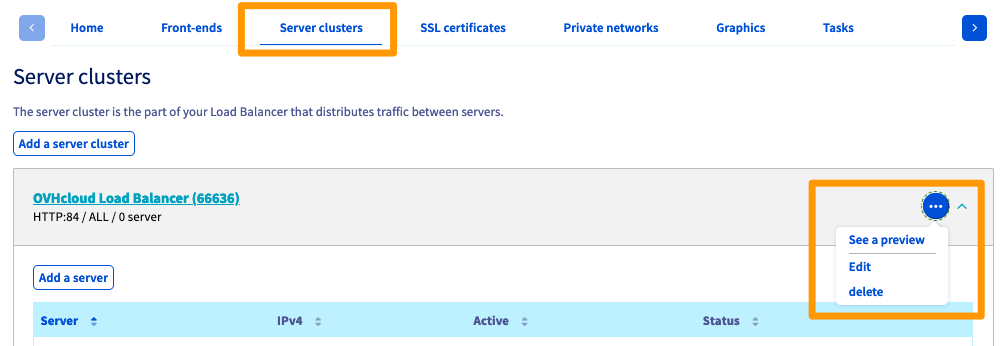
To modify connection tracking for a server farm, navigate to the Server clusters tab, then click the options button ... to the right of the desired farm and select Edit:
In the Advanced settings section, you will be able to access the Track session section:

Once you have configured the farm, click Add or Edit, depending on whether you are configuring a new or modifying an existing farm.
Please remember to deploy the configuration afterward. There are two ways to do so:
-
via the
Statussection of the Control Panel, by clicking on your Load Balancer’s...button, then selectingApply configuration -
via the reminder box in the Control Panel, notifying you that the configuration has not been applied, by clicking
Apply configuration

Modify a server farm’s connection tracking method via the API
View details on a server farm
This API call allows you to view details for a server farm if you know its ID. For this example, we will work on an HTTP farm.
| Setting | Meaning |
|---|---|
| serviceName* | The ID of your Load Balancer service |
| farmId* | The ID number of the farm |
| Response (BackendHttp) | Meaning |
|---|---|
| farmId | The ID number of the farm |
| balance | Load balancing algorithm currently enabled for the farm |
| zone | Name of the zone in which the farm is configured |
| port | Port used to contact the backend servers configured on the farm |
| probe | Type of health probe currently configured on the farm |
| displayName | User-friendly name given to this farm |
| stickiness | Connection tracking method currently set for the farm |
Modify a server farm’s connection tracking method
This API call allows you to edit the settings of a server farm if you know its ID. In this example, we will work on an HTTP farm. To modify the tracking method, the BackendHttp.stickiness field must be updated with an available connection tracking method:
| Setting | Meaning |
|---|---|
| serviceName* | The ID of your Load Balancer service |
| farmId* | The ID number of the farm |
| BackendHttp.stickiness | The connection tracking method chosen for the farm |
Apply the modifications
This API call is required to deploy the configuration changes to the Load Balancer service.
| Setting | Meaning |
|---|---|
| serviceName* | The ID of your Load Balancer service |
| zone | Name of the zone in which to deploy the configuration (e.g. "all" or "rbx") |
Go further
Join our community of users.


 Konfiguration von HTTP/2 auf dem OVHcloud Load Balancer
 339
339