

View and manage all your websites from the OVHcloud Control Panel
50 Ansichten
 27.05.2025
  Web / Webhosting
Objective
The Websites view allows you to centrally display all of your websites, regardless of their associated hosting. It makes it easy to track which features are enabled for each website, and gives quick access to essential actions. This interface is particularly useful for agencies or web professionals who manage a large number of domains spread across several hosting plans.
Find out how to view and manage all your websites via the OVHcloud Control Panel.
Requirements
OVHcloud Control Panel Access
- Direct link: Web hosting
- Navigation path:
Web Cloud>Hosting plans> Select your web hosting plan
Instructions
Go to the Websites view
Log in to your OVHcloud Control Panel, then go to the Web Cloud section. In the left-hand menu, click Websites. A table will appear, listing all of your websites and their main information.
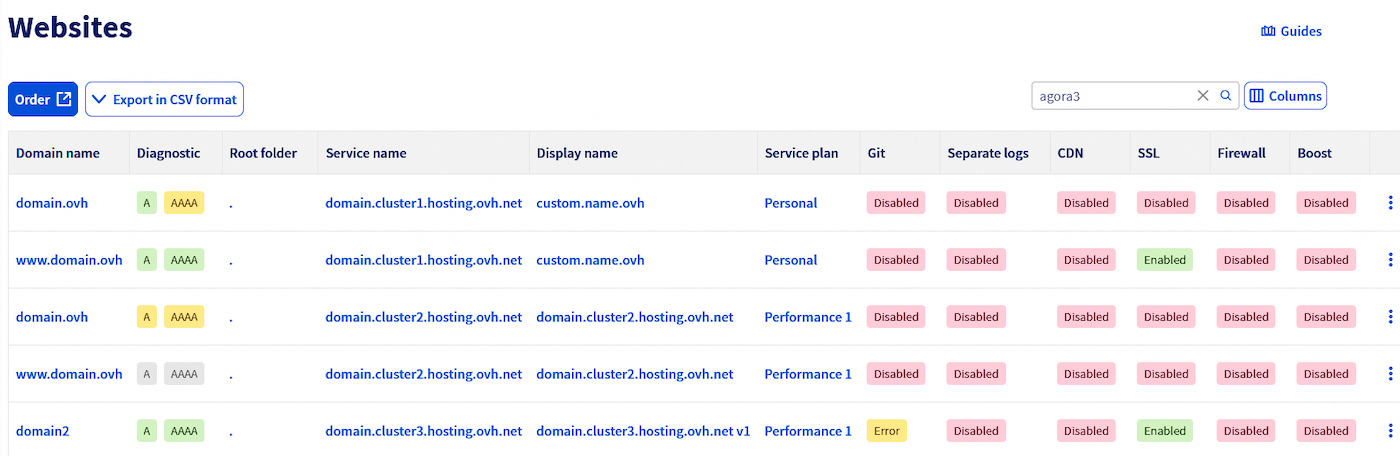
Domain name
Displays the website’s primary domain name, as configured on your hosting plan’s Multisite tab.
Clicking this will redirect you to the Multisite tab for the web hosting plan concerned.
Diagnostic
Notifies you if your domain name points correctly to the associated web hosting plan. For each domain name, there are three possible diagnostic results:
A/AAAAgreen: The A and/or AAAA records of your domain name point correctly to the IP address of your web hosting plan.A/AAAAyellow: The A and/or AAAA records for your domain name point to an IP address different from your Web Hosting plan’s IP address.A/AAAAgray: No A or AAAA record is configured, your domain name does not point to any IP address.
Clicking this will redirect you to the Multisite tab for the web hosting plan concerned.
For more details on the diagnostic, please read the “Diagnose your domain names” section of our guide “Hosting multiple websites on your Web Hosting plan”.
Root folder
Specifies the directory on your hosting plan (for example: www, app, public_html, etc.) to which the domain points.
Clicking this will redirect you to the Multisite tab for the web hosting plan concerned.
Service name
Technical name of the web hosting service on which the website is configured, in the form abcdv.clusterXX.hosting.ovh.net.
Clicking this will redirect you to the General information tab for the web hosting plan concerned.
Display name
A custom alias defined by the customer to better identify their service in the Control Panel.
Clicking this will redirect you to the General information tab for the web hosting plan concerned.
Service plan
Shows the type of solution associated with the hosting plan: Starter, Personal, Professional or Performance.
Clicking this will redirect you to the General information tab for the web hosting plan concerned.
Git
Shows the status of the Git integration on the website:
- Active: The Git repository is connected.
- Inactive: The Git repository is not enabled.
- In progress: The Git repository is being configured.
- Error: An error is detected in the configuration of the Git repository.
Clicking this will redirect you to the Multisite tab for the web hosting plan concerned.
Separate logs
Indicates whether a log space is enabled on the selected domain.
Clicking this will redirect you to the Multisite tab for the web hosting plan concerned.
Visit our page “Monitor and analyze website traffic” for more information.
Separate logs cannot be enabled for an external domain name. This option is only available for domains registered with OVHcloud.
CDN
Displays the status of the CDN (Ccontent Delivery Network) on the domain name:
- Active: The CDN is working.
- Inactive: The CDN is disabled.
- N/A: Not applicable (offer not compatible).
Clicking this will redirect you to the Multisite tab for the web hosting plan concerned.
With the CDN, you can cache static elements of your website, such as images. See our page “Shared CDN” for more information.
SSL
Indicates whether or not SSL is enabled on the domain name concerned.
Clicking this will redirect you to the Multisite tab for the web hosting plan concerned.
With an SSL certificate, you get a secure connection (https://) to the selected domain. Visit our page “Secure your OVHcloud website effectively with a premium SSL certificate” for more information.
Firewall
Indicates whether the application firewall is enabled on the domain.
Clicking this will redirect you to the Multisite tab for the web hosting plan concerned.
See our page “Essential options for your web hosting” for more information.
Boost
Indicates whether or not the boost option is enabled on your web hosting plan. With the Boost option, you can temporarily increase your web hosting plan’s CPU and RAM resources.
Clicking this will redirect you to the Boost my hosting plan tab for the Web Hosting plan concerned.
For more details on the Boost option, please read the “Boost your Performance web hosting plan temporarily” section of our guide “Web Hosting - How to change your solution”.
Go further
For specialized services (SEO, development, etc.), contact the OVHcloud partners.
If you would like assistance with using and configuring your OVHcloud solutions, we recommend referring to our range of support solutions.
Join our community of users.


 Webhosting - Schnellstart-Anleitung
 2288
2288