

Getting started with the Web Cloud Databases service
584 Ansichten
 24.03.2026
  Web / Web Cloud Databases
Objective
The Web Cloud Databases solution provides a database instance with dedicated and guaranteed resources, offering performance and flexibility. By default, your Web Cloud Databases solution is linked to the OVHcloud web hosting network. You can also link it to any other network via a list of authorised IP addresses.
Find out how to get started with the Web Cloud Databases service.
Requirements
- A Web Cloud Databases instance (included in a Performance web hosting plan).
OVHcloud Control Panel Access
- Direct link: Web Cloud Databases
- Navigation path:
Web Cloud>Web Cloud Databases> Select your database service
Instructions
Activating your Web Cloud Databases server included with your web hosting plan
If your hosting plan includes the Web Cloud Databases option, click on the tabs below to view each of the 3 steps.
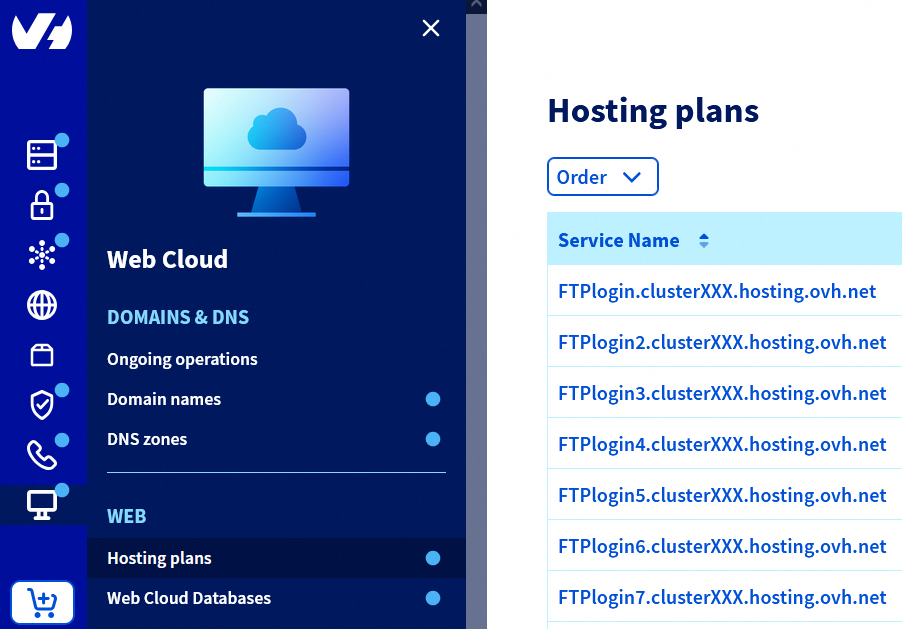
Go to the Hosting plans page, then select the web hosting plan concerned.
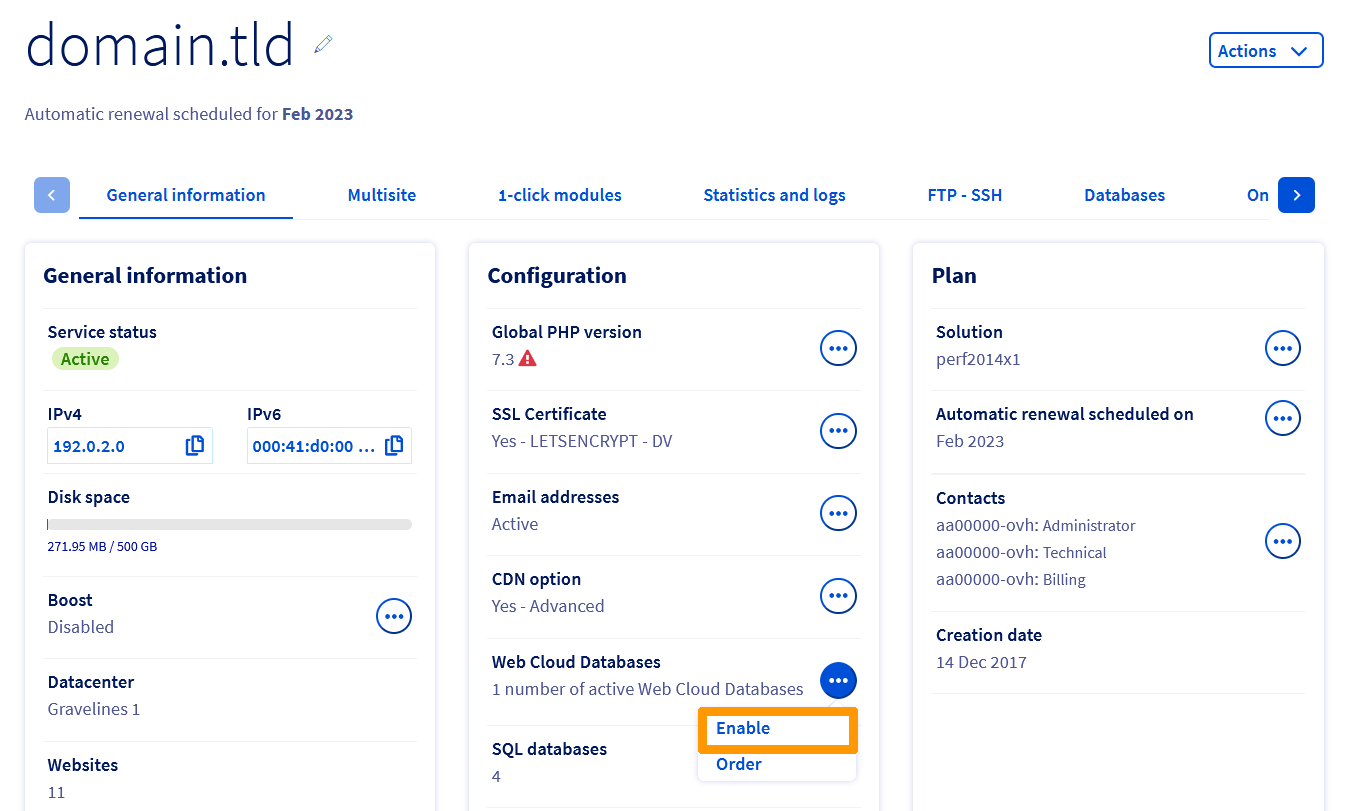
In the General information tab, under Configuration, click ... next to Web Cloud Databases, then click Enable.
Follow the instructions to choose the type and version. Your server will then appear in the left-hand column under Web Cloud Databases.
Viewing the general information of the instance
Click on the tabs below to view each of the 2 steps.
Go to the Web Cloud Databases page, then select the solution concerned.
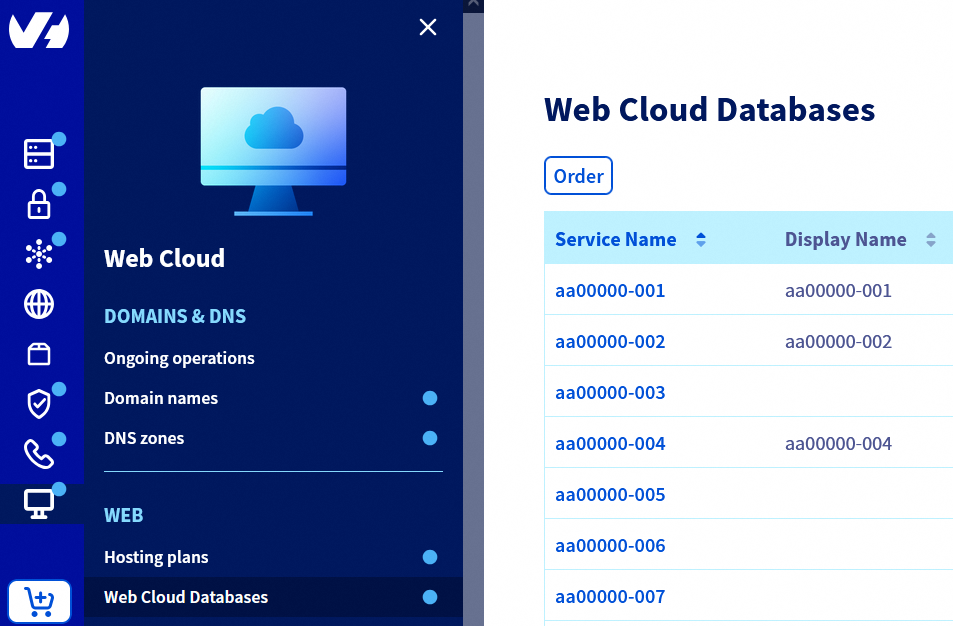
The name of the Web Cloud Databases service in your OVHcloud Control Panel contains part of your customer reference and ends with three digits (001 for the first Web Cloud Databases service installed, 002 for the second, etc.).
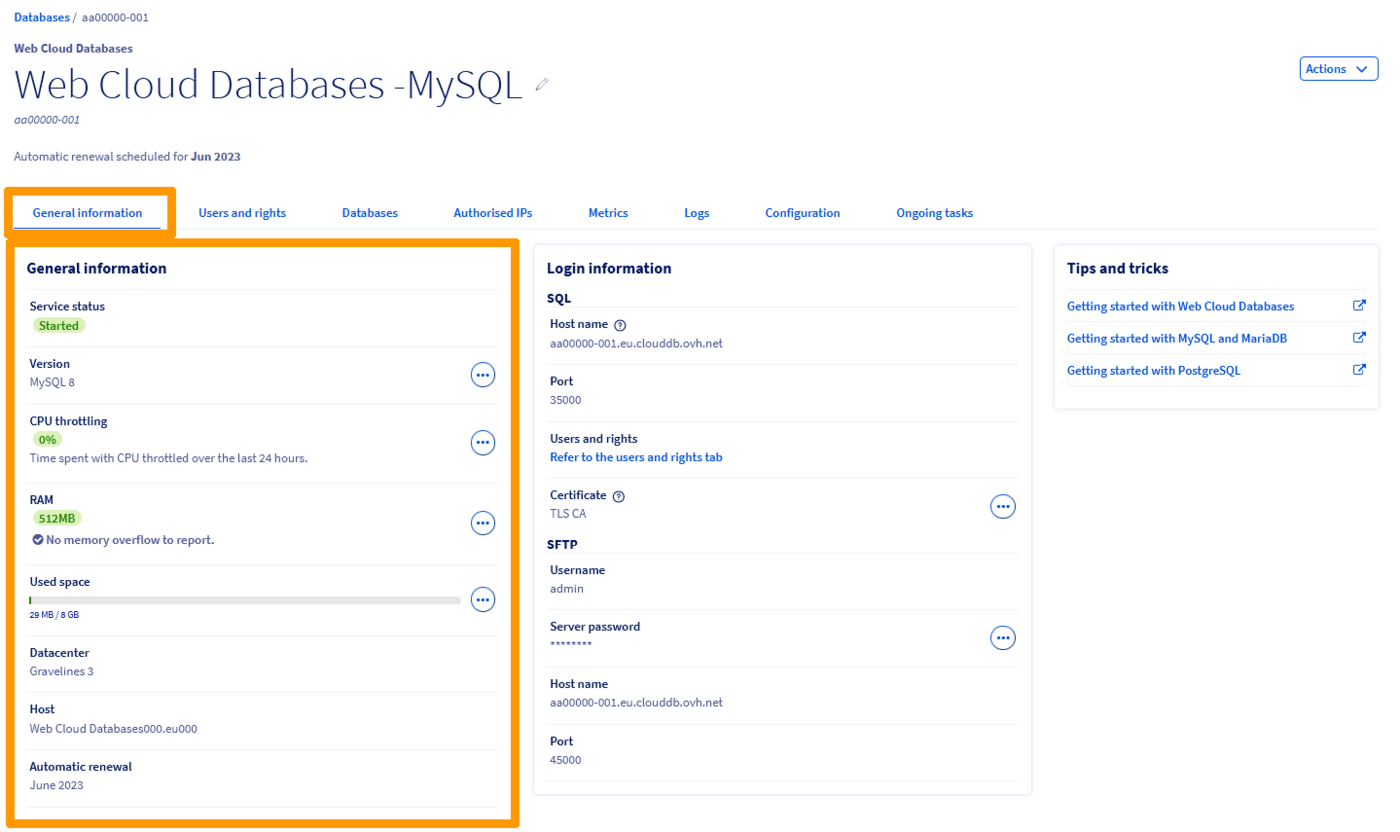
Make sure you are on the General information tab.
Check that the displayed information is correct or matches the details below.
| Information | Details |
|---|---|
| Service status | Shows whether the instance is started, restarting, or suspended. Your instance must be started to perform actions on it. |
| Type | Shows the database system used by the server. |
| Version | Shows the version of the database system used by the server. Make sure your website is compatible with the chosen version. |
| CPU saturation | Shows CPU time spent in saturation. Your Web Cloud Databases instance is not limited in terms of CPU, but you must ensure you do not overload it. |
| RAM | Shows the RAM available for your instance, as well as any memory overflows. Your Web Cloud Databases instance has dedicated and guaranteed resources: its RAM. If needed, you can upgrade it and be notified if you are consuming all the memory resources of your instance. |
| Infrastructure | Shows the infrastructure used by your instance. This is information inherent to the OVHcloud infrastructure. |
| Datacenter | Shows the data centre where the instance was created. |
| Host | Shows the OVHcloud server on which your instance was created. This is information inherent to the OVHcloud infrastructure and may be used in communications related to OVHcloud incidents. |
Creating a database
This step does not apply to the Redis database system.
Click on the tabs below to view each of the 4 steps.
Go to the Web Cloud Databases page, then select the solution concerned.
Click on the Databases tab.
Click Add a database.
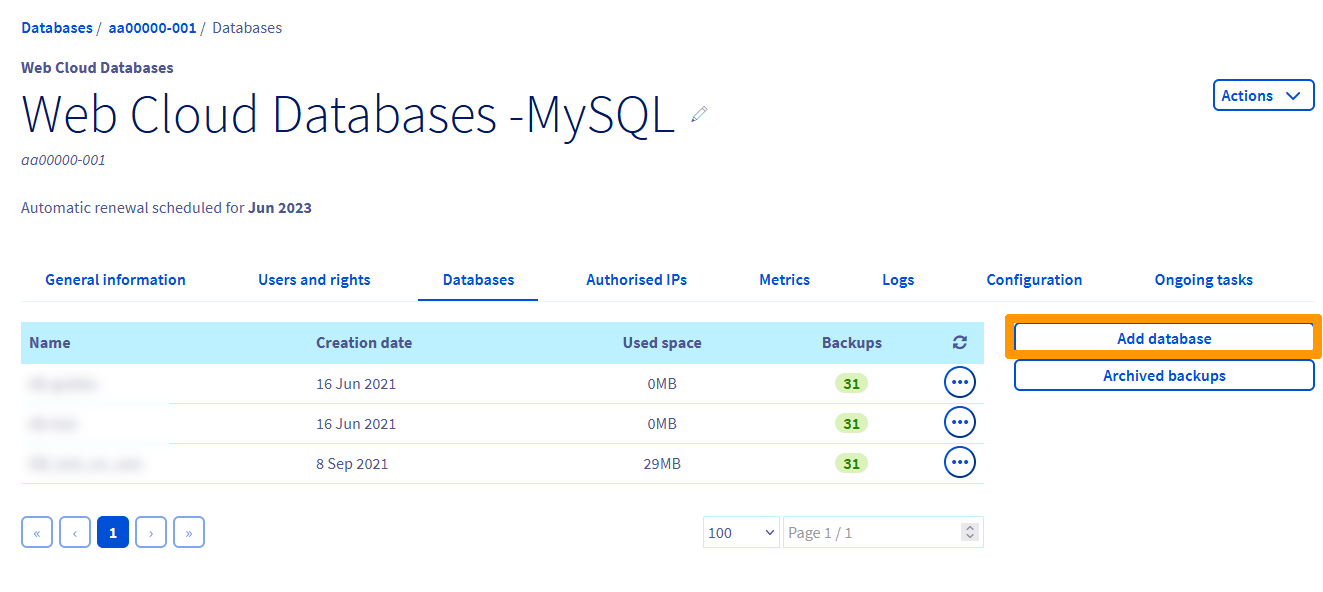
PostgreSQL schema creation is currently unavailable on Web Cloud Databases servers.
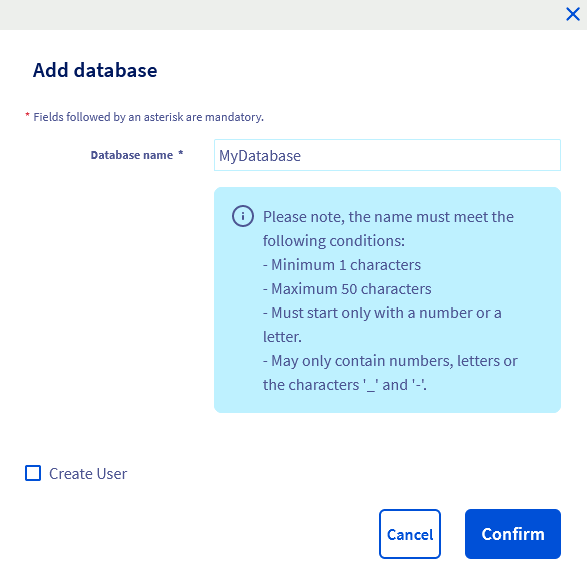
Fill in the fields following the criteria listed. You can create a user directly by ticking the "Create a user" box:
- Database name (required): this will be the name of your future database.
- Username (only if the
Create a userbox is ticked): the user who will be able to log in to your database and perform queries. - Rights (only if the
Create a userbox is ticked): the permissions associated with the user on the database. For standard usage, selectAdministrator. The permissions can be modified afterwards. - Password/Confirm password (only if the
Create a userbox is ticked): select a password, then confirm it.
Click Confirm.
Creating a user
This step does not apply to the Redis database system.
If you created the user at the same time as your database in the previous step, this step is optional. However, a project may require several users with different rights (for example, read/write for one and read-only for another).
If your project does not require an additional user, you can skip to the next step. Otherwise, click on the tabs below to view each of the 4 steps.
Go to the Web Cloud Databases page, then select the solution concerned.
Click on the Users and Rights tab.
Click Add a user.
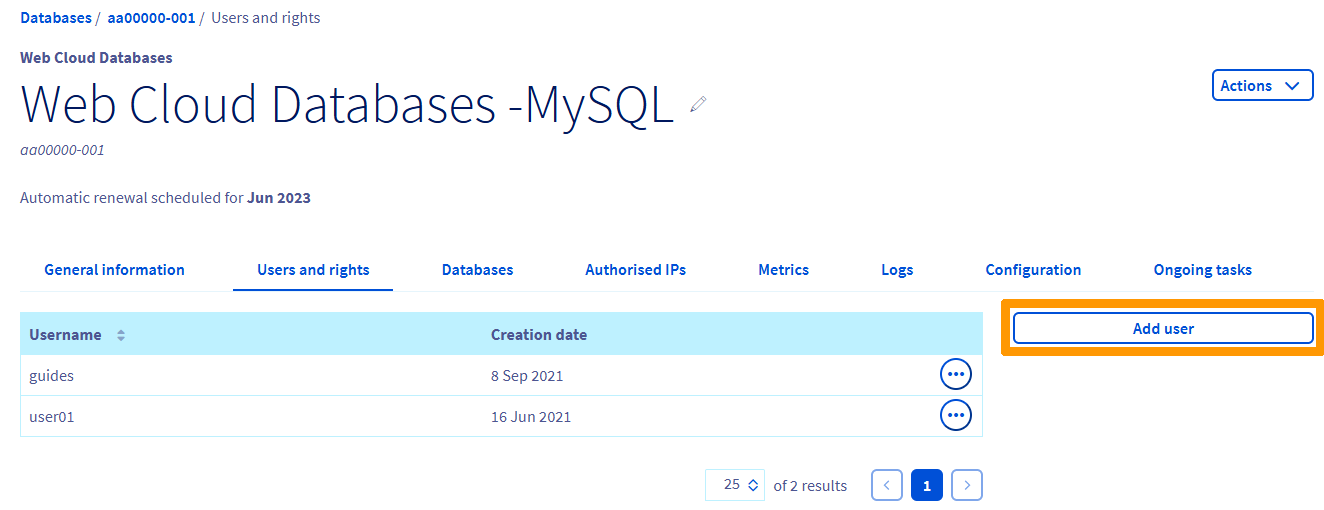
Enter a "username" and a "password", then click Confirm.
If you need to modify an existing user's rights, refer to our guide "Web Cloud Databases - Modifying a user's rights".
Importing a database
This step applies if you want to import a backup of an existing database. If not, skip to the next step.
To import a database, refer to our guide "Restoring and importing a database to your database server".
Several import methods are described there.
Authorising an IP address
For your Web Cloud Databases instance to work, you must specify the IPs or IP ranges that are allowed to connect to your databases.
To do this, click on the tabs below to view each of the 4 steps.
Go to the Web Cloud Databases page, then select the solution concerned.
On the page that appears, click on the Authorised IPs tab.

Click the Add an IP address/mask button above the table.
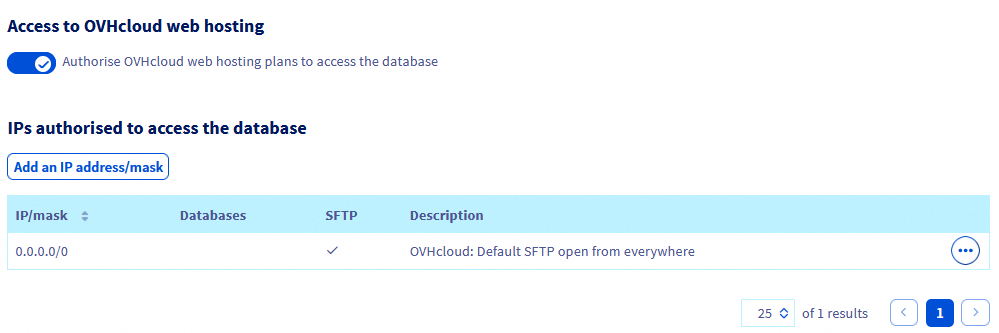
If you want to modify an already authorised IP address or range, click the ... button to the right of the corresponding line in the table, then click Edit the whitelist.
In the window that opens, several fields need to be completed:
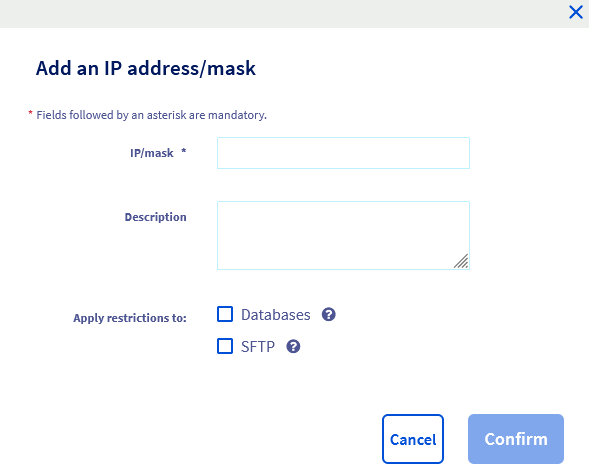
IP/mask *: Enter the IP address (e.g.203.0.113.44) or IP range (e.g.203.0.113.0/24representing all IP addresses from203.0.113.0to203.0.113.255) that you want to authorise on your Web Cloud Databases solution.Description(optional): You can add information about the role of the IP address or range concerned.Databases: Tick this box to allow the IP address or range to access the databases on your Web Cloud Databases solution.SFTP: Tick this box to allow the IP address or range to access the logs of your Web Cloud Databases solution.
It is strongly advised not to tick the Databases box to authorise the IP range 0.0.0.0/0 to access your databases.
This would allow all existing IPv4 addresses to access your databases.
Once the information is entered, click the Confirm button.
Authorising connections from an OVHcloud web hosting plan
By default, your Web Cloud Databases solution is automatically linked to OVHcloud web hosting plans. If you wish, you can disable access from OVHcloud web hosting plans to your Web Cloud Databases.
To do this, refer to the specific cases in our guide "Web Cloud Databases - How to authorise an IP address?" to enable or disable access from OVHcloud web hosting plans to your Web Cloud Databases.
Linking your website to the database
Now that your database is created, one or more users have rights on it, and at least one IP address or OVHcloud web hosting plans have been authorised on your Web Cloud Databases instance, all that remains is to link your website to your database. This step can be done in several ways, depending on the website or CMS (WordPress, Joomla!, etc.) used, and the stage you are at if you are installing a website.
To do this, you need the following 5 pieces of information:
| Information | Description |
|---|---|
| Database name | The name you defined when creating the database. |
| Username | The username you defined when creating the database, or any additional user you may have added. |
| User password | The password linked to the user, which you defined during previous steps. |
| Server hostname | The server to enter so that your website can connect to your database. |
| Server port | The connection port to your Web Cloud Databases instance, so that your website can connect to your database. |
To find them, click on the tabs below to view each of the 2 steps.
Go to the Web Cloud Databases page, then select the solution concerned.
Retrieve the following connection details:
- Server (hostname) and port: visible in the
General informationtab, in theConnection informationsection. - Username: visible in the
Users and Rightstab. - Password: the password associated with the user. If you have forgotten it, go to the
Users and Rightstab, click...to the right of the user concerned, then clickChange password.
If you change a database user's password, all applications/websites that access this database must be updated accordingly.
The port field may not be available in your website's configuration. You must add this field after the server hostname, separated by a :.
For example, for the hostname aaXXXXX-XXX.eu.clouddb.ovh.net with SQL port 12345, you would enter aaXXXXX-XXX.eu.clouddb.ovh.net:12345 in the "Host" / "Hostname" section.
Retrieving the logs for your Web Cloud Databases server
To access the logs for your Web Cloud Databases solution, refer to our guide "Web Cloud Databases - How to manage logs".
Go further
Creating databases and users on your database server
Connecting to a database on your database server
Backing up and exporting a database on your database server
Restoring and importing a database to your database server
Configuring your database server
For specialised services (SEO, development, etc.), contact OVHcloud partners.
If you would like assistance using and configuring your OVHcloud solutions, please refer to our support offers.
Join our community of users.


 Erste Schritte mit MySQL und MariaDB
 4729
4729