

How to configure IP aliasing
2057 Views
 12.11.2025
  Cloud / Virtual private servers
Objective
IP aliasing refers to a special network configuration for certain OVHcloud services. Additional IPs allow you to associate multiple IP addresses with a single network interface.
This guide explains how to add Additional IP addresses to your network configuration.
OVHcloud provides services for which you are responsible with regard to their configuration and management. It is therefore your responsibility to ensure that they function correctly.
This guide is designed to help you with common tasks. Nevertheless, we recommend contacting a specialist service provider or reaching out to the OVHcloud community if you encounter any difficulties.
Requirements
- A Virtual Private Server in your OVHcloud account
- An Additional IP address
- Administrative access (sudo) via SSH or GUI to your server
- Basic networking and administration knowledge
Additional IP addresses are currently unavailable for Virtual Private Servers in Local Zones.
Instructions
The following sections contain the configurations for the most commonly used distributions/operating systems. The first step is always to log in to your server via SSH or a GUI login session (RDP for a Windows VPS). The examples below presume you are logged in as a user with elevated permissions (Administrator/sudo).
Concerning different distribution releases, please note that the proper procedure to configure your network interface as well as the file names may have been subject to change. We recommend consulting the manuals and knowledge resources of the respective OS versions if you experience any issues.
The following terminology is used in code examples and instructions throughout this guide:
| Term | Description | Examples |
|---|---|---|
| ADDITIONAL_IP | An Additional IP address assigned to your service | 203.0.113.0 |
| NETWORK_INTERFACE | The name of the network interface | eth0, ens3 |
| ID | ID of the IP alias, starting with 0 (depending on the number of additional IPs there are to configure) | 0, 1 |
In the examples below, we will use the nano text editor. With some operating systems, you will need to install it first. If this is the case, you will be prompted to do so. You can, of course, use the text editor of your choice.
Select the tab corresponding to your operating system.
Debian 11
Step 1: Disable automatic network configuration
Open the following file path with a text editor:
Enter the following line, then save and exit the editor:
Creating this configuration file will prevent changes to your network configuration from being made automatically.
Step 2: Create a backup
By default, the configuration file is located in the path etc/network/interfaces.d.
In our example, our file is called 50-cloud-init, so we make a copy of the 50-cloud-init file using the following command:
In case of a mistake, you will be able to revert the changes, using the commands below:
Step 3: Edit the configuration file
The first step is to verify your network interface name with this command:
Next, open the network configuration file for editing with the following command:
To configure your Additional IP, you need to add a virtual interface or ethernet alias to your network interface. In our example, our interface is called eth0, so our first alias is eth0:0. Do this for each Additional IP you wish to configure.
Do not modify the existing lines in the configuration file, simply add your Additional IP to the file as follows, replacing NETWORK_INTERFACE, ID and ADDITIONAL_IP with your own values:
If you are configuring more than one Additional IP, your configuration file should look like this:
Configuration example:
Step 4: Restart the interface
Apply the changes with the following command:
Debian 12, Ubuntu 22.04 and following
The configuration file for your Additional IP addresses is located in the folder /etc/netplan/. In this example it is called 50-cloud-init.yaml.
The best practice approach is to create a separate configuration file to set up Additional IP addresses. This way, you can easily revert the changes in case of an error.
Step 1: Create the network configuration file
In our example, our file is called 51-cloud-init.yaml:
Step 2: Edit the configuration file
You can verify your network interface name with this command:
Next, open the network configuration file for editing with the following command:
Edit the file with the content below, replacing INTERFACE_NAME and ADDITIONAL_IP with your own values:
If you have more Additional IPs to configure, the configuration file should look like this:
It is important to respect the alignment of each element in this file as represented in the example above. Do not use the tab key to create your spacing.
Configuration example:
Save and close the file.
Step 3: Apply the new network configuration
You can test your configuration using this command:
If it is correct, apply it using the following command:
AlmaLinux (8/9), Rocky Linux (8/9)
The main configuration file is located in /etc/sysconfig/network-scripts/. In this example it is called ifcfg-eth0. Before making changes, verify the actual file name in this folder.
For each Additional IP to be configured, we create a separate configuration file with the following parameters: ifcfg-NETWORK_INTERFACE:ID. Where NETWORK_INTERFACE is the physical interface and ID is the virtual network interface or ethernet alias starting with a value of 0. For example, for our interface named eth0 the first alias is eth0:0, the second alias is eth0:1, etc...
Step 1: Determine the interface
Step 2: Create the configuration file
First, create the configuration file. Replace NETWORK_INTERFACE:ID with your own values.
Next, edit the file with the content below, replacing NETWORK_INTERFACE:ID, and ADDITIONAL_IP with your own values:
Configuration example:
Step 3: Restart the interface
CentOS
Fedora 42, AlmaLinux & Rocky Linux (10)
Fedora now uses keyfiles. NetworkManager previously stored network profiles in ifcfg format in this directory: /etc/sysconfig/network-scripts/. However, the ifcfg format is now deprecated. By default, NetworkManager no longer creates new profiles in this format. The configuration file is now found in /etc/NetworkManager/system-connections/.
Step 1: Create a backup
In our example, our file is called cloud-init-eno1.nmconnection, so we make a copy of the cloud-init-eno1.nmconnection file using the following command:
In case of a mistake, you will be able to revert the changes, using the commands below:
Step 2: Edit the config file
Please note that the name of the network file in our example may differ from yours. Please adapt the commands to your file name.
Do not modify the existing lines in the configuration file, add your Additional IP to the file as follows, replacing ADDITIONAL_IP/32 with your own values:
If you have two Additional IPs to configure, the configuration should look like this:
Configuration example:
Step 3: Restart the interface
You now need to restart your interface:
cPanel
Step 1: Access the WHM IP management section
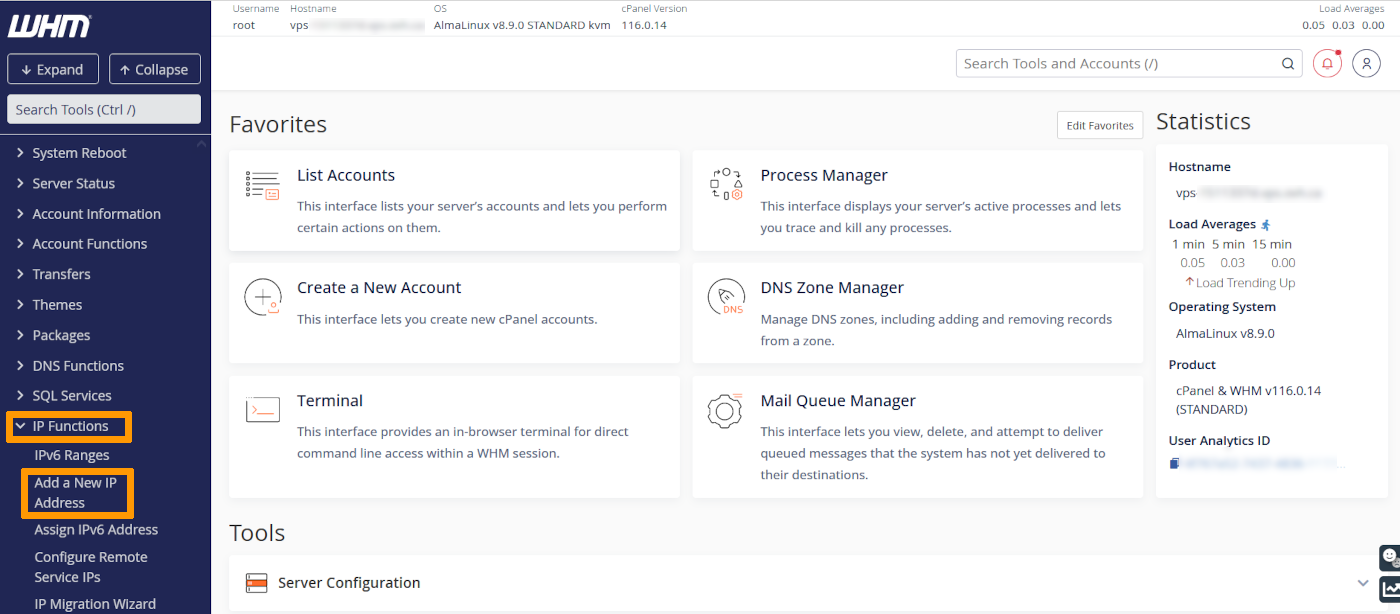
In the WHM control panel, click on IP Functions and select Add a New IP Address in the left-hand sidebar.
Step 2: Add the Additional IP information
Enter your Additional IP in the form xxx.xxx.xxx.xxx into the field “New IP or IP range to add”.
Select 255.255.255.255 as your subnet mask, then click on Submit.
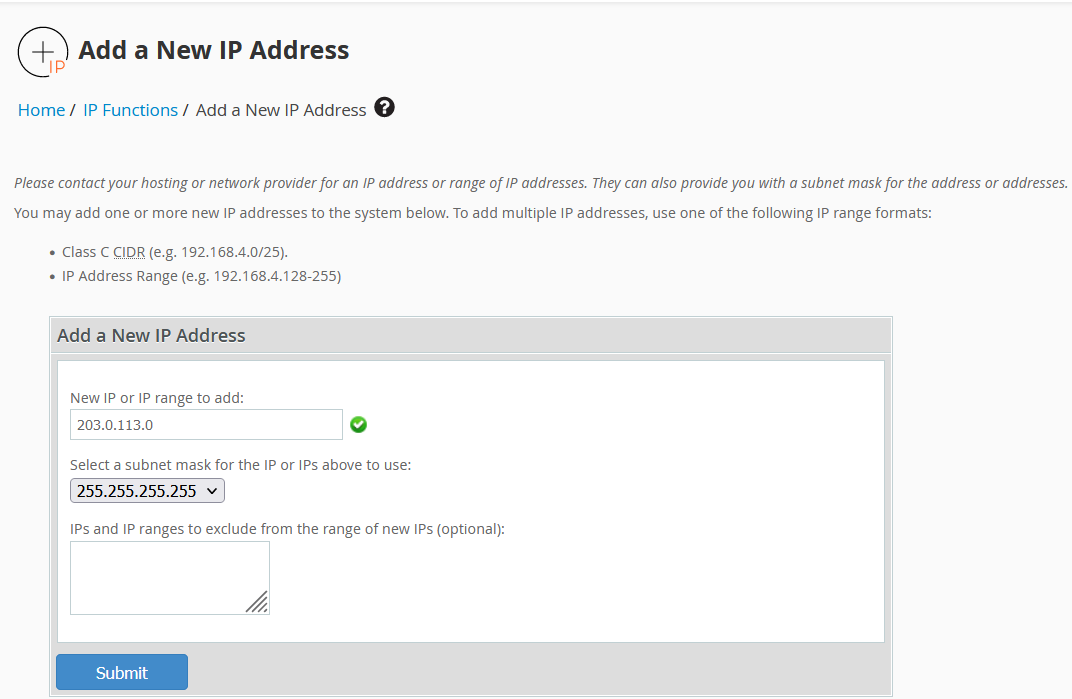
Please note that if you have more than one IP to configure on the same block and you add them all at once, the WHM system will force you to use the subnet mask 255.255.255.0. We do not recommend using this configuration. Instead, you need to add each IP individually in order to use the proper subnet mask 255.255.255.255.
Step 3: Check the current IP configuration
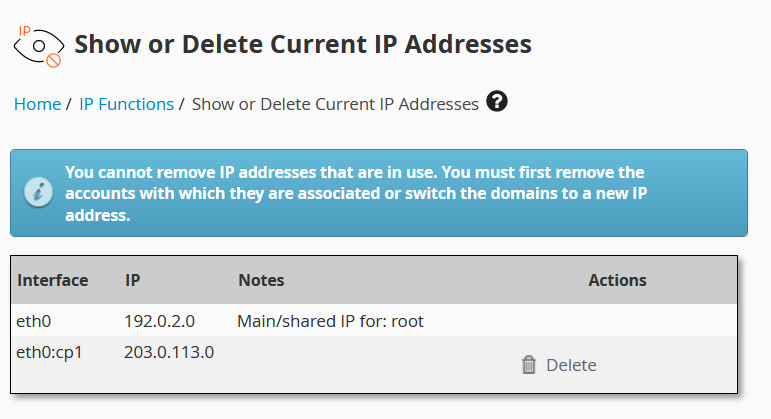
Back in the section IP Functions, click on Show or Delete Current IP Addresses to verify that the Additional IP address was added correctly.
Plesk
Step 1: Access the Plesk IP management section
In the Plesk control panel, choose Tools & Settings from the left-hand sidebar.
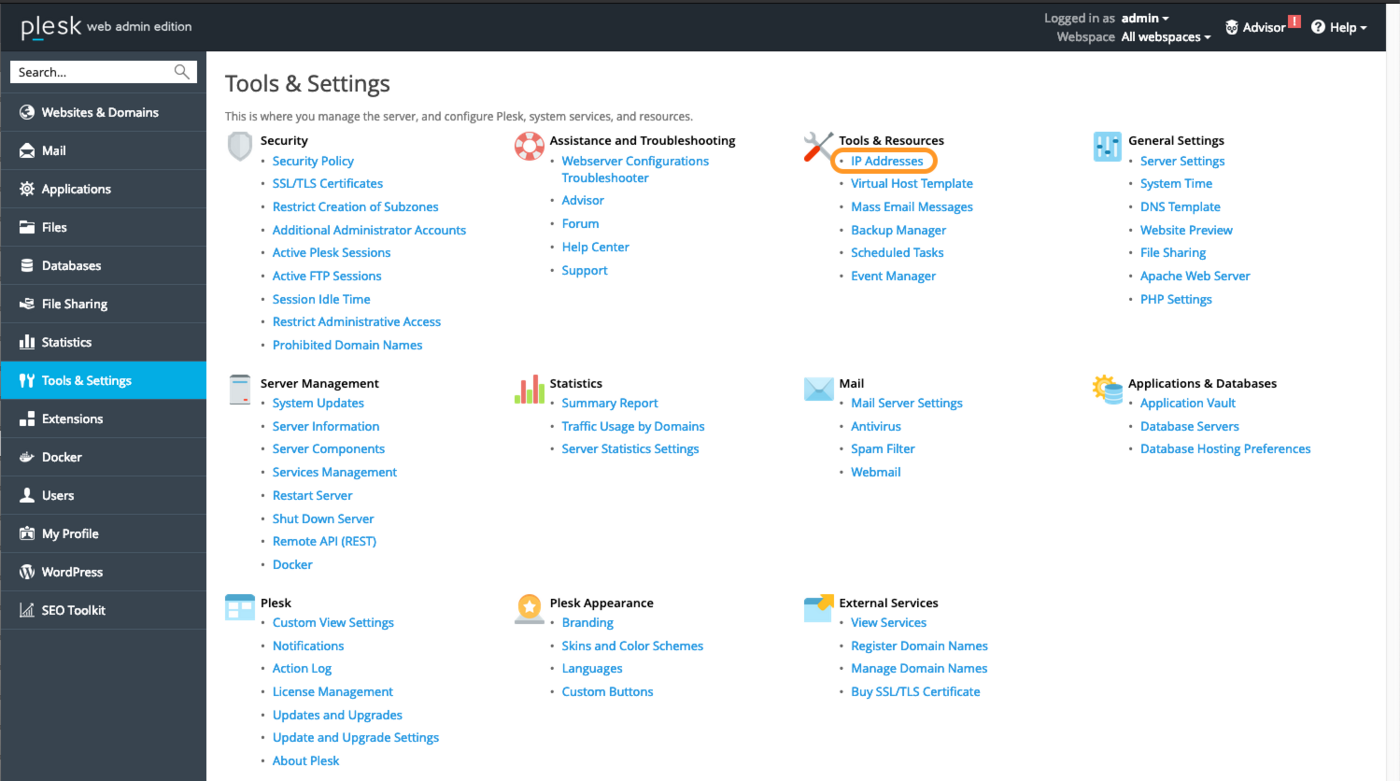
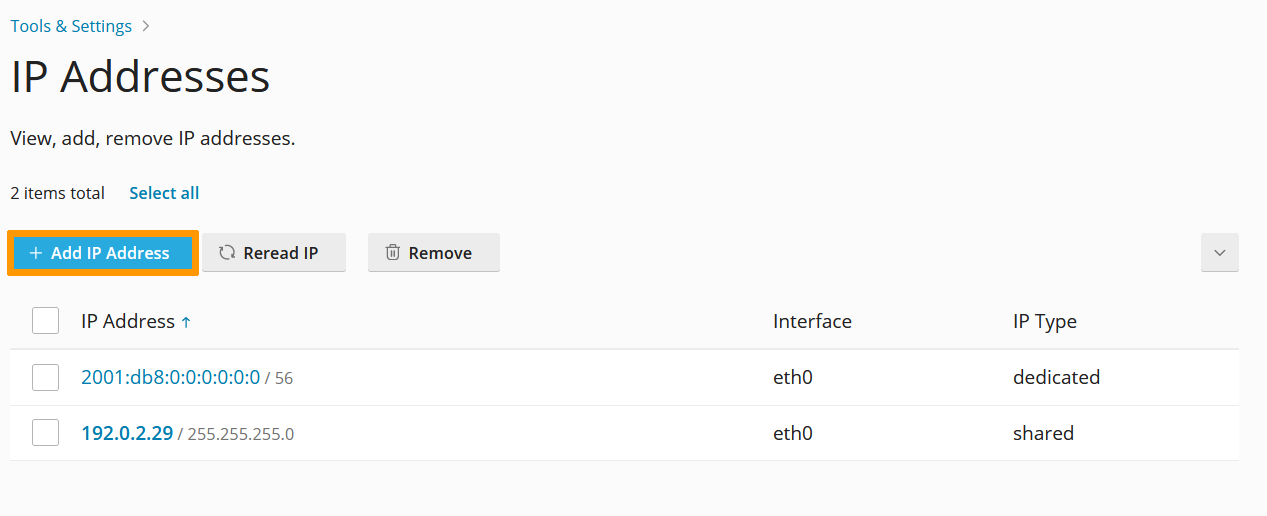
Click on IP Addresses under Tools & Resources.
Step 2: Add the additional IP information
In this section, click on the button Add IP Address.
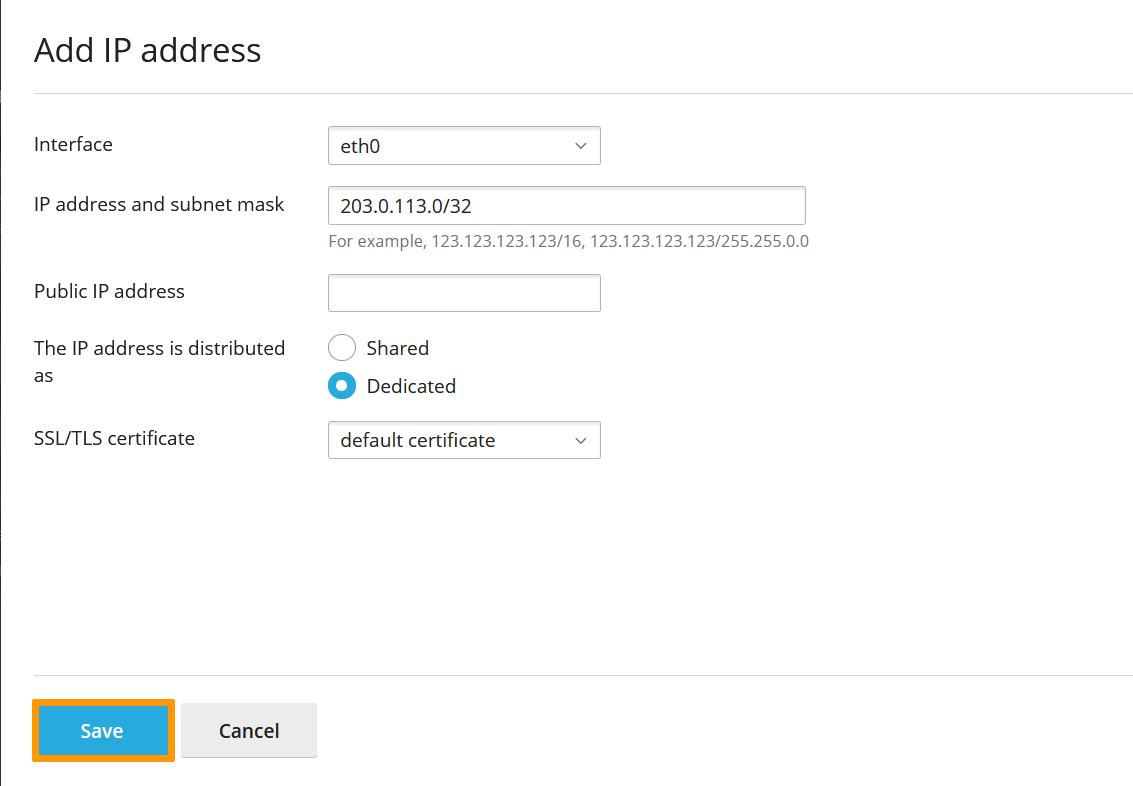
Enter your Additional IP in the form xxx.xxx.xxx.xxx/32 into the field "IP address and subnet mask", then click on OK.
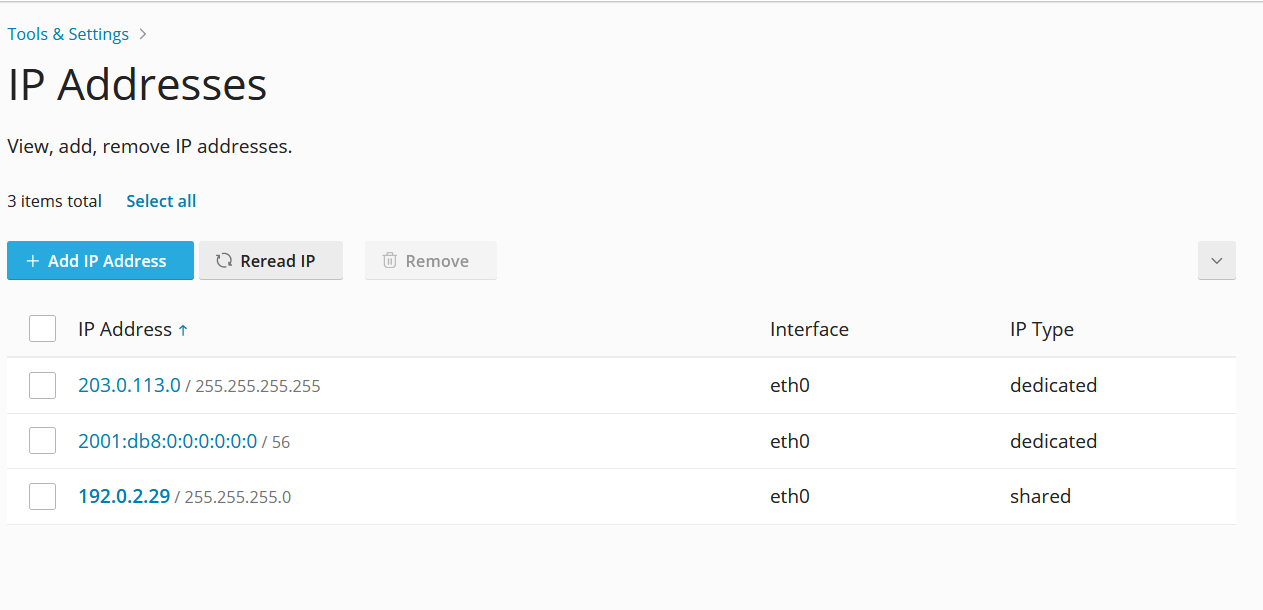
Step 3: Check the current IP configuration
Back in the section "IP Addresses", verify that the Additional IP address was added correctly.
Windows Servers
Step 1: Verify the network configuration
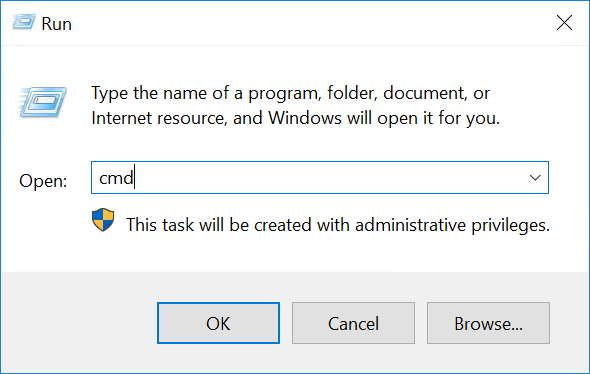
Right-click on the Start Menu button and open Run.
Type cmd and click OK to open the command line application.
To retrieve the current IP configuration, enter ipconfig at the command prompt.
Step 2: Change the IPv4 Properties
Now you need to change the IP properties to a static configuration.
- Go to
Start>Control Panel>Network and Internet>Network and Sharing Centre>Change Adapter Settings(in the left-hand menu). - Right-click on
Ethernet. - Click on
Properties. - Select
Internet Protocol Version 4 (TCP/IPv4), then click onProperties. - Click on
Use the following IP addressand type in your server’s primary IP, subnet mask and default gateway information obtained by using theipconfigcommand above. In the "Preferred DNS Server" box, type213.186.33.99.
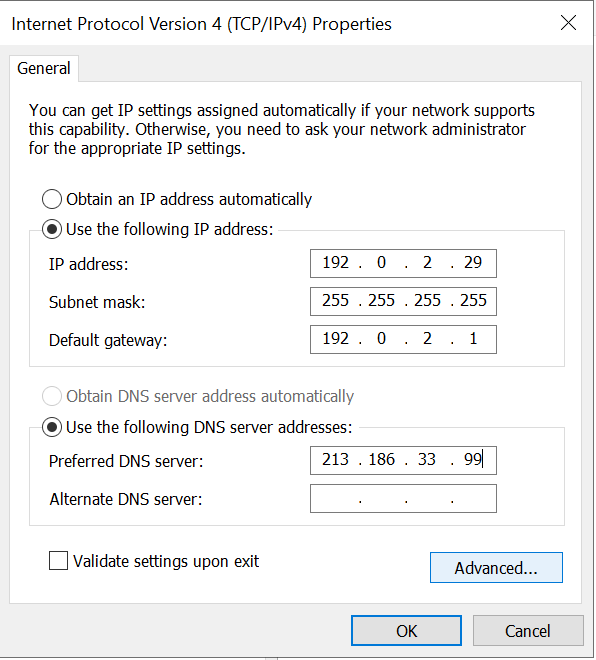
Be careful – the server will no longer be accessible if you enter incorrect information. You will then have to make the corrections in the KVM.
Once done, click on Advanced.
Step 3: Add the Additional IP in the "Advanced TCP/IP Settings"
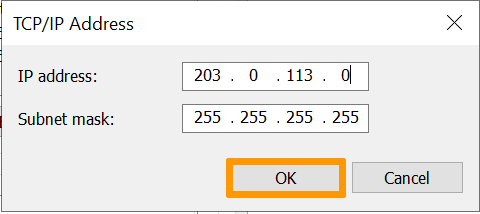
In the new window, click on Add... under "IP addresses". Enter your Additional IP address and the subnet mask (255.255.255.255).
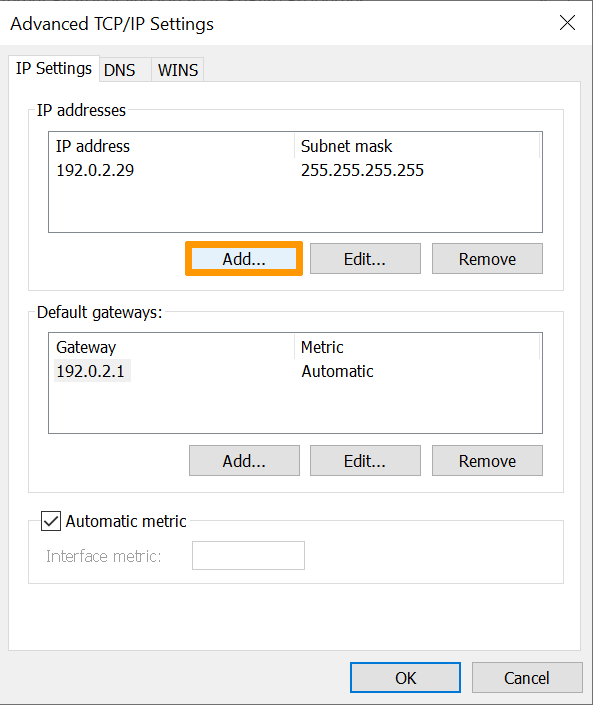
Confirm by clicking on Add.
Once done, click on OK to apply the configuration.
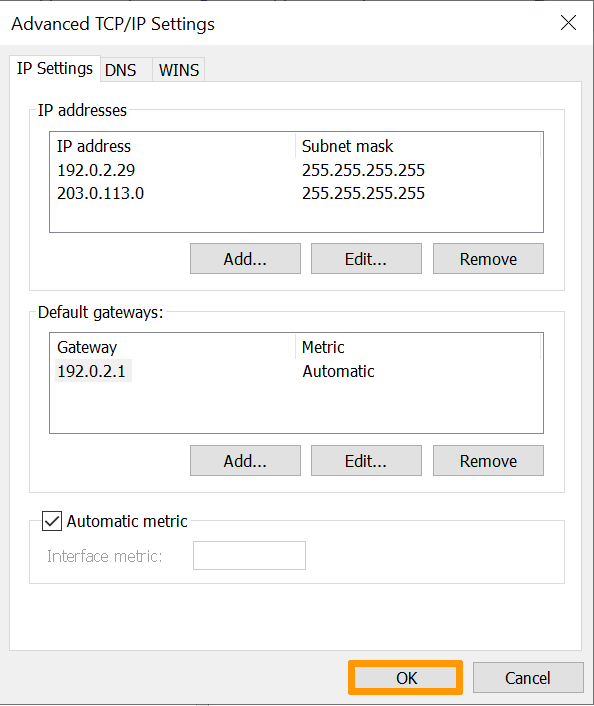
You will lose the connection to the server for a few seconds.
Step 4: Check the new network configuration
Open the command prompt (cmd) and enter ipconfig. The configuration should now include the new Additional IP address.
Troubleshooting
First, restart your server from the command line or its GUI. If you are still unable to establish a connection from the public network to your alias IP and suspect a network problem, you need to reboot the server in rescue mode. Then you can set up the Additional IP address directly on the server.
Once you are connected to your server via SSH, enter the following command:
To test the connection, ping your Additional IP from the outside. If it responds in rescue mode, this likely indicates a configuration error. If, however, the IP is still not working, please inform our support teams by creating a support request for further investigations.
Go further
If you would like assistance using and configuring your OVHcloud solutions, please refer to our support offers.
Join our community of users.


 How to configure IPv6 on a VPS
 5193
5193