

Configure BGP between two PCCs via NSX-T
289 Views
 26.02.2024
  Cloud / Hosted Private Cloud
Objective
This guide details how to configure your BGP network to interconnect two virtual machines from two different Dedicated Cloud servers
Requirements
- Two Dedicated Cloud services.
- You need to have created a VLAN.
Instructions
PCC Configuration
For our example configuration, two PCCs are used:
- DE
- UK
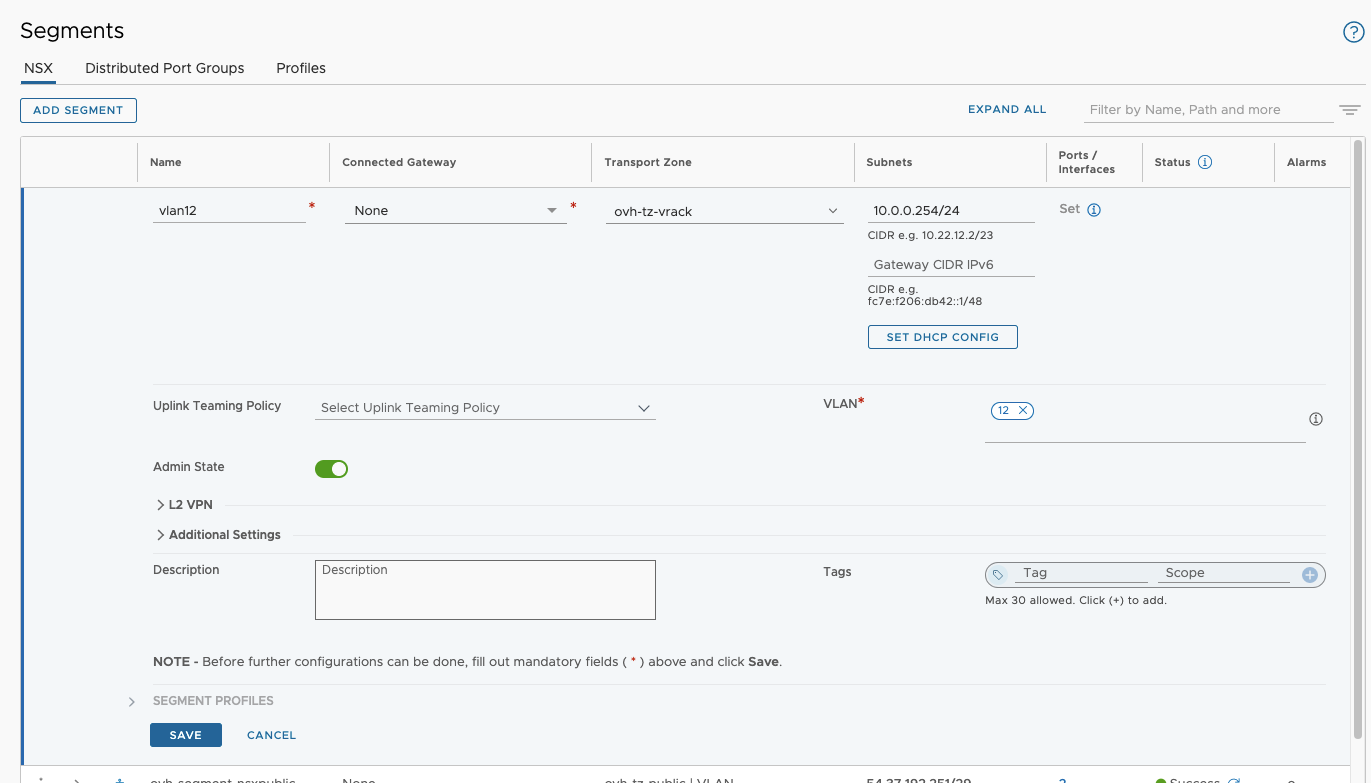
For the connection between our two PCCs, we will use VLAN 12.
To configure PCCs, please access your NSX interface in the Networking section. Then follow the steps below.
Also note that for each step of the configuration, it is done on both environments.
Segment Creation
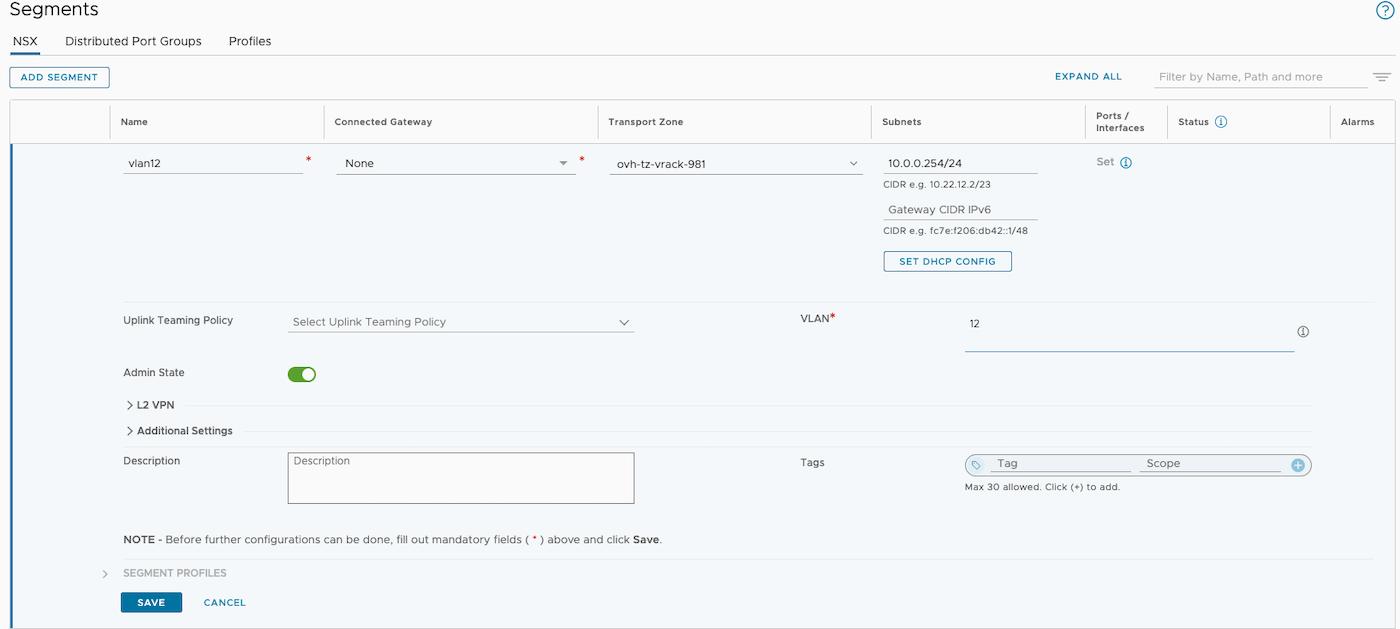
In the Segments > Add Segment section, create a segment in the transport region ovh-tz-vrack on VLAN 12. Assign any IP address to the gateway, as we do not intend to use it.
Overlay Segment
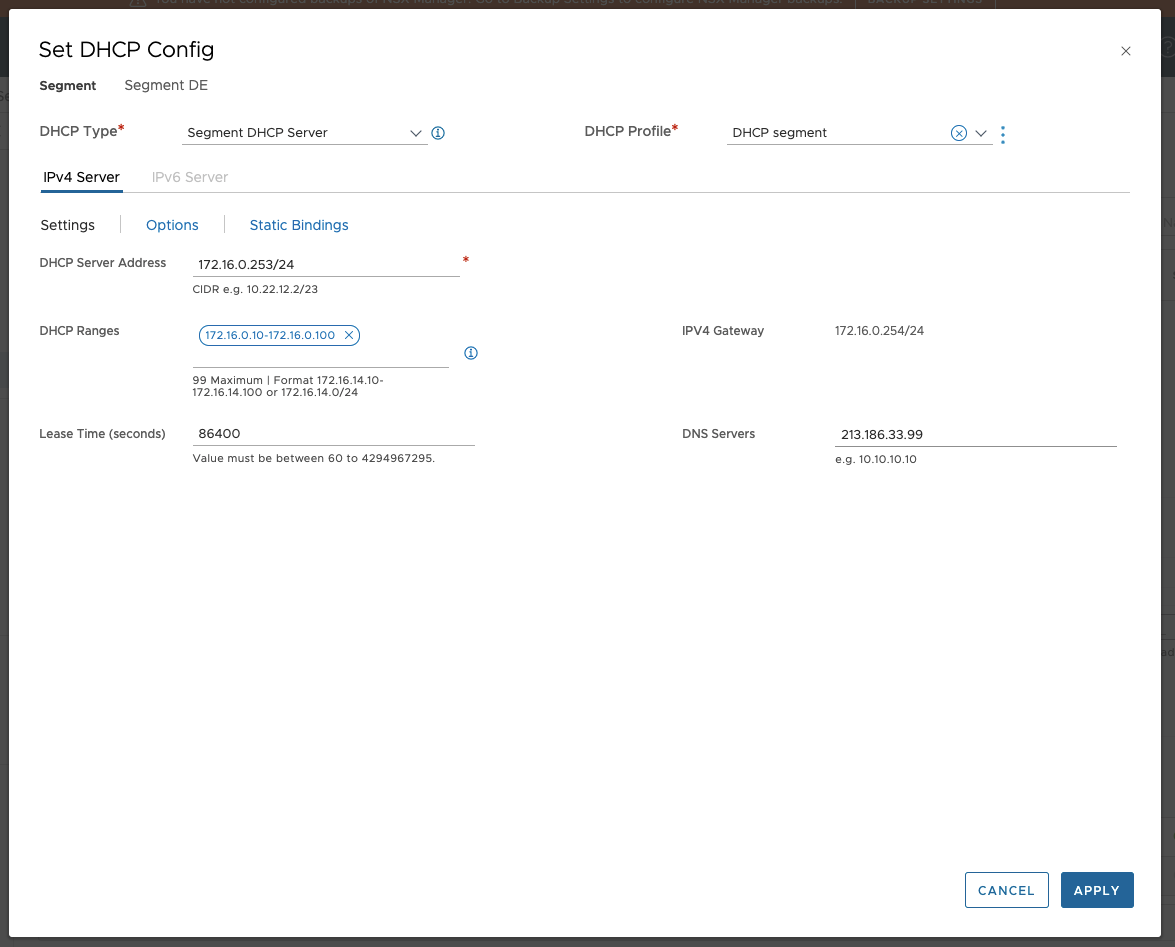
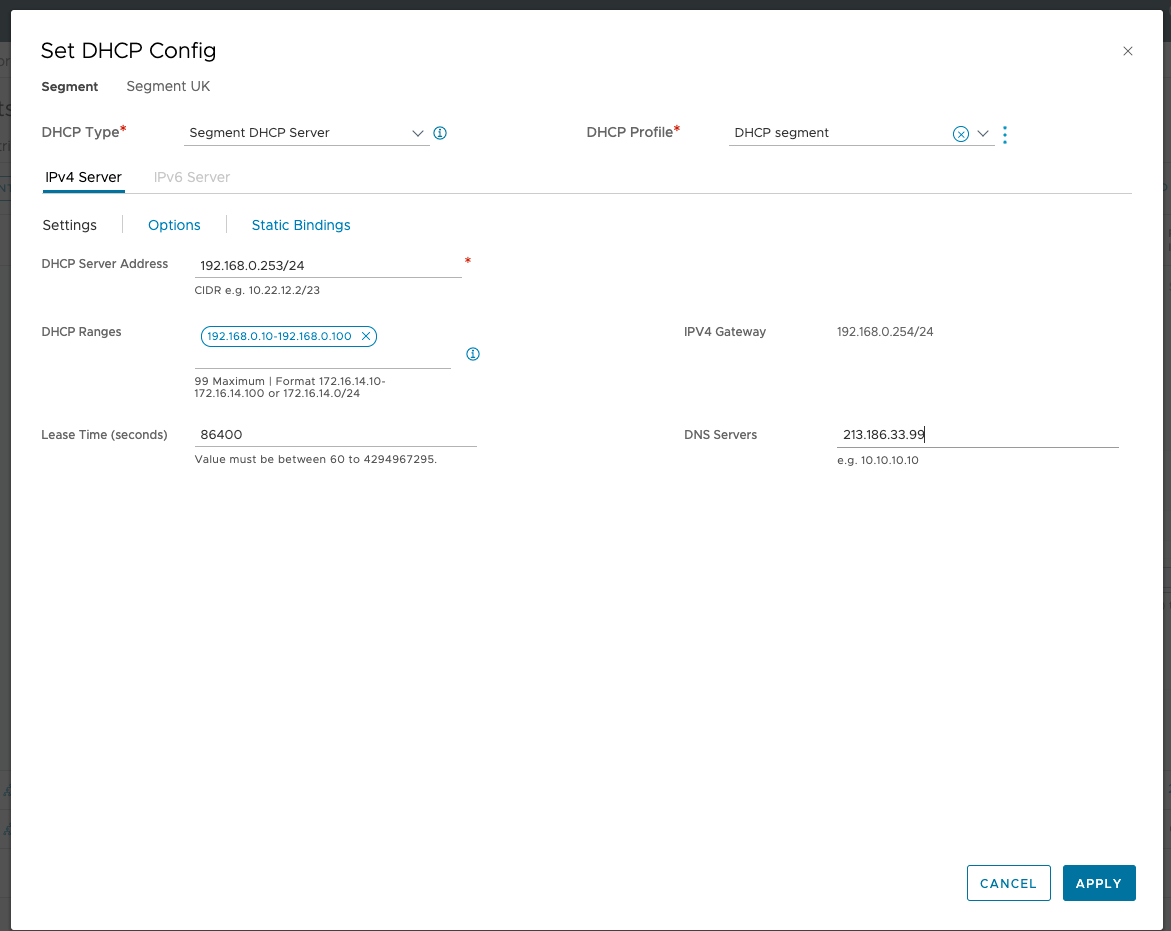
Create an overlay segment in the location where we plan to deploy our virtual machine. Use 172.16.0.254 (DE) or 192.168.0.254 (UK) as the gateway IP address on this segment. Optionally, configure a DHCP server to simplify deployment, although this is not required. Please note that we are currently connecting our segment to the ovh-T1-gw T1, but this configuration will be modified later.


VRF Creation DE
1. To create a Virtual Routing Firewall (VRF), go to Connectivity > Tier-0 Gateways > Add Gateway > VRF.
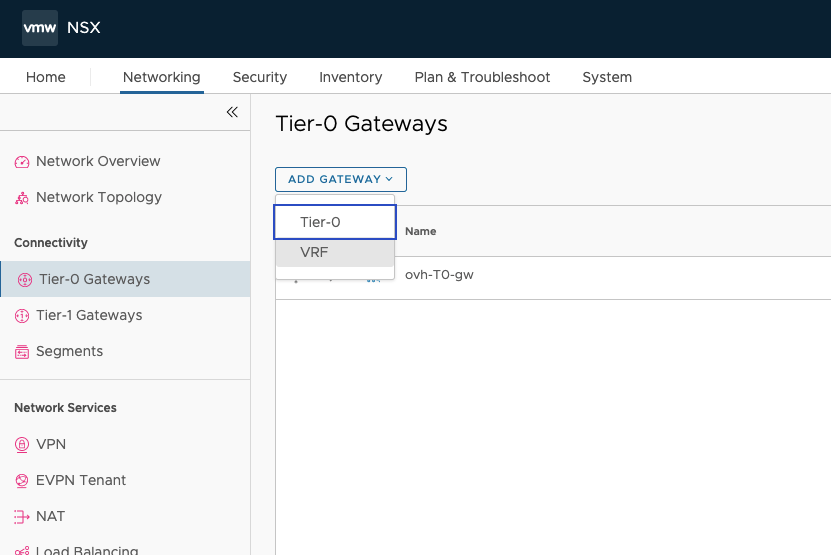
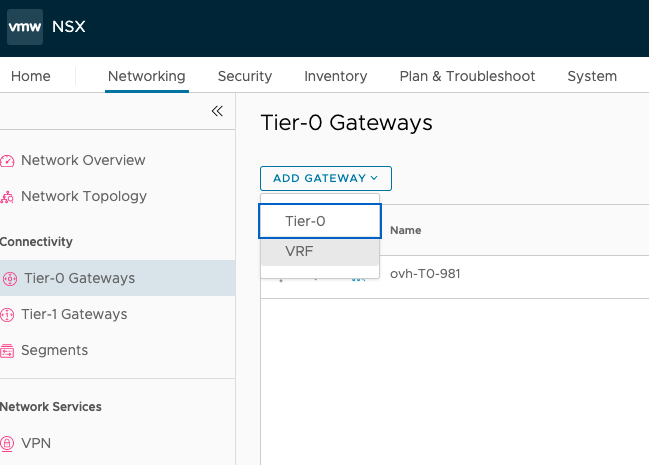
2. Name your VRF as needed and connect it to the gateway ovh-T0-gw, save and continue the configuration.

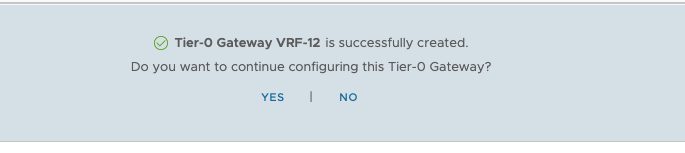

3. Configure two interfaces, one for each edge. Choose two free addresses from your VLAN IP range (for example, we will take 10.0.0.1/.2/.3/.4), then connect them to the VLAN12 segment you have created.

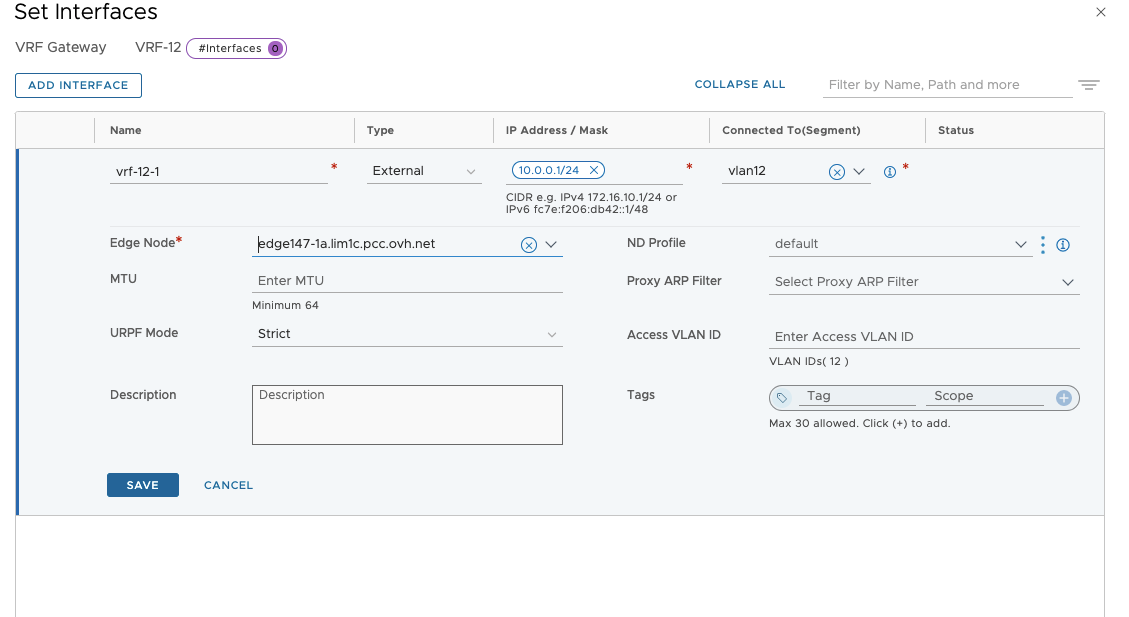

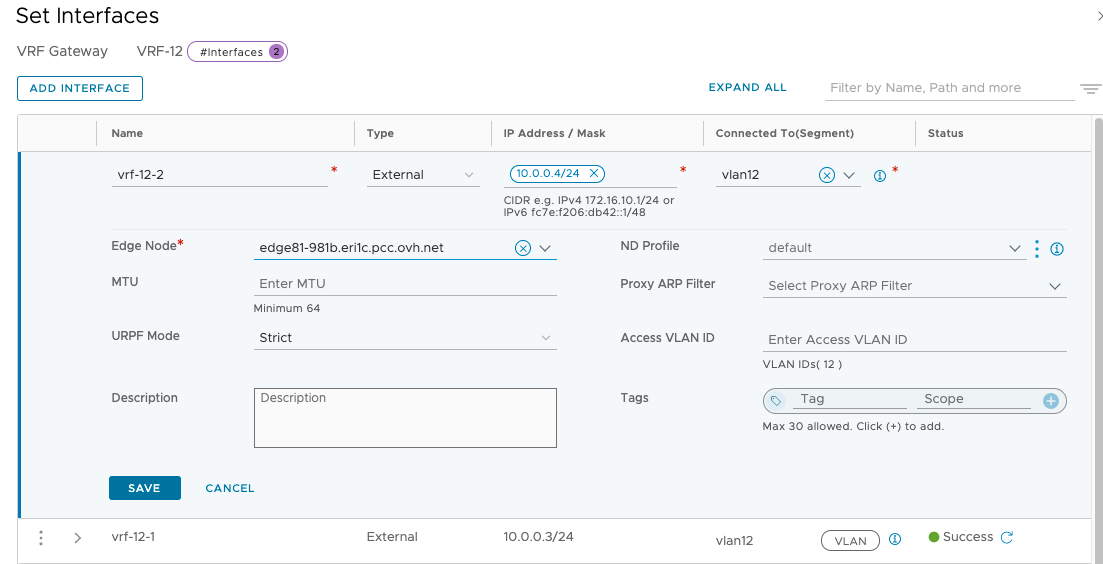
4. Verify that your two interfaces are created and that their status is in Success (section Tier-0 Gateway).
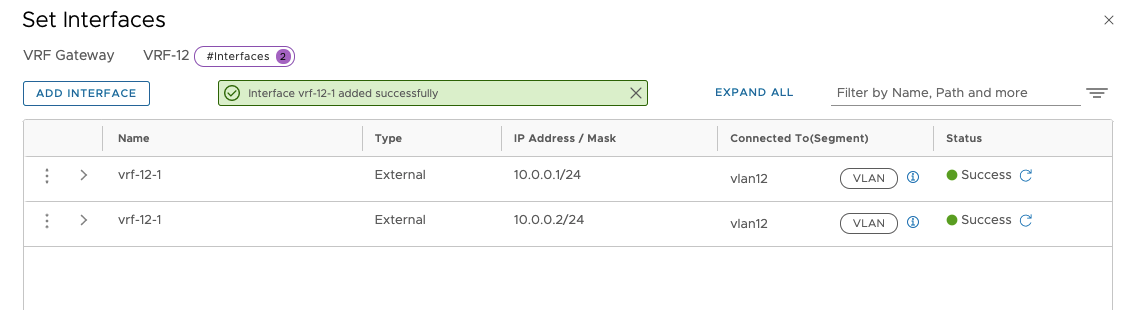
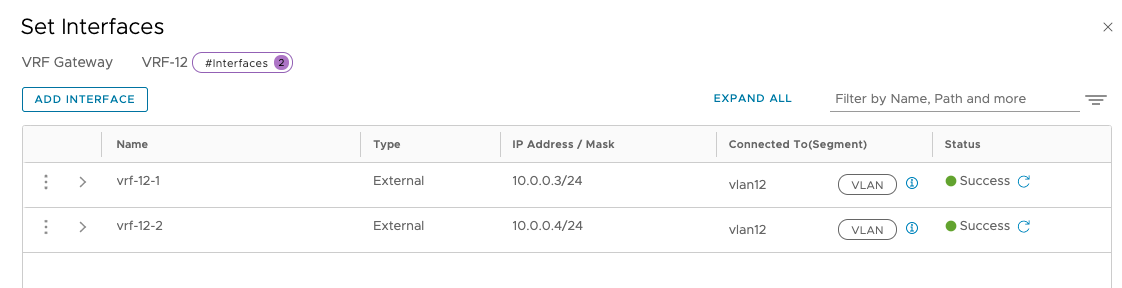
T1 Creation
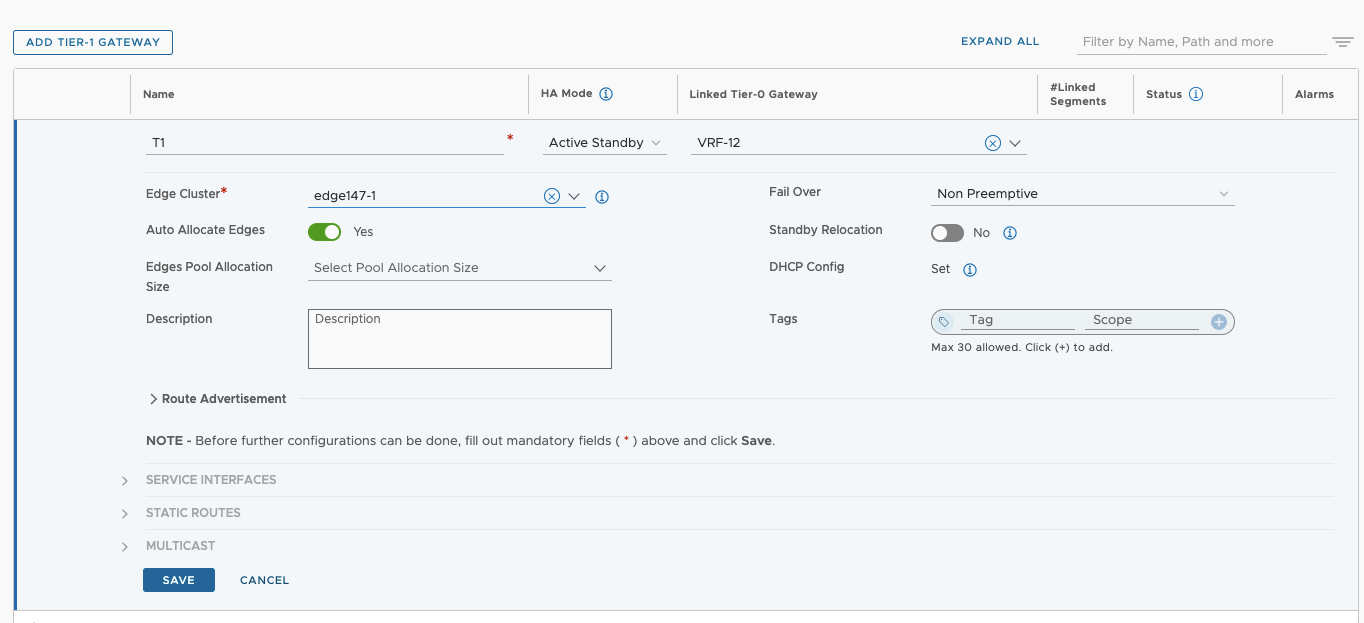
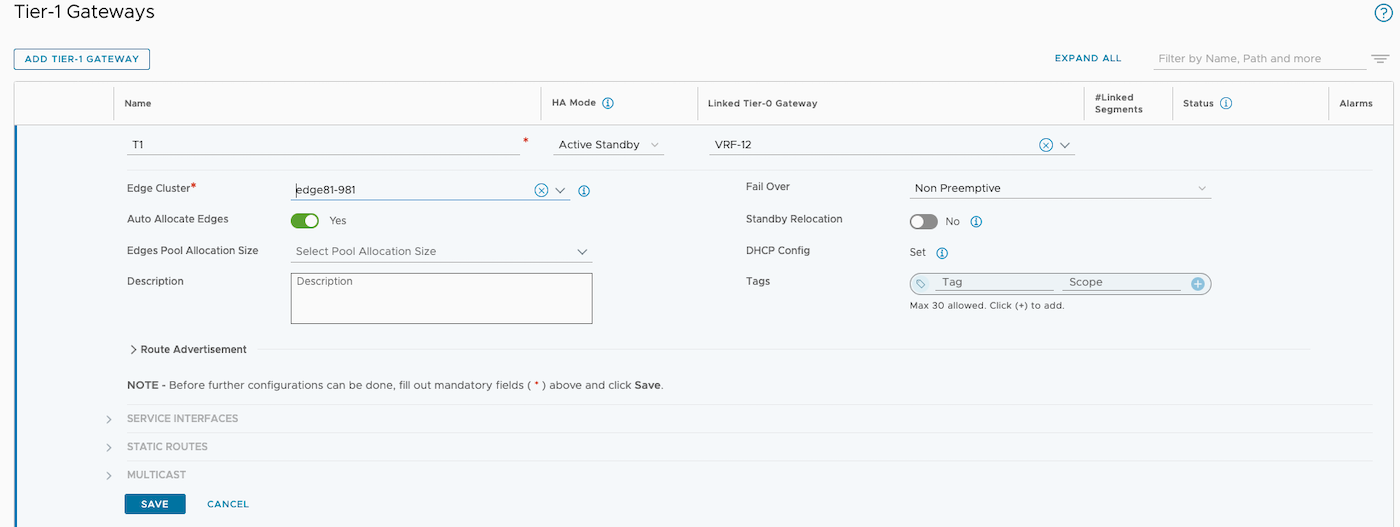
In the Tier-1 Gateways > Add Tier-1 Gateway section, create a new T1 gateway. Choose a name that suits your needs, then connect it to the VRF you have created and finally, connect it to your Edge cluster.
Connection Segment & T1
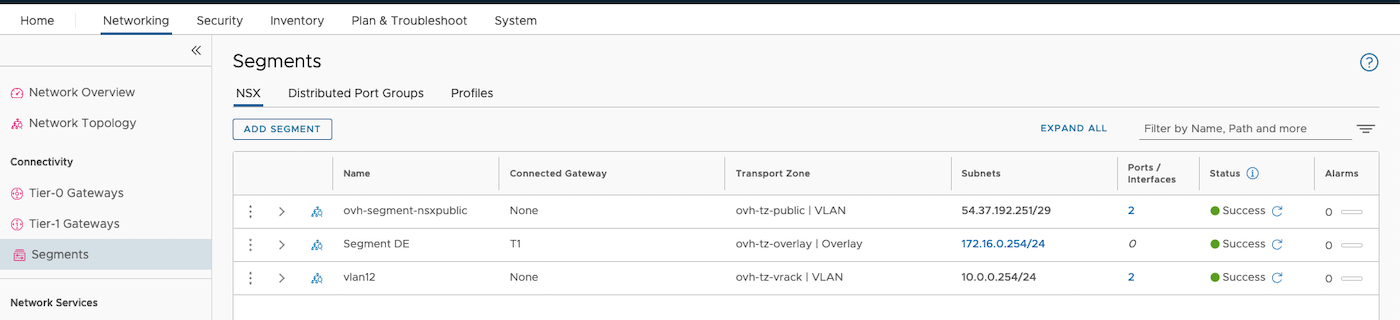
Change the DE Segment you just created and change the gateway GW to T1.
You should get that result:
 .
.

Create Virtual Machines
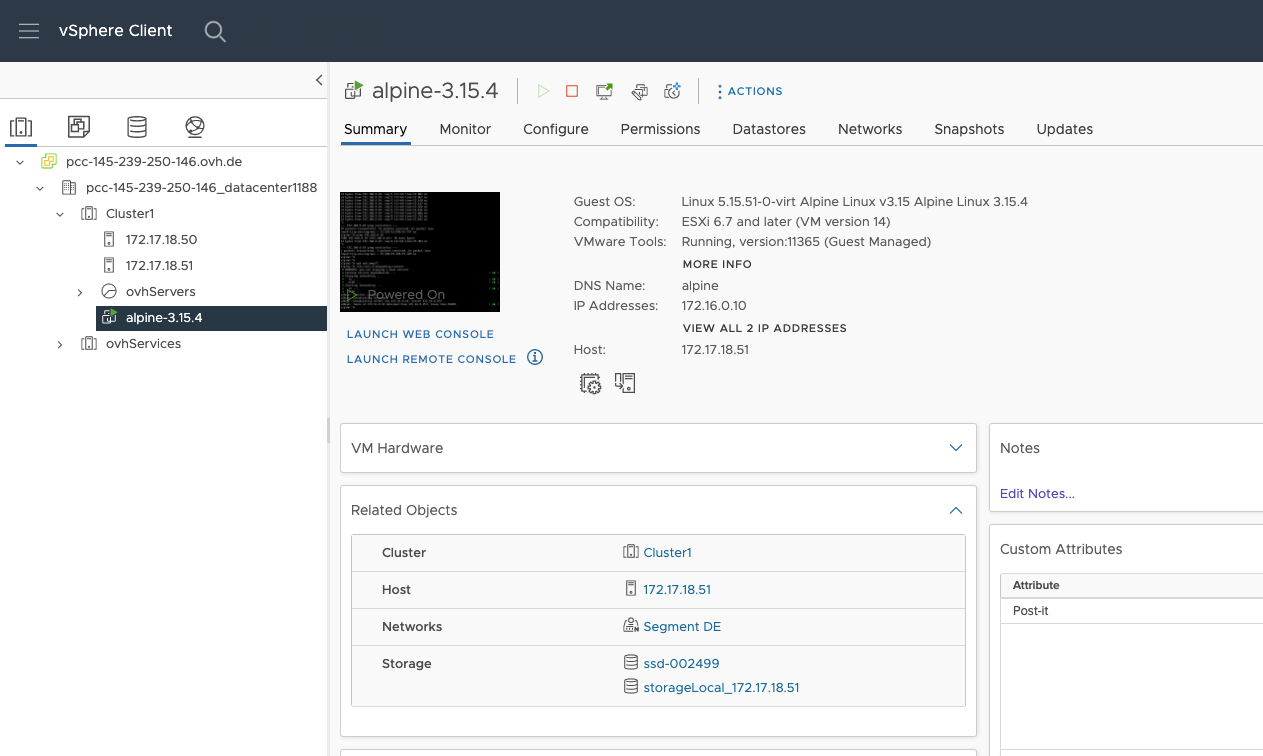
Create a virtual machine in the respective portgroup DE Segment or UK Segment. If you have deployed a DHCP service, the IP address should be assigned automatically. Otherwise, configure a static IP address for your virtual machine.
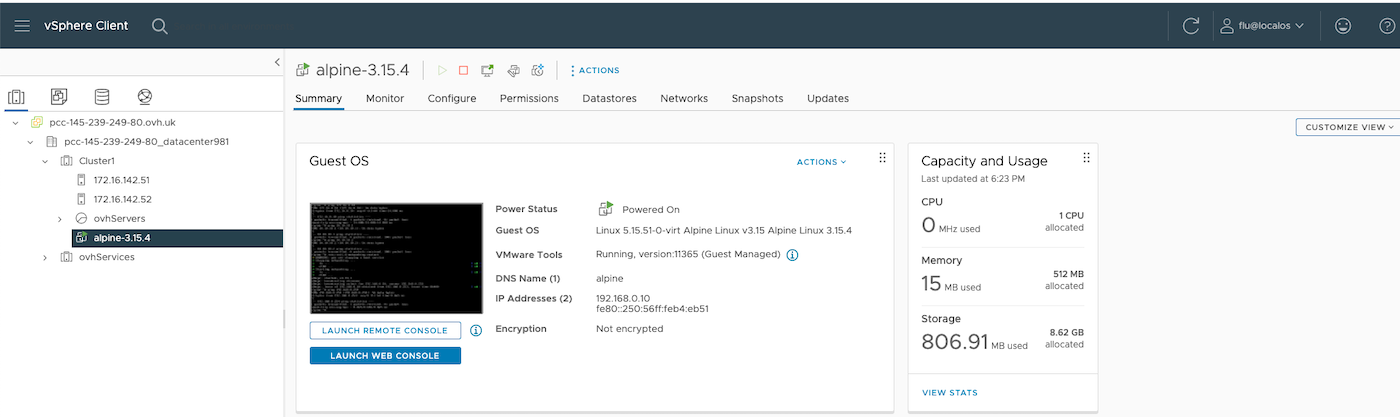
Preparing NSX for BGP routing
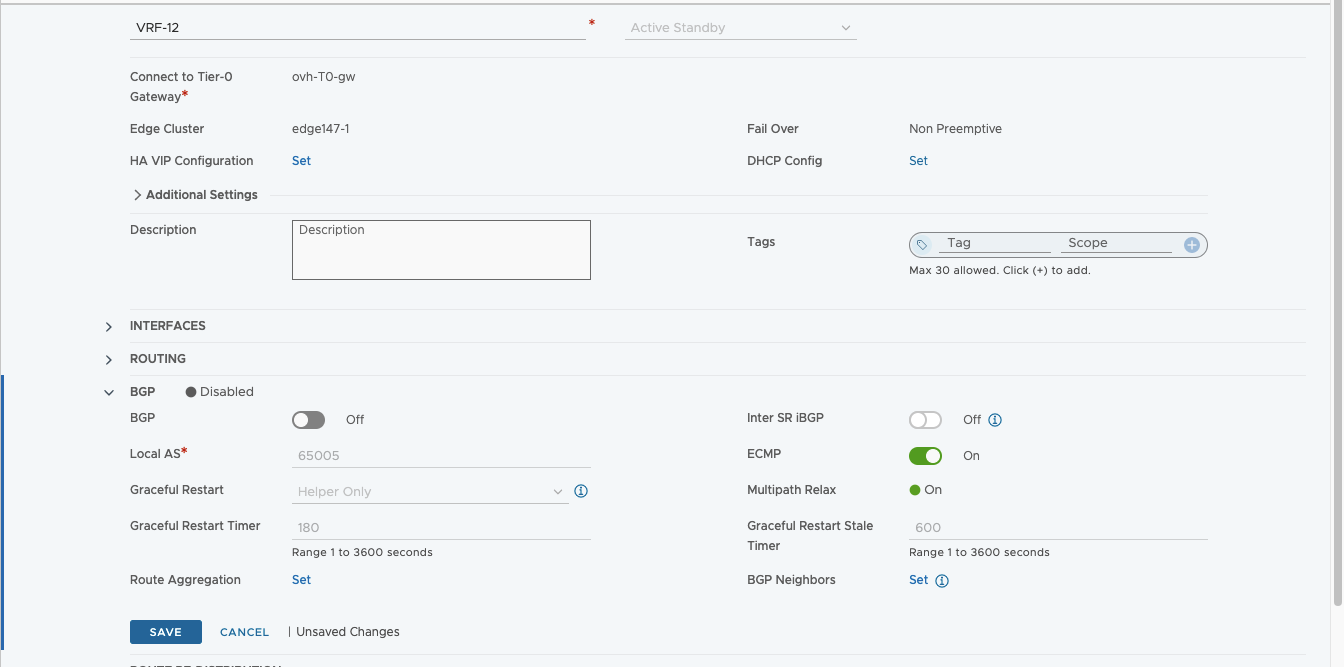
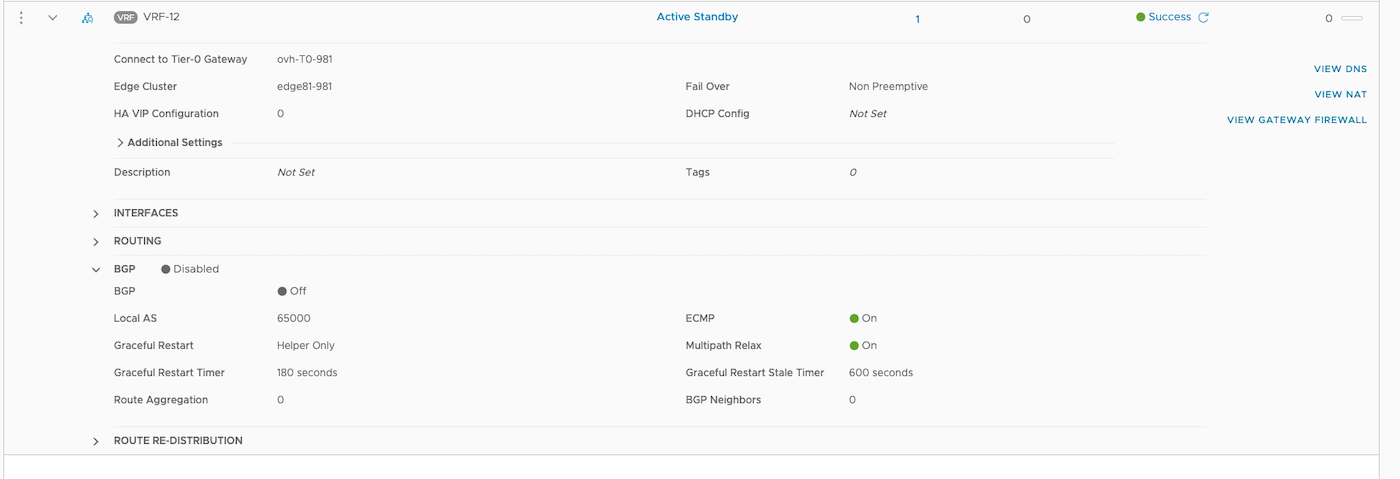
Currently, AS number functionality is not available at the VRF level. It will be compatible with NSX version 4.1.1. The AS is 65000 on both PCCs if you do not modify anything, as it is natively configured at level T0 by automation.
You can view your BGP configurations by editing your T0 gateway.
AS of DE environment is 65000, the IPs of the Edges are 10.0.0.1 and 10.0.0.2
AS from the UK environment is 65000, the IPs of the Edges are 10.0.0.3 and 10.0.0.4
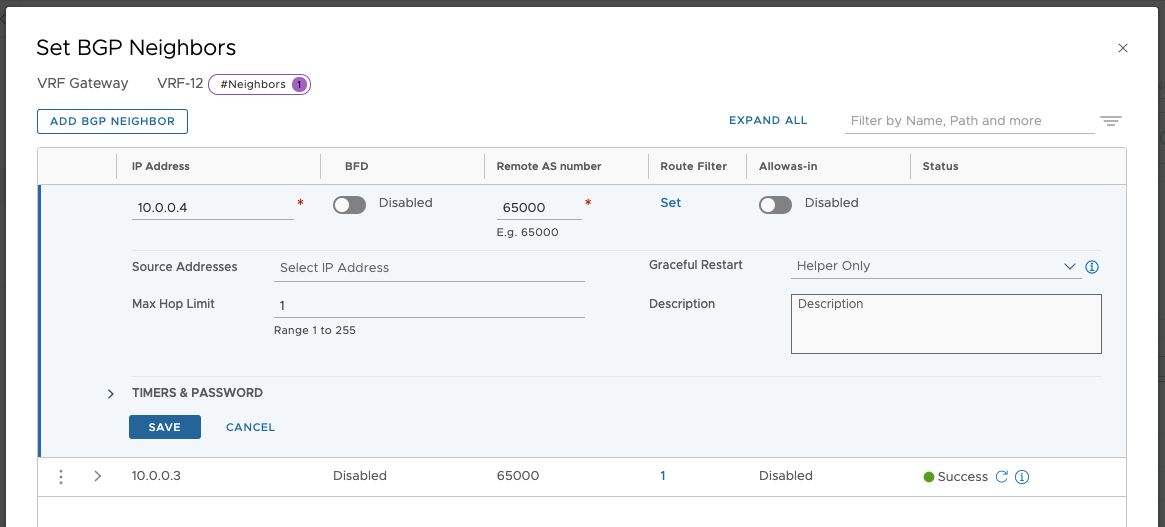
VRF configuration
Still on your VRF edition, enable BGP and add the environment to attach.


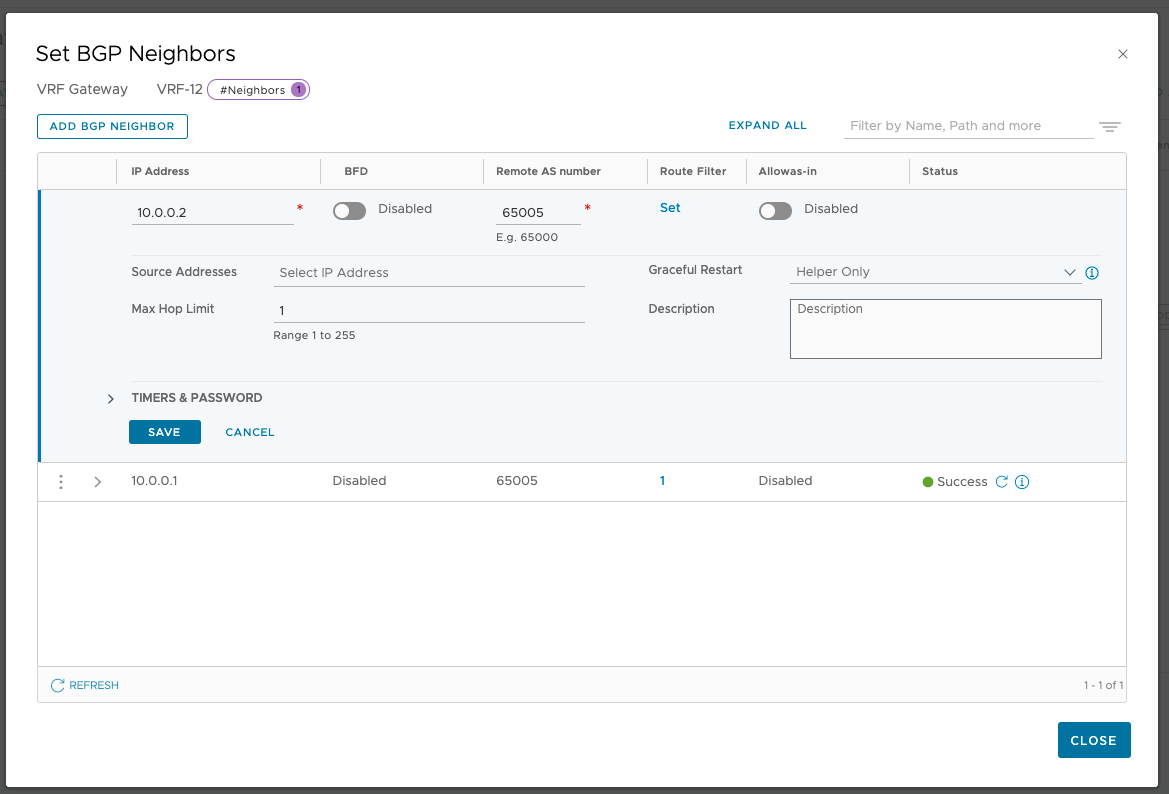
Configure a route redistribution
You need to redistribute the routes of the connected segments.
To do this, go to the Route Redistribution section of your VRF (below that of the BGP).

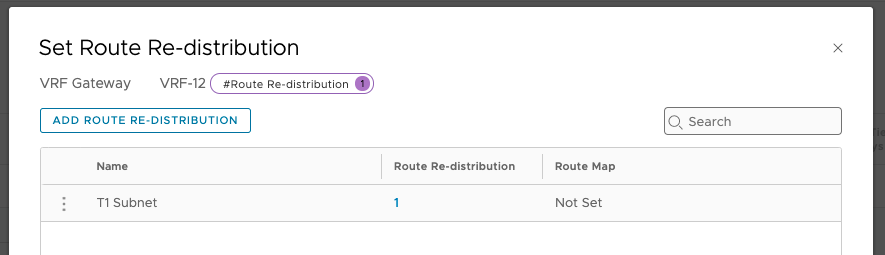
Add a redistribution route rule that will be connected to your T1 segment.


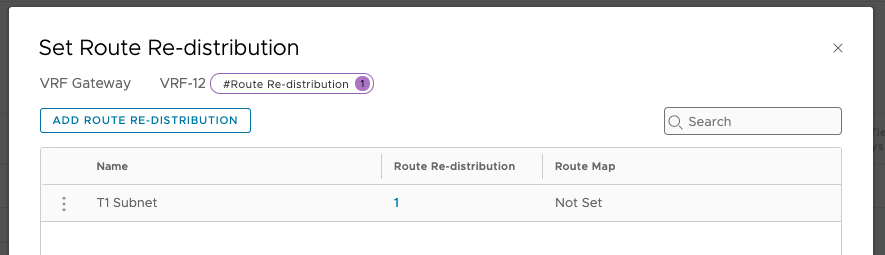


On your T1 Gateway
In the Route Advertisement section of your T1 gateway, authorize All Connected Segments & Service Ports.
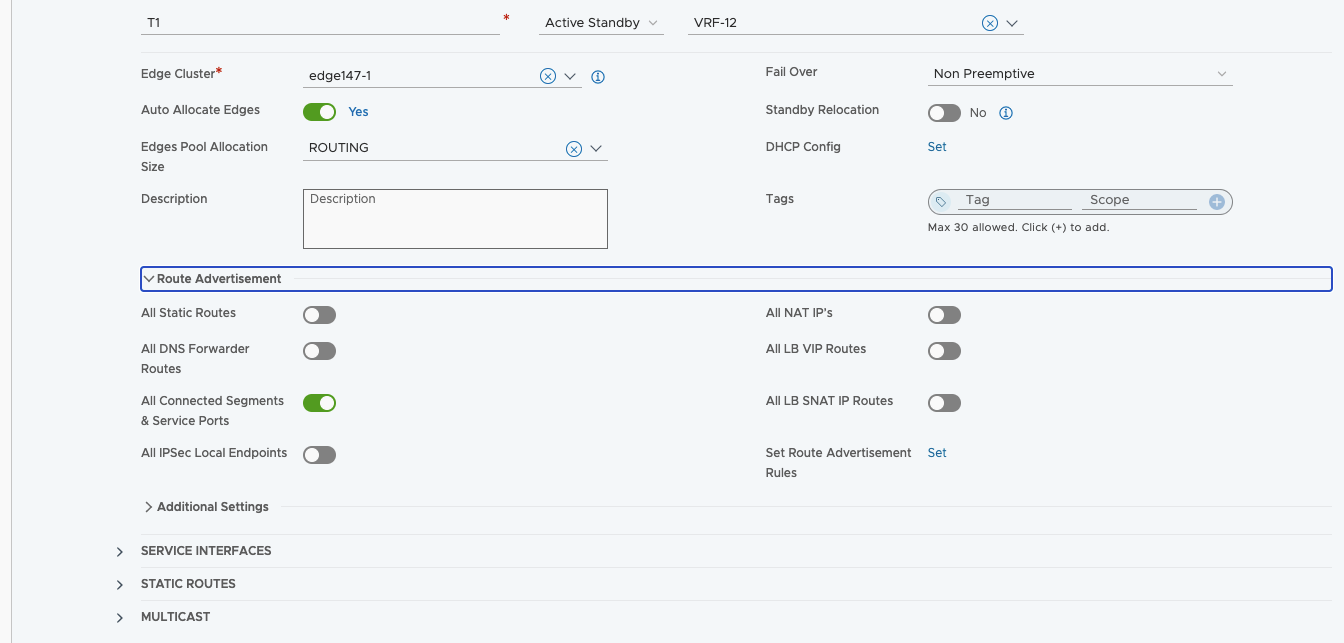
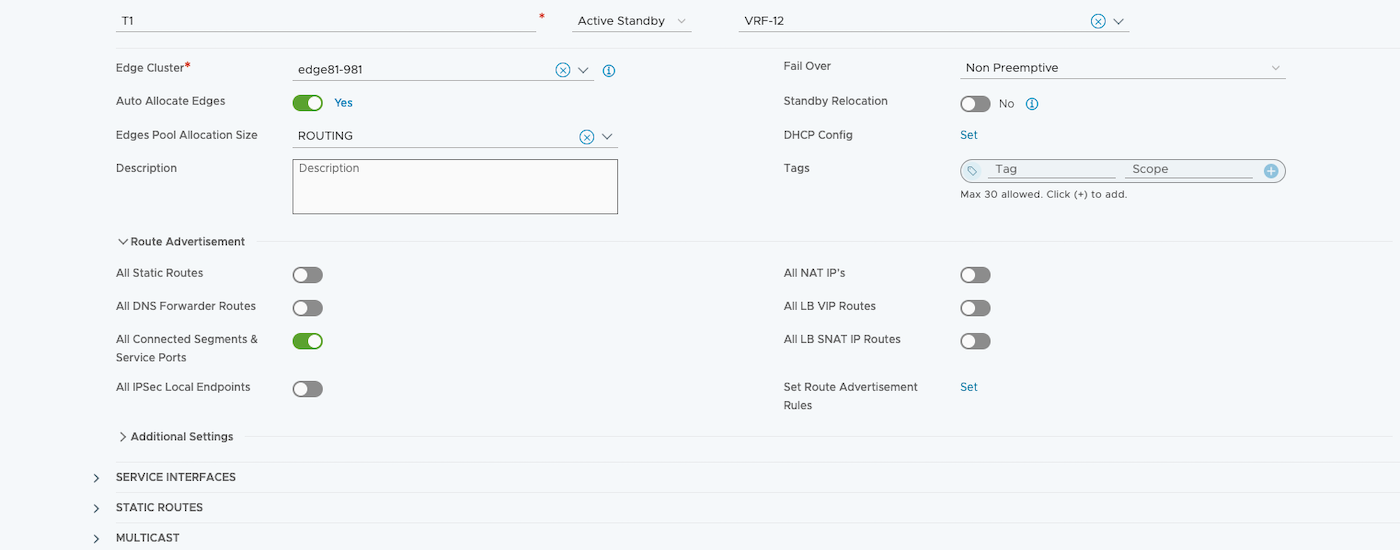
Results
To check that your configurations and link are working properly, perform a ping test between the different virtual machines.
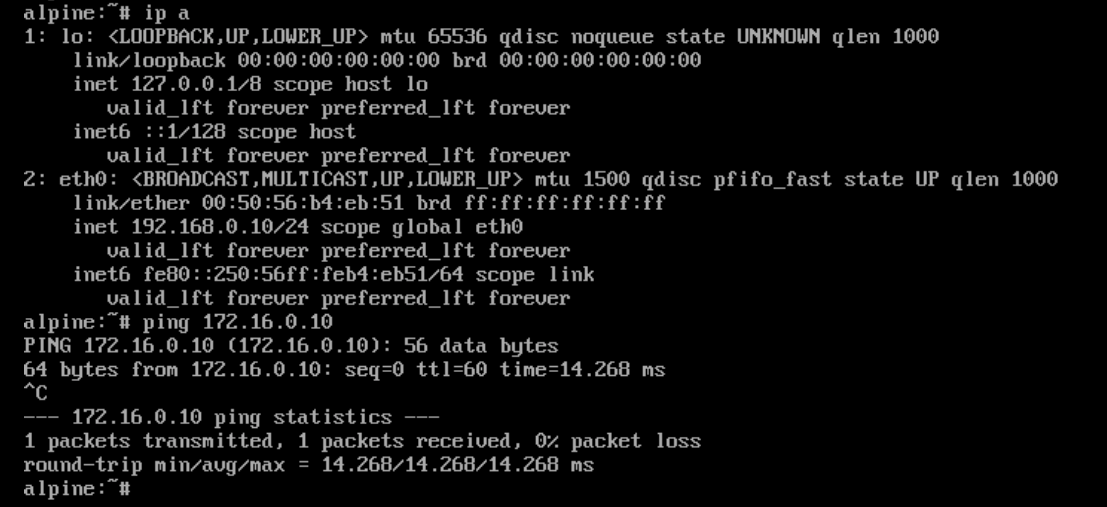
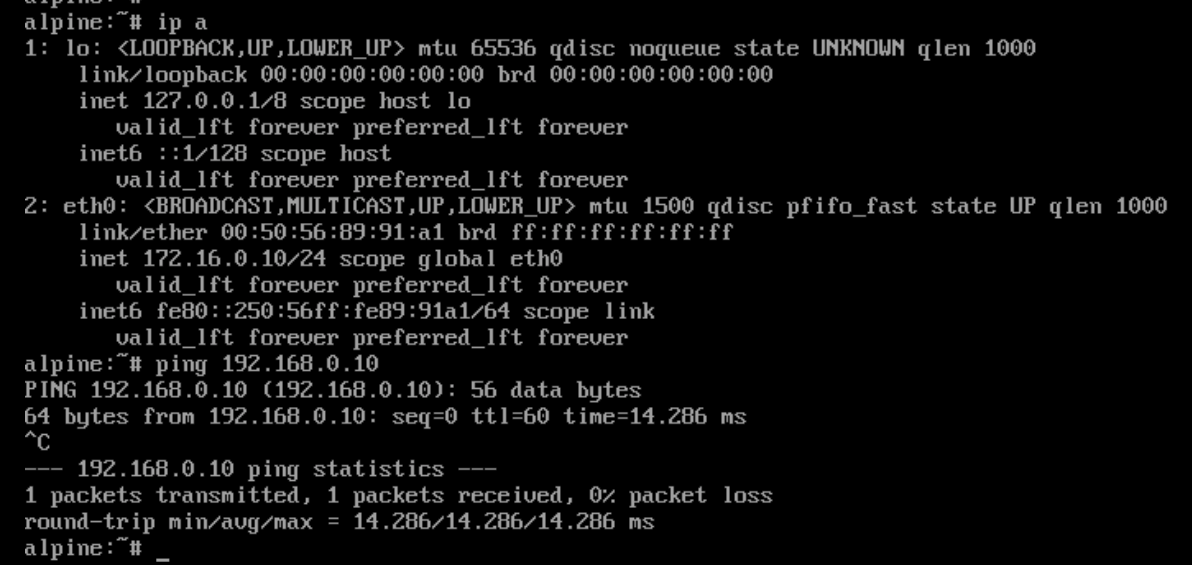
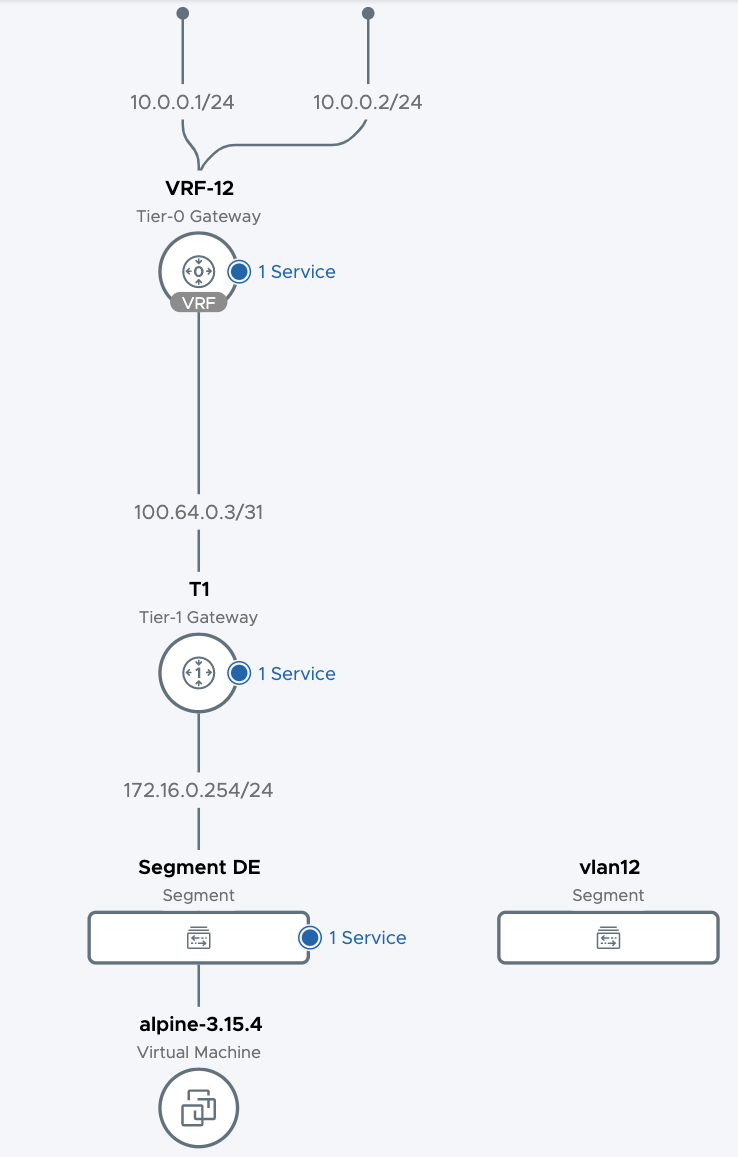
Topology View
You can find the topology view of your configuration in the different NSX in the Networking > Networking Topology section.
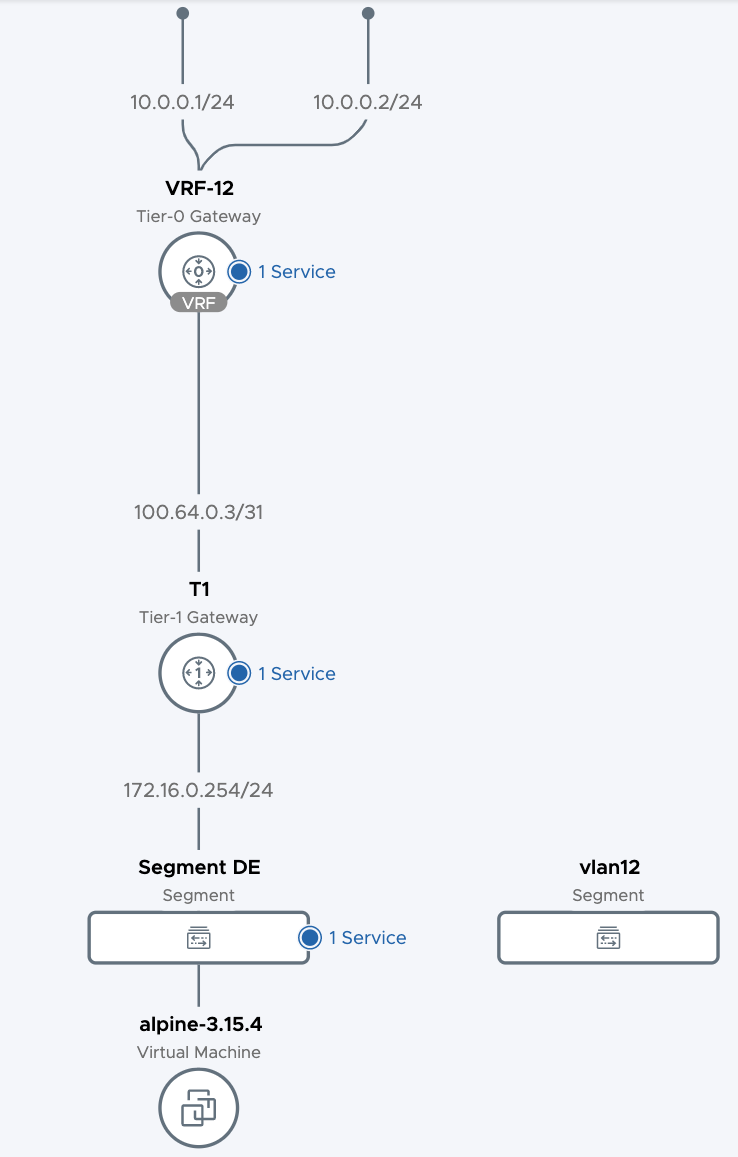
Go further
Join our community of users on https://community.ovh.com/en/.


 Distributed Firewall Management in NSX
 604
604