

Best Practices for securing & structuring OVHcloud Public Cloud Projects
171 Views
 17.04.2025
  Cloud / Instances
Objective
This guide explains how to secure your OVHcloud account, manage identities, implement best practices for structuring your Public Cloud projects and use IAM policies to restrict access rights.
This may be useful if you are part of a platform team and your goal is to build a Landing Zone for your organization.
Requirements
- An active OVHcloud account
OVHcloud Control Panel Access
- Direct link: Public Cloud Projects
- Navigation path:
Public Cloud> Select your project
Instructions
Step 1: Securing Your Account
The "Securing my OVHcloud account and managing my personal information" guide provides general best practices for account management and is a good place to start.
Enable Two-Factor Authentication (2FA)
- What it does: Adds an extra layer of security by requiring a second form of verification (e.g., mobile app, security key) in addition to your password.
- How to enable it: Log in to the OVHcloud Control Panel, click your name in the top right-hand corner, then on your initials. Next, click on
Securityand follow the steps to set up 2FA using a mobile app or security key. Ensure you store your backup codes securely. For more information see: Securing your OVHcloud account with two-factor authentication. - Example: If you use a U2F security key, you will plug it into your USB port each time you log in, providing an additional security measure beyond your password.
Set Strong Passwords
The Password management guide provides best practices with regards to the password management.
Add a Backup Email Address
- Importance: Allows you to recover access to your account if the primary email is inaccessible.
- Configuration: Add a backup email in the OVHcloud Control Panel under your profile settings, ensuring it differs from your primary email address. See the "Securing my OVHcloud account and managing my personal information" guide.
Step 2: Understanding Identity and Access Management (IAM) and creating Identities
Definition: IAM is a framework for managing user identities and their access to resources securely.
Implementation: Use IAM features to manage identities, groups, and policies in OVHcloud IAM.
Key Components:
- Identities: Individual accounts for people (users) or service accounts that need access to OVHcloud resources.
- Groups: Collections of users or resources with common access needs.
- Policies: Rules that define the actions that users and groups can perform on resources.
Examples:
- Managing identities: 3 types of identities are supported and presented in the following guide: Presentation of identities that can interact within an OVHcloud account
- Local users: identities representing a person in your organisation and associated to your OVHcloud account. For more information, see Creating and managing local users on an OVHcloud account.
- Service accounts: are used for 'machine to machine' interaction. Service accounts are also associated with your OVHcloud account. For more information, see Managing OVHcloud service accounts via the API and How to use service accounts to connect to OVHcloud APIs.
- Federated identities: multiple federation protocols / providers are supported and documented: AD FS, Google Workspace, Entra ID or OKTA
- Grouping Users: Create groups such as "Developers", "Admins", and "Auditors" to simplify permissions management. If you have chosen to create local users, then use the instructions in the following guide to create local user groups. If you have chosen Identity Federation, then the group shall be defined in your identity provider, provided in the SAML ticket and mapped to an OVHcloud group. This step is detailed in each Identity provider documentation page.
- Defining Policies: Assign policies to identities and groups to restrict or grant access. For example, a developer might have permissions to deploy applications but not to manage billing information. This guide defines how to use IAM policies using the OVHcloud Control Panel.
Step 3: Best Practices for Structuring Public Cloud Projects
Public Cloud projects enable resources to be separated from the access rights associated with them.
The pattern to split the projects can be:
- Domain: the domain inside your company e.g. finance, IT, marketing, sales, etc.
- Application id: the identifier of the application. It could be its name or an id from the Application Portfolio of your entreprise.
- Environment: the environment e.g. dev, QA, staging, prod.
A prefix can be used to facilitate the management of the resources.
For example, if we use the pattern defined above, we could have the following cloud projects names:
- cloud_project_finance_invoicing_qa
- cloud_project_it_collaboration_staging
- cloud_project_it_monitoring_prod
- cloud_project_marketing_analytics_dev
- cloud_project_marketing_automation_qa
- cloud_project_sales_cpq_staging
- cloud_project_sales_ecommerce_dev
Step 4: Providing Role-Based Access Control (RBAC) to Public Cloud projects through IAM Policies
Now that you have identities and projects, you can define the access rights for each project. We recommend using groups rather than individual identities to define a policy, as this makes it easier to manage the policy lifecycle.
In the following example, we will use two groups called finance_developer_group and finance_SRE_group, which contain the identities of the users who are developing and those ensuring that the finance application is in production in a healthy state.
For this example, we will take a tool used by the finance team to make their financial planning and analysis (FPA). In this fictive case, we will have 3 Public Cloud projects managing the resources of three environments (development, staging and production). The projects are named:
cloud_project_finance_fpa_devcloud_project_finance_fpa_stagingcloud_project_finance_fpa_prod
The following table sums up the access rights we will provide to each groups in the example. The access policies are provided for educational purpose and shall be adapted to your context.
| Public Cloud project name | finance_developer_group | finance_SRE_group |
|---|---|---|
cloud_project_finance_fpa_dev | read write | no access |
cloud_project_finance_fpa_staging | read | read write |
cloud_project_finance_fpa_prod | no access | read write |
Provide Control Panel access
In order to provide access to the OVHCloud control Panel, you need to create a specific policy as described in the following guide and in the Add user groups, choose the groups finance_developer_group and finance_SRE_group.
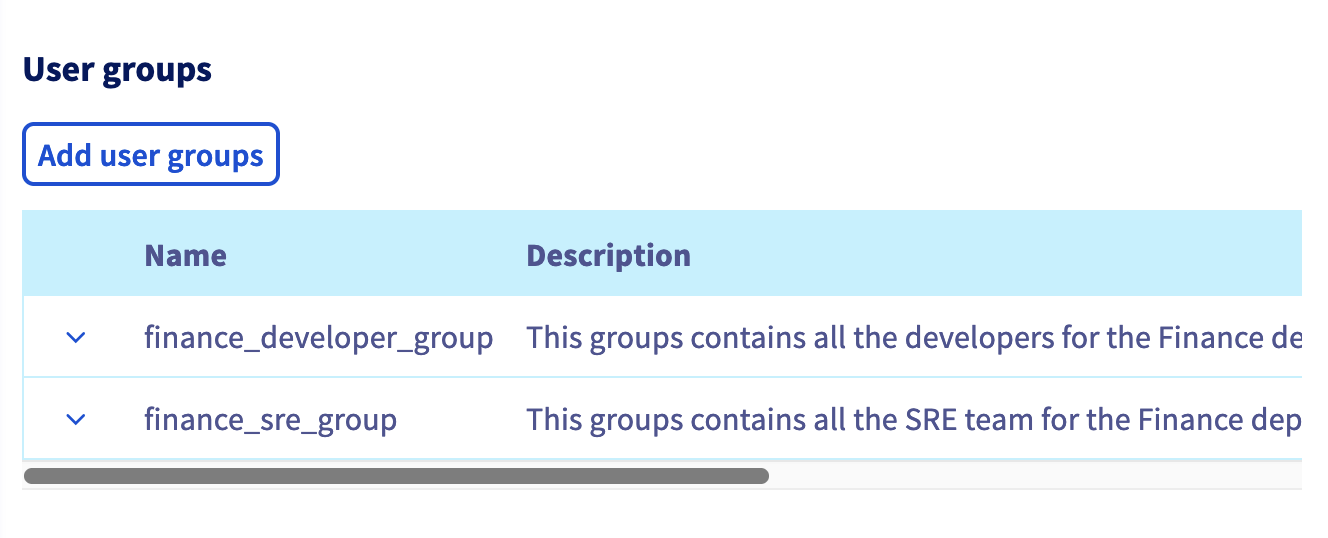
Thanks to this policy, the user belonging to these 2 groups will have access to the Control Panel but, because of this policy, they do not have the right to view/manage any resources. The following chapter adds that.
Provide specific rights to Public Cloud
Let's continue by creating policies in order to enable the access rights tables described above. For that we will create 4 policies summarized below.
| Policy name | Identities | Actions | Resources |
|---|---|---|---|
| cloud_project_finance_fpa_dev-RW | finance_developer_group | globalWriteAccess | cloud_project_finance_fpa_dev |
| cloud_project_finance_fpa_staging-RO | finance_developer_group | globalReadAccess | cloud_project_finance_fpa_staging |
| cloud_project_finance_fpa_staging-RW | finance_SRE_group | globalWriteAccess | cloud_project_finance_fpa_staging |
| cloud_project_finance_fpa_prod-RW | finance_SRE_group | globalWriteAccess | cloud_project_finance_fpa_prod |
The policy naming follows the following pattern : \<Name of the resource>-RO/RW
Here is a step by step guide to create the first policy:
- Into IAM page
Create a Policy, fill in the namecloud_project_finance_fpa_dev-RWand a description. - Then click on
Add user groups, choose the groupfinance_developer_group. - Under
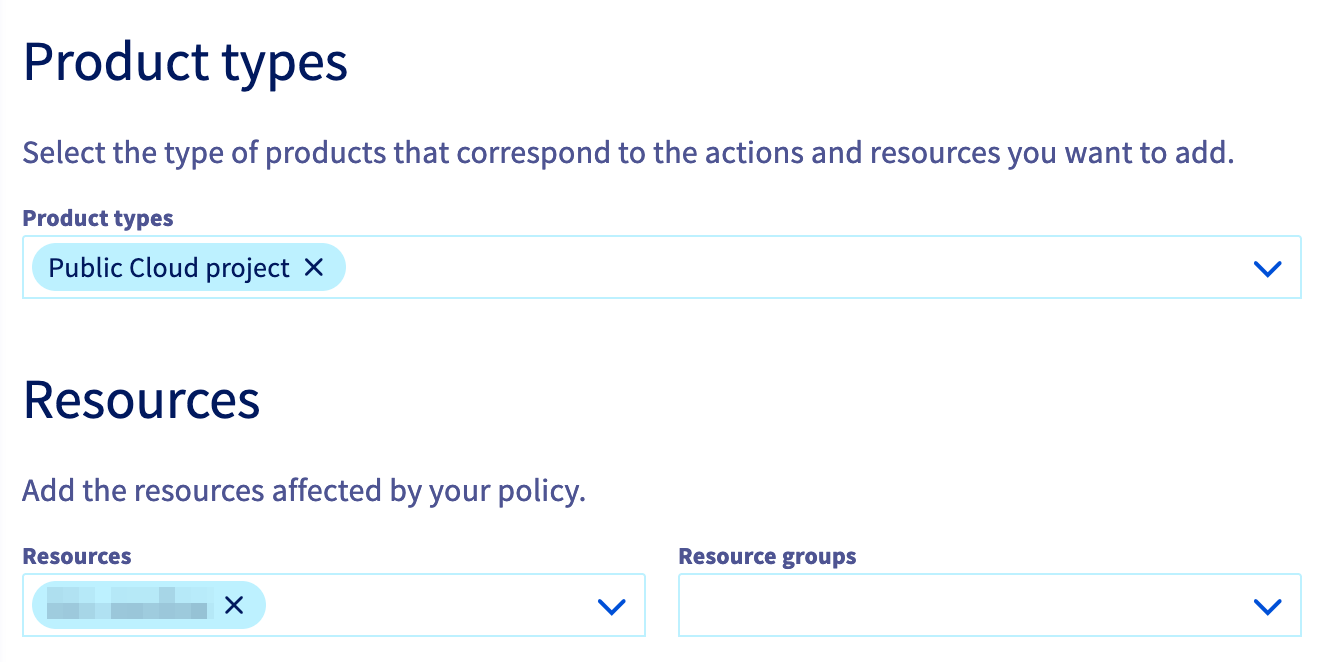
Product types, choosePublic Cloud project. - Under
Resources, select the target public cloud projectcloud_project_finance_fpa_dev.
- Under
ActionsinManaged permission groups, leaveAuthorize all actionsunchecked and chooseglobalWriteAccess.
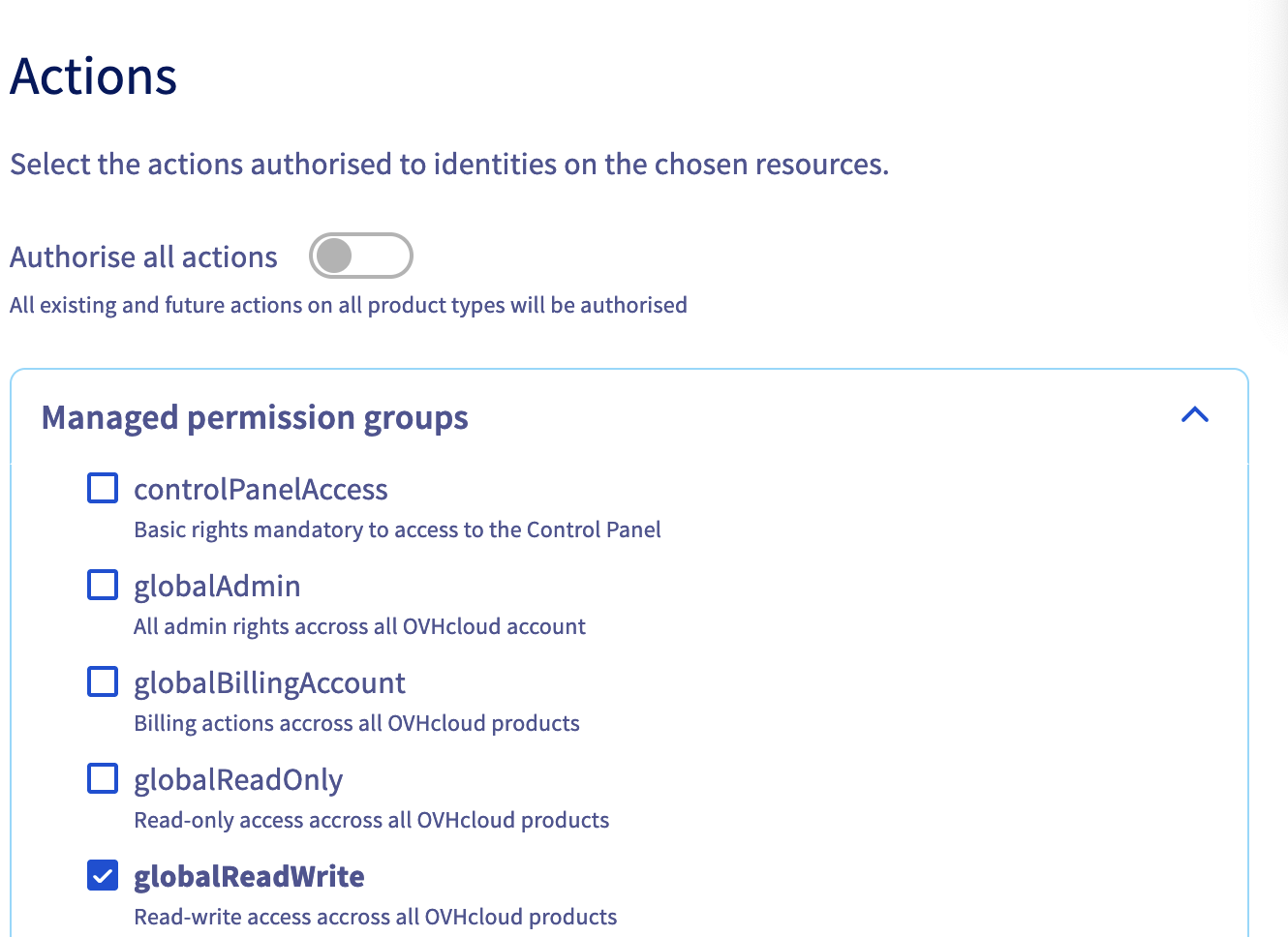
Now the users belonging to the finance_developer_group will have only access to the Control Panel and to the selected Public Cloud project in write access.
We want your feedback!
We would love to help answer questions and appreciate any feedback you may have.
If you need training or technical assistance to implement our solutions, contact your sales representative or click on this link to get a quote and ask our Professional Services experts for a custom analysis of your project.
Are you on Discord? Connect to our channel at https://discord.gg/ovhcloud and interact directly with the team that builds our databases service!
Join our community of users.


 Deleting a Public Cloud project
 595
595