

Users - Manage AI users and roles
391 Ansichten
 17.12.2024
  Cloud / AI Deploy
Objective
The users of the OVHcloud AI Solutions are simply the users of your Public Cloud project, which can be created and managed in the OVHcloud Control Panel (UI).
The objective of this guide is to demonstrate how to create, configure, and delete AI users and their roles.
Requirements
- A Public Cloud project in your OVHcloud account
OVHcloud Control Panel Access
- Direct link: Public Cloud Projects
- Navigation path:
Public Cloud> Select your project
Creating and Editing AI users
To grant access to OVHcloud AI Solutions to the users of your Public Cloud Project, you can assign them either the AI Training Operator or AI Training Reader role.
-
The AI Training Operator role provides complete access to AI Notebooks, AI Training, and AI Deploy solutions. With this role, users can launch, stop, and delete AI Solutions, as well as authenticate to existing AI Notebooks, Jobs, and Apps, and the ovhai CLI using their credentials.
-
If you don't need to launch, stop, or delete AI Solutions, but are only interested in accessing already existing deployed ones, the AI Training Reader role is sufficient. This role allows users to access existing AI Solutions, but not to launch, stop, or delete them.
In addition to the AI Training role, we strongly recommend adding the ObjectStore Operator role to your AI users. This role provides read/write access to the OVHcloud Object Storage, which is a persistent storage solution to store your data that is incorporated into our AI Solutions. This way, you can access your data within the AI Solutions.
To apply these roles, click on the Project Management category in the left-hand vertical menu to access the Users & Roles section:
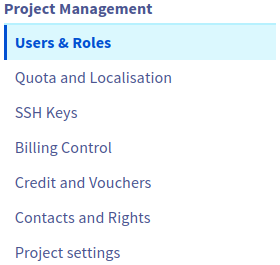
On this page, you can either create a new user for your Public Cloud project or edit the roles of an existing user.
1. Create a new user
Click on + Add user, specify a name as the user's description, and assign the required roles to use the AI Solutions with the Object Storage (AI Training Operator or AI Training Reader, depending on the level of access you want to grant, and the ObjectStore Operator):
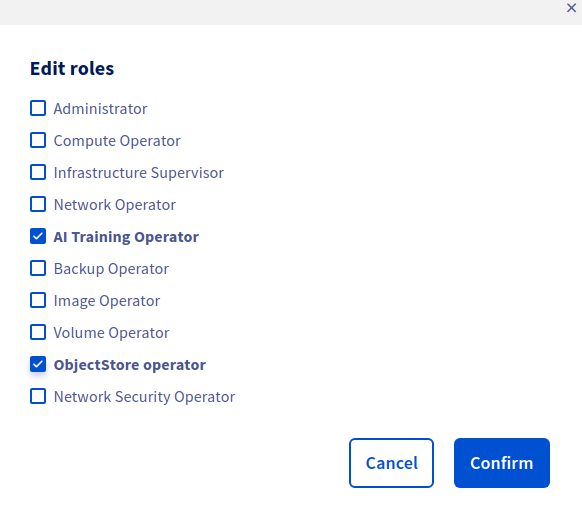
This will generate a password that will allow you to authenticate to your existing AI Notebooks, AI Training jobs, AI Deploy apps and to the ovhai CLI to launch new ones.
- If you ever lose the password of a user, you can regenerate it at any time by clicking the
...button next to your user, and then onGenerate a password. - Access to AI Solutions can be revoked anytime by deleting the user or removing its AI Training Operator / Reader role.
2. Edit an existing user roles
To edit an existing user, simply click the ... button next to the user, and select Edit roles to modify its existing roles:
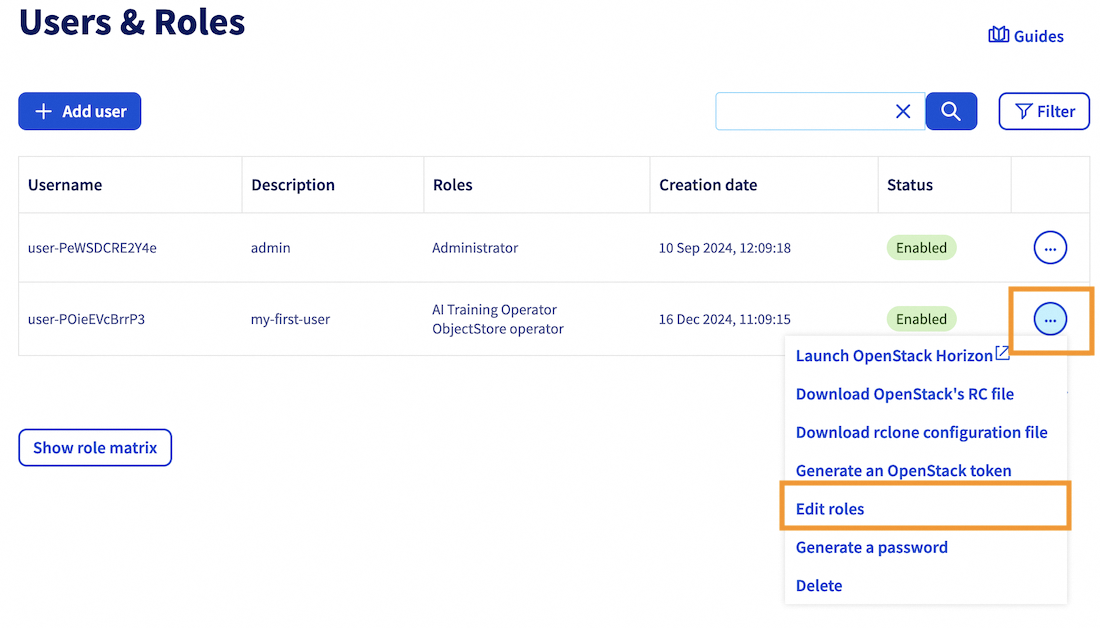
Going further
- You can check the OVHcloud documentation on how to submit a job.
If you need training or technical assistance to implement our solutions, contact your sales representative or click on this link to get a quote and ask our Professional Services experts for a custom analysis of your project.
Feedback
Please send us your questions, feedback and suggestions to improve the service:
- On the OVHcloud Discord server


 Comparative tables - AI Notebooks, AI Training, AI Deploy
 391
391