

AI Training - Start a job with a notebook Docker image
251 Views
 03.05.2021
  AI Training
Objective
This guide covers the process of starting a simple interactive notebook leveraging GPUs over AI Training service.
Requirements
- an AI Training project created inside a public cloud project
- a user for AI Training
OVHcloud Control Panel Access
- Direct link: Public Cloud Projects
- Navigation path:
Public Cloud> Select your project
Instructions
Step 1 - Begin as classic job submission
Follow the same steps as a classic job submission described here until you reach Step 5 - Providing a Docker image.
Step 2 - Select the notebook corresponding to your needs
A job is basically a Docker container that is run within the OVHcloud infrastructure.
Notebooks are daemon jobs, meaning that they will run indefinitely until the user requests an interruption.
AI Training offers several notebook images with different configurations. You can choose the configuration that best suits your needs among them.
Currently, the following configurations are available :
- PyTorch : An OVHcloud preset image including JupyterLab notebook, Visual Studio Code IDE and
pytorchlibraries - Tensorflow 2 : An OVHcloud preset image containing JupyterLab notebook, Visual Studio Code IDE and
tensorflow 2libraries - Hugging Face Transformers : An OVHcloud preset image containing JupyterLab notebook, Visual Studio Code IDEand
hugging facelibraries - MXNet : An OVHcloud preset image containing JupyterLab notebook, Visual Studio Code IDE and
mxnetlibraries - Fast.ai : An OVHcloud preset image containing JupyterLab notebook, Visual Studio Code IDE and
fast.ailibraries - autogluon : An OVHcloud preset image containing JupyterLab notebook, Visual Studio Code IDE and
AutoGluon+mxnetlibraries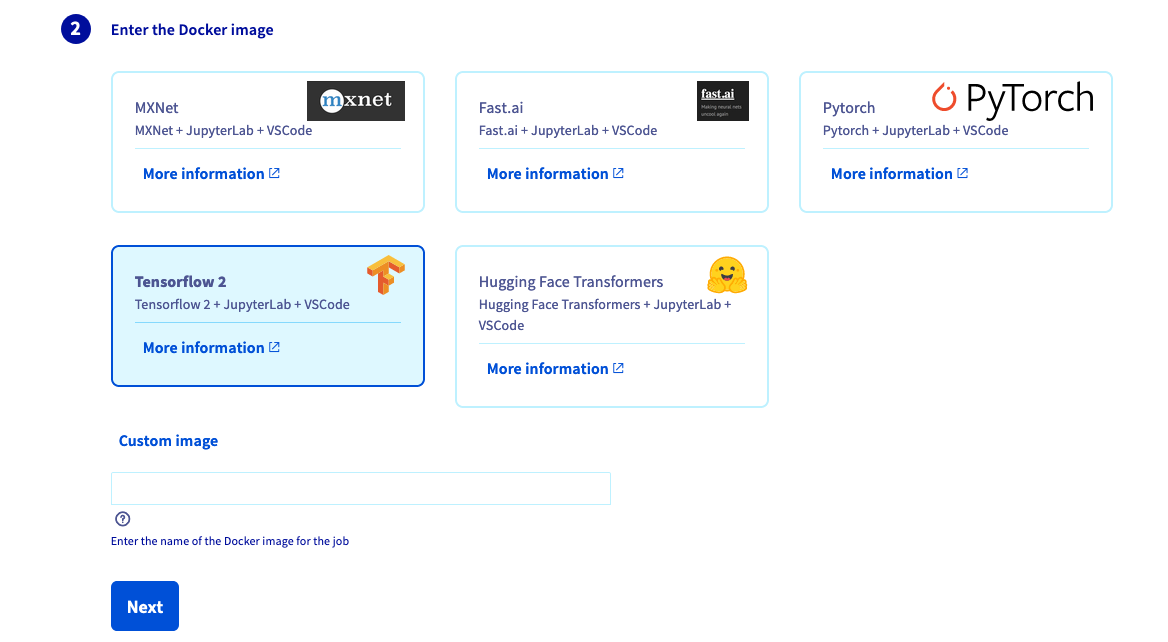
Once your image is chosen, click Next.
Step 3 - Continue as a classic job submission
Continue to follow the same steps as a classic job submission described here until you reach Step 10 - Consulting your job.
If you want to be able to save your notebook files on your object storage, we strongly advise to plug a read and write volume on your job before submitting. That volume will be synchronized with your object storage at the end of the job.
Step 4 - Access notebook URL
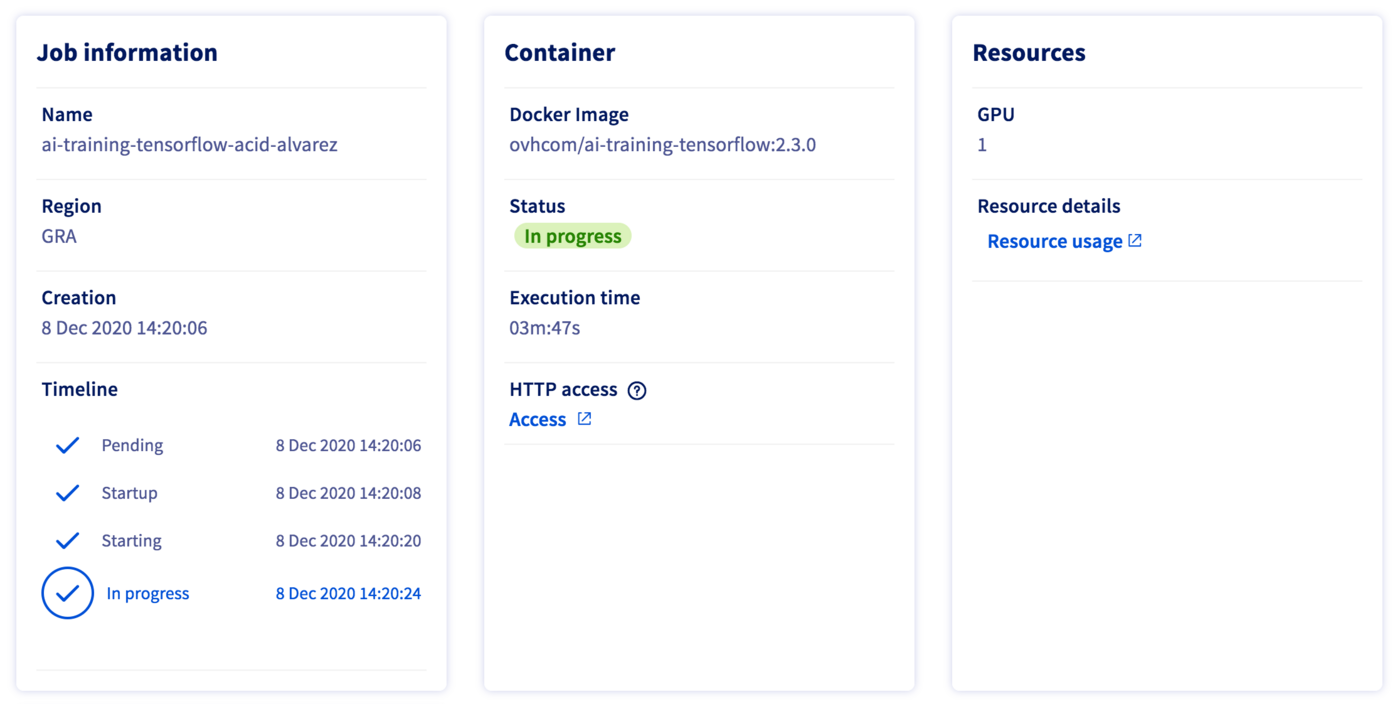
Once your job is In progress, in the job description panel, you should see the Access link. Click on it and you will be redirected on your job URL.
Step 5 - Login as an AI Training user
If you are not authenticated as an AI Training user, you should see a screen asking for your username and password.
If you have not created a user for AI Training yet, you can follow the instruction here.
Fill the fields and click Login.

Step 6 - Use your notebook
In most provided preset image,s you can choose which editor you prefer between JupyterLab and VisualStudio code.

Just select the one that you want to use, and you will be redirected to the corresponding one.
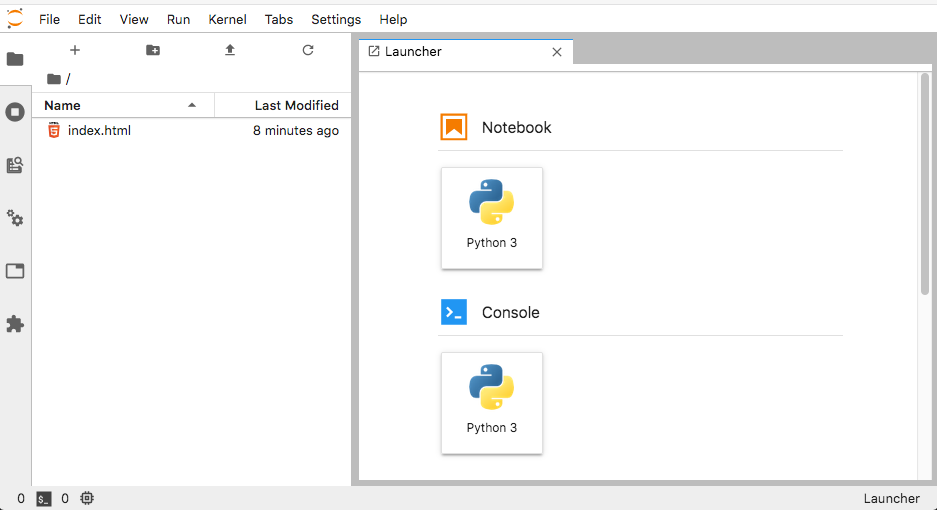
By default, the home directory of your job is located under /workspace. It means that you will have read and write access to that directory as well as your read and write mounted volumes.
If you are missing a library or a configuration, you can add it directly in command line of the notebook's console as long as you don't need privileged access (root access). Example : pip install <...>
For installing specific libraries that require privileged access, you will have to build your own notebook image and use it as a custom image at step 2 instead of a preset image. More information about creating your own Docker image can be found here.
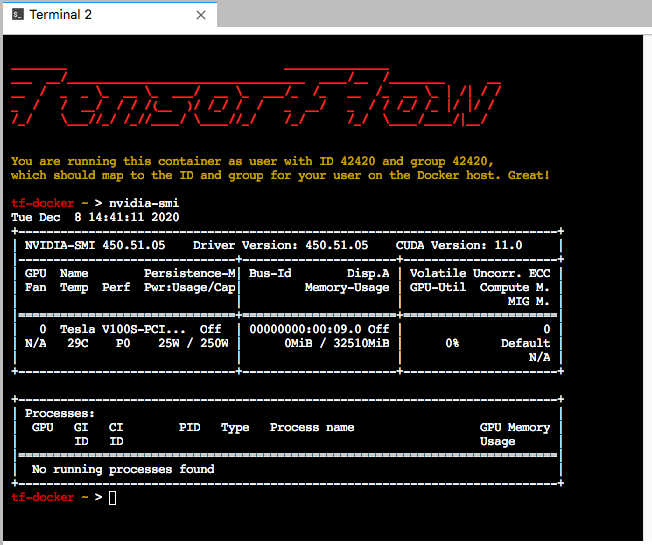
If you open a console tab in your notebook and type nvidia-smi, you will see the available GPUs that you can use on your notebook.
Step 7 - Stop your notebook
Once you are done working with your notebook don't forget to stop it.
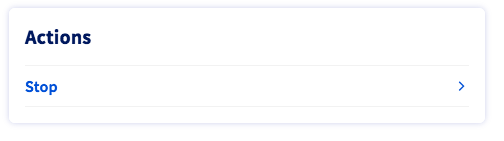
You can do it by selecting Stop in the action menu.
Then confirm your choice.
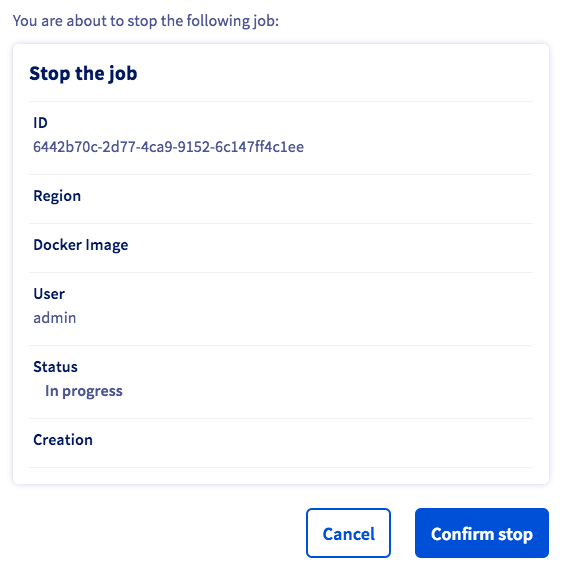
After some time your job should go into an Interrupted state meaning that the job has been stopped.

Before going into the Interrupted state, your job may run through the Finalizing state. During this phase, all data inside read & write volumes are saved inside their linked containers in your object storage.
Feedback
Please send us your questions, feedback and suggestions to improve the service:
- On the OVHcloud Discord server
If you need training or technical assistance to implement our solutions, contact your sales representative or click on this link to get a quote and ask our Professional Services experts for a custom analysis of your project.


 AI Training - Tutorial - Train your first ML model
 1464
1464