

MX Plan - How to add an email account to the New Outlook for Windows
1627 Ansichten
 09.01.2026
  Web / MX Lösung für E-Mail (vorherige Infrastruktur)
Objective
The email addresses from the MX Plan offers can be configured on a compatible email client. This allows you to send and receive messages from your preferred application.
The New Outlook replaces the Mail application on Windows starting from January 1, 2025. For more information, visit Microsoft's official page: Outlook for Windows: The Future of Mail, Calendar, and People on Windows 11.
Learn how to configure your MX Plan email account on the New Outlook for Windows.
Requirements
- You have an OVHcloud email solution MX Plan offered with our web hosting services.
- You have the new version of Outlook installed on your Windows system.
- You have the credentials for the email account you wish to configure.
Information related to the management and configuration of OVHcloud services
This guide will show you how to use OVHcloud solutions with external tools, and the changes you need to make in specific contexts. You may need to adapt the instructions according to your situation.
If you experience any difficulties carrying out these operations, we recommend that you contact a specialist service provider or discuss the issue with our community. OVHcloud cannot provide you with technical support in this regard. You can find more information in the Go further section of this guide.
Instructions
This documentation applies only to the new Outlook and not to the "classic Outlook" available in the Microsoft 365 suite or previously installed on your computer.
To distinguish between the two Outlook versions when both are installed, type "Outlook" in the Windows search bar. You will then be able to see the difference as shown below. The new Outlook has no special mention.
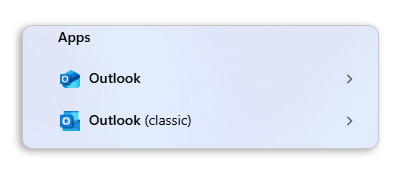
To configure your MX Plan email address on classic Outlook, refer to our guide "MX Plan - Configure your email address on classic Outlook for Windows".
Add the account
It is necessary to select the tab in step 3 corresponding to your location (EUROPE or AMERICA/ASIA-PACIFIC) to obtain the correct values.
To configure your email address, follow the steps by clicking on the tabs below.
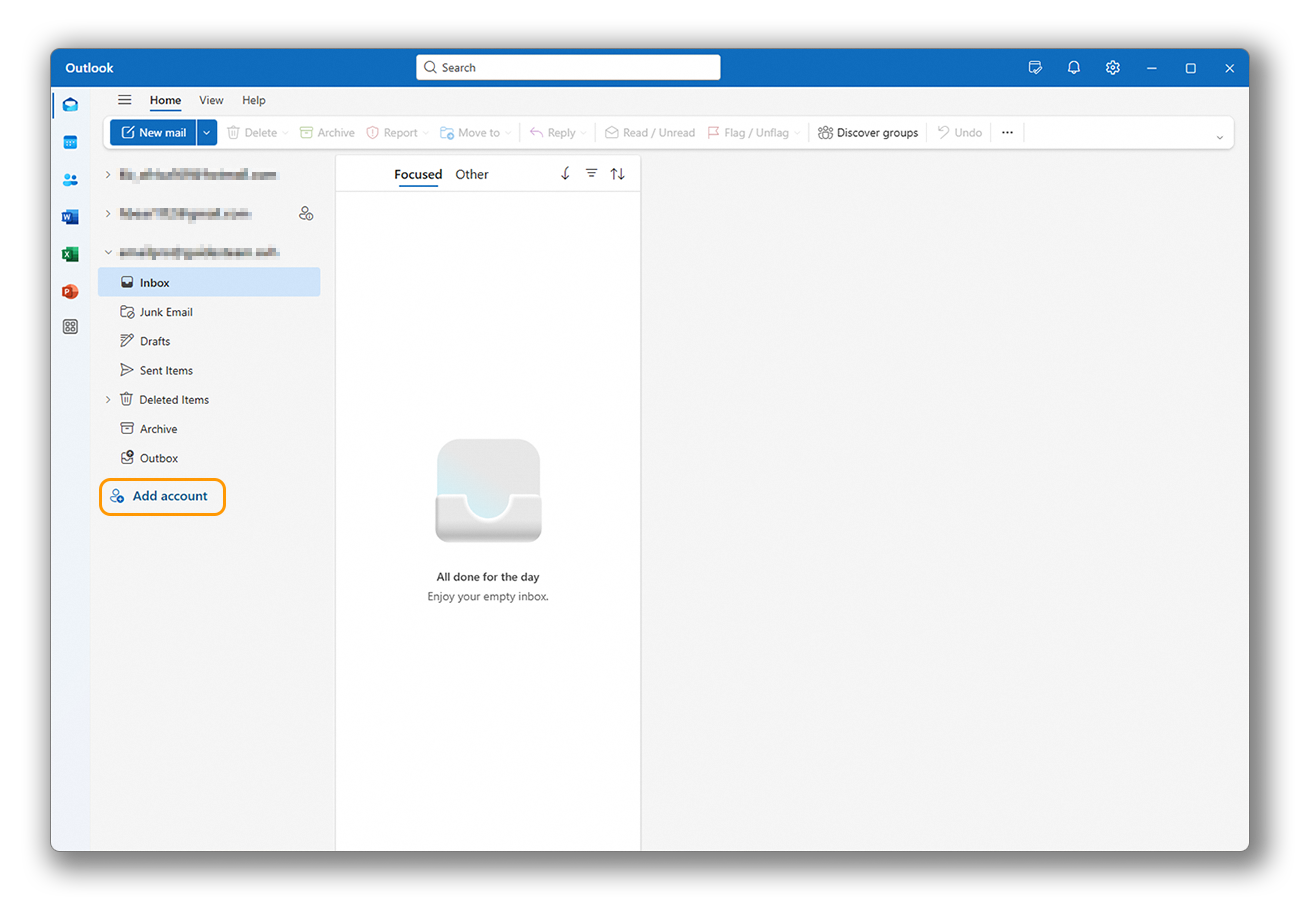
- Open Outlook. In the left column, click
Add an accountto start the configuration.
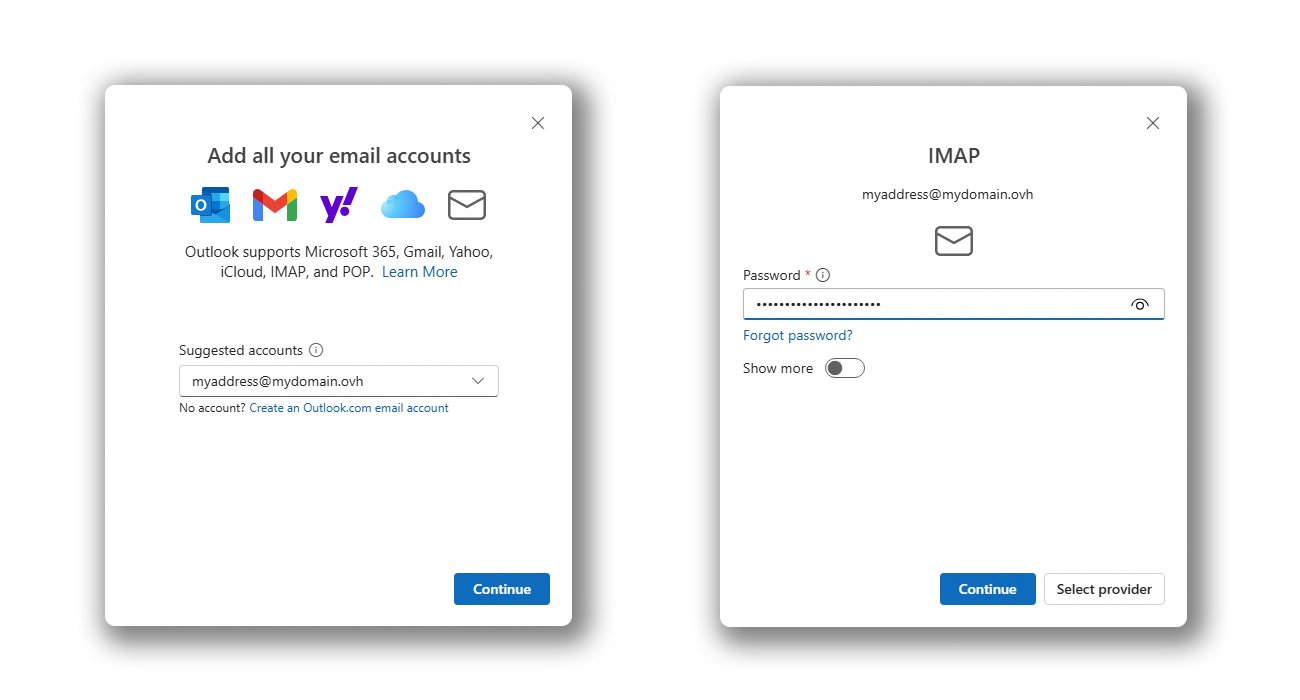
- Enter your email address and click
Continue. - Enter your password and click the
Show morebutton.
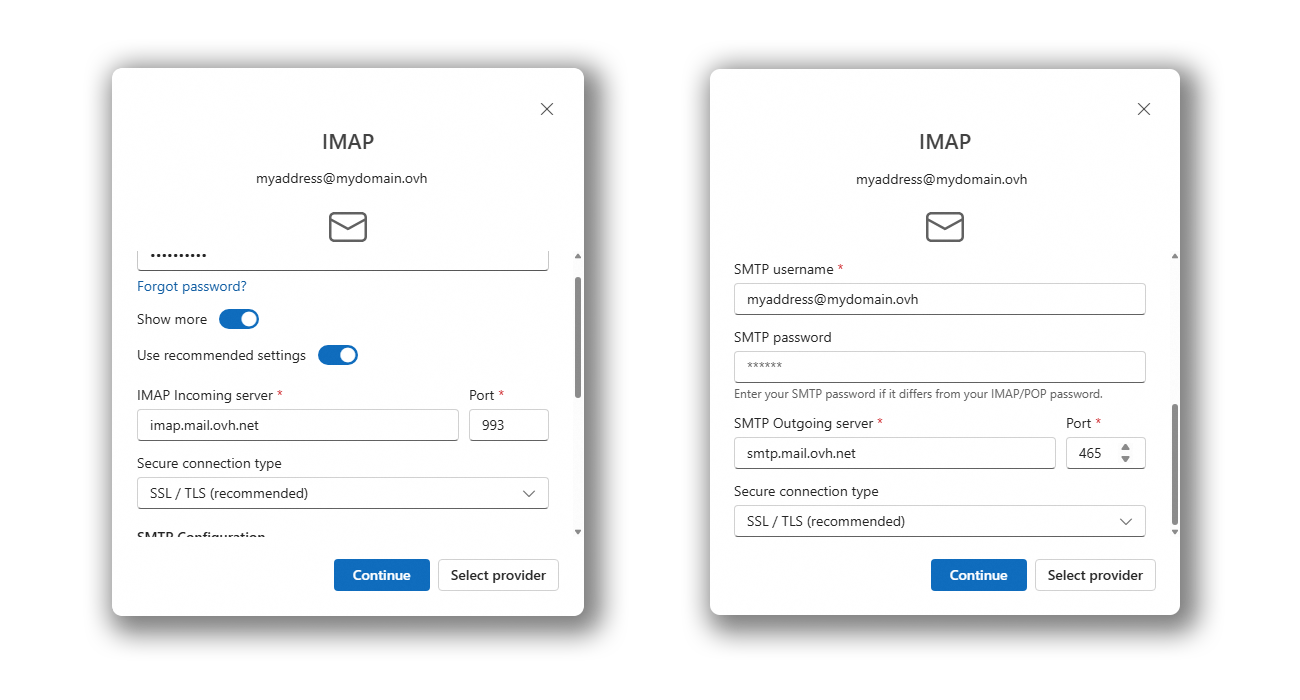
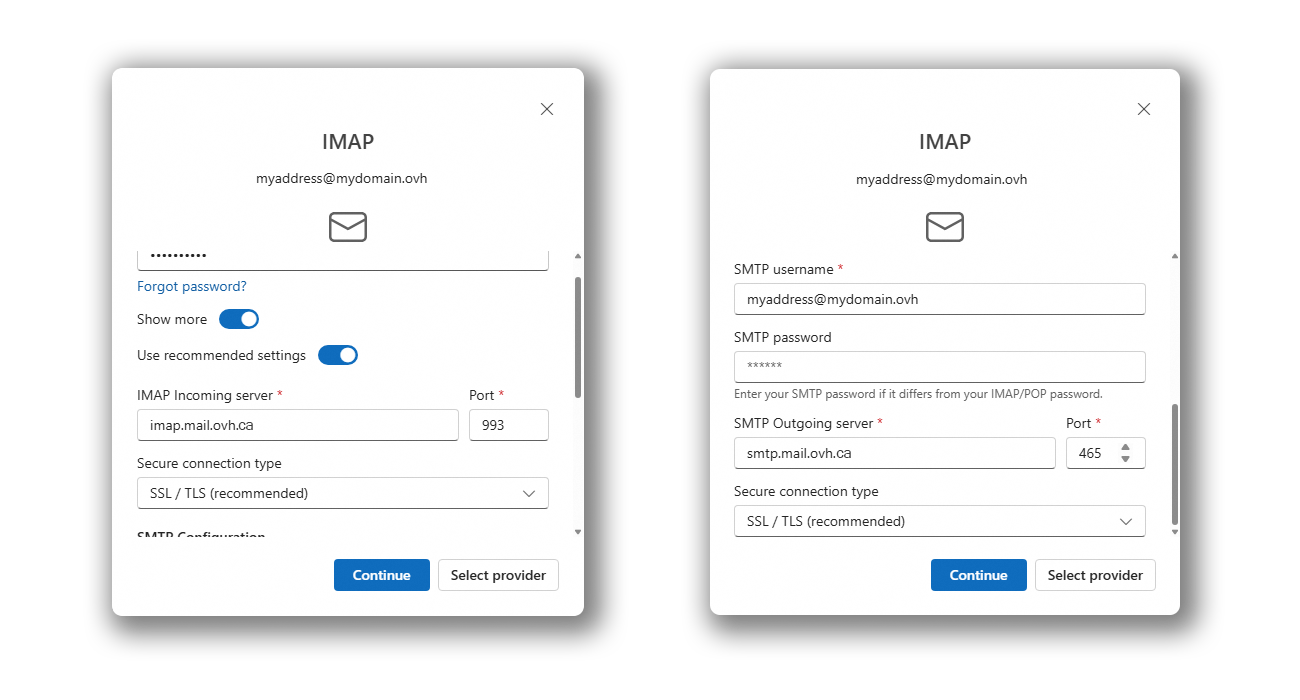
- Enter the following parameters:
- IMAP Incoming Server: imap.mail.ovh.net or ssl0.ovh.net.
- Port: 993
- Secure Connection Type: SSL/TLS
- SMTP Username: The email address you are adding.
- SMTP Outgoing Server: smtp.mail.ovh.net or ssl0.ovh.net.
- Port: 465
- Secure Connection Type: SSL/TLS
- Password: Do not enter anything, the password entered earlier will be used.
- Click
Continueto complete the configuration.
- Enter the following parameters:
- IMAP Incoming Server: imap.mail.ovh.ca
- Port: 993
- Secure Connection Type: SSL/TLS
- SMTP Username: The email address you are adding.
- SMTP Outgoing Server: smtp.mail.ovh.ca
- Port: 465
- Secure Connection Type: SSL/TLS
- Password: Do not enter anything, the password entered earlier will be used.
- Click
Continueto complete the configuration.
Using the email address
Once the email address is configured, you can start using it! You can now send and receive messages.
OVHcloud also offers a web application to access your email address from your browser, available at Webmail. You can log in using the credentials for your email address.
Modify Existing Settings
The Outlook application does not allow you to modify the server settings for your email account.
If your email account is already configured and you want to configure it again, you must delete it and recreate it:
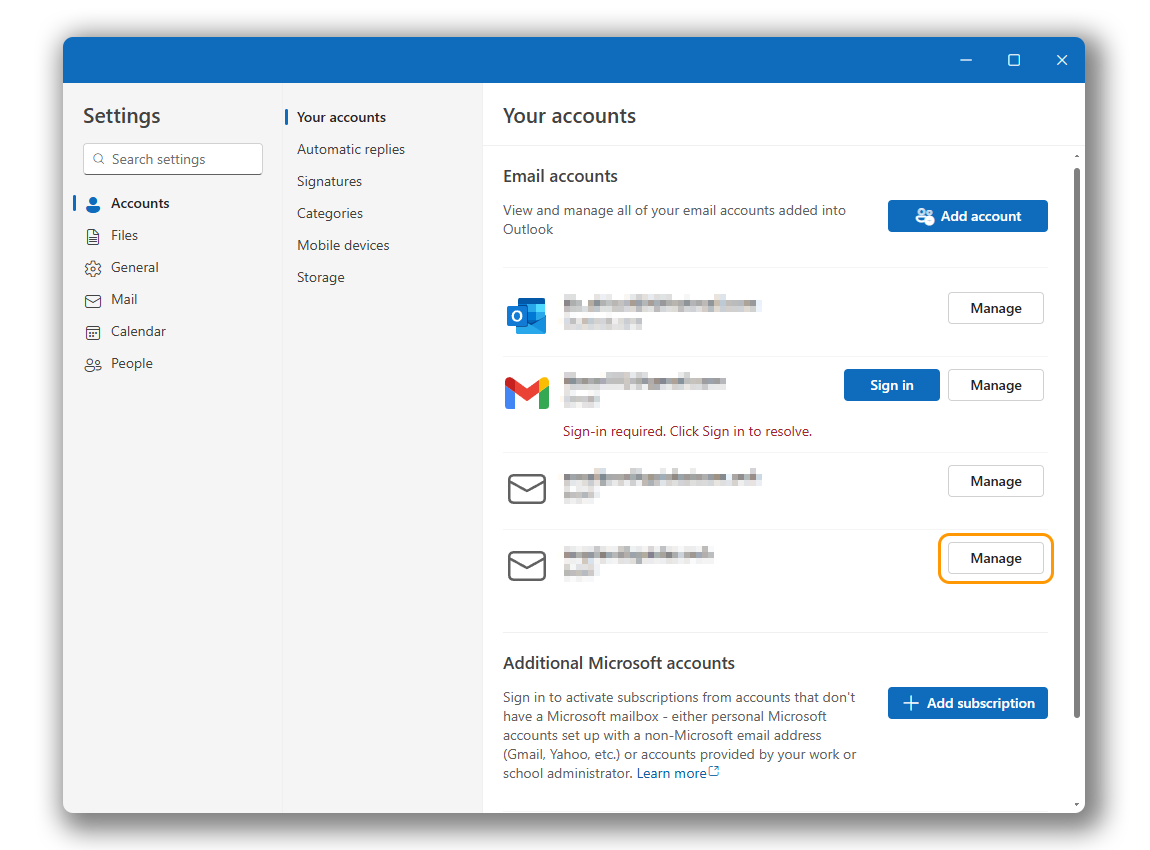
- Click the settings icon
⛭at the bottom of the left column. - In the "Your Accounts" section, click
Manageto the right of the relevant email address.
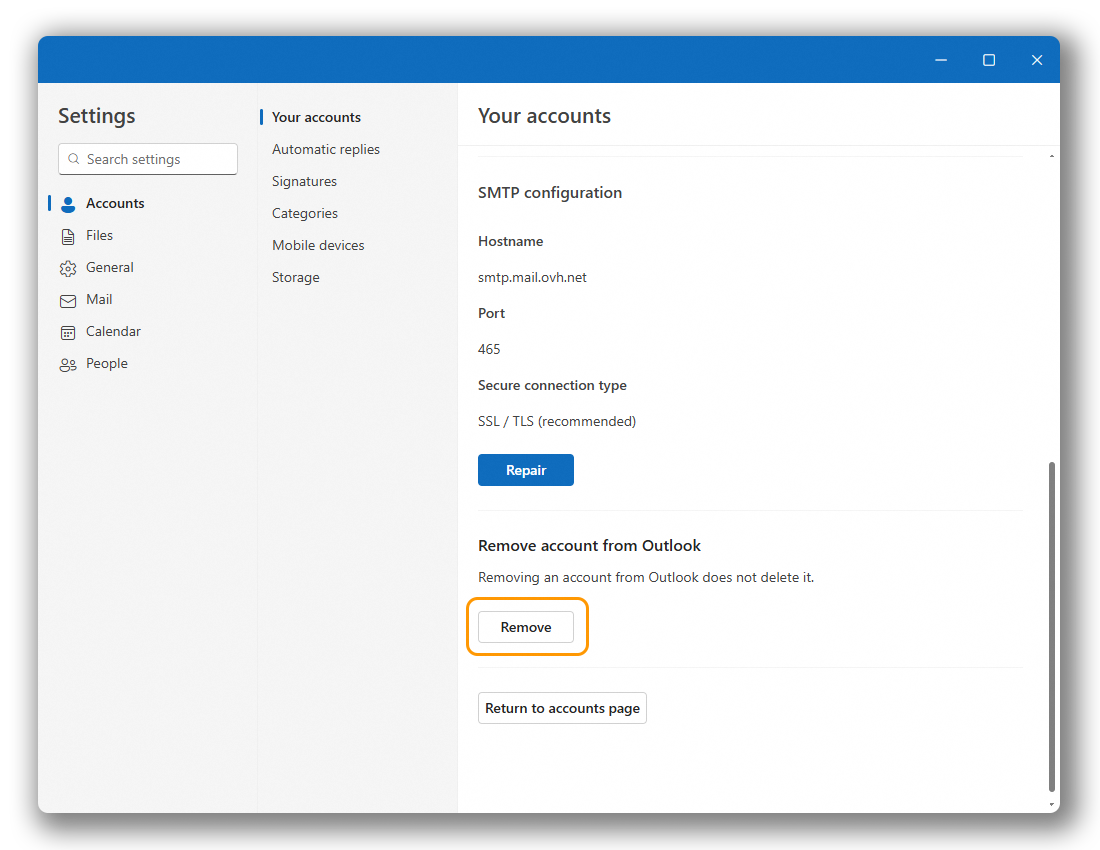
- Scroll to the bottom of the page.
- Click
Deleteto start the deletion process. - Determine if you want to delete the account only from this device or also from other devices using Outlook.
Once your email account has been deleted, follow the instructions in the "Add the Account" section of this documentation.
General sending and receiving settings
IMAP and POP receiving settings
For receiving emails, we recommend using IMAP. However, you can also select POP.
It is necessary to select the correct value corresponding to your location (EUROPE or AMERICA/ASIA-PACIFIC).
Select the tab corresponding to your configuration type:
- Username: Enter the complete email address.
- Password: Enter the email account password.
- EUROPE Incoming Server: imap.mail.ovh.net or ssl0.ovh.net.
- AMERICA/ASIA-PACIFIC Incoming Server: imap.mail.ovh.ca.
- Port: 993.
- Secure Connection Type: SSL/TLS.
- Username: Enter the complete email address.
- Password: Enter the email account password.
- EUROPE Incoming Server: pop.mail.ovh.net or ssl0.ovh.net.
- AMERICA/ASIA-PACIFIC Incoming Server: pop.mail.ovh.ca.
- Port: 995.
- Secure Connection Type: SSL/TLS.
SMTP sending settings
For sending emails, use the following SMTP parameters:
SMTP Configuration
- Username: Enter the complete email address.
- Password: Enter the email account password.
- EUROPE Outgoing Server: smtp.mail.ovh.net or ssl0.ovh.net.
- AMERICA/ASIA-PACIFIC Outgoing Server: smtp.mail.ovh.ca.
- Port: 465.
- Secure Connection Type: SSL/TLS.
Go further
For more information on configuring an email address from the New Outlook messaging client on Windows, please refer to the Microsoft Help Center.
For specialized services (SEO, development, etc.), contact OVHcloud Partners.
If you would like assistance using and configuring your OVHcloud solutions, please refer to our support offers.
Join our User Community.


 MX Plan / Zimbra Starter - Konfigurieren Sie Ihre E-Mail-Adresse auf klassischem Outlook für Windows
 10456
10456