

Managing a DNS zone's history
498 Views
 27.03.2026
  Web / DNS Zone
Objective
The Domain Name System (DNS) zone of a domain name is its configuration file. It is made up of technical information, called DNS records. The DNS zone is, in a way, like a switching centre.
For more information, please refer to the following guides:
- Everything you need to know about DNS servers
- Everything you need to know about DNS zones
- Everything you need to know about DNS records
For various reasons, you may need to apply an older DNS configuration to your domain name.
DNS management is now made easier thanks to the history of your DNS zones.
Find out how to view, compare, download and restore your DNS zone backups.
Requirements
- Access to manage the domain name concerned.
OVHcloud Control Panel Access
- Direct link: DNS zones
- Navigation path:
Web Cloud>DNS zones> Select your domain name
Instructions
Your DNS zone backups are subject to the following limitations:
- We keep a maximum of 200 backups for the same DNS zone.
- Once a backup is more than 31 days old, it is automatically deleted, with the exception of the 5 most recent backups made.
Click on the action of your choice to view the content.
View a DNS zone
Click on the tabs below to view each of the 4 steps.
Go to the DNS zones page, then choose the domain name concerned.
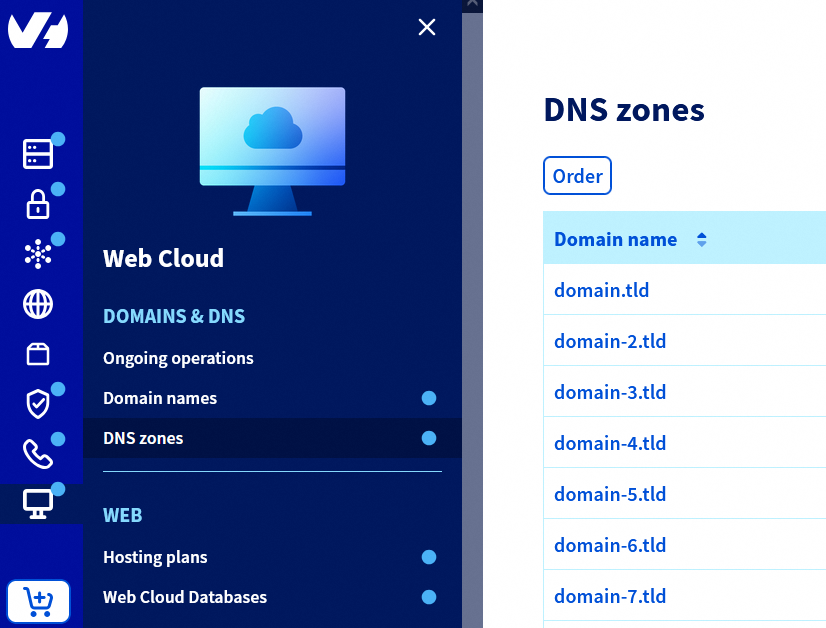
The table that appears represents the DNS zone for your domain name. It lists the DNS records it contains. On the right-hand side of the table, several buttons allow you to perform actions on your DNS zone.
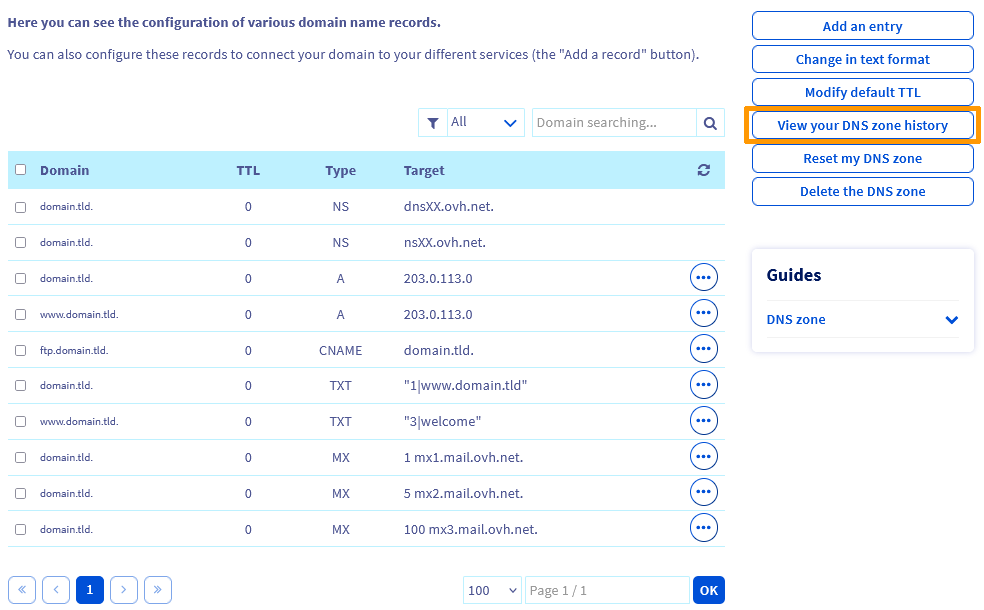
Click View my DNS zone history.
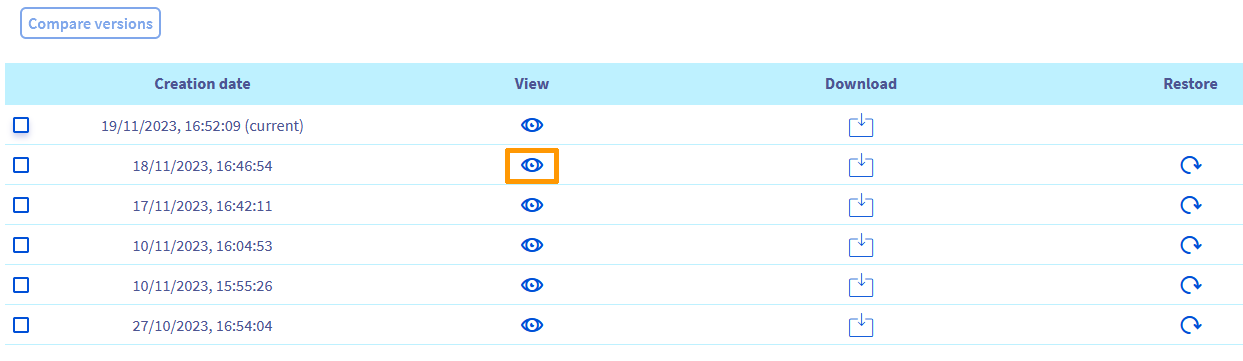
On the new page that appears, a table lists the history of your DNS zone backups, from the most recent to the oldest. At the top of this table is the current version of your DNS zone.
To view the DNS zone of your choice, identify the corresponding row in the table, then click the icon in the View column.
The data of the DNS zone concerned is displayed.
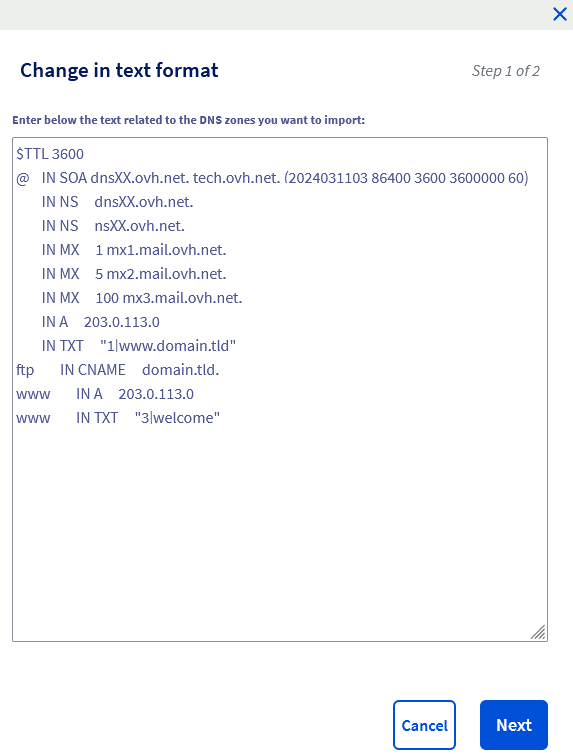
Click Close to return to the main "DNS zone history" page.
Download a DNS zone
Click on the tabs below to view each of the 3 steps.
Go to the DNS zones page, then choose the domain name concerned.
The table that appears represents the DNS zone for your domain name. It lists the DNS records it contains. On the right-hand side of the table, several buttons allow you to perform actions on your DNS zone.
Click View my DNS zone history.
On the new page that appears, a table lists the history of your DNS zone backups, from the most recent to the oldest. At the top of this table is the current version of your DNS zone.
To download the DNS zone of your choice, identify the corresponding row in the table, then click the icon in the Download column.
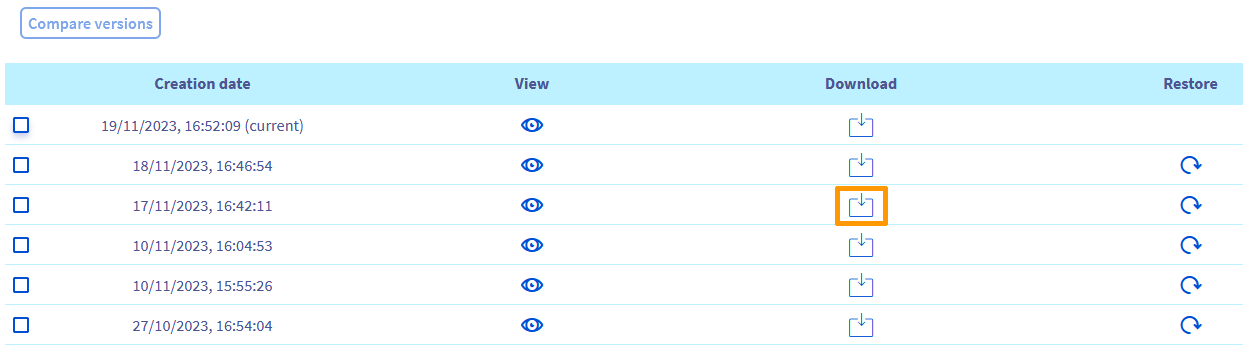
The DNS zone is downloaded in .txt format.
Restore a DNS zone
Click on the tabs below to view each of the 4 steps.
Go to the DNS zones page, then choose the domain name concerned.
The table that appears represents the DNS zone for your domain name. It lists the DNS records it contains. On the right-hand side of the table, several buttons allow you to perform actions on your DNS zone.
Click View my DNS zone history.
On the new page that appears, a table lists the history of your DNS zone backups, from the most recent to the oldest. At the top of this table is the current version of your DNS zone.
If you want to replace your current DNS zone with an older one, simply restore it. In the table containing your DNS zone history, identify the row corresponding to the DNS zone you want to restore (make sure to check the date on the left of the row), then click the icon in the Restore column.
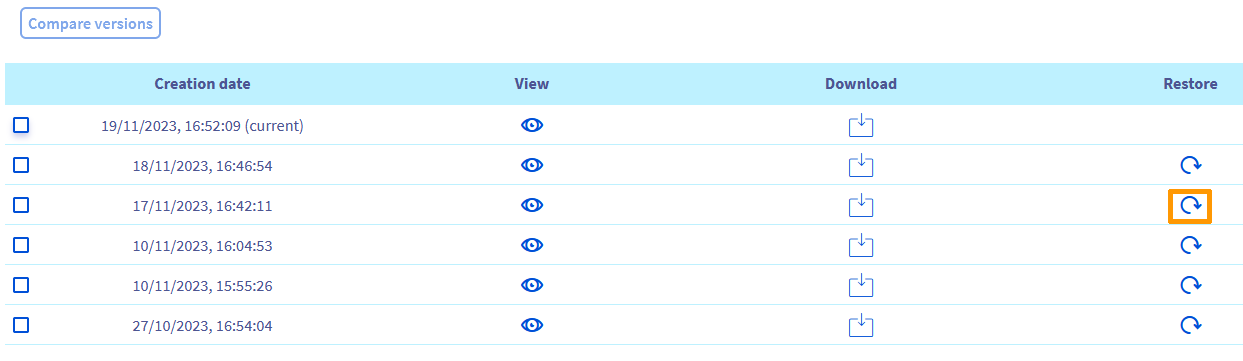
The following window appears.
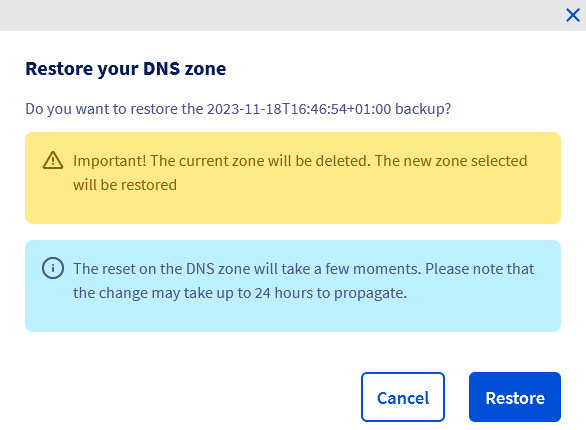
Check that the date shown in the message corresponds to the DNS zone you want to restore. As the yellow banner indicates, remember that the current DNS zone (at the top of the DNS zone history list) will be deleted and replaced by the DNS zone you want to restore.
Click Restore to confirm the restoration, or Cancel.
Modifying or restoring a DNS zone causes a propagation delay of 4 to 24 hours to be fully taken into account on the DNS network.
Compare two DNS zones
Click on the tabs below to view each of the 4 steps.
Go to the DNS zones page, then choose the domain name concerned.
The table that appears represents the DNS zone for your domain name. It lists the DNS records it contains. On the right-hand side of the table, several buttons allow you to perform actions on your DNS zone.
Click View my DNS zone history.
On the new page that appears, a table lists the history of your DNS zone backups, from the most recent to the oldest. At the top of this table is the current version of your DNS zone.
You can compare the content of two DNS zones. In the table containing your DNS zone history, identify the two rows corresponding to the two DNS zones you want to compare (check the date on the left of each row), then select them. To compare these two DNS zone versions, click Compare versions in the top left.
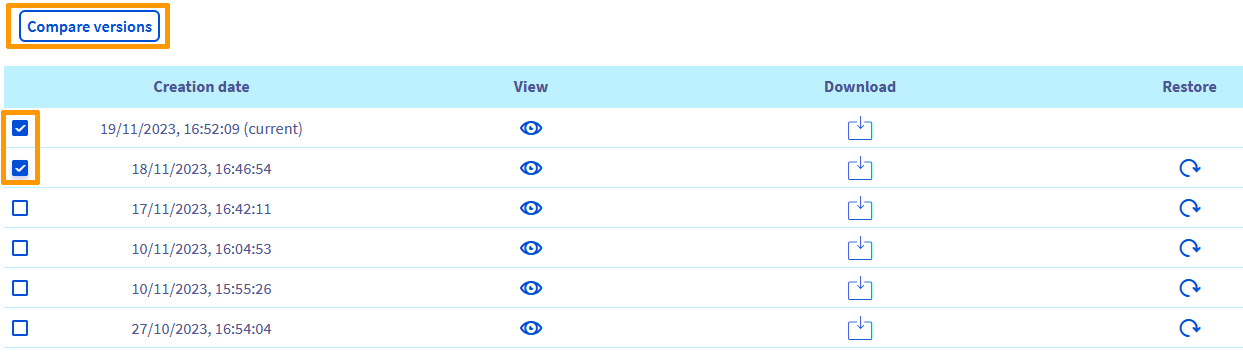
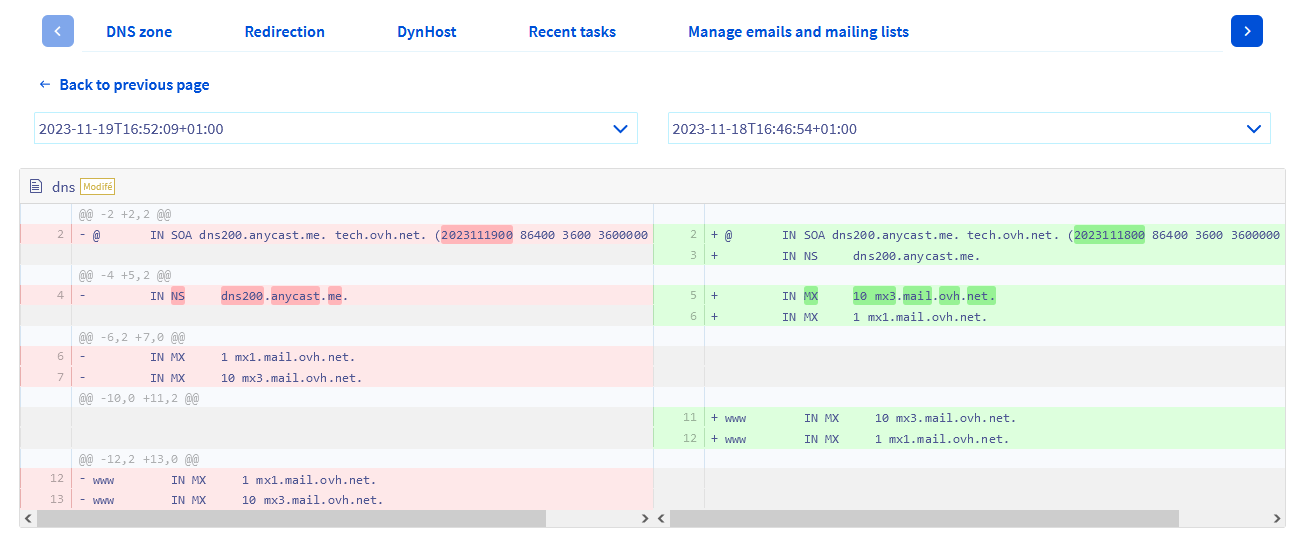
A new page appears, displaying the content of both DNS zones. The corresponding date is shown above each version. By default, the most recent DNS zone version is on the left and the oldest on the right. A colour code helps you identify content differences.
On the left, content highlighted in red has been modified or deleted in the more recent version.
On the right, content highlighted in green has been modified or added compared to the older version.
You can also update the dates of the versions you want to compare using the two dropdown lists.
Go further
Everything you need to know about DNS servers
Everything you need to know about DNS zones
Everything you need to know about DNS records
Log in to the OVHcloud Control Panel
For specialised services (SEO, development, etc.), contact OVHcloud partners.
If you would like assistance using and configuring your OVHcloud solutions, please refer to our support offers.
Join our community of users.


 Editing an OVHcloud DNS zone
 13835
13835