

Changing the admin password on a Windows dedicated server
2705 Views
 26.06.2024
  Cloud / Dedicated Server (bare metal)
Objective
When you install or reinstall a Windows operating system, you are provided with a password for administrative access. We strongly recommend that you change this initial password, as detailed in our guide about securing a dedicated server. In case you have lost your admin password, it needs to be reset using rescue mode.
This guide explains how to reset the password of the admin account of a Windows Server OS via the OVHcloud rescue mode.
This guide is not applicable to the rescue boot mode Windows customer rescue system.
Follow this guide when using the option Windows customer rescue system (Windows2022-based) in the OVHcloud Control Panel.
Requirements
- A dedicated server with Windows installed in your OVHcloud account
OVHcloud Control Panel Access
- Direct link: Dedicated Servers
- Navigation path:
Bare Metal Cloud>Dedicated servers> Select your server
Instructions
The following steps describe the process of changing the local admin password by using the always available OVHcloud rescue mode (Linux-based). If you would like to use Windows PE (WinRescue) instead, skip to the pertinent section at the end of this guide.
Step 1: Rebooting the server into rescue mode
The system has to be started in rescue mode before the admin password can be changed.
For detailed instructions, please refer to the rescue mode guide.
Step 2: Mounting the system partition
Connect to your server via SSH. (Consult the SSH introduction guide if necessary.) Since it is a Windows server, you will see partitions labelled "Microsoft LDM data".
In the example output, "sda4" must be the (file) system partition, as determined by its size. Usually, there is a mirrored second output which in this case would be "/dev/sdbX". That is because in most cases, the server will have multiple disks with identical partition schemes. For the password reset process, only the first one is important. Next, mount this partition:
Verify the mountpoint:
In the example above, the operation succeeded. If the mounting failed, you might receive an error message like this:
In this case, use the following command and then try to mount again.
Step 3: Clearing the current password
This step involves manipulating the SAM file with a tool to clear the admin user's password. Change to the appropriate directory and list the Windows users:
If the command does not work, install the tool first: apt install chntpw.
Clear the password for the admin user with the following command. (Choose "Administrator" if "admin" does not exist.)
Type "1" and press Enter . (Make use of option 2 first if there is an "X" next to "Disabled".)
Type "q" and press Enter to quit the tool. Type "y" when prompted and press Enter.
Step 4: Rebooting the server
First, change the netboot back to Boot from the hard disk in your OVHcloud Control Panel (see step 1).
Back in the CLI, unmount the partition and restart the server with these commands:
Step 5: Setting a new password (IPMI)
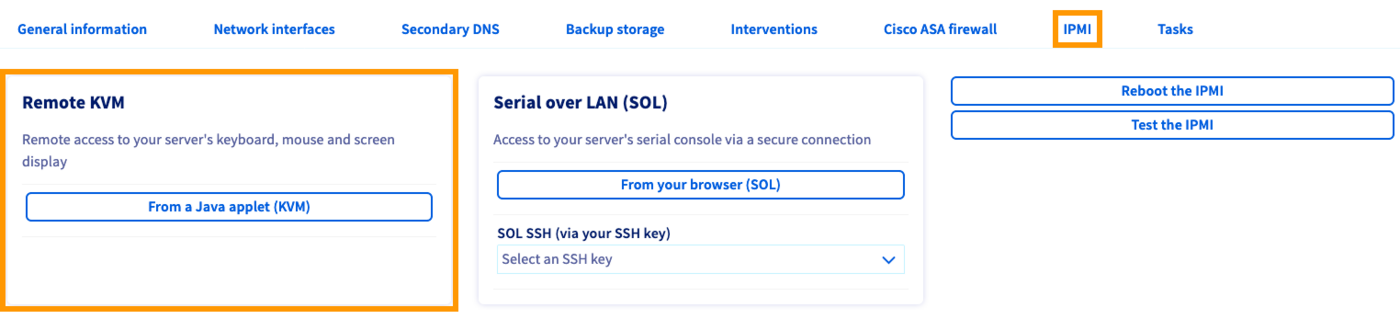
In your OVHcloud Control Panel, navigate to the IPMI tab to open a KVM session.
Step 5.1: For a newer version of Windows
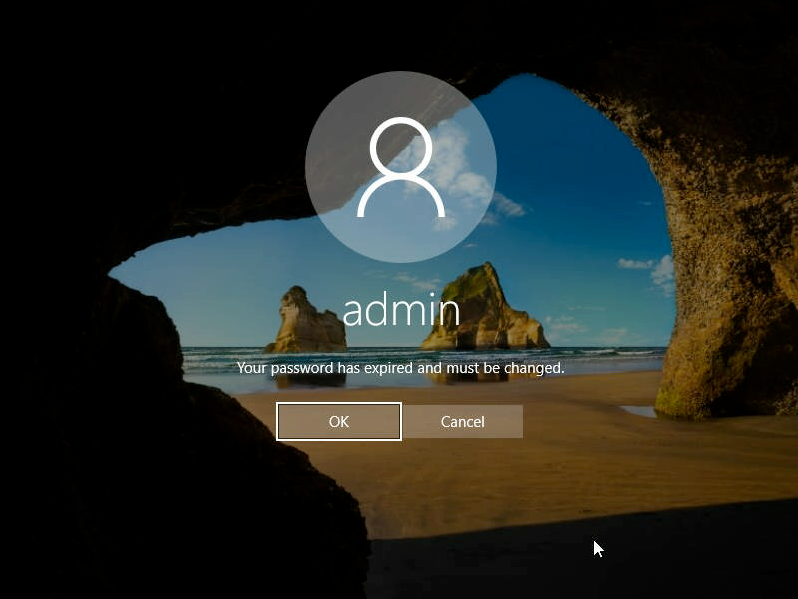
There should be a password expiration message in the login interface.
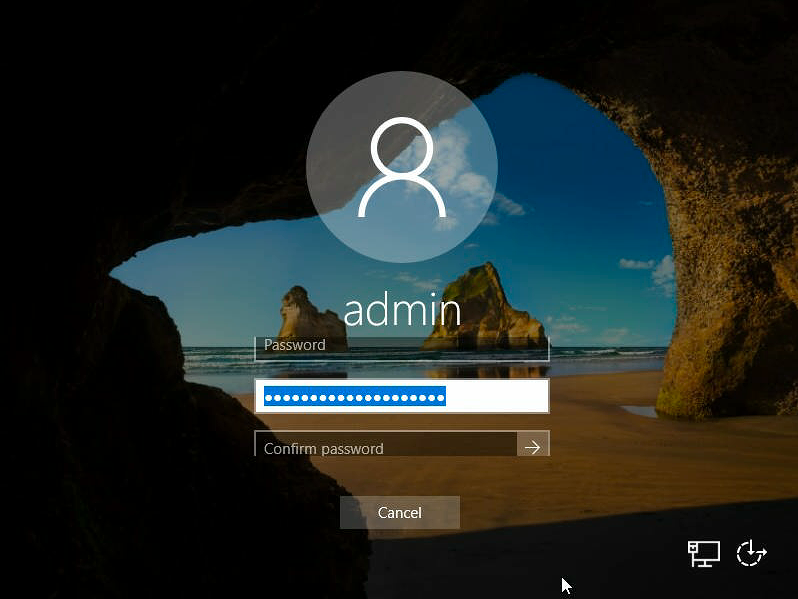
The new password for the admin user must now be entered twice. However, the confirmation field is not yet visible, meaning you need to leave the first field blank, type your new password into the second field, then use the tabulator key ("↹") on the (virtual) keyboard to switch to the third field ("Confirm password"). Type the password again and click on the arrow to save it.
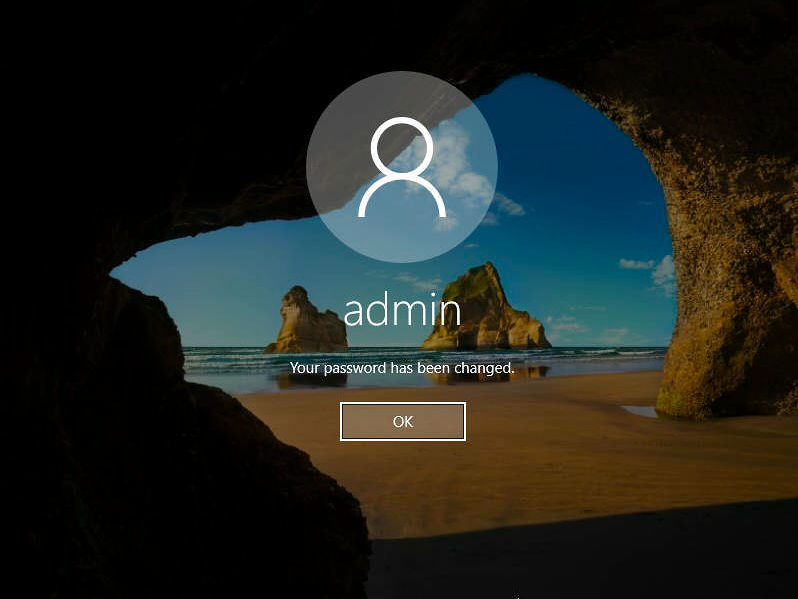
Click on OK and you will be logged in.
Step 5.2: For an older version of Windows
A command line window (cmd) should open when the KVM session is established.
Set the password for the current user ("Administrator"):

It is advisable to use the virtual keyboard when typing passwords in this interface.
Resetting the admin password using WinRescue
Step 1: Rebooting the server into rescue mode
The system has to be started in rescue mode (WinRescue) before the admin password can be changed.
For detailed instructions, please refer to the rescue mode guide.
Step 2: Clearing the current password
In your OVHcloud Control Panel, navigate to the IPMI tab to open a KVM session.
To reset passwords, the tool NTPWEdit is required. Once you are connected via KVM, open the browser and download it from the official website. Navigate to the folder where the downloaded ZIP file is located and extract the contents. Next, open the ntpwedit64 executable to start the application.
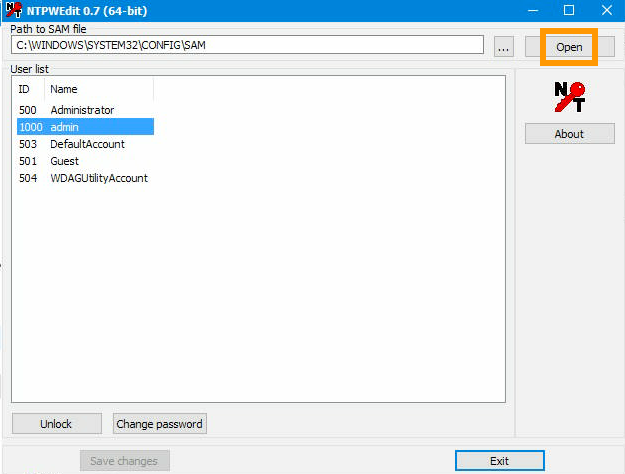
In this interface, you can manipulate the SAM file in order to clear the admin user's password. The default file path in the WINDOWS directory is pre-filled. Open the file to display the list of users by clicking on Open.
The relevant user will either be "admin" or "Administrator", depending on the Windows version. If both are present, choose "admin". Then click on Change password.
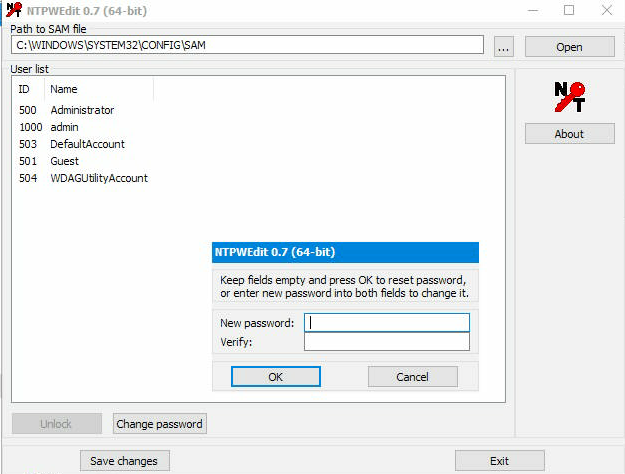
In the popup window, leave the fields blank and click OK. Finish by clicking on Save changes and Exit.
After this, the server needs to be rebooted again.
Step 3: Rebooting the server
First, change the netboot back to Boot from the hard disk in your OVHcloud Control Panel (see step 1).
Back in the KVM window, select the shutdown option Restart via the Windows "Start" button on the bottom left.
Continue with Step 5: Setting a new password (IPMI).
Go further
Activating and using rescue mode
Using the IPMI with dedicated servers
Join our community of users.


 How to configure user accounts and root access on a server
 9856
9856