

Assigning a Virtual MAC to an Additional IP
1175 Ansichten
 16.05.2025
  Cloud / Dedicated Server (Bare Metal)
Objective
OVHcloud allows you to associate a virtual MAC address with an IP address, so that you can set up virtual machines with a bridge configuration on your server.
This guide will show you how to create a virtual MAC address and assign it to an Additional IP address.
Requirements
- A dedicated server that supports virtual MACs. To determine this, consult this guide.
- An Additional IP address or an Additional IP block (RIPE).
OVHcloud Control Panel Access
- Direct link: Public IP
- Navigation path:
Network>Public IP Addresses
-
This feature might be unavailable or limited on servers of the Eco product line. Please visit our comparison page for more information.
-
Third generation Advance servers (powered by EPYC 4004 Series processors) support 32 different vMACs.
-
As of May 2025, this feature is available on the Scale and High Grade ranges.
If you are not familiar with using the OVHcloud API, please refer to our guide on First steps with the OVHcloud APIs.
Instructions
Assign a MAC address
If an IP block has been moved to the vRack, it is no longer assigned to a physical server, as such, you cannot assign a virtual MAC address to any IP.
Via the OVHcloud Control Panel
Click the Additional IP tab.
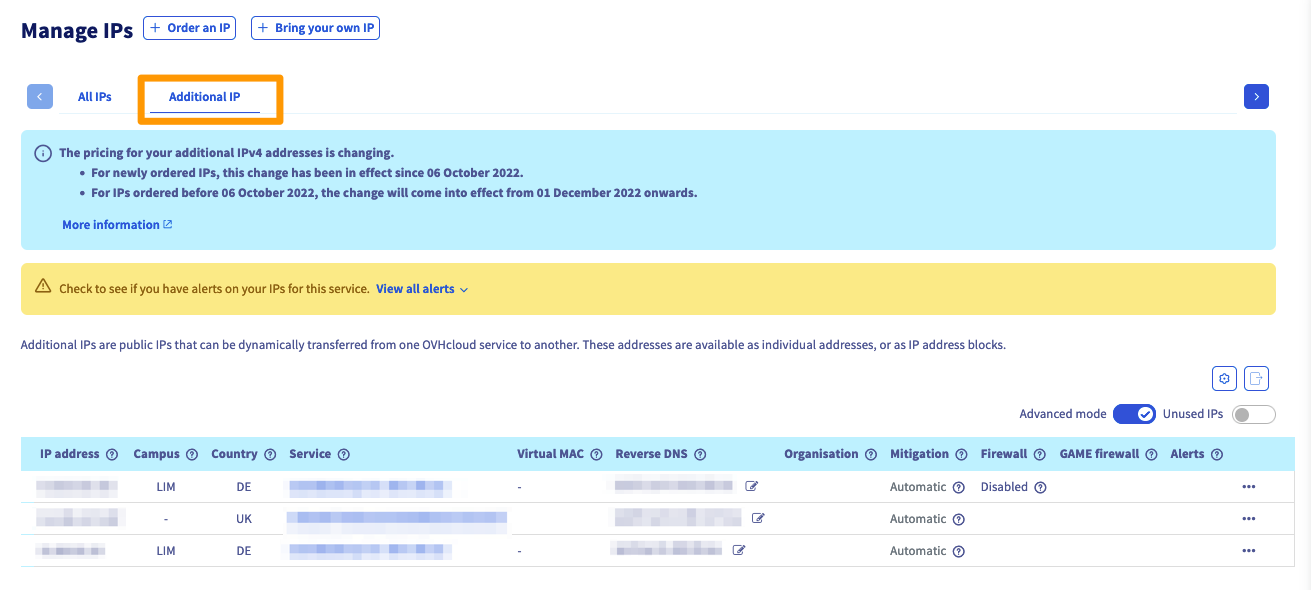
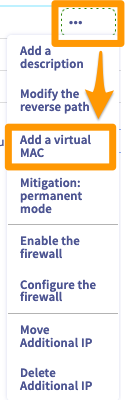
Once you're in the IP section, locate your Additional IP address (or block) in the list and then click the ... button to bring up the list of options.
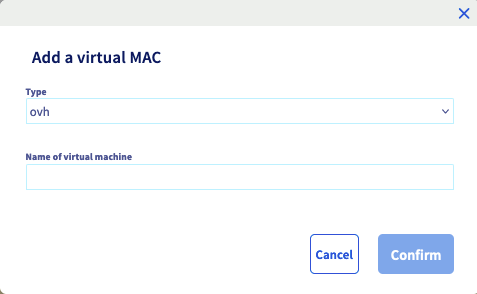
When the 'Add a virtual MAC' box appears, select a type from the dropdown list, enter a virtual machine name, and then click Confirm.
Type: Refers to the virtual MAC address type ('VMware' will be a MAC address made for the VMware ESXi system, while 'ovh' will be for any other type of virtualisation system).
Name of virtual machine: Refers to the desired name for the virtual MAC address, in order to make it easy to identify this IP/MAC pair in the future.
Do not forget to assign the virtual MAC address created in your virtual machine configuration.
Via the OVHcloud API
Use the following API call:
Delete a MAC address
When a MAC address is deleted, it will not be recoverable.
Via the OVHcloud Control Panel
Log in to the OVHcloud Control Panel, open the Network menu in the left-hand sidebar and click Public IP Addresses. Select the correct server, so that the Additional IP (or IP block) attached to it appears.
Finally, click on the ... button on the right, then click Delete a Virtual MAC.
Via the OVHcloud API
Use the following API call:
FAQ
- What happens if I move a block with vMACs on a 3rd generation Advance server (powered by an EPYC 4004 Series processor) that already has 32 vMACs?
The block will not be moved.
Example: if you try to move a block of 4 IPs with different vMACs attached on a server that already has 30 vMACs the block will not be moved because the total of vMACs would be greater than the 32 vMACs allowed.
Go further
Join our community of users.


 Konfiguration von Additional IPs im Bridge-Modus auf Ihren virtuellen Maschinen
 3204
3204