

OVHcloud API and Storage
696 Views
 18.02.2026
  Cloud / Dedicated Server (bare metal)
Objective
This article is intended for experienced users with basic Linux knowledge, and more importantly, deeper technical knowledge of storage—particularly hardware and software RAID, as well as Logical Volume Management (LVM).
With OVHcloud Dedicated Servers, you can configure Disks, hardware RAID, Partitions, software RAID, LVM, ZFS, etc. during OS reinstallation from the OVHcloud API as well as the OVHcloud Control Panel. In this article, we will focus on the OVHcloud API. This will give us more details about the engine that is running in the background in order to create the storage customisation on the dedicated server from the input data passed on to the OVHcloud API.
Providing in-depth details about storage configuration can help customers understand why:
- their custom storage configuration could not be applied on their dedicated server.
- the actual storage configuration on the dedicated server is slightly different from what the customer requested.
Requirements
- A dedicated server ready to be installed/reinstalled in your OVHcloud account.
- Access to the OVHcloud API.
Reinstalling a dedicated server deletes all data currently stored on it.
Instructions
During the default OS installation, the user is interactively prompted by the OS installer (provided by the software editor) to specify on which disks the Operating System will be installed, the partitioning layout, etc. Once the OS is installed, it is possible to change the partitioning layout but it can be very tricky and risky, especially for partitions that are currently used by the system. For that reason, storage is a very important subject that needs to be considered before installing an Operating System.
Apart from the simplicity offered by an API, the main advantage is the possibility to fully customise the disks and partitions on which the OS will be installed.
In this page we are focusing only on the storage sub-hash of the API call used to reinstall an OS on a dedicated server. For other customisations not related to storage, please read OVHcloud API & OS installation for more details.
Disk Groups
Some dedicated servers have multiple groups of disks. For example, one group with SATA disks and another group with SSD disks. Those servers are sometimes also called hybrid servers.
To list the disk groups and their disks, you can use the following API call in order to identify the disk group on which you want the OS to be reinstalled:
Example reply:
In this example, there are 2 disk groups:
- the first one (diskGroupId=1) contains 2 x 480 GB disks.
- the second one (diskGroupId=2) contains 2 x 1.9 TB disks.
Example of Debian 12 (Bookworm) OS installation on the diskGroup 2:
By default, the OS will be installed on diskGroupId 1.
For the moment, the API only supports OS installation and storage customisation on 1 single disk group. From 1 up to all disks of the selected disk group can be involved in the storage customisation. Nevertheless, all other disks will be erased but they will still be visible in the freshly new installed OS and can be used/configured afterwards for data.
Hardware RAID
This section only applies to servers that have at least one hardware RAID controller in one of their disk groups.
Server & Hardware RAID Compatibility
You can get this information by using the following API call:
If your server doesn't have any hardware RAID controller, it will return a HTTP 403 (Forbidden) with the following message:
Example of reply for a server with a hardware RAID controller:
You can also get this information by looking at the raidController attribute value from the API call described in the disk group section.
API & Hardware RAID
For the moment, the API only supports hardware RAID customisation for 1 single hardware RAID controller. If your server has multiple hardware RAID controllers whose configuration you want to customise, you can configure the controllers other than the one in the disk group targeted for OS reinstallation before the OS reinstallation (you can also do it after OS reinstallation is finished, but we recommend doing it before to avoid any risk of accidental data loss).
Example of OS installation with a hardware RAID 1 between the 2 first disks of the disk group:
Omitting the disks value will configure the hardware RAID between all disks of the disk group.
Now let's suppose you have a dedicated server with 1 disk group attached to the RAID controller and 12 disks in that disk group. Example with a hardware RAID 10:
In this example: all the 12 disks will be involved in a hardware RAID of level 10. There will be 4 groups of 3 disks, meaning 4 RAID 1 across 3 disks and the 4 groups will be in RAID 0.
Hardware RAID is at a layer that is not visible by the OS. All OSes are "compatible" with hardware RAID.
All disks involved in a hardware RAID configuration will be seen as 1 single virtual disk by the OS.
This means that if you have included all disks of the target disk group in a hardware RAID configuration, configuring software RAID on top of it is not possible since the OS will only see a single virtual disk.
Partitioning
Partitioning layout is about how your data will be organised and seen by the OS, i.e everything that comes on top of your physical disks (or virtual disk if you have configured hardware RAID), up to the filesystem that is mounted, from the lowest to the highest layer:
- disk (physical/virtual disk, PD),
- partition (physical partition, PP),
- ZFS: vdev (zgroup, ZG), zpool (ZP), ZFS dataset (ZD), ZFS volume (ZV),
- software RAID (SR),
- LVM: physical volume (PV), volume group (VG), logical volume (LV),
- filesystem with a mountpoint (FS)
The following table provides an overview of the different partitioning components and how these layers interact with each other:
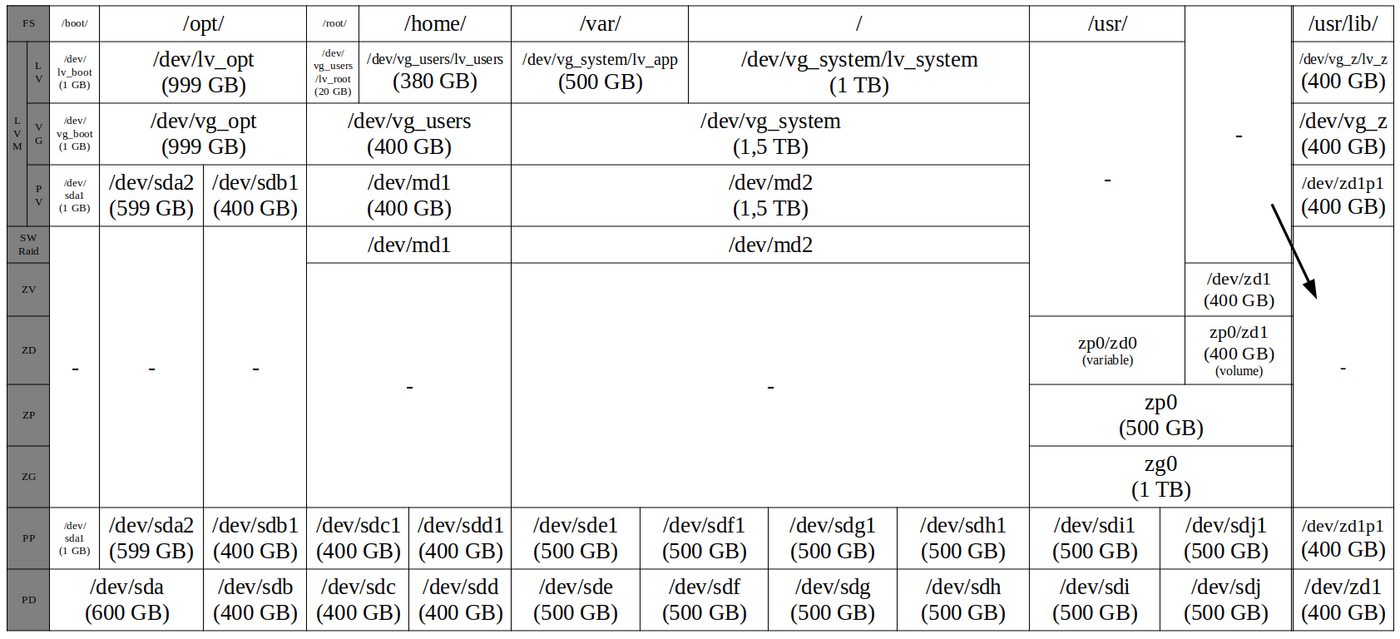
In the table above, /dev/zd1 represents a ZFS volume (also known as zvol). This is a virtual disk on top of ZFS dataset (ZD) and a zpool (ZP), that is seen as a normal physical disk (PD) by the Operating System. This feature is not available on the OVHcloud API and we do not plan on implementing it.
OS & Partitioning Compatibility
Since partitioning configuration will be visible by the OS, the chosen OS for reinstallation has an impact on the possibilities you have in your partitioning customisation.
In the /dedicated/installationTemplate section, you can display storage details such as LVM compatibility and filesystem availability for a specific OS:
Example:
| Attribute | Description |
|---|---|
| filesystems | File system types compatible with this operating system |
| lvmReady | Whether this operating system is compatible with LVM or not |
| noPartitioning | When true, operating system doesn't support custom partitioning |
| softRaidOnlyMirroring | When true, operating system partially supports custom partitioning (only software RAID levels 0 and 1 can be configured and assigned to the 2 first disks of the disk group) |
The following API call can be used to list the different operating system's partitioning scheme names. Most operating systems support custom partitioning configuration and therefore have only a single scheme named default. Only a few that don't support custom partitioning (noPartitioning set to true) can have multiple schemes.
The following API calls can be used to know which partitioning will be applied by default, if not customised or not customisable by OS.
LVM, RAID Levels & Filesystems Compatibility
The following table provides an overview of filesystem compatibility with RAID levels as well as LVM within the context of OVHcloud:
| Filesystem | LVM | RAID 0 | RAID 1 | RAID 5 | RAID 6 | RAID 7 | RAID 10 |
|---|---|---|---|---|---|---|---|
| Btrfs, ext4, XFS | ✅ | ✅ | ✅ | ✅ | ✅ | ❌ | ✅ |
| ZFS¹ | ❌ | ✅ | ✅ | ✅ | ✅ | ✅ | ❌ |
| swap | ❌ | ⚠️² | ❌ | ❌ | ❌ | ❌ | ❌ |
| NTFS | ❌ | ❌ | ✅³ | ❌ | ❌ | ❌ | ❌ |
| UFS, VMFS5, VMFS6, VMFS-L⁴ | ❌ | ❌ | ❌ | ❌ | ❌ | ❌ | ❌ |
¹ See the ZFS vdevs vs standard RAID table for more details.
² The RAID level for swap can only be set to 1 within the OVHcloud API. In reality, the swap partitions will not use RAID. When a swap partition with size s is defined on a server with n disks, this will create n partitions of size s on every disk without any software RAID device underneath.
³ Windows native RAID (the one configured by the OVHcloud installer) supports RAID 1 but only between two disks while other implementations allow for more than two.
⁴ The ESXi installer does not support custom partitioning schemes. Partitioning is defined by the software publisher. Nevertheless, the OVHcloud API can give you an idea of what the partitioning looks like: see OS & Partitioning Compatibility for more details.
This table is only provided for information purposes. Please note that LVM and especially filesystem compatibility also depend on the OS (OVHcloud template) being installed. See OS & Partitioning Compatibility for more details.
ZFS vdevs vs standard RAID
ZFS does not support standard RAID levels. It uses virtual devices (vdevs) to describe fault tolerance within a group of devices. See the official OpenZFS documentation for more details about vdevs.
In order to make the OVHcloud API as simple as possible, customers must define a standard RAID within the API for ZFS filesystems. The standard RAID level will then be translated to an equivalent vdev definition. The following table illustrates the translation of the various RAID levels offered by the OVHcloud API as well as a reminder of their respective characteristics.
| Standard RAID | Equivalent vdev type | Minimal Number of data disks | Number of parity disks | Total minimum number of disks required |
|---|---|---|---|---|
| RAID 0 | striped vdev | 1 | 0 | 1 |
| RAID 1 | mirror | 2 | 0 | 2 |
| RAID 5 | raidz1 | 2 | 1 | 3 |
| RAID 6 | raidz2 | 3 | 2 | 5 |
| RAID 7 | raidz3 | 4 | 3 | 7 |
| RAID 10 | ❌ | 4 | 0 | 4 |
API & Partitioning
Example of OS installation with a custom partitioning layout:
size 0 means that the partition will fill all the remaining space on the involved disks.
Up to 1 partition can be configured to fill the remaining space (size 0).
If not specified, raidLevel will be set to 1.
In this example, only the 2 first disks of the disk group will be involved in the partitioning (ie. in the software RAID).
The disks parameter can be omitted if you want to involve all the disks of the disk group in the software RAID.
As you can see, a partitioning layout is a list of partitions. Here is an example of a partition structure:
The extras sub-hash is optional. It can be used to specify that the partition will be a logical volume (and its name). It can also be used for ZFS:
In this example, the / mount point will target a ZFS dataset in a zpool named "poule" in a raidz1. Please check ZFS vdevs vs standard RAID to get the matching between raidz and standard RAID levels.
If the zpool name is not specified, a custom zpool name will be automatically generated. By default, the algorithm attempts to group different datasets within the same zpool, except for datasets containing / or /boot which are placed in separate zpools. This allows advanced ZFS features that are incompatible with the bootloader to be enabled on the other zpools.
You can exploit the custom zpool name value to:
- group datasets with same raid levels: use the same zpool name,
- force datasets with same raid levels to be in distinct zpools: use different zpool names.
Error handling
Basic customer input data errors are directly handled by the OVHcloud API. This is the most common and easiest situation as customers can see the error synchronously and retry immediately.
Customer input data related to partitioning might be too specific to be checked by the OVHcloud API and therefore require pre-processing time. The drawback is that customers are notified later during the OS reinstallation process.
Within the OVHcloud Control Panel, this is visible on the progress bar From the OVHcloud API, this status can be obtained with the following API call:
There are 2 types of errors:
- ovh errors: the customer is not responsible for the error, the customer can reinstall with another partitioning layout but OVHcloud will have to fix the bug.
- customer errors: the customer requested a partitioning layout that cannot be achieved or one that would prevent the server from booting properly.
In the next section we will only focus on the customer errors types related to the partitioning, because this is only helpful for the customer.
Common customer errors
The following table gives an overview of well-known customer errors and how to fix them.
| Error message | Details | Solution(s) |
|---|---|---|
Partition of type t with mountpoint m cannot fill the disk. | You have chosen the swap partition to fill the disk (or partition with size 0 when defined within the OVHcloud API), we disallow this to avoid creating unnecessarily large swap partitions. | - Set a fixed size for the swap partition |
message. Please adjust partitions so that the p partition fits on n disk(s) | You have chosen a partition with a RAID that requires a number of disks that your server can provide, but some disks are already full because of other partitions and/or this current partition. | - If it is not already set on another partition, set the partition size to fill the disk (or partition with size 0 when defined within the OVHcloud API) - Reduce the size of this partition so that it fits the disks - Reduce the size of other partitions so that this partition fits the disks |
Error with MBR partition table: Partition p is larger than 2TiB and this server does not support GPT | You have defined a partition with a size that exceeds 2TiB and you are trying to apply such partitioning to a server that doesn't support GPT. | - Reduce the partition to a size less than 2TiB - Apply this partitioning to another similar server that supports GPT |
Error with MBR partition table: partition p cannot end after 2 TiB (interval stop) and this server does not support GPT! OVHcloud also needs to add a cloud-init size cloud-init partition at the very end of the disk. Therefore all customer partitions must end before (2TiB - cloud-init size). | We need to add a config-drive partition at the end of 1 disk on your dedicated server. The last partition of your partitioning will end after the 2TiB position on disk. So appending a config-drive partition after the last partition will start after 2TiB position on disk and you are trying to apply such partitioning to a server that doesn't support GPT. | - Reduce the partition p size (or any other partition) so that the total sum of all partitions size is less than 2TiB- Do not define a partition that fills the disk (or partition with size 0 when defined within the OVHcloud API) for servers with disks bigger than 2TiB that don't support GPT |
/boot (or / if no /boot defined) partition cannot be larger than 2097151 MiB on this hardware | GRUB partition cannot be larger than 2 TiB with this hardware RAID controller. | - Create a separate /boot partition with a size less than 2TiB (1GiB should be enough) |
/boot (or / if no /boot defined) partition type cannot be XFS | GRUB partition doesn't support XFS filesystem type on this Operating System. This is the case for most of Debian-like OSes (Debian, Proxmox, Ubuntu). | - Create a separate /boot partition with filesystem other than XFS- Don't create a separate /boot partition but choose a filesystem other than XFS for the / partition |
Debian does not provide a precompiled ZFS module and this server does not have enough memory to compile it (8 GiB minimum required). Please use a different file system. | We always try to find the best balance between integration in the OVHcloud ecosystem, hardware compatibility and reduced OS image size while providing an image that is as similar as possible to the official cloud-ready image provided by the software publisher. The ZFS module is not contained in the official image. We don't want to make the image larger for customers not needing ZFS and we want to offer a ZFS-ready OS with configured ZFS partitioning for customers who want it. Therefore the ZFS module is compiled and installed during the OS reinstallation only for customers who require it. Since compilation requires memory in addition to that already used to run the rescue OS in memory, we have set the threshold at 8 GiB to guarantee smooth operation and customer experience. | - Remove all ZFS partitions or change their filesystems to something different than ZFS- Choose another OS that natively supports ZFS filesystems such as Ubuntu or Proxmox- Use a server with 8 GiB memory or more |
This operating system doesn't support md metadata version 1.2 for the / partition. Fallback to md version 0.90 is not possible because the / partition requires x MiB on every disk, exceeding the supported maximum of 4 TiB. | You have configured a / partition on top of a software RAID with an operating system that only supports md metadata version 0.9 for the / partition. Unfortunately this version of md metadata doesn't work when the size used per disk is larger than 4 TiB. | - Reduce the size of this partition so that it doesn't use more than 4 TiB per disk - Disable software raid, by restricting OS installation to 1 single disk - Choose another operating system |
Input customer auto-fixing
In order to improve customer experience, reduce OVHcloud support workload and to avoid introducing breaking changes for customers, some customer input is automatically fixed or changed by the backend. The following table gives an overview of what is currently auto-fixed/changed:
| Subject | Description |
|---|---|
| ZP grouping | All ZFS partitions with the same RAID level will be grouped within the same zpool (ZP) if possible depending on the size of the disks and if the same zpool name is provided or no zpool name is provided |
| LV grouping | All partitions of type lv with the same RAID level will be grouped within the same VG (if possible depending on the size of the disks) |
| VG expanding | In case of LV partitions with a RAID level of 0, the VG will span multiple PPs (therefore PDs) and no SR device will be created |
| VG Disk fill | Remaining disk space will be filled by a VG (if any LV exists). The size of LVs attached to the VG is not affected. |
| RAID level reducing | In case the customer chooses a partition with a RAID level that requires more disks than the server has, the RAID level will be automatically reduced in the following order: 6, 10, 5, 1, 0 (or raidz3, raidz2, raidz, mirror, striped vdev for ZFS) |
| PP size reducing | In case the customer chose a PP that requires more space than the server has, the size of this PP will be reduced so that it fits the disk. Note that in case several PPs require more space than the system has, the script will only act on the first partition, raising an error later in the script for the second oversized partition. Also note that an error will be raised if the customer set another partition to fill the disk via the OVHcloud API |
Go further
OVHcloud API & OS installation
Join our community of users.


 Managing and rebuilding software RAID on servers using legacy boot (BIOS) mode
 4907
4907