

Backup Agent - Linux CLI Assistant
4 Views
 21.04.2026
  Backup Agent
Objective
This guide explains how to use the ovh-ba-install.sh script provided by OVHcloud to install and manage the Veeam backup agent on your Linux server.
You will learn how to retrieve the installation URLs, run the installation in a single command, navigate the CLI assistant menu, and use the diagnostic tools.
Requirements
- An active Backup Agent service.
OVHcloud Control Panel Access
- Direct link: Backup Agent
- Navigation path:
Bare Metal Cloud>Backup Agent
On the server
| Item | Detail |
|---|---|
| OS | Linux compatible with Veeam Agent for Linux (see the Veeam system requirements and Backup Agent restrictions). |
| Privileges | Administrator access: installation commands generally use sudo. |
| Network | The server must be able to download the script and agent package (HTTPS) and reach the backup gateway VSPC (Veeam Service Provider Console) according to your offer's rules. |
| Terminal | An SSH session or server console, interactive for the menu. |
Minimal vocabulary
curl: program that downloads a file from a web address (https://…).sudo: "as administrator" — required to install system software.bash: shell that runs the script you give it.
Instructions
Overview of the ovh-ba-install.sh script
The ovh-ba-install.sh script is a command-line assistant that lets you:
- Install the Veeam Management Agent using the package URL from your Control Panel;
- Install the global
ovhbackupagentcommand on the server so you can open the same menu at any time (sudo ovhbackupagent); - Show a text menu: agent status, Veeam interface, diagnostics, help;
- Diagnose issues (connection to the infrastructure, logs, archive for support);
- Uninstall Veeam packages and, if you wish, the
ovhbackupagentshortcut (Uninstall Wizard).
The script simplifies installation and day-to-day monitoring on the machine; it does not replace configuring your backups in the Veeam Agent interface. Cancelling the service is done in the OVHcloud Control Panel, not through this script.
Retrieve the installation URLs
In the OVHcloud Control Panel, open your Backup Agent, go to the Agents tab, then click the Download button. In the window that opens, select Linux to display the command containing both URLs (script and Linux package).
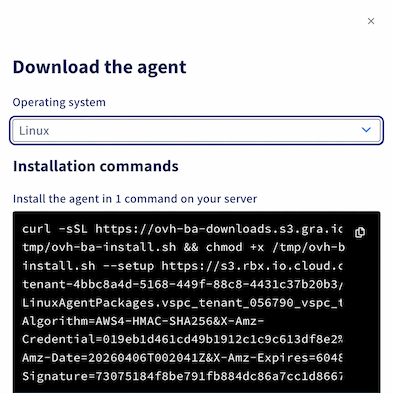
Copy and paste each URL separately into a text file before connecting over SSH.
One line to install your agent and assistant
Using the command line we provide, you can install the agent and the assistant at the same time. Replace SCRIPT_URL (in 2 places) and AGENT_PACKAGE_URL with the links copied earlier.
Example:
After a successful install
- A summary is shown for 15 seconds (what was done, menu role, key reminders).
- The Agent status screen opens to follow Veeam status (
veeamconsoleconfig -s), with automatic refresh. - Enter returns you to the main menu.
To open the assistant again later:
(If the command is not found, try sudo /usr/local/bin/ovhbackupagent or check that /usr/local/bin is in your PATH.)
Other useful commands
| Need | Example command |
|---|---|
Agents already installed, install only ovhbackupagent + menu | sudo bash ovh-ba-install.sh --setup-local |
| Help / README in the terminal | sudo bash ovh-ba-install.sh --readme |
Downloaded the script again?
If you run the script with no arguments in an interactive terminal (sudo bash ovh-ba-install.sh), a short welcome screen checks whether ovhbackupagent is still present and whether the Backup Agent is detected, then can offer to reinstall only the shortcut.
Step-by-step example: first install
Scenario: new Linux server; you have both URLs (script and Linux package) copied from the Download Agent window in your Control Panel.
1. Connect to the server over SSH with a user allowed to use sudo.
2. Replace SCRIPT_URL (in 2 places) and AGENT_PACKAGE_URL in the command below with your URLs, then run it.
3. Read the introduction, then press Enter to start the installation.
4. Wait for the Veeam steps to finish; the script then installs ovhbackupagent.
5. Read the summary for 15 seconds, then watch Agent status; the Backup Agent may appear after a few minutes (infrastructure-side deployment).
6. Press Enter to access the menu; use A to view status again, D for diagnostics if something is stuck.
Main menu
| Key | Role |
|---|---|
| A | Agent status (automatic refresh). |
| V | Open the Veeam interface on the server to manage your backups and restores (once the Backup Agent is ready). |
| D | Diagnostic submenu: VSPC test, support archive, log analysis, force-stop of a stuck backup. |
| I | Reinstall the Management Agent from a file or URL (advanced). |
| U | Uninstall Wizard: uninstall Veeam packages + optional removal of ovhbackupagent. |
| H | Built-in help / README. |
| Q | Quit. |
The status line at the top of the menu shows OK/KO for Management (veeamma) and Backup (veeam, veeam-libs) packages, plus an indicator related to the last backup job.
Troubleshooting and diagnostics
DthenT: connectivity test to the VSPC gateway.DthenB: generate an archive (logs + system information) to send to support.DthenI: analysis of known messages in the logs (agent.log,veeaminstaller.log, etc.).DthenJ: force-stop tool for a backup session (use with care).
For advanced diagnostics, see our Backup Agent troubleshooting guide.
Uninstall Wizard (key U)
- Removes your agent according to your OS family (yum/dnf, zypper, apt-get).
- Optional prompt to remove
/usr/local/bin/ovhbackupagentand the associated README.
Uninstalling the agents does not cancel your Backup Agent subscription. The service remains active with OVHcloud until you cancel it in the Control Panel. You can reinstall the agents later from your backup interface.
FAQ
Can I run the script without sudo?
No: system-level actions are required and need administrator privileges (sudo).
The menu exits immediately after a piped install — what to do?
You can reopen it with:
Where is the script once installed as a command?
Usually /usr/local/bin/ovhbackupagent.
Go further
Join our community of users.


 Backup Agent - How to configure your first backup
 215
215